

GTA 6 on PS5 can drop frames in big firefights, explosions and fast chases, and the controls can feel slow if your console and TV aren't set up right. Here is how to get more FPS and fewer drops in GTA 6 on PS5 and PS5 Pro: the in-game settings, the PS5 and TV settings that cut input lag, and the popular tips that do nothing.
Quick answer: to increase FPS and smoothness in GTA 6 on PS5, keep the game updated, set Motion Blur to 1 or 2, lower Hit Effects Intensity to 2 or 3, turn on your TV's Game Mode with motion smoothing off, use an HDMI 2.1 port, and keep your PS5 cool and dust-free. For the steadiest frame rate, the PS5 Pro holds GTA 6's target almost perfectly.
Where GTA 6 drops below 30 FPS on PS5
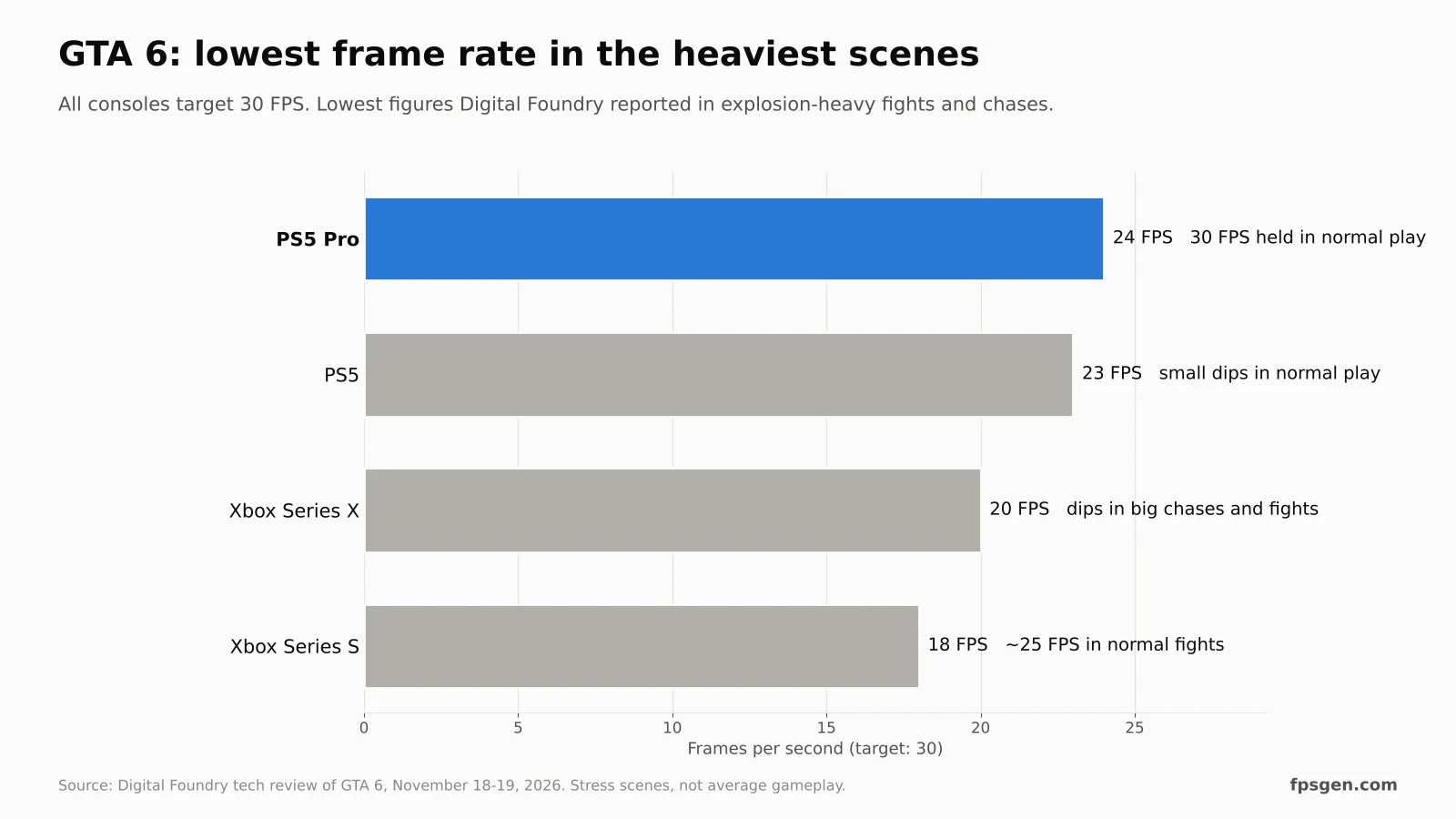
Digital Foundry's tests show where the base PS5 struggles:
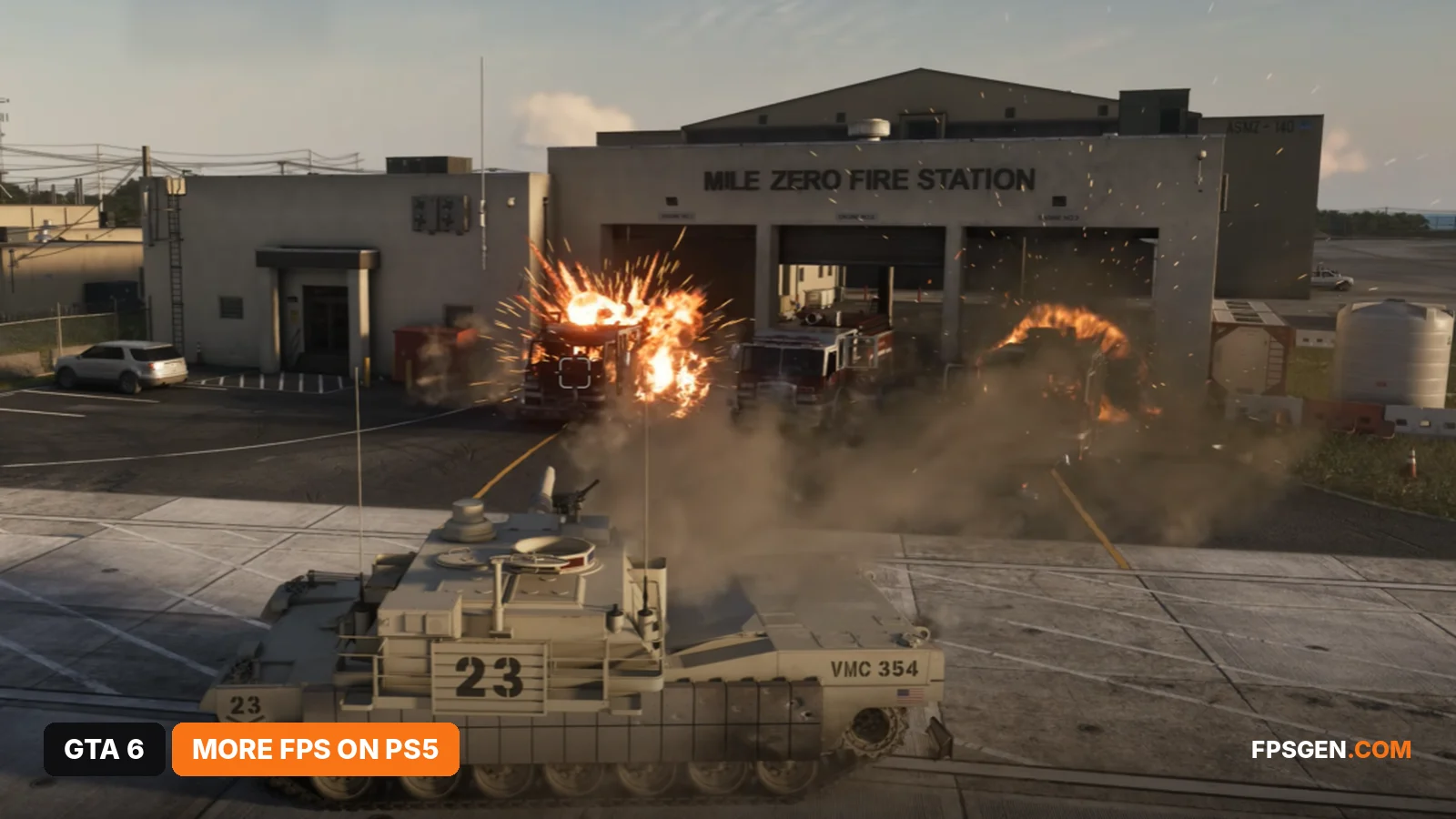
- Big explosions and firefights, especially with several cars blowing up at once: down to the mid-20s (23 FPS), sometimes until the action calms down.
- Small, short dips in normal play, when driving fast through dense parts of Vice City.
- The PS5 Pro holds a near-flawless 30 FPS and only dropped to 24 FPS in a deliberate stress test.
These drops come from the console's processor and graphics chip, so the steps below focus on keeping the frame rate as steady as possible and making every frame feel more responsive.
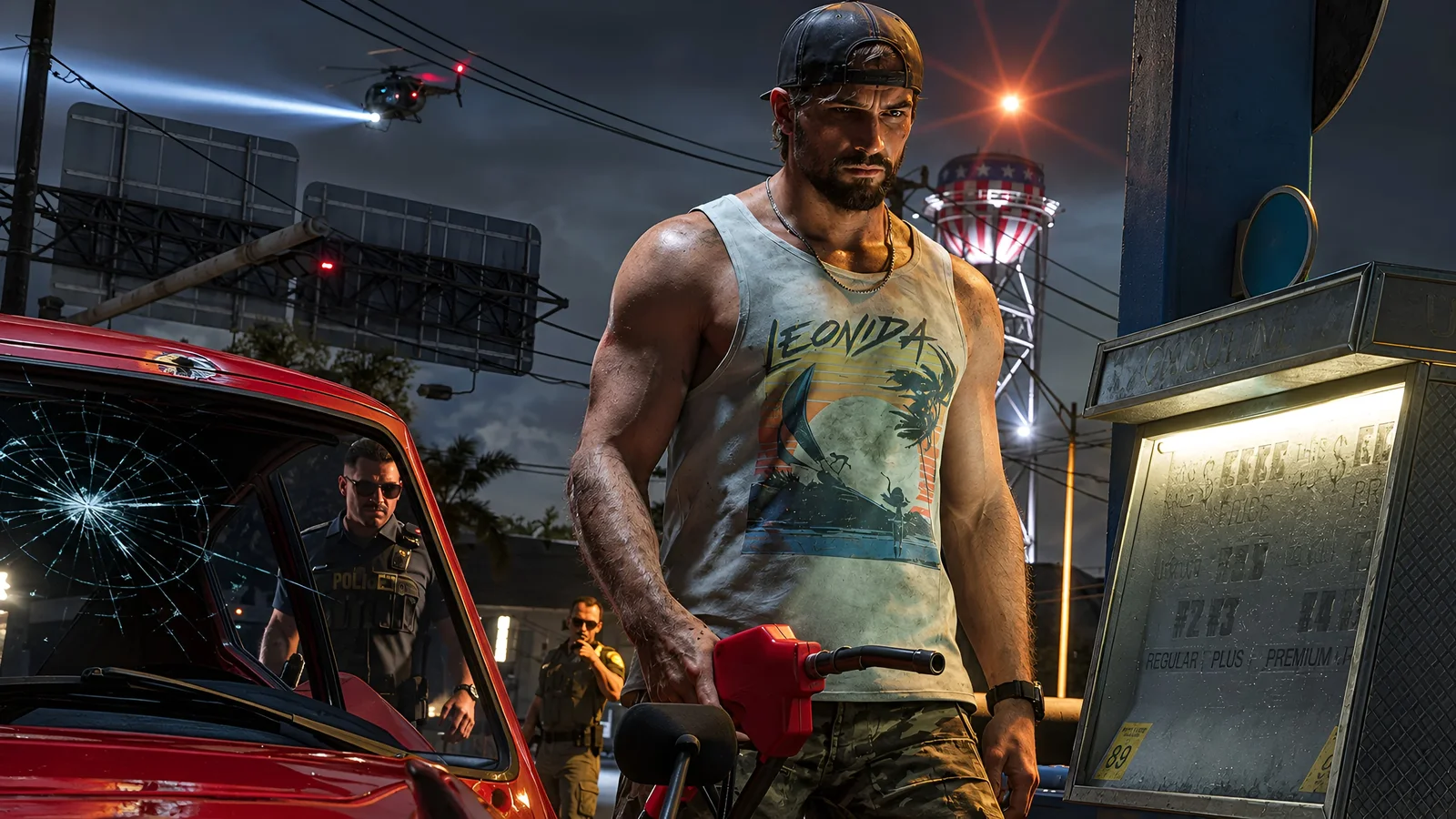
7 ways to increase FPS and smoothness in GTA 6 on PS5
- Set Motion Blur Strength to 1 or 2. In Settings > Display. At 30 FPS, a little blur hides the "steps" when you turn the camera fast. Prefer a sharp picture? Use 0. Try both for a minute of driving.
- Turn on your TV's Game Mode. It cuts input lag, which matters more at 30 FPS than at 60. Turn on ALLM so the TV switches by itself.
- Turn off motion smoothing on the TV (TruMotion, Motionflow, Auto Motion Plus). It adds lag and smears the picture.
- Use an HDMI 2.1 port on your TV, with the cable that came with the PS5. Many TVs have only one or two full-speed ports.
- Keep GTA 6 updated. Launch patches often improve frame pacing: check Options > Check for Update on the game tile.
- Lower Hit Effects Intensity to 2 or 3 (Settings > Display). Fights look cleaner and drops are less noticeable.
- Give the PS5 room to breathe. Keep 10 cm free around the vents and clean the dust, so the console stays cool and stable in long sessions.
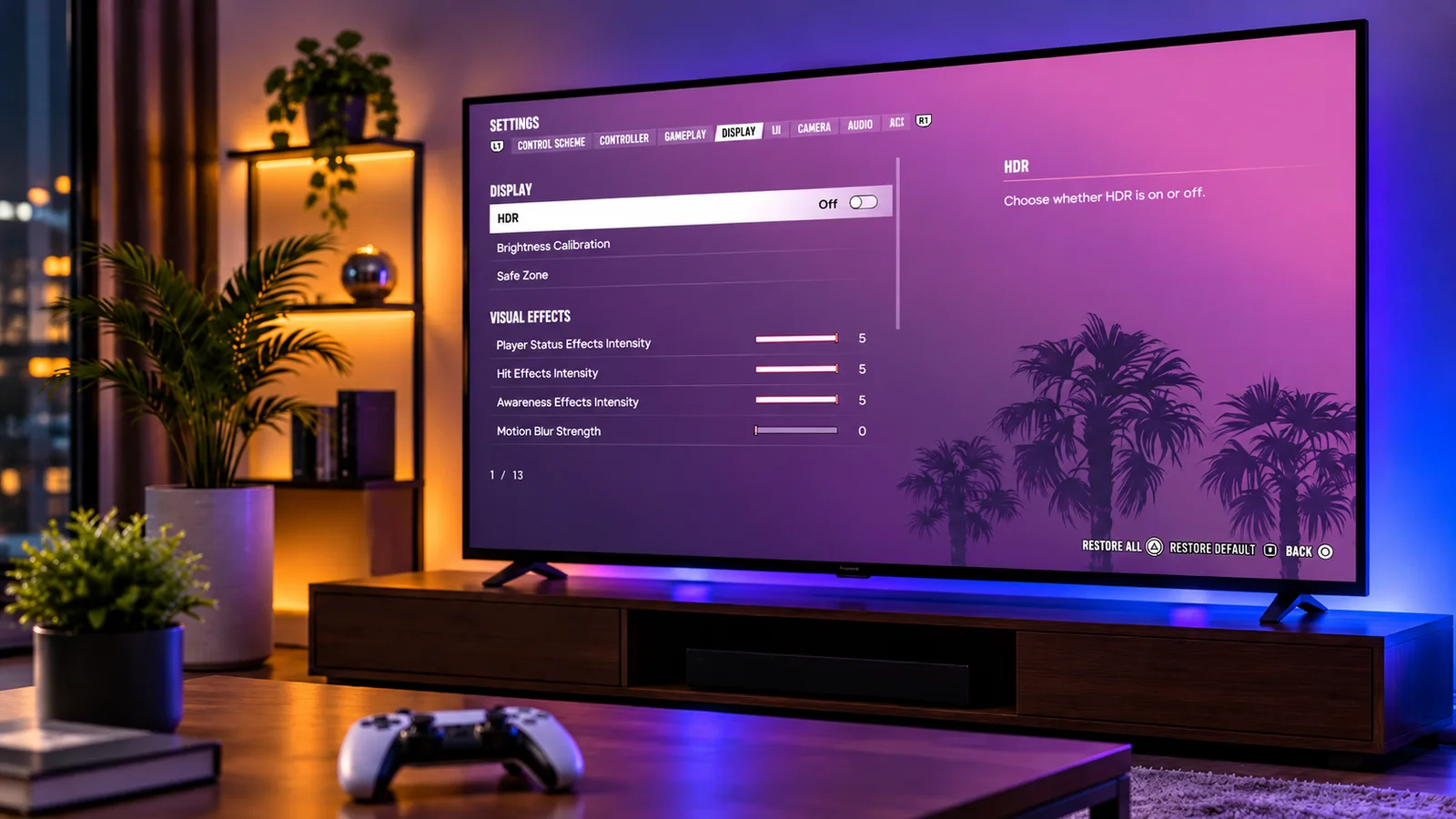
Every setting with our recommended values: GTA 6 Best Settings for PS5 and PS5 Pro.
Can you get 60 FPS in GTA 6 on PS5?
Not yet, but it could come in a future update. At launch, GTA 6 runs at 30 FPS on PS5 and PS5 Pro, with no performance mode in the menu. But players digging into the pre-load files found a 120 Hz output setting, and reports suggest it could be used for a 40 FPS or higher frame rate mode on PS5 Pro and 120 Hz TVs in a later patch. Rockstar has not announced it yet, and Rockstar has added performance options later before: GTA 5 got a 60 FPS performance mode with its PS5 and Xbox Series X|S version.
Until then, the steps above are the best way to get the most FPS out of GTA 6 on PS5. We will update this page as soon as Rockstar adds a new mode. Latest news: GTA 6 frame rate on PS5 Pro.
PS5 tips you can skip
| "Fix" you'll see online | Does it work? |
|---|---|
| Set the PS5 to Performance Mode in Game Presets | No. GTA 6 has no modes, so the preset is ignored |
| Set the PS5 output to 1080p | No. The game still renders the same image; it only looks softer |
| Turn HDR off | No effect on frame rate |
| Turn VRR on | No. GTA 6 doesn't support VRR, and 30 FPS is below the range of most TVs anyway |
| 120 Hz output | No effect at launch. Leave it on Automatic in case a future patch uses it |
| Rebuild the database / clear the cache | No proven effect on GTA 6's frame rate |
| Move the game to an M.2 SSD | Same FPS as the internal drive. Only useful for space: Best PS5 SSD for GTA 6 |
Is the PS5 Pro worth it for better FPS?
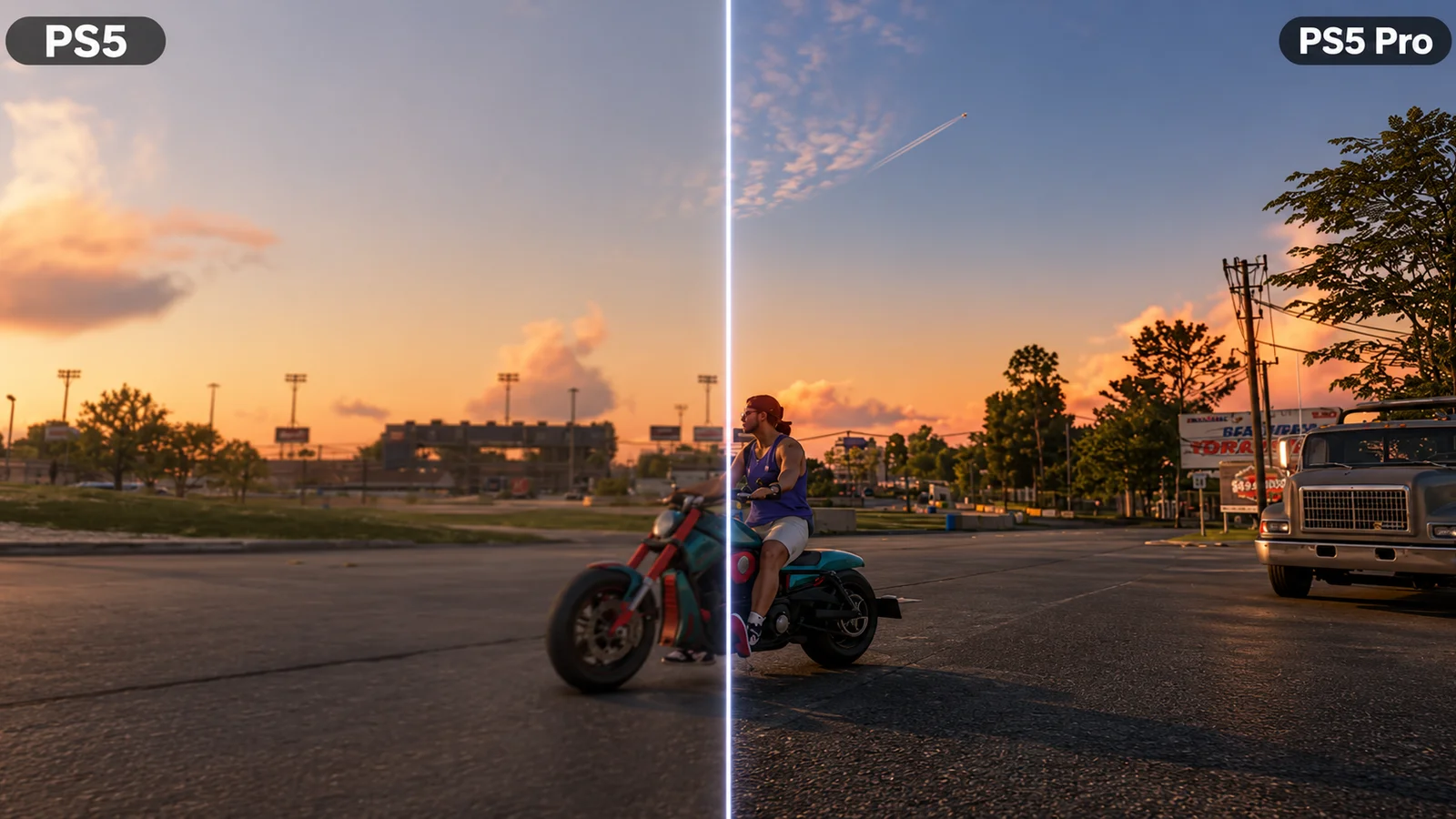
It is the biggest FPS upgrade for GTA 6 on PlayStation: it holds the frame rate where the base PS5 dips, and adds PSSR 2 for a sharper 4K image and ray-traced shadows. If the drops in big fights bother you, that is the upgrade that fixes them. Side-by-side screenshots: GTA 6 PS5 vs PS5 Pro vs Xbox Series X|S.
FAQ
How do I increase FPS in GTA 6 on PS5?
Keep the game updated, set motion blur to 1-2 and Hit Effects to 2-3, turn on TV Game Mode with motion smoothing off, use an HDMI 2.1 port and keep the PS5 cool.
Does GTA 6 have a performance mode on PS5?
Not at launch. The 120 Hz setting found in the game files suggests one could arrive in a later patch.
Why does GTA 6 lag on my PS5?
Mostly in big explosions and firefights, where the base PS5 drops to the mid-20s. If the controls feel slow all the time, your TV is probably not in Game Mode.
Can you get 60 FPS in GTA 6 on PS5?
Not at launch, but it is possible in a future update. A 120 Hz setting found in the game files points to a higher frame rate mode that Rockstar could add later.
Does VRR help GTA 6 on PS5?
No. GTA 6 doesn't support VRR on PS5, and 30 FPS is below the VRR range of most TVs.
Does GTA 6 run better on PS5 Pro?
Yes, it holds 30 FPS almost perfectly and looks sharper, but it is still capped at 30 FPS.
Sources: Rockstar's 30 FPS target; frame rates from Digital Foundry's GTA 6 tech review via TweakTown and MobiDevices; pre-load file findings (120 Hz, no VRR) via TweakTown; PS5 and TV setup from XDA. Last checked November 19, 2026.

Gaming writer at FpsGen. Guides and reviews are built on official sources, patch notes and real player data.
Comments
No comments yet. Start the conversation.