

Frame generation can double your FPS counter, or more, in one click. But those extra frames are not the same as real ones: they make the game look smoother without making it react faster. Here is what frame generation does, when to turn it on and when to leave it off, for DLSS, FSR, XeSS and the driver options AFMF and Smooth Motion.
Quick answer: turn frame generation ON in single-player and open-world games when you already get at least 60 FPS without it, ideally with a high refresh rate monitor (120 Hz or more). Turn it OFF in competitive shooters, when your base frame rate is below 40-50 FPS, and on a 60 Hz screen. Always keep NVIDIA Reflex or AMD Anti-Lag 2 on with it.
What frame generation does
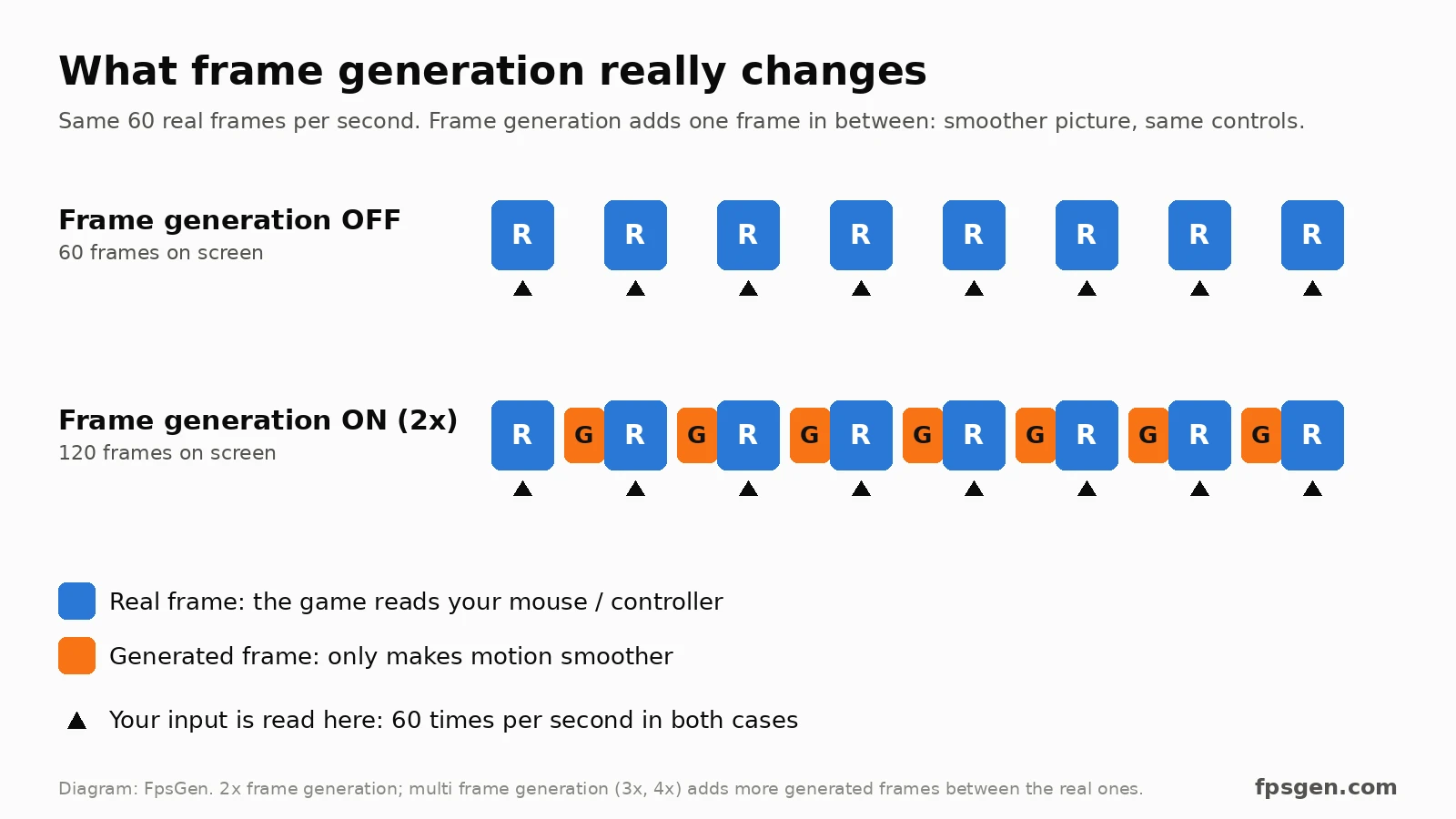
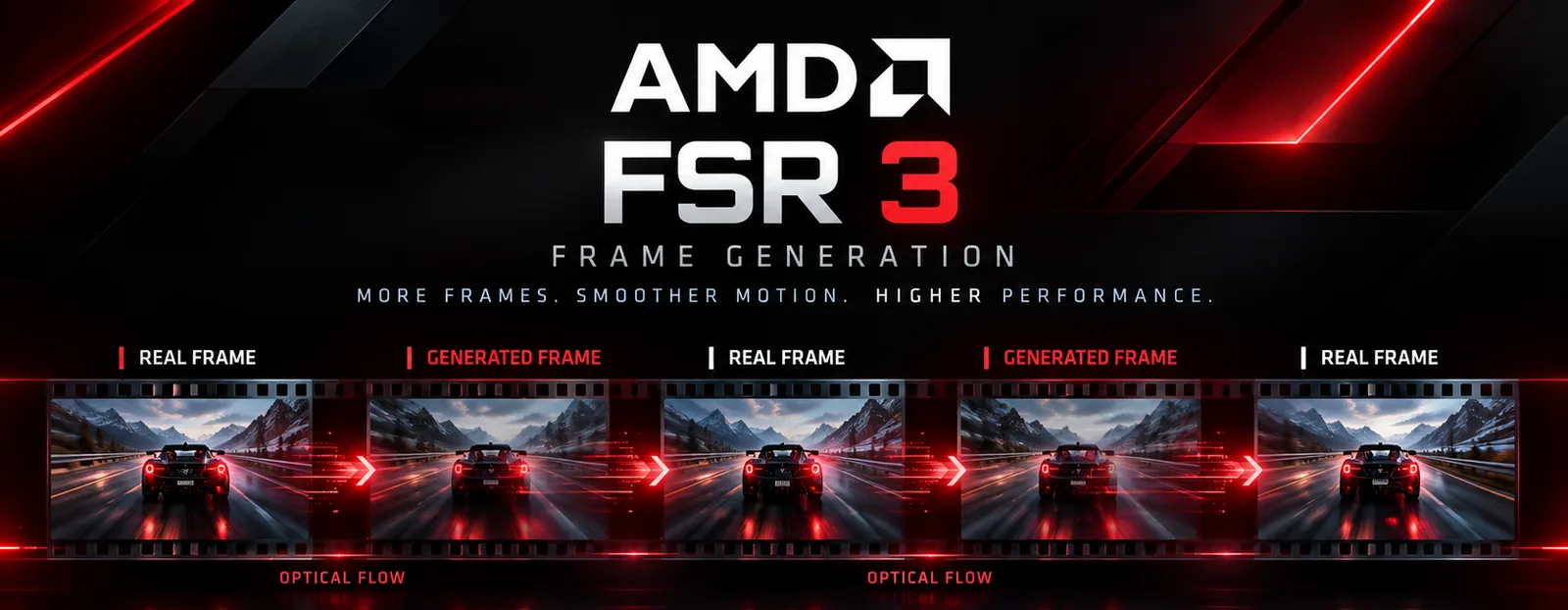
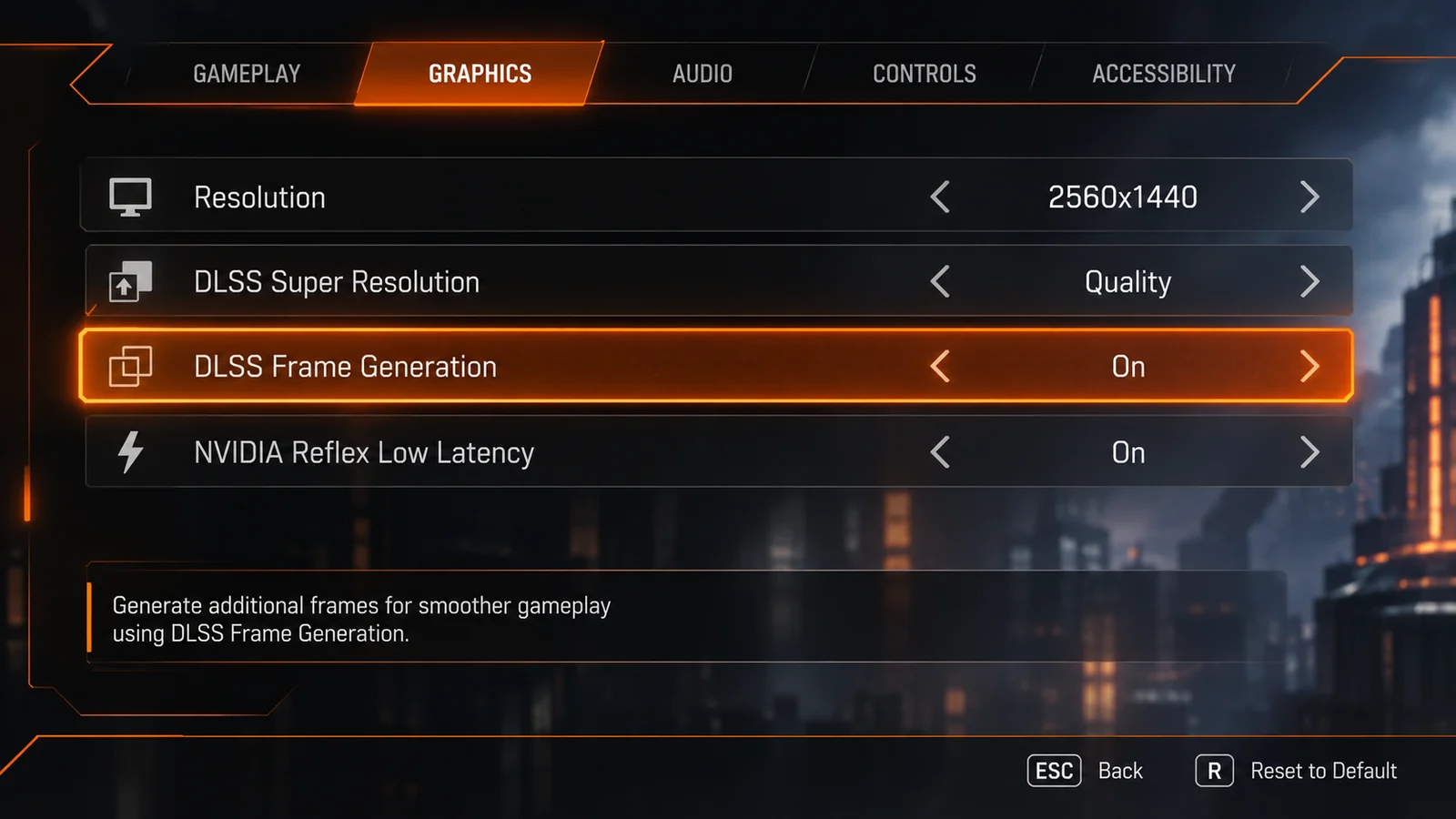
Your graphics card renders a real frame, then frame generation creates extra frames in between using motion data from the game. With 2x frame generation, 60 real frames become 120 on screen; with multi frame generation (3x, 4x), even more.
The catch: the game only reads your mouse and controller on the real frames. So at 60 real FPS shown as 120, the picture looks like 120 FPS, but the controls still feel like 60, plus a little extra delay, because the card has to hold back one real frame to create the one in between. Reflex and Anti-Lag 2 win most of that delay back.
Frame generation on or off? By game
| Situation | Frame generation | Why |
|---|---|---|
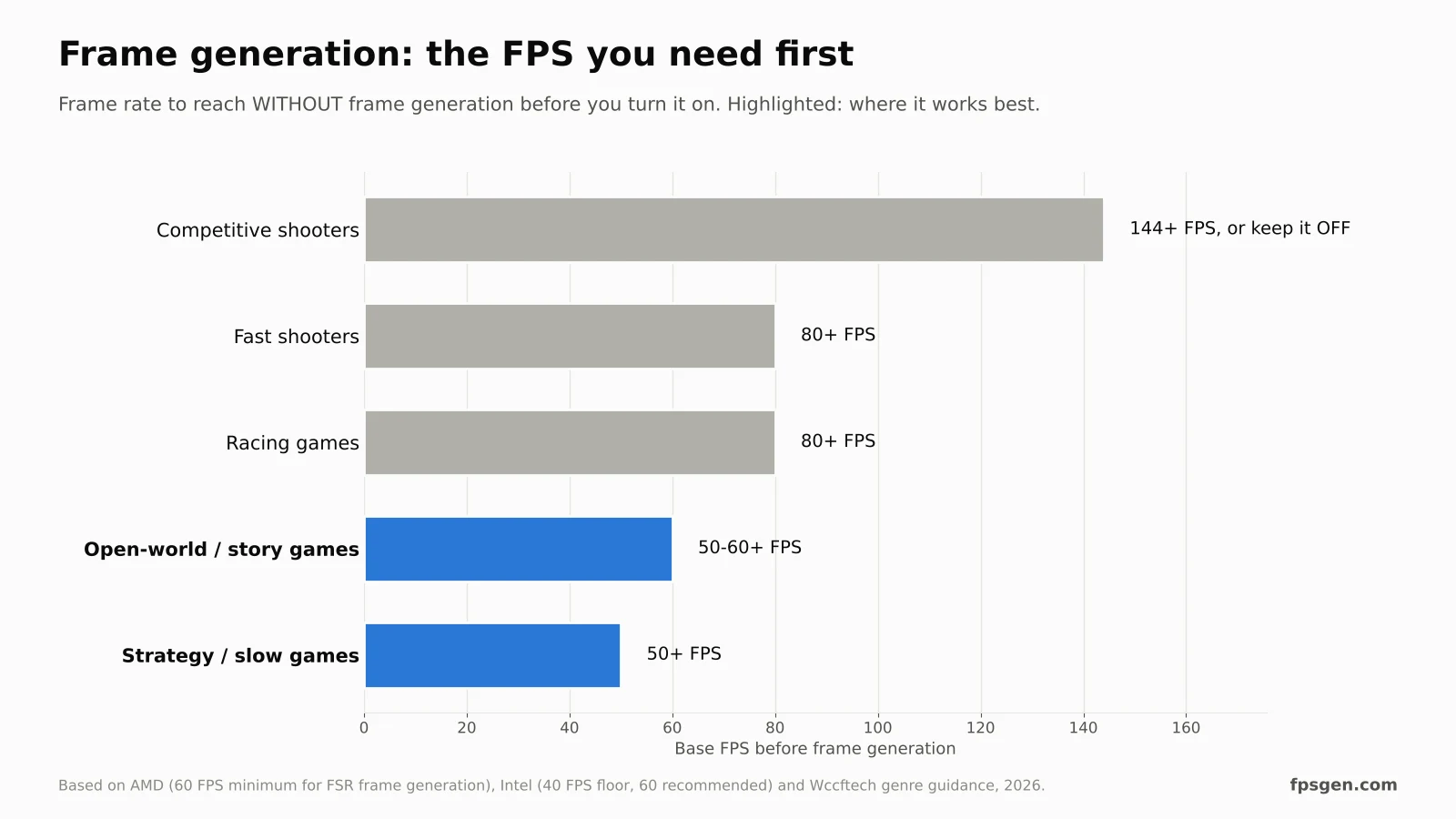
| Single-player, open world (Cyberpunk 2077, Alan Wake 2, Monster Hunter Wilds) at 60+ FPS | ON | Smoother picture, a little extra delay you won't notice with a controller |
| Strategy, city builders, slow games at 50+ FPS | ON | Delay does not matter |
| Racing and fast shooters | ON only at 80+ FPS | You feel the delay at lower frame rates |
| Competitive shooters (Valorant, CS2, Warzone, Marvel Rivals ranked) | OFF | Every millisecond of delay counts |
| Base frame rate below 40 FPS | OFF | More smearing and a lot of delay; lower your settings instead |
| 60 Hz monitor or TV | Usually OFF | You can't see more than 60 frames, but you still get the delay |
| Stutter, CPU bottleneck or shader hitches | OFF | Frame generation does not fix them |
Which frame generation can your graphics card use?
| Technology | Graphics cards | Multiplier | Where to turn it on |
|---|---|---|---|
| DLSS Frame Generation | NVIDIA RTX 40 and 50 | 2x | In the game's graphics menu |
| DLSS Multi Frame Generation | NVIDIA RTX 50 | 3x, 4x and more | In the game's graphics menu |
| FSR Frame Generation (FSR 3.1) | Almost any recent card: AMD, NVIDIA and Intel | 2x | In the game's graphics menu |
| FSR Redstone AI frame generation | AMD RX 9000 | 2x | In the game, or forced from AMD Software |
| XeSS Frame Generation | Intel Arc, and other cards in some games | 2x (3x/4x on Intel only) | In the game's graphics menu |
| AMD Fluid Motion Frames (AFMF) | AMD RX 6000 and newer | 2x | AMD Software, works in most DX11/DX12/Vulkan games |
| NVIDIA Smooth Motion | NVIDIA RTX | 2x | NVIDIA App, per game |
In-game frame generation looks better than the driver versions (AFMF, Smooth Motion), because it uses the game's own motion data and leaves the HUD alone. Use the driver versions only for games that have no frame generation of their own. How FSR's modes work: AMD FSR Explained and How to Enable FSR 4.
The best settings with frame generation
NVIDIA (DLSS Frame Generation)
- Turn on Hardware-Accelerated GPU Scheduling in Windows: DLSS Frame Generation does not work without it. See HAGS On or Off.
- Reflex turns on automatically with frame generation: leave it on.
- With a G-Sync monitor: G-Sync on, V-Sync on in the NVIDIA App and off in the game. Reflex then caps the frame rate just under your refresh rate by itself. More in G-Sync On or Off.
- Don't add an extra FPS limiter on top: it can fight with frame generation.
AMD (FSR Frame Generation, AFMF)
- Turn on Anti-Lag 2 if the game has it, and HAGS in Windows.
- With FreeSync and steady frame times: FreeSync on, V-Sync on. If it feels uneven, try V-Sync off.
- For AFMF, V-Sync must be off in the game and in AMD Software.
Every card: set upscaling first (DLSS, FSR or XeSS on Quality or Balanced) to reach 60 real FPS, then add frame generation on top. Check your monitor's best FPS limit with the FPS Cap Calculator.
Common problems
- The option is greyed out: on NVIDIA, check that you have an RTX 40 or 50 card and that HAGS is on. On older cards, use FSR frame generation if the game has it.
- Ghosting or smearing around the HUD, crosshair or subtitles: typical of driver frame generation (AFMF, Smooth Motion). Use the game's own frame generation, or turn it off.
- It feels laggy: your base frame rate is too low. Lower the settings or the upscaling mode until you reach 60 FPS without frame generation.
- Stutter or crashes on an 8 GB card: frame generation uses extra video memory (about 120 MB at 1080p to 460 MB at 4K for FSR 3.1). Lower texture quality or ray tracing. See How Much VRAM Do You Need.
FAQ
Should I turn frame generation on or off?
On in single-player games when you already have 60 FPS or more without it, and a 120 Hz or faster monitor. Off in competitive shooters and when your base frame rate is low.
Does frame generation add input lag?
Yes, a little: the controls follow the real frames, and the card holds back one frame to create the one in between. Reflex or Anti-Lag 2 removes most of the extra delay.
Should I turn on FSR frame generation?
Yes if you get 60 FPS or more without it in a single-player game. AMD recommends at least 60 FPS before frame generation. Leave it off in competitive games.
Is frame generation good for competitive games?
No. The extra frames do not make the game react faster, and the added delay works against you. Use upscaling and lower settings instead.
Can I use DLSS Frame Generation on an RTX 30 or 20 card?
No. DLSS Frame Generation needs an RTX 40 or 50 card, and Multi Frame Generation an RTX 50 card. On older NVIDIA cards, use FSR frame generation if the game offers it.
Should I use AFMF or in-game frame generation?
In-game frame generation when the game has it: it looks better and adds less delay. AFMF is a good extra for games that have none.
Sources: AMD on the 60 FPS minimum for FSR frame generation and FSR 3.1 memory use, Intel's XeSS Frame Generation guidance, and NVIDIA's requirements for DLSS Frame Generation (RTX 40/50, HAGS, Reflex), as summarised by Wccftech (July 2026) and Valhalla PC (March 2026). Last checked November 19, 2026.

Gaming writer at FpsGen. Guides and reviews are built on official sources, patch notes and real player data.
Comments
No comments yet. Start the conversation.