

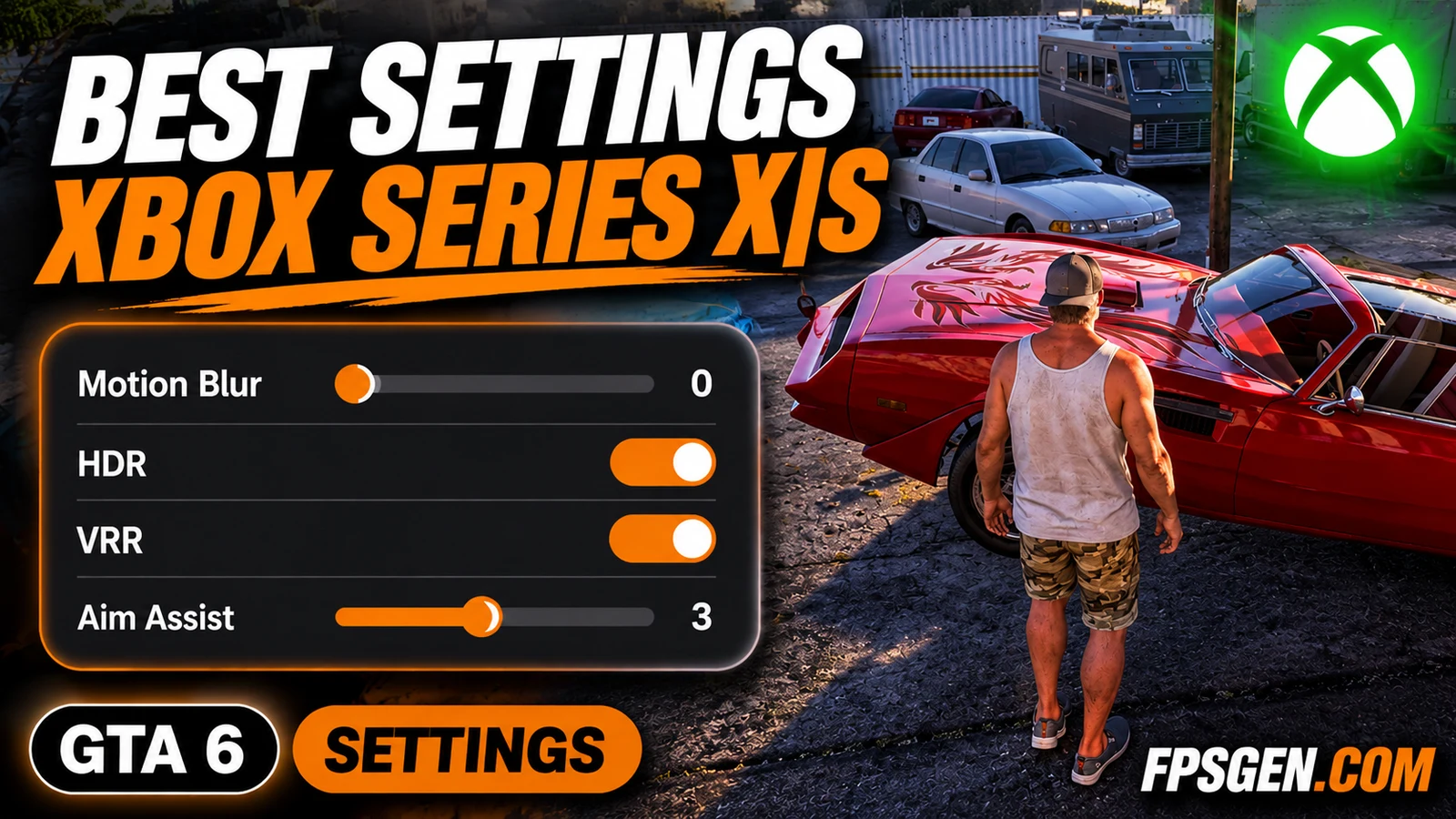
GTA 6 targets 30 FPS on Xbox Series X and Series S, with no graphics or performance mode to choose. What you can change is how sharp and responsive those 30 frames feel: a few in-game options, the right Xbox video and audio settings, and your TV. On Series S, a couple of choices matter even more, because it renders at 720p. Here is what to set on Xbox Series X|S.
Quick answer: in GTA 6, set Motion Blur Strength to 0, turn HDR on and run Brightness Calibration, and use Partial aiming with Aim Assist around 3. On the Xbox, run Calibrate HDR for games, allow VRR and Auto Low Latency Mode, and pick Dolby Atmos or Windows Sonic for headphones. On Series S, keep the game on the internal SSD or an expansion card and, on a 4K TV, turn the TV's sharpness up a little to offset the 720p image.
Best GTA 6 settings for Xbox at a glance
| Setting | Where | Best value |
|---|---|---|
| Motion Blur Strength | GTA 6 Settings > Display | 0 (or 1–2 if 30 FPS feels choppy) |
| HDR + Brightness Calibration | GTA 6 Settings > Display | On + run it once |
| Hit Effects Intensity | GTA 6 Settings > Display | 2–3 (default 5) |
| Aiming method / Aim Assist | GTA 6 Settings > Control Scheme | Partial / 3 |
| Subtitles, UI Text Size | GTA 6 Settings > UI | On / bigger on a far TV |
| Calibrate HDR for games | Xbox Settings > General > TV & display options | Run it |
| Allow 4K, HDR10, VRR, ALLM | Xbox Settings > TV & display options > Video modes | On |
| Headset format | Xbox Settings > General > Volume & audio output | Windows Sonic or Dolby Atmos |
In-game settings
The GTA 6 menu is the same on every console. The ones that matter most on Xbox:
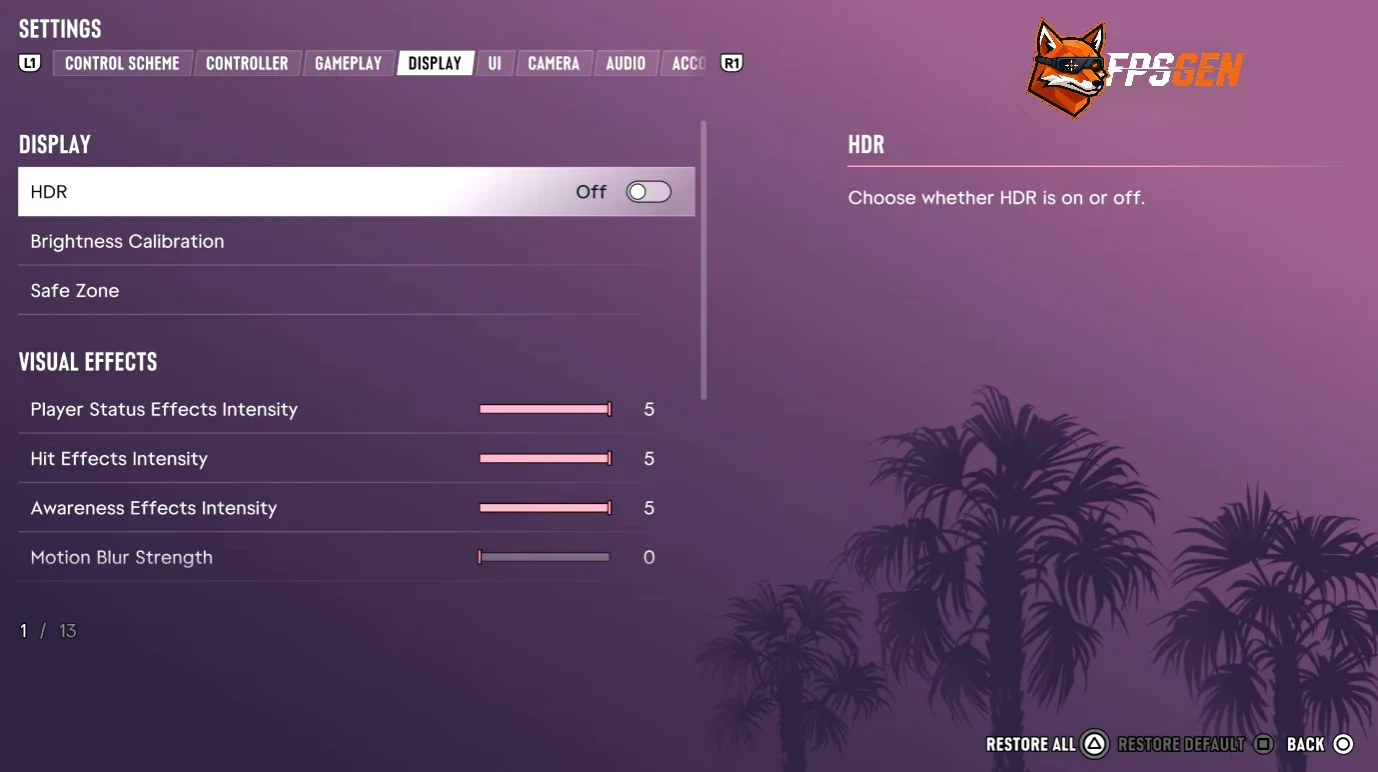
- Motion Blur Strength: 0 for the sharpest image. On Series S, where the image is already softer, 0 is clearly better. If camera turns feel choppy at 30 FPS, try 1 or 2.
- HDR and Brightness Calibration: turn HDR on if your TV supports it and run the calibration with the lights off. GTA 6's HDR reaches more than 1,500 nits in highlights.
- Hit, Player Status and Awareness Effects Intensity: 0 to 5, all at 5 by default. Lower Hit Effects if fights look too busy.
- Aiming method: Partial, with Aim Assist Strength at 3. On Series S, where the frame rate drops more in big fights, a little more assist (4) helps.
- Camera Shake: off if you get motion sick. Lower the cinematic kill and crash cameras if they break the action.
- UI Text Size and Subtitles: raise the text size on a 1080p TV seen from the sofa, and turn subtitles on.
Full details of every option, and the PS5 system settings, in GTA 6 Best Settings for PS5 and PS5 Pro.
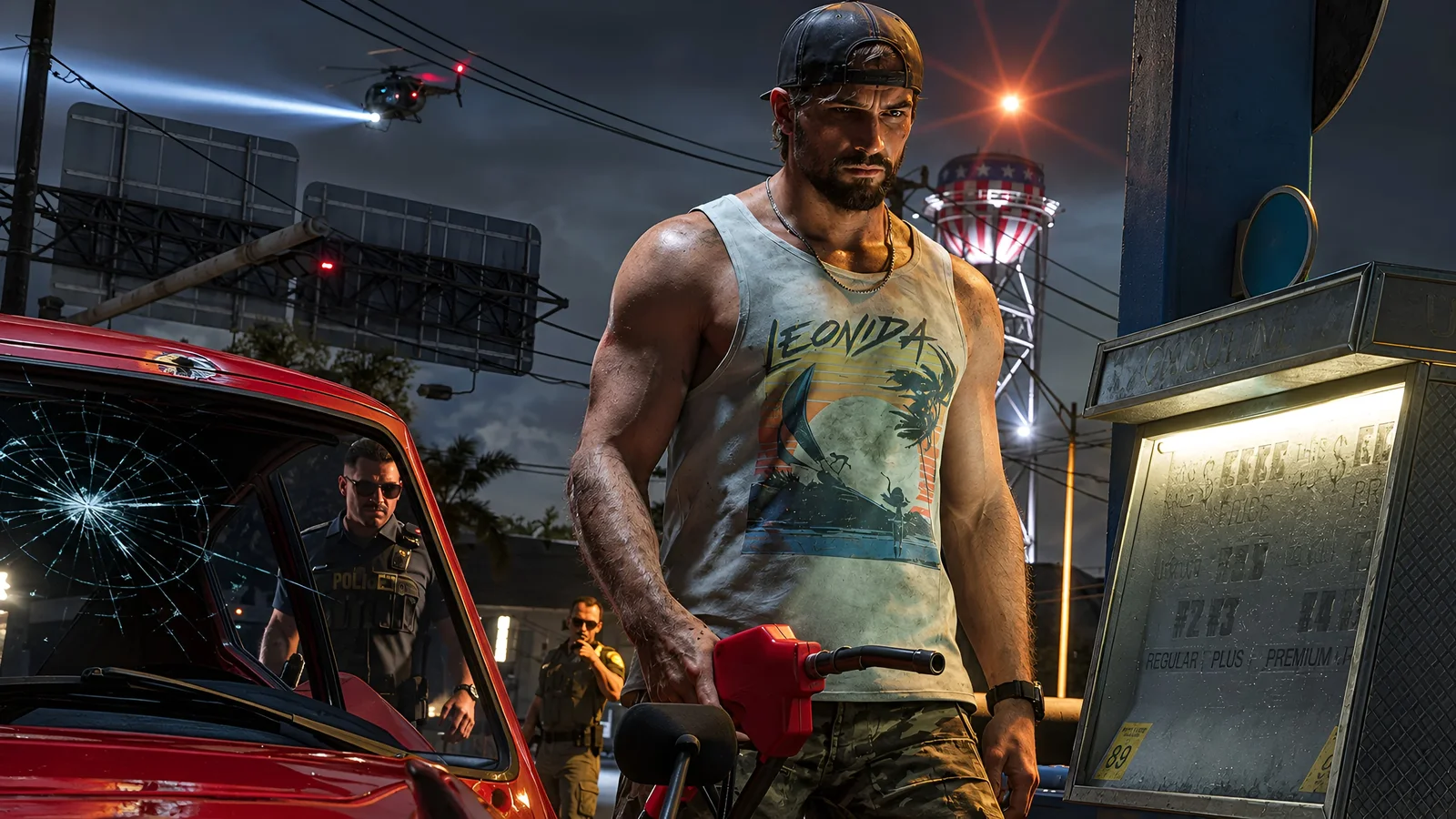
Xbox system settings
Open Settings > General > TV & display options:
- Calibrate HDR for games: run it before your first session. It tells games how bright your TV can go.
- Video modes: turn on Allow 4K, Allow HDR10, Allow variable refresh rate and Allow auto-low-latency mode. Auto HDR doesn't matter here: GTA 6 has real HDR.
- Refresh rate: 120 Hz is fine if your TV supports it; it won't raise the 30 FPS cap.
Then Settings > General > Volume & audio output > Headset format: pick Windows Sonic for Headphones (free) or Dolby Atmos for Headphones for better positional sound in fights.
Quick Resume: Rockstar lists it among the Xbox Series X|S features of GTA 6, so you can switch to another game and jump back in seconds.
Xbox Series X
The Series X renders GTA 6 at 1440p and upscales to 4K, with ray-traced lighting and reflections, like the PS5. It holds 30 FPS most of the time and dips to about 20 FPS only in the heaviest fights. On a 4K TV, keep the TV's sharpness at its default: the image is already clean.
Xbox Series S: get the most out of 720p
The Series S renders at 720p and upscales to 1080p with FSR 4. It is the weakest version, but a few choices help:
- On a 1080p TV or monitor, the Series S looks its best, because there is no extra upscaling.
- On a 4K TV, the TV stretches the 1080p image. Raise the TV's sharpness by a few steps, and keep motion blur at 0.
- Storage: GTA 6 takes up to 212 GB, about 58% of the free space on a 512 GB Series S. It must run from the internal SSD or a Storage Expansion Card; a USB drive can only store it, not run it.
- Frame rate: expect about 25 FPS in ordinary fights and car chases and 18–19 FPS at worst. There is no setting to change this.
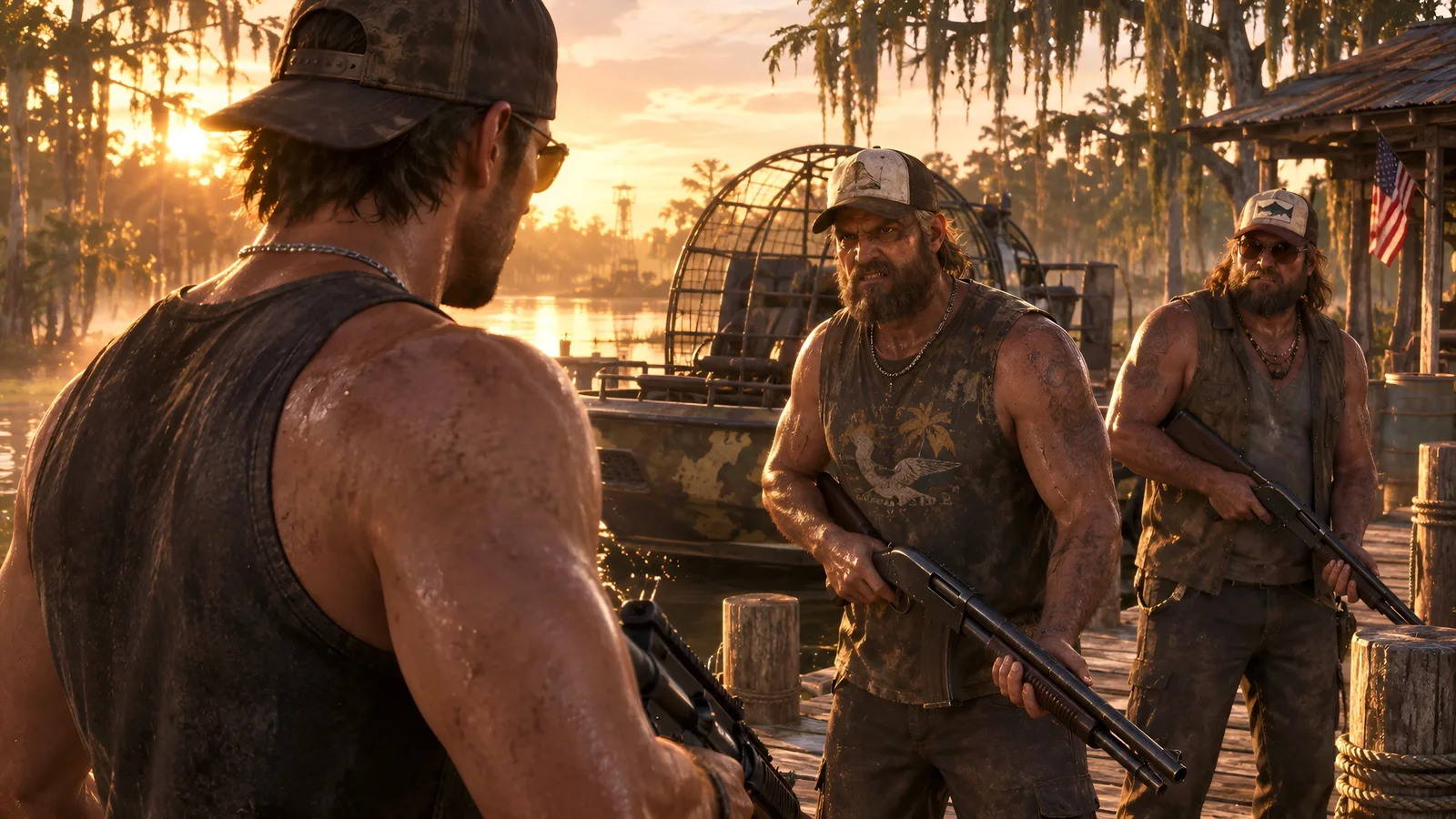
More on storage and performance: GTA 6 on Xbox Series S and GTA 6 File Size.
TV settings
- Game Mode on (or let ALLM switch it on by itself).
- Motion smoothing off: TruMotion, Auto Motion Plus or Motionflow, depending on your TV.
- HGiG on if your TV has it, then run Calibrate HDR for games again.
Is there a performance mode on Xbox?
No. GTA 6 has no performance mode or 60 FPS mode on Xbox Series X or Series S. Every console targets 30 FPS. See how the four consoles compare in GTA 6 PS5 vs PS5 Pro vs Xbox Series X|S.
Every button
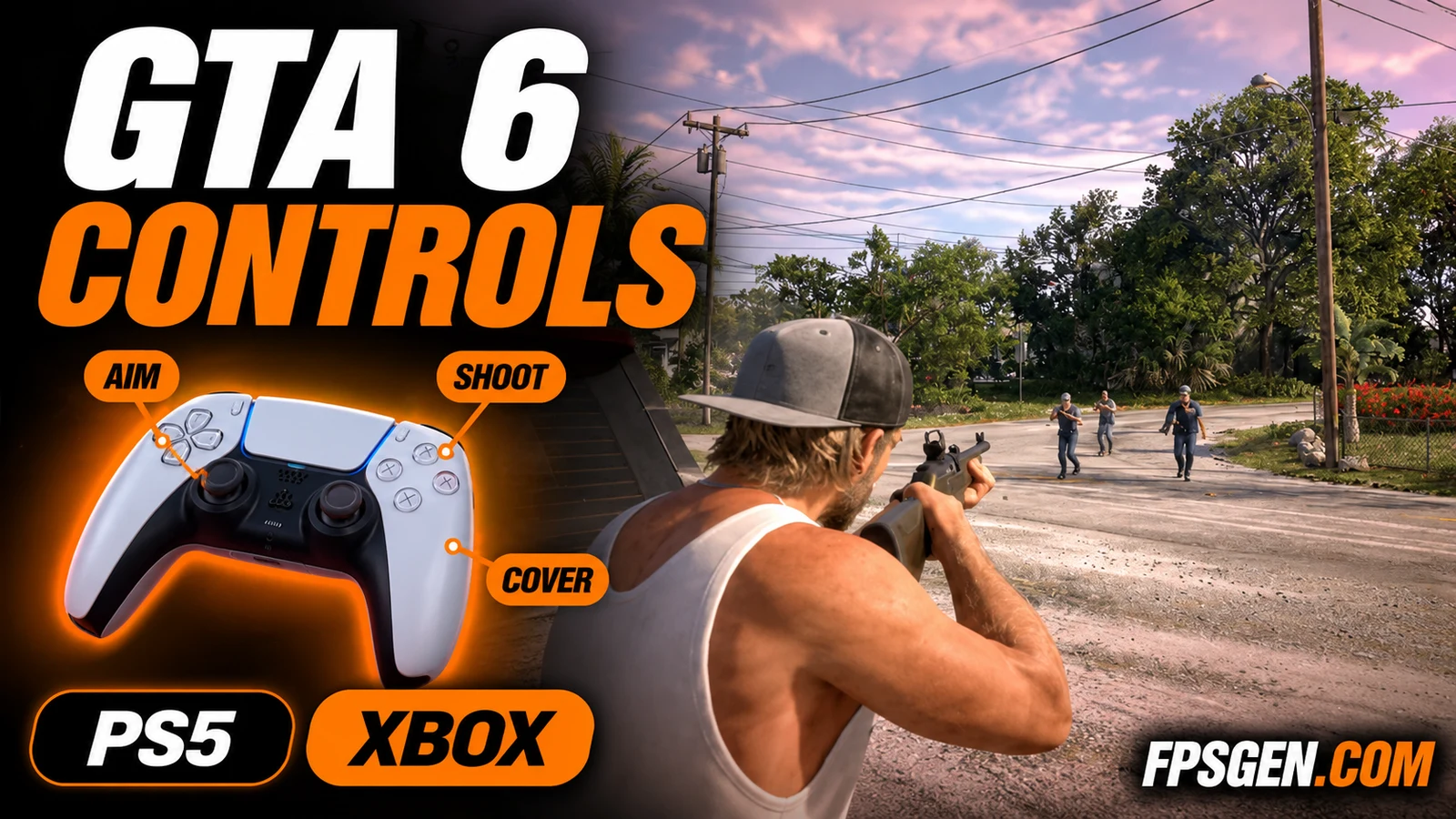
Shoulder swap, cover, the phone and every vehicle: all buttons for PS5 and Xbox are in GTA 6 Controls.
FAQ
What are the best GTA 6 settings on Xbox Series X?
Motion Blur Strength 0, HDR on with Brightness Calibration, Partial aiming with Aim Assist 3, then run Calibrate HDR for games and allow VRR and ALLM in the Xbox settings.
What are the best GTA 6 settings on Xbox Series S?
The same in-game settings, with motion blur at 0. Play on a 1080p screen if you can; on a 4K TV, raise the TV's sharpness a little. Keep the game on the internal SSD or an expansion card.
Does GTA 6 have a performance mode on Xbox?
No. There is no performance or 60 FPS mode on Series X or Series S.
What resolution is GTA 6 on Xbox Series S?
720p, upscaled to 1080p with AMD FSR 4. The Series X renders at 1440p, upscaled to 4K.
Can I play GTA 6 from a USB drive on Xbox?
No. You can store it on a USB drive, but it must run from the internal SSD or a Storage Expansion Card.
Does Quick Resume work with GTA 6?
Yes, Rockstar lists Quick Resume support for Xbox Series X|S. It lets you switch games and come back to GTA 6 in seconds.
Sources: GTA 6 settings menu as shown by Shacknews and listed by TheTechBasket and KeenGamer; Xbox resolution and frame rates from Digital Foundry's tech review, via MobiDevices and VGTimes. Last checked November 19, 2026.
Gaming writer at FpsGen. Guides and reviews are built on official sources, patch notes and real player data.
Comments
No comments yet. Start the conversation.