

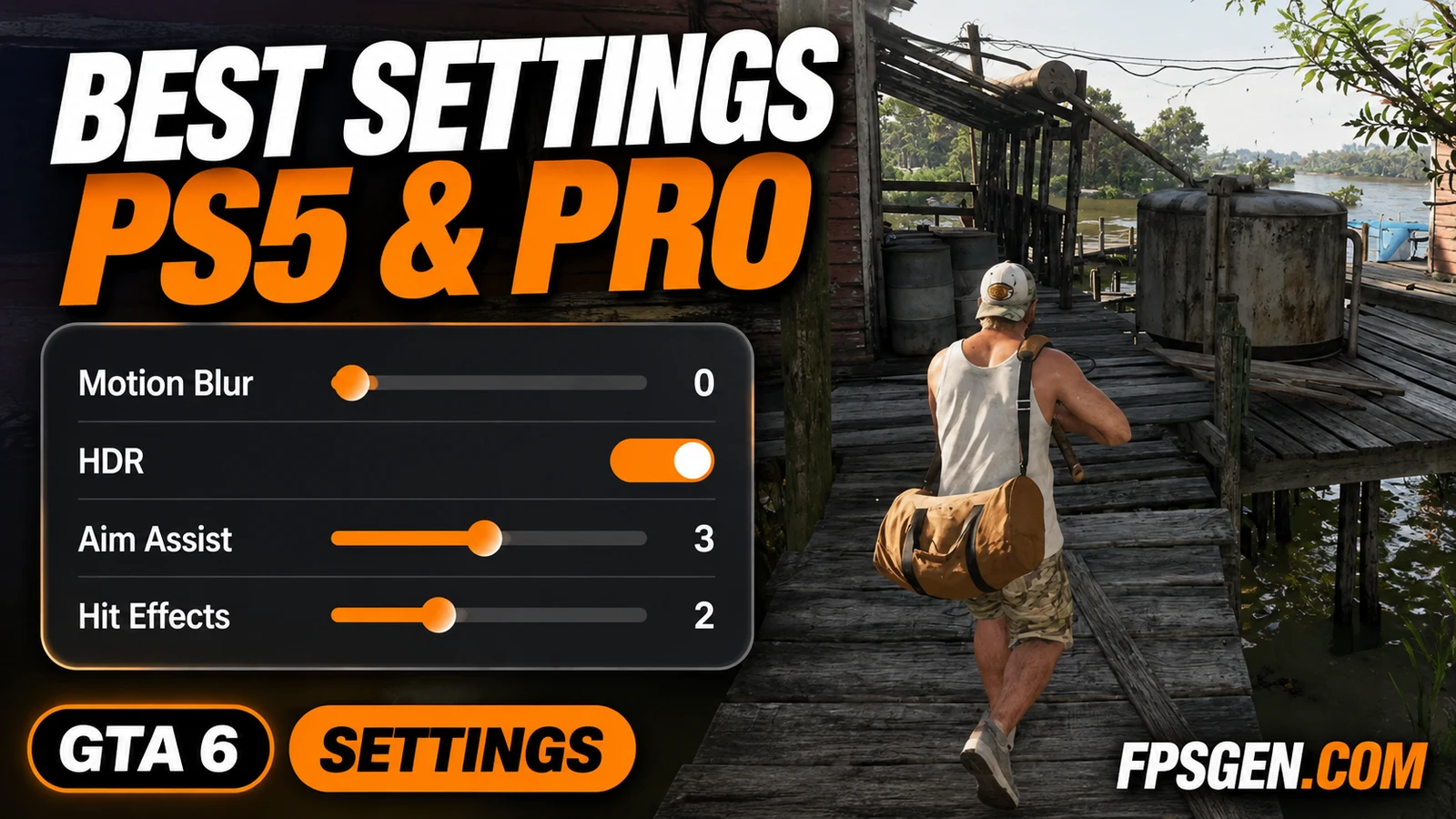
GTA 6 has no graphics modes on PS5: every console targets 30 FPS, and the PS5 Pro applies its upgrades by itself. So the "best settings" are the ones that make 30 FPS look sharp and feel responsive: the right in-game options, the right PS5 system settings, and a TV set up for games. Here is what to change, menu by menu, on PS5 and PS5 Pro.
Quick answer: in GTA 6, set Motion Blur Strength to 0, turn HDR on and run Brightness Calibration, and lower Hit Effects if the screen gets too busy. Use Partial aiming with Aim Assist around 3. On the PS5, turn on HDR, run Adjust HDR, and set VRR and 120 Hz to Automatic. On the TV, use Game Mode and turn motion smoothing off. On PS5 Pro, there is nothing to switch on: PSSR 2 and ray-traced shadows work automatically.
Best GTA 6 settings for PS5 at a glance
| Setting | Where | Best value |
|---|---|---|
| Motion Blur Strength | Settings > Display | 0 (or 1–2 if 30 FPS feels choppy) |
| HDR | Settings > Display | On if your TV supports HDR |
| Brightness Calibration | Settings > Display | Run it once, in a dark room |
| Hit Effects Intensity | Settings > Display | 2–3 (default 5) |
| Safe Zone | Settings > Display | Only if the minimap is cut off |
| Aiming method | Settings > Control Scheme | Partial |
| Aim Assist Strength | Settings > Control Scheme | 3 (raise to 4–5 if aiming feels hard) |
| Subtitles | Settings > UI | On |
| UI Text Size | Settings > UI | Bigger if you sit far from the TV |
| HDR / Adjust HDR | PS5 Settings > Screen and Video | On / run it |
| VRR, 120 Hz Output | PS5 Settings > Screen and Video | Automatic |
| Trigger Effect Intensity | PS5 Settings > Accessories | Medium or Off for long sessions |
In-game settings
GTA 6's settings are split into tabs: Control Scheme, Controller, Gameplay, Display, UI, Camera, Audio and a few more. You move between them with L1 and R1.
Display
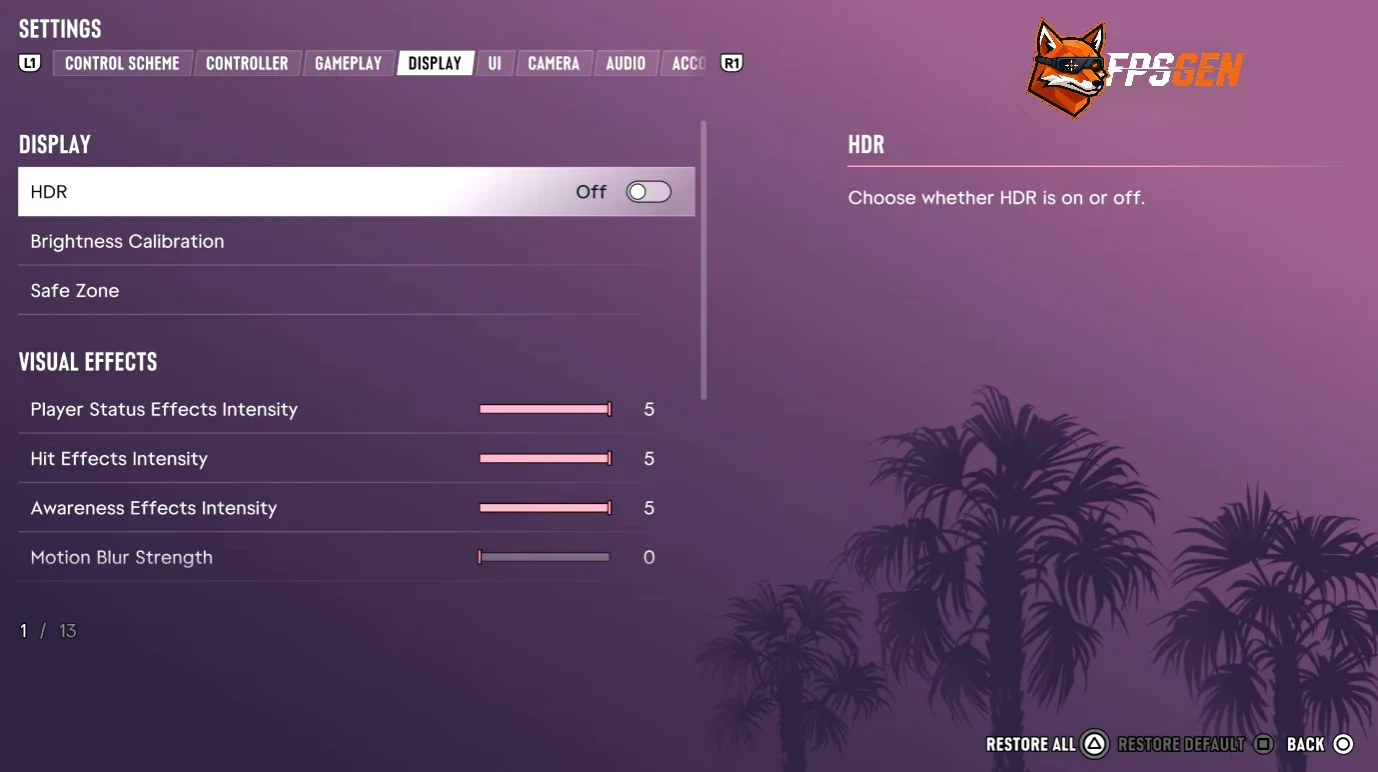
- HDR: turn it on if your TV supports HDR. GTA 6 has a very bright HDR image: Digital Foundry measured highlights above 1,500 nits.
- Brightness Calibration: run it once with the room lights off. It sets how dark the shadows are, which matters a lot at night in Vice City.
- Motion Blur Strength: 0 gives the sharpest image. At 30 FPS some players prefer 1 or 2, which smooths fast camera turns. Try both.
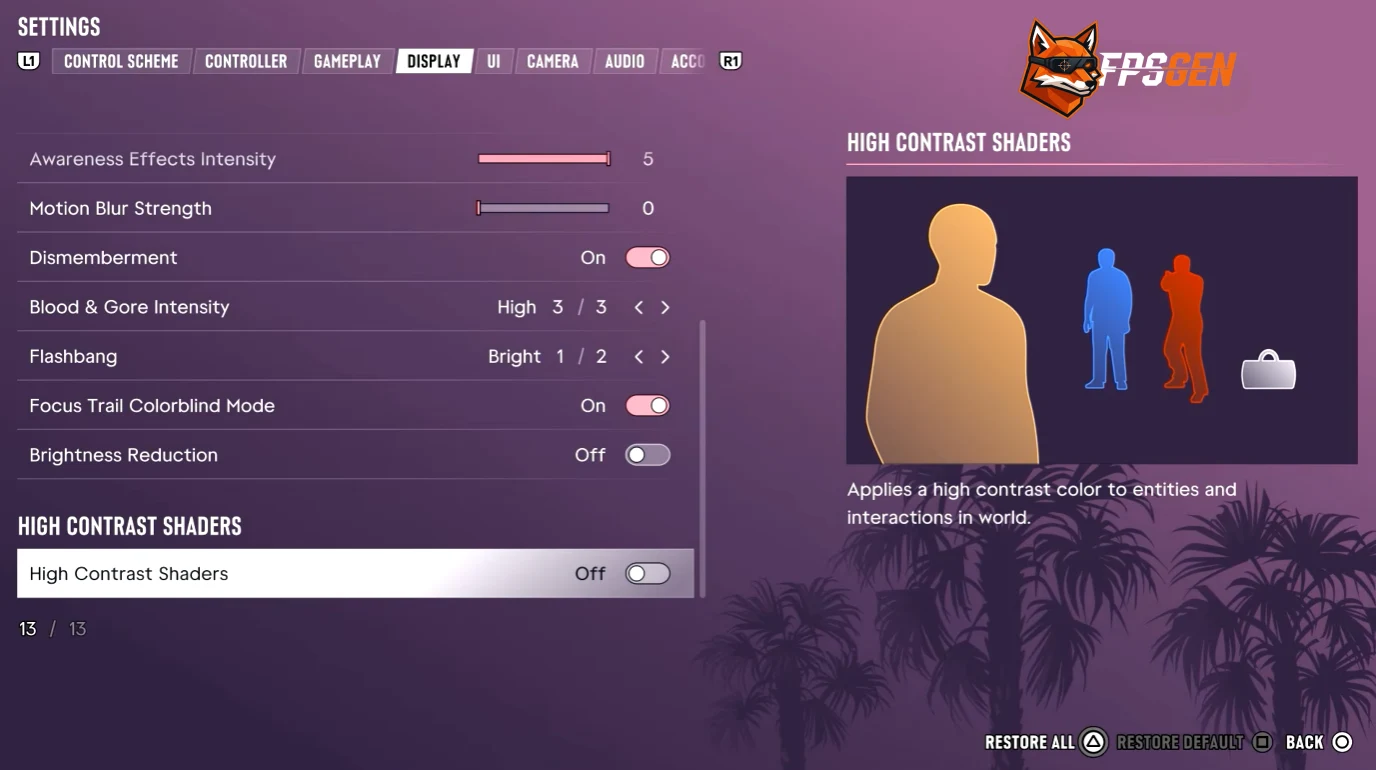
- Player Status, Hit and Awareness Effects Intensity: sliders from 0 to 5, all at 5 by default. Lower Hit Effects to 2–3 if the screen effects get in the way in fights.
- Dismemberment and Blood & Gore Intensity (Low, Medium, High): personal choice.
- Flashbang: "Bright" is the default; switch it if the white flash bothers you.
- Brightness Reduction and High Contrast Shaders: accessibility options. High Contrast Shaders colours people and objects you can interact with, which also helps spot things quickly.
Control Scheme and Camera
- Aiming method: Partial is the best balance: the game helps you onto the target, but you finish the aim. Lock-On is the easiest, Free Aim has no help.
- Aim Assist Strength: from 0 to 5. Start at 3.
- Quick Draw and Drive-By Assist: keep them on, especially for chases.
- Camera Shake: turn it off if you get motion sick.
- Cinematic kill and crash cameras: lower them if they interrupt the action too often.
UI and Audio
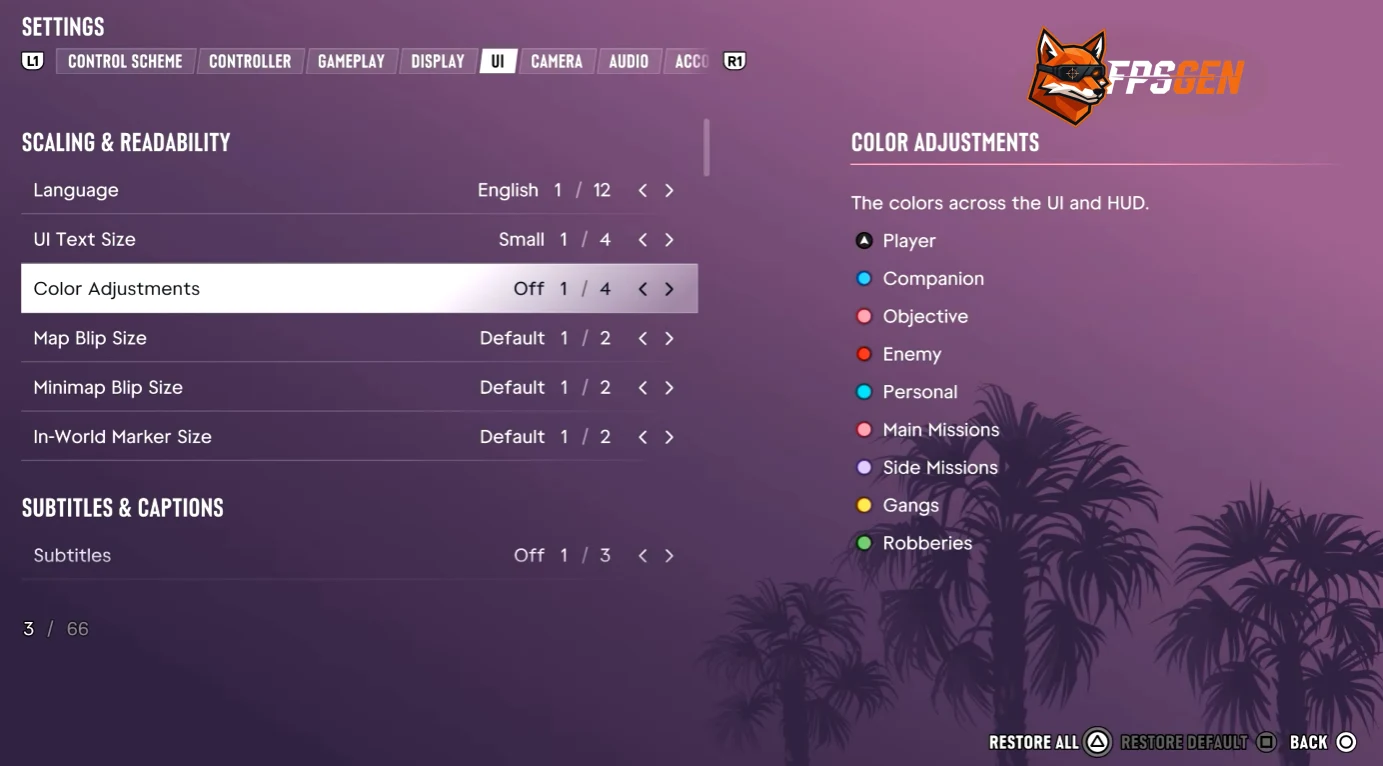
- Subtitles: on. Some dialogue happens during loud chases.
- UI Text Size: Small by default; raise it if you play on a TV from the sofa.
- Color Adjustments: four presets for players with colour blindness.
- Tinnitus Reduction: a useful audio option if you play with headphones for long sessions.
- Mute licensed music if you stream or record, to avoid copyright claims.
PS5 system settings
These are in the PS5 Settings menu, not in the game:
- Screen and Video > Video Output > HDR: On When Supported.
- Screen and Video > Video Output > Adjust HDR: run the three test screens before your first session.
- Screen and Video > Video Output > VRR and 120 Hz Output: Automatic. They won't raise the 30 FPS cap, but they don't hurt.
- Sound > Audio Output > 3D Audio: turn on Tempest 3D Audio with headphones for better positional sound in fights.
- Accessories > Controllers: the DualSense haptics and adaptive triggers work in GTA 6. Lower Vibration Intensity or Trigger Effect Intensity if your hands get tired in long sessions.
PS5 Pro: nothing to turn on
The PS5 Pro version has no extra option in the menu. It automatically uses PSSR 2 upscaling from 1440p to 4K and ray-traced shadows, which the base PS5 doesn't have, and it holds 30 FPS better. Leave PS5 Pro Game Boost and the system's image quality enhancement on (the default).
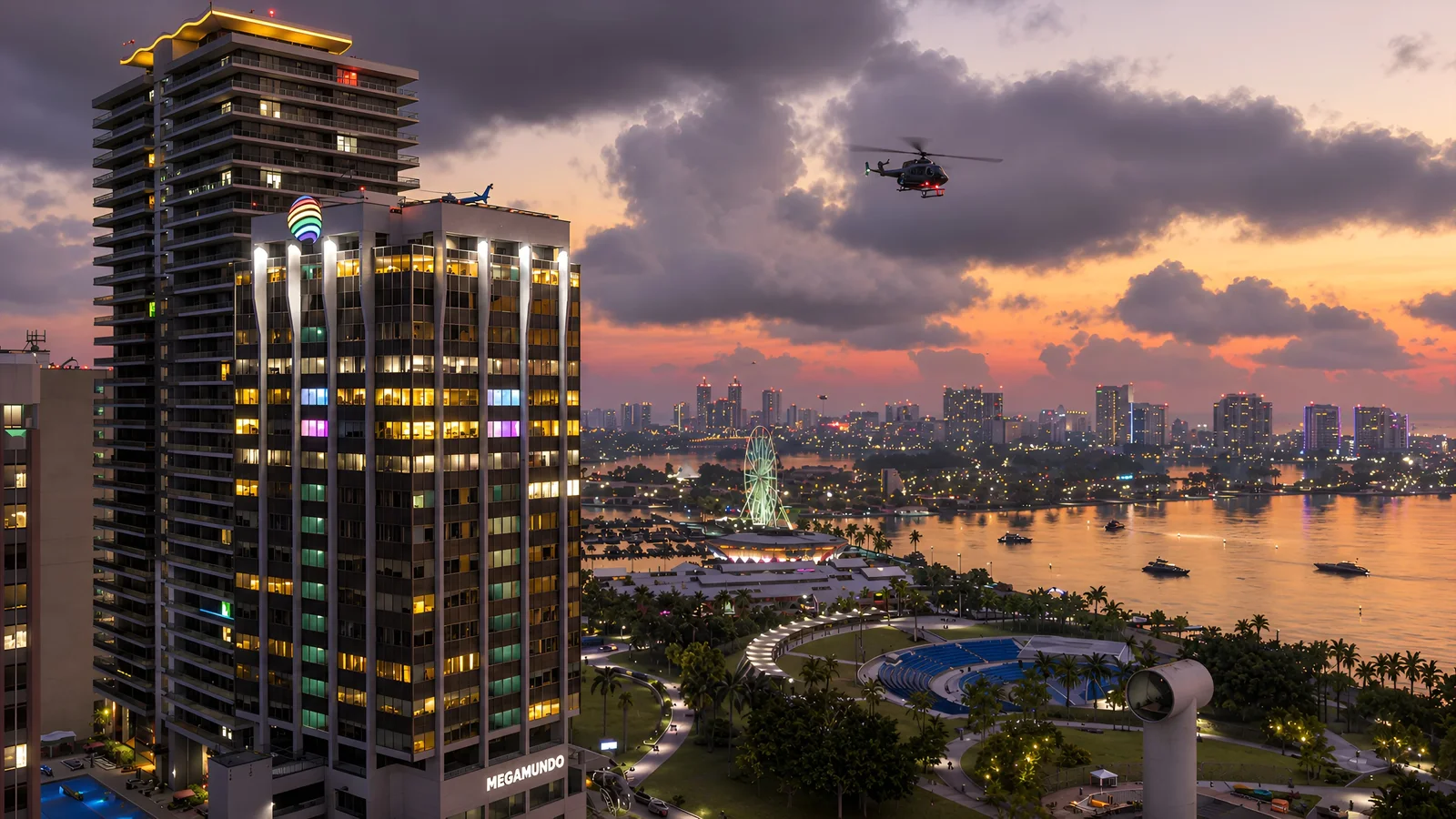
How much sharper is it? See the side-by-side screenshots in GTA 6 PS5 vs PS5 Pro vs Xbox Series X|S.
TV settings for GTA 6
- Picture mode: Game Mode. It cuts input lag, which matters more at 30 FPS.
- Motion smoothing off: TruMotion (LG), Motion Xcelerator / Auto Motion Plus (Samsung), Motionflow (Sony). It adds lag.
- HGiG on if your TV has it, then run Adjust HDR on the PS5.
- ALLM / Auto Low Latency Mode: on, so the TV switches to Game Mode by itself.
Is there a performance mode or 60 FPS?
No. There is no graphics mode, no performance mode and no 60 FPS on PS5 or PS5 Pro: Rockstar targets 30 FPS on every console. Full details in GTA 6 is 30 FPS on every console, even PS5 Pro. Playing on Xbox? See GTA 6 Best Settings for Xbox Series X|S.
Every button
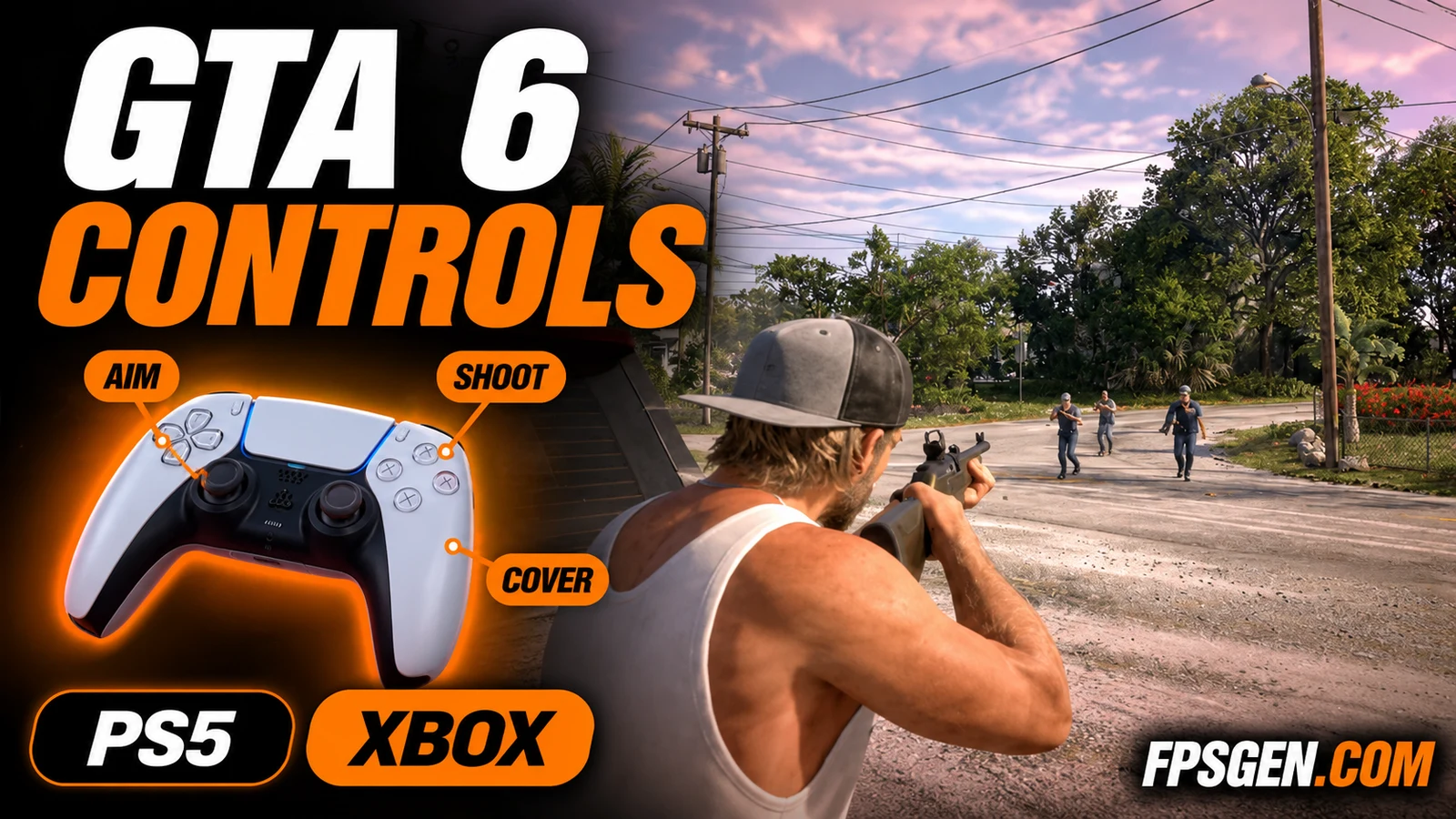
Shoulder swap, cover, the phone and every vehicle: all buttons for PS5 and Xbox are in GTA 6 Controls.
Frame drops on PS5?
How to stop GTA 6 dropping below 30 FPS, cut input lag, and the PS5 "fixes" that do nothing: How to Increase FPS in GTA 6 on PS5.
FAQ
What are the best GTA 6 settings on PS5?
Motion Blur Strength 0, HDR on with Brightness Calibration, Partial aiming with Aim Assist 3, subtitles on, and Game Mode on your TV with motion smoothing off.
Does GTA 6 have a performance mode on PS5?
No. There is no performance mode or 60 FPS mode on PS5 or PS5 Pro. Every console targets 30 FPS.
Should I turn off motion blur in GTA 6?
For the sharpest image, yes: set Motion Blur Strength to 0. If 30 FPS feels choppy when you turn the camera, a value of 1 or 2 smooths it.
What settings should I change on PS5 Pro?
None in the game. PSSR 2 and ray-traced shadows turn on automatically. Just set up HDR and your TV like on a normal PS5.
Is there a field of view setting in GTA 6?
Not for normal gameplay, according to early players. Field of view can only be changed in Photo Mode.
What is the best aim assist setting in GTA 6?
Partial aiming with Aim Assist Strength around 3. Raise it to 4 or 5 if aiming feels heavy, or use Free Aim with no assist for a challenge.
Sources: GTA 6 settings menu as shown on PS5 by Shacknews and listed by TheTechBasket and KeenGamer; PS5 Pro and HDR figures from Digital Foundry's tech review, via GameGPU. Last checked November 19, 2026.
Gaming writer at FpsGen. Guides and reviews are built on official sources, patch notes and real player data.
Comments
No comments yet. Start the conversation.