

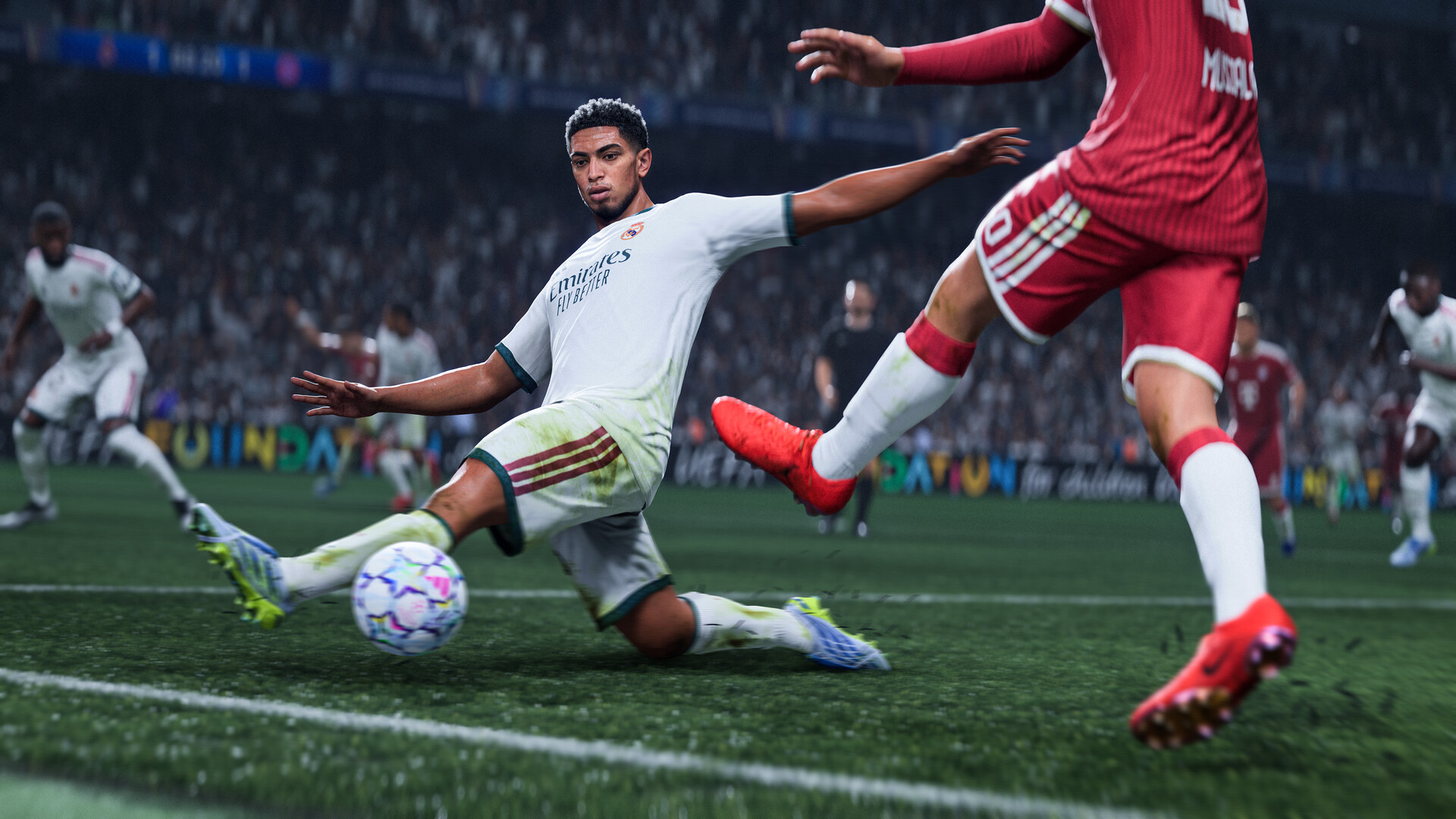
In FC 27, a smooth, steady frame rate matters more than pretty grass. A stutter at the wrong moment ruins a through ball, and extra input lag makes every skill move feel late. Here are the settings that fix stutter and lag on PC, the ones you can safely lower, and the Windows and PC fixes EA itself recommends.
Quick answer: use Borderless display mode (Fullscreen on a single screen), turn V-Sync off, set the Frame Rate Limiter to a value your PC holds all match long (60 on weaker PCs, 120 or your monitor's refresh rate on stronger ones), keep Render Scale at 100, turn Strand-Based Hair, Motion Blur and Enhanced Ultra Visuals off, and set Grass, Crowd and Ambient Occlusion to Low. Then check that your RAM runs in dual channel.
Pick your hardware and we compare it with the official EA Sports FC 27 requirements.
Official EA Sports FC 27 PC requirements
| Minimum | Recommended | |
|---|---|---|
| OS | Windows 10/11 (64-bit, latest update) | Windows 10/11 (64-bit, latest update) |
| CPU | Intel Core i5-6600K / AMD Ryzen 5 1600 | Intel Core i7-6700 / AMD Ryzen 7 2700X |
| RAM | 8 GB (dual channel) | 12 GB (dual channel) |
| GPU | NVIDIA GeForce GTX 1050 Ti / AMD Radeon RX 570 (4 GB) | NVIDIA GeForce GTX 1660 / AMD Radeon RX 5600 XT (6 GB) |
| Storage | 100 GB | 100 GB SSD |
Source: official EA Sports FC 27 website. Results are estimates based on relative hardware performance.
Not sure your PC meets the requirements? See FC 27 PC System Requirements, which also covers the free FC 27 Lite version. To see how many FPS your exact parts should get, open the FC 27 FPS Estimator.
Display and frame rate settings
| Setting | Value | Why |
|---|---|---|
| Display Mode | Borderless (Fullscreen on one screen) | Smooth Alt+Tab without black screens |
| Resolution | Your monitor's native resolution | Lower it only as a last resort |
| Frame Rate Limiter | On: 60 on weak PCs, 120 or your refresh rate on strong PCs | A steady cap feels smoother than a high, unstable frame rate |
| V-Sync | Off | Adds input lag; use it only if you see screen tearing you cannot stand |
| Render Scale | 100 | Below 100 the pitch looks blurry |
| Dynamic Resolution Scaling | Off, or On with a 60 FPS target on low-end PCs | Lowers resolution in crowded moments to keep FPS steady |
| Cutscene Performance | Your choice | No effect on gameplay |
The most important rule: pick a frame rate cap your PC can hold in every situation, including corners and crowded box scenes, not the highest number you saw once. If the game stutters at 120, a steady 60 will feel better. EA's own troubleshooting guide recommends lowering the target frame rate first when you see performance problems. To watch your real FPS during a match, see How to Show FPS in Any PC Game.
Graphics settings
Start from the Performance or Balanced preset, switch to Custom, then set:
| Setting | Low-end PC | Mid-range PC | High-end PC |
|---|---|---|---|
| Rendering Quality | Low | Medium | High |
| Grass Quality | Low | Low | Medium |
| Crowd Quality | Low | Low | Medium |
| Cloth Quality | Low | Medium | High |
| Lighting Quality | Low | Medium | High |
| Ambient Occlusion | Low | Low | Medium |
| Effects Quality | Low | Medium | High |
| Terrain and Terrain Decoration | Low | Low | Medium |
| Strand-Based Hair | Off | Off | On (optional) |
| Motion Blur | Off | Off | Off |
| Enhanced Ultra Visuals | Off | Off | Optional |
| 3D Goal Nets | On | On | On |
What to lower first if you lag: Strand-Based Hair, Crowd, Grass and Ambient Occlusion. You barely see them during a match, but they cost a lot. Keep Rendering Quality as high as you can: it affects how sharp the players and ball look.
Keep an eye on the Estimated VRAM bar in the menu: if it goes past your graphics card's memory, lower Rendering Quality until it fits, or you will get stutter.
Fix stutter outside the game
These fixes come from EA's own FC 27 PC performance guide, plus the checks that solve most stutter:
- Make sure your RAM runs in dual channel. EA lists this as a key fix: a single stick, or two sticks in the wrong slots, can cause big drops. Check your motherboard manual for the right slots. Our guide How to Check Your PC Specs shows how to see your RAM setup.
- Close background apps: browser, recording software, other launchers and overlays (Discord, Steam, NVIDIA or AMD). EA lists background apps as a common cause of stutter.
- Update your graphics driver from the NVIDIA app, AMD Software: Adrenalin Edition or Intel Graphics Software.
- Set Windows to Best performance: Settings > System > Power & battery > Power mode. On a laptop, plug in the charger and make sure the game runs on the dedicated graphics card.
- Install the game on an SSD. On a hard drive, loading and menus are slow, and stutter is more likely.
- Check your connection. If the game only stutters online, the problem is probably your network, not your PC: try a cable instead of Wi-Fi and close downloads.
More fixes that work in every game are in How to Increase FPS on PC.
Reduce input lag
- V-Sync off and a frame rate cap your PC can hold.
- NVIDIA Reflex / AMD Anti-Lag: turn on Low Latency Mode in the NVIDIA Control Panel or Anti-Lag in AMD Software if the game does not offer it.
- Use a wired controller, or update your wireless controller's firmware.
- Game Mode on in Windows, and your monitor set to its highest refresh rate in Settings > System > Display > Advanced display.
Is it your processor?
FC 27 leans on the processor more than you might think, especially with crowds and in menus like Ultimate Team. If your graphics card usage stays well under 90% while you stutter, the CPU is the limit: lower Crowd Quality and cap your frame rate a little lower. Our guide CPU Bottleneck Explained shows how to check. If you need a faster processor, see Best Gaming CPUs in 2026, or our $1,000 gaming PC build for a full new PC.
More FC 27 on FpsGen
- FC 27 PC System Requirements: minimum, recommended and Ultra specs, storage and FC 27 Lite
- FC 27 Not Launching or Crashing on PC: every fix, step by step
- Can I Run FC 27?: check your graphics card, processor and RAM in one click
- FC 27 game page: every FC 27 guide and news story
- EA Sports FC 27 on Steam and EA's official system requirements
FAQ
What are the best settings for FC 27 on a low-end PC?
Frame Rate Limiter at 60, V-Sync off, Render Scale 100, Dynamic Resolution Scaling on with a 60 FPS target, every quality setting on Low, and Strand-Based Hair, Motion Blur and Enhanced Ultra Visuals off.
Why does FC 27 stutter on my PC?
The most common causes are a frame rate cap your PC cannot hold, RAM in single channel, background apps and overlays, an old graphics driver, and the game installed on a hard drive. If the game crashes or will not start, see FC 27 Not Launching or Crashing on PC.
Should I turn on V-Sync in FC 27?
Usually no: it adds input lag. Only turn it on if you see screen tearing that bothers you more than the lag.
Is 60 or 120 FPS better in FC 27?
120 feels better if your PC holds it all match long. If it drops below that in crowded moments, a steady 60 is the better choice.
Settings names from the FC 27 PC menu as listed by PlayNews and Hone. PC fixes from EA's FC 27 PC performance help page. Values are FpsGen's starting points: results vary by PC. FpsGen is not affiliated with Electronic Arts.
Gaming writer at FpsGen. Guides and reviews are built on official sources, patch notes and real player data.
Comments
No comments yet. Start the conversation.