

Your game feels choppy, or you just upgraded and want to see the difference. Either way, you need a number: how many frames per second (FPS) your PC really gets. Windows, Steam and your graphics card driver can all show it for free, in any game, in under a minute.
Quick answer: on Steam, go to Settings > In Game and set Show performance monitor to the level you want. With an NVIDIA card, press Alt + R (after turning on the overlay in the NVIDIA app). With an AMD card, press Ctrl + Shift + O. For any game on Windows, press Win + G and open the Performance widget of the Xbox Game Bar.
Which FPS counter should you use?
| Method | Works with | Shortcut | Shows besides FPS |
|---|---|---|---|
| Steam performance monitor | Games launched from Steam | Set your own | Frame graph, CPU, GPU, RAM, frame generation |
| NVIDIA app | GeForce graphics cards | Alt + R | GPU and CPU usage, temperatures, clocks |
| AMD Software | Radeon graphics cards | Ctrl + Shift + O | GPU and CPU usage, temperatures, VRAM |
| Xbox Game Bar | Any game, any graphics card | Win + G | CPU, GPU, VRAM and RAM usage |
| In-game counter | Games that have one | In the game settings | Usually FPS only |
If you play on Steam, start with Steam's performance monitor: it is the most complete and works whatever your graphics card. For games from other launchers (Epic, EA app, Battle.net, Xbox app), use your graphics card's overlay or the Game Bar.
Steam: the performance monitor
Steam's old FPS counter was a small number in a corner. Since mid-2025, it is a full performance monitor that also shows a frame-time graph, CPU and GPU usage, RAM, and the frames added by DLSS or FSR frame generation.
- Open Steam and click Steam > Settings (top left).
- Go to In Game.
- Under Overlay Performance Monitor, open the Show performance monitor menu (it says Off by default) and pick a level, from a single FPS number to the full view with CPU, GPU and RAM.
- Next to Toggle performance monitor key(s), click Set... to choose a key that switches it on and off during play.
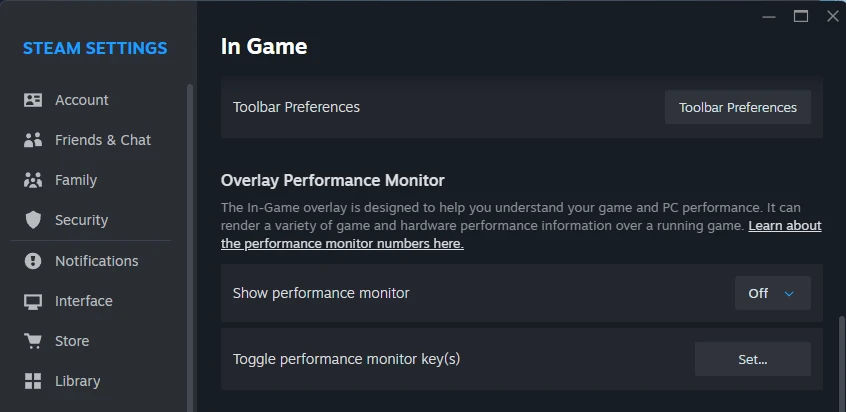
Start a game and the monitor appears on screen. You can change its level, position and look while you play from the Steam overlay (Shift + Tab).
Frame generation: if a game uses DLSS Frame Generation or AMD FSR Frame Generation, Steam shows the real (rendered) frames and the generated ones apart. That matters: 120 FPS with frame generation feels closer to 60 than to a real 120.
NVIDIA graphics cards: the NVIDIA app overlay
- Install the NVIDIA app (it replaced GeForce Experience) and open Settings: make sure the NVIDIA Overlay is turned on.
- In a game, press Alt + Z to open the overlay.
- Select Statistics at the bottom, then pick what you want to see: just the frame rate, or a custom list with GPU and CPU usage, temperatures and clock speeds.
- Press Alt + R any time to show or hide the statistics while you play.
You can change the text size, the color and the layout (one line, two lines or a vertical list).
AMD graphics cards: AMD Software metrics overlay
- Press Ctrl + Shift + O in any game. That is the default shortcut, and it works straight away on most PCs.
- To choose what it shows, open AMD Software: Adrenalin Edition, go to Performance > Metrics and open the Overlay tab.
- Turn on the metrics you want: FPS, GPU and CPU usage, temperatures, VRAM, power.
If Ctrl + Shift + O does nothing, the hotkey was changed or turned off: you find it in AMD Software under Settings > Hotkeys.
Any game, any card: Xbox Game Bar
The Game Bar is built into Windows 10 and 11, so there is nothing to install.
- Start your game and press Win + G.
- Open the Performance widget (from the widget menu at the top if you don't see it).
- Go to the FPS tab. The first time, click Request access and restart your PC: Windows needs your permission to read the frame rate.
- Click the pin icon so the widget stays on screen when you close the Game Bar, and drag it to a corner.
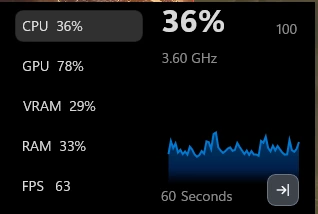
The Game Bar works with every graphics card and every launcher, but it is the most basic: no frame-time graph, and it can feel a little heavy on older PCs.
Intel Arc graphics
Intel's own app, Intel Graphics Software, also has a performance overlay with FPS, GPU usage and temperatures. If you have an Intel Arc card or a laptop with Intel graphics, the Xbox Game Bar or Steam's overlay work just as well.
The game's own FPS counter
Many games have a counter in their settings, usually under Video, Graphics or Display:
- Fortnite: Settings > Video > Show FPS.
- Valorant: Settings > Video > Stats > Client FPS.

It is the lightest option and it is never blocked by anti-cheat, but it usually shows the FPS only.
How to read your FPS
The number on its own does not tell the whole story. Here is what to look at:
| FPS | What it feels like |
|---|---|
| Under 30 | Choppy. Lower the settings or the resolution. |
| 30 to 45 | Playable in slow games, rough in shooters. |
| 60 | Smooth for most games. The usual target. |
| 90 to 144 | Very smooth, the point of a high refresh rate monitor. |
| 144+ | For competitive shooters on a 144 Hz, 165 Hz or faster screen. |
- 1% low: the FPS during the worst 1% of frames. If your average is 90 but your 1% low is 30, you will feel stutter. Steam, NVIDIA and AMD can all show it.
- Frame time: the time between two frames, in milliseconds. 60 FPS is about 16.7 ms per frame. A flat frame-time line means smooth play; spikes are the stutters you feel.
- Your monitor's refresh rate: a 60 Hz screen only shows 60 frames per second, whatever your FPS. Check yours in our guide How to Check Your PC Specs: many 144 Hz monitors still run at 60 Hz by mistake.
- GPU usage: if it stays near 95 to 100%, your graphics card is the limit (normal in most games). If it is much lower while FPS is low, the processor or something else is holding you back.
Is your FPS normal for your PC?
Once you know your FPS, compare it with what your hardware should get. Our free FPS Estimator shows the expected FPS for your graphics card and processor in many games, at every preset and resolution, and tells you which part limits you.
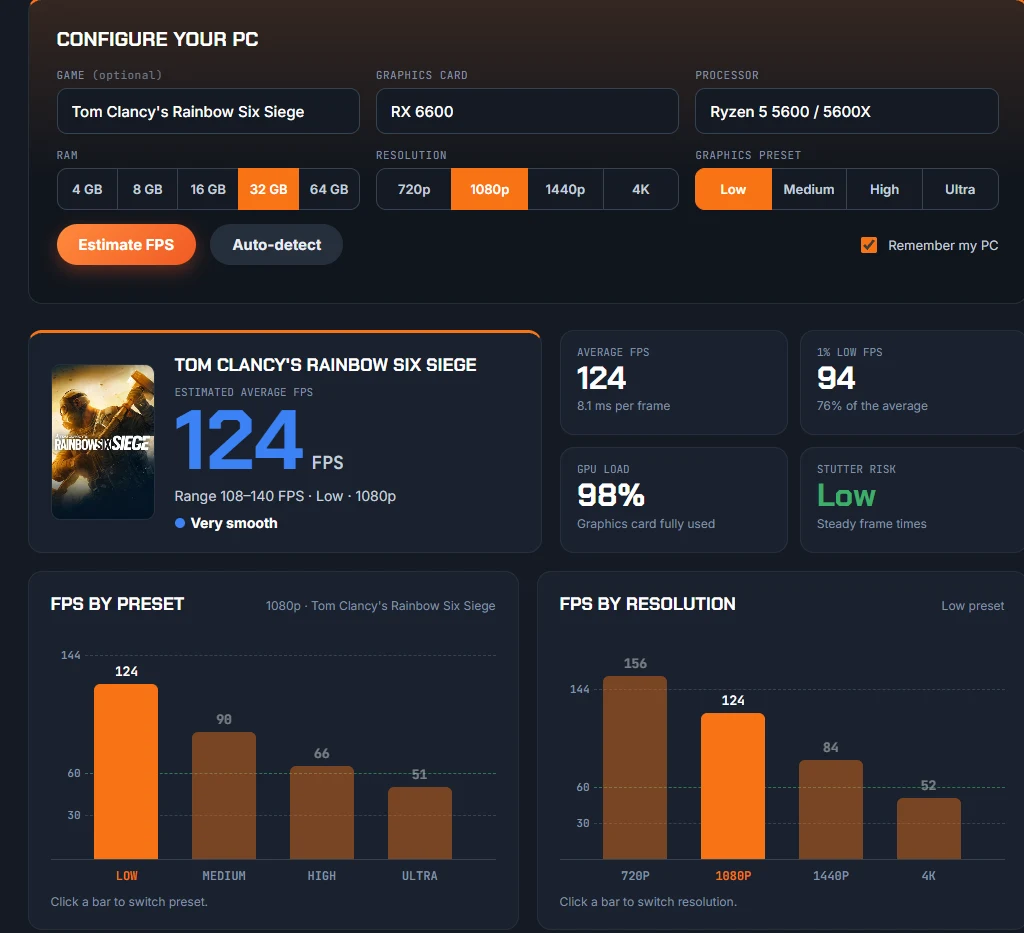
If your real FPS is far below the estimate, check that:
- the game runs on your dedicated graphics card, not the integrated one (common on laptops);
- your graphics driver is up to date;
- your laptop is plugged in and on a performance power mode;
- your RAM runs at its rated speed (see the XMP part of How to Check Your PC Specs);
- nothing heavy runs in the background (downloads, browser tabs with video).
Not sure if a new game will run at all? Our Can I Run It checker compares your PC with each game's requirements.
FPS counter not showing? Quick fixes
- Nothing appears: check that the overlay is turned on in its own app (Steam, NVIDIA app or AMD Software). Some games block overlays in exclusive full screen: try borderless or windowed full screen.
- Game Bar shows no FPS: you skipped Request access, or you did not restart after it.
- Online games: a few anti-cheat systems block third-party overlays. Steam, NVIDIA, AMD and the Game Bar are allowed almost everywhere; if one is blocked, use the game's own counter.
- Two counters at once: turn one off. Running several overlays together can cost FPS and cause crashes.
FAQ
How do I show FPS on PC without any software?
Use the Xbox Game Bar: press Win + G, open the Performance widget and go to the FPS tab. It is built into Windows 10 and 11.
Does an FPS counter lower performance?
Barely. Steam's, NVIDIA's, AMD's and the game's own counter cost so little that you won't notice. Detailed overlays with many graphs can cost a few FPS on older PCs.
What is a good FPS for gaming?
60 FPS is smooth for most games. For competitive shooters, aim for your monitor's refresh rate: 144 FPS on a 144 Hz screen. Under 30 FPS feels choppy in almost every game.
Why is my FPS lower than other people's with the same graphics card?
Your processor, RAM speed, resolution, settings and drivers all change the result. Our FPS Estimator takes your graphics card and processor together and shows which one holds you back.
Can I see FPS in games from Epic, EA or Battle.net?
Yes. Use your graphics card's overlay (NVIDIA Alt + R, AMD Ctrl + Shift + O) or the Xbox Game Bar. Steam's overlay only works in games launched from Steam, unless you add the game to Steam as a non-Steam game.
Steps checked in October 2026. Menu names can change with Steam, NVIDIA app and AMD Software updates.

Gaming writer at FpsGen. Guides and reviews are built on official sources, patch notes and real player data.


Comments
No comments yet. Start the conversation.