

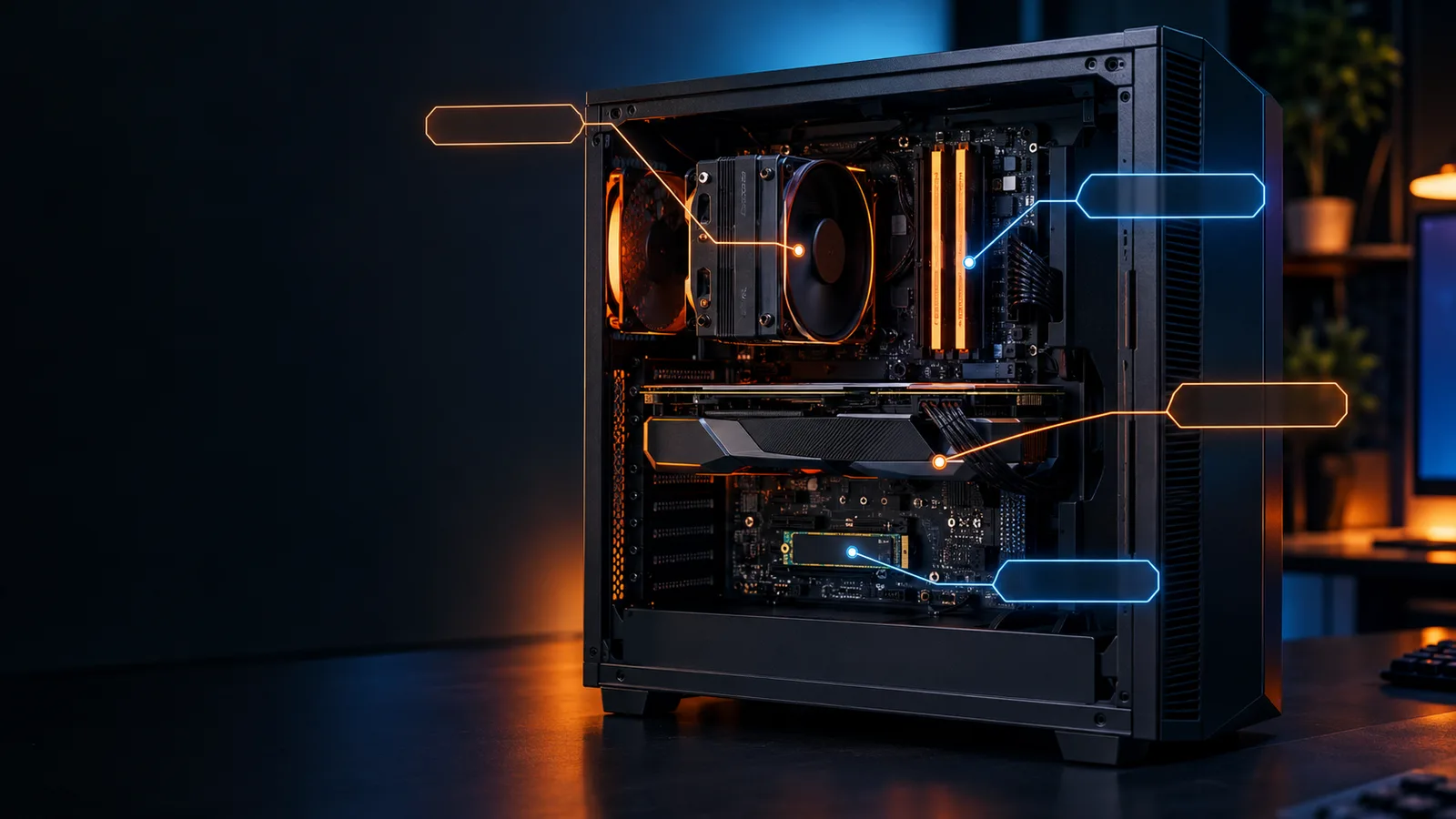
Whether you want to know if a game will run, which part to upgrade, or what your PC is worth, it always starts with the same question: what is actually inside it? This guide shows you how to find every part on Windows 11, from the graphics card to the RAM speed and the motherboard, using only tools that are already on your PC.
Quick answer: press Ctrl + Shift + Esc to open Task Manager and go to the Performance tab: it shows your processor, RAM, storage and graphics card. For the motherboard and BIOS, press Win + R and type msinfo32. Or let our free Check My PC tool detect your graphics card, Windows version and screen in one click.
Your PC specs at a glance: where to find each part
| Part | Fastest place to find it | What you see |
|---|---|---|
| Graphics card (GPU) | Task Manager > Performance > GPU | Name, video memory, driver version |
| Processor (CPU) | Settings > System > About | Exact model and base speed |
| RAM | Task Manager > Performance > Memory | Amount, DDR4/DDR5, speed, slots |
| Storage | Task Manager > Performance | SSD (NVMe or SATA) or HDD |
| Motherboard | System Information (msinfo32) |
Brand and model |
| Windows version | winver |
Edition, version, build |
| Monitor | Settings > System > Display > Advanced display | Resolution, refresh rate |
| Power supply | The label on the power supply | Wattage (no app can read it) |
The rest of this guide goes through each one, with what to look for and the mistakes most people make.
The fastest way: Settings > System > About
Press Win + Pause (or open Settings > System > About). On recent versions of Windows 11, the top of the page shows four cards: processor, RAM, graphics card and storage. It is the quickest overview, and the processor name here is the full, exact model.
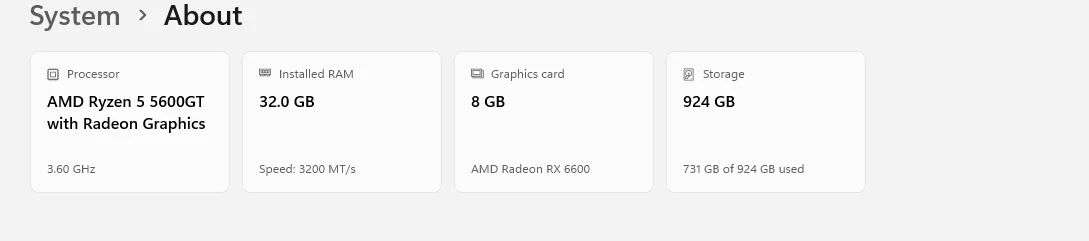
Further down, Windows specifications shows your edition (Home or Pro), version and OS build. On older versions of Windows 11, you only get Device specifications with the processor and RAM.
Graphics card (GPU) and video memory
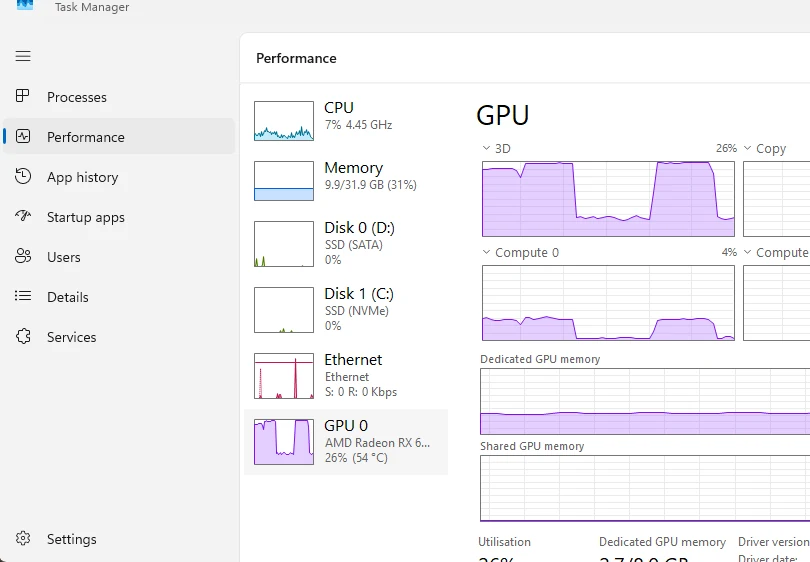
Open Task Manager (Ctrl + Shift + Esc), go to Performance and click GPU 0. The top right corner shows the card's name. Below the graphs you find:
- Dedicated GPU memory: the card's own video memory (VRAM). This is the number games mean when they ask for "8 GB VRAM".
- Shared GPU memory: part of your system RAM the card can borrow. Ignore it when you compare with game requirements.
- Driver version and DirectX version.
Two GPUs? That is normal on most laptops and on PCs whose processor has built-in graphics. One is the integrated chip (Intel UHD, Intel Iris Xe, Intel Arc Graphics, AMD Radeon Graphics), the other the dedicated card (GeForce RTX, Radeon RX, Intel Arc). For games, the dedicated one is the one that counts.
Laptop? A laptop GPU is slower than the desktop card with the same name: an RTX 4060 Laptop is not an RTX 4060. Windows usually shows "Laptop GPU" in the name.
Processor (CPU), cores and threads
The exact model is in Settings > System > About, next to Processor: for example "AMD Ryzen 5 5600GT 6-Core Processor" or "Intel Core i5-12400F". The letters at the end matter:
- F (Intel): no built-in graphics, so you need a graphics card.
- K (Intel) / X (AMD): unlocked or higher-clocked versions.
- G (AMD): built-in Radeon graphics.
- X3D (AMD): extra cache, the fastest gaming processors.
- H / HX / U (laptops): high-performance or low-power laptop chips.
In Task Manager > Performance > CPU, the bottom of the page shows the Cores and Logical processors (threads) and the current speed. Six cores and twelve threads is the sweet spot for most games in 2026.
RAM: amount, speed, slots and DDR4 vs DDR5
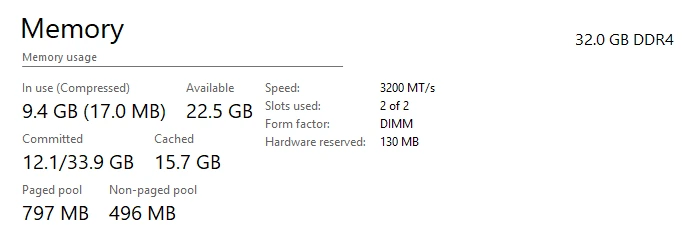
Go to Task Manager > Performance > Memory. The top right shows the total (for example 32.0 GB). Below the graph:
- Speed: the speed the RAM is actually running at, in MT/s (shown as MHz on some versions).
- Slots used: for example "2 of 4". Two sticks is better than one: the PC then runs in dual channel, which matters a lot for games, especially with integrated graphics.
- Form factor: DIMM (desktop) or SODIMM (laptop).
Is your RAM slower than the box says? Very often, yes. DDR4 sold as 3200 or 3600 runs at 2133 or 2400 until you turn on XMP (Intel) or EXPO / DOCP (AMD) in the BIOS. If Task Manager shows a lower speed than your kit, that is the setting to look for: it is a free performance boost.
DDR4 or DDR5? Recent versions of Windows 11 show it next to the total, at the top right of the Memory page ("32.0 GB DDR4" above). If yours only shows the amount, open PowerShell (right-click the Start button > Terminal) and paste:
Get-CimInstance Win32_PhysicalMemory | Select-Object Manufacturer, PartNumber, Speed, SMBIOSMemoryType
In the SMBIOSMemoryType column, 26 means DDR4 and 34 means DDR5. You also get the brand and part number of each stick, which helps if you want to add matching RAM.
Storage: SSD or HDD, and how much space is left
In Task Manager > Performance, the left column lists every drive with its type: SSD (NVMe), SSD (SATA) or HDD. NVMe drives are the fastest, SATA SSDs are still fine for games, and HDDs are the slow ones.
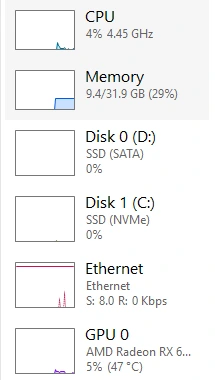
This matters more than ever: many new games list an SSD as required. On a hard drive they load slowly and can stutter when they stream new areas of the map. If you have both, install your games on the SSD.
For free space, open Settings > System > Storage. To see every drive and its size, go to Advanced storage settings > Disks & volumes.
Motherboard and BIOS version
Press Win + R, type msinfo32 and press Enter. In System Summary, look for:
- BaseBoard Manufacturer and BaseBoard Product: your motherboard's brand and model (for example ASUS and TUF GAMING B550-PLUS).
- BIOS Version/Date: useful before an update or a new processor.
- System Model: on a laptop or a prebuilt PC, the exact model name. Search it to find the full spec sheet.
You need the motherboard model before you buy a new processor or RAM: its support page lists every compatible CPU and the BIOS version each one needs.
Windows version
Press Win + R and type winver. The window shows the edition, version (for example 24H2 or 25H2) and build. Some games and anti-cheat systems need a recent version, and Windows 10 stopped getting free security updates on October 14, 2025.
Monitor: resolution and refresh rate
Open Settings > System > Display > Advanced display. You see the resolution and refresh rate of each screen. If you paid for a 144 Hz or 165 Hz monitor, check that it is not set to 60 Hz here: it often is after a new install or a cable change. Also make sure the cable goes into the graphics card, not the motherboard.
Power supply: the one part no app can see
No Windows tool can read your power supply's wattage. Look for the label on the side of the power supply (open the case), check your order or receipt, or, for a prebuilt PC, search its model name. You need it before a graphics card upgrade: the card's box says what wattage it needs.
One click: FpsGen Check My PC
If you would rather not open five windows, our Check My PC tool reads what your browser can share in one click: your graphics card, the number of processor threads, your Windows version, your screen resolution, refresh rate and HDR support, and whether you are on a laptop. It then tells you which games your PC can run and the FPS to expect.
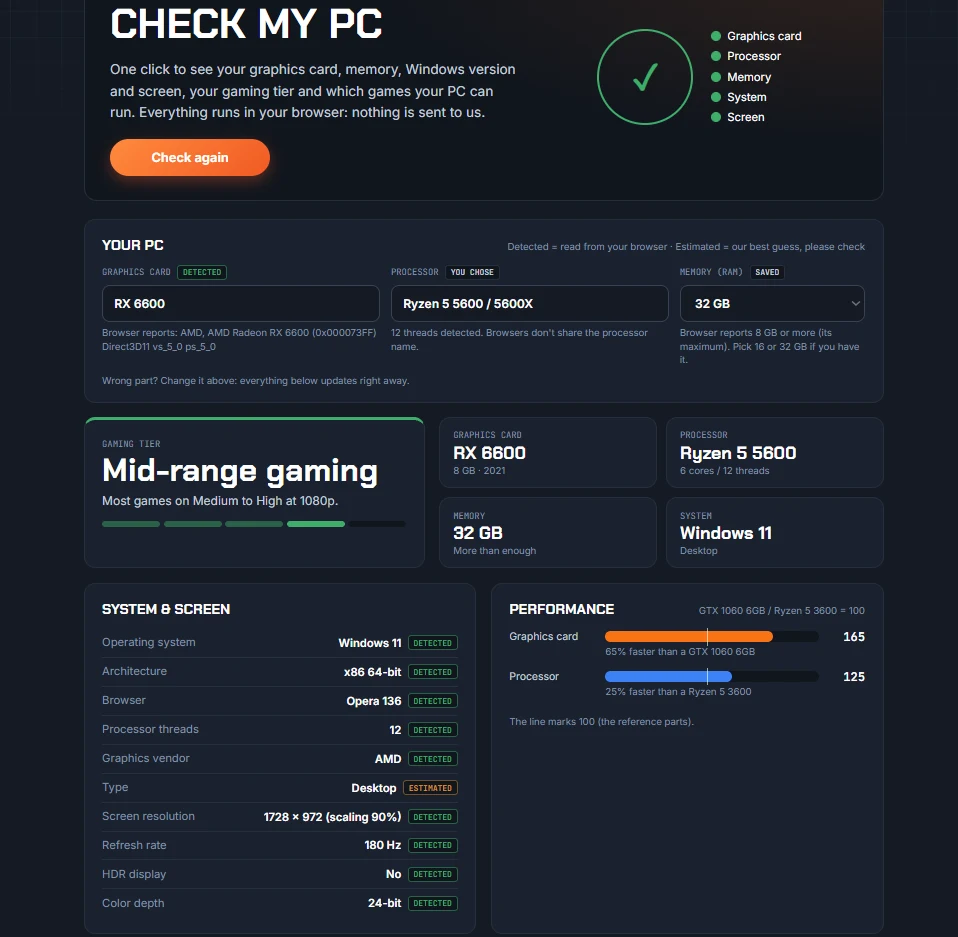
Browsers have limits, on purpose: they never share your processor model, your storage or more than 8 GB of RAM. So the tool suggests a typical processor for your thread count, marked as an estimate. Check it against Settings > System > About and correct it in one click: the results update right away.
What to do with your specs
- Will a game run? Our Can I Run It checker compares your parts with each game's requirements. Our guide Can My PC Run It? explains how to read the result.
- How many FPS will you get? The FPS Estimator shows your expected FPS at every preset and resolution, and which part holds you back.
- Thinking of an upgrade? Compare Hardware puts two graphics cards or processors side by side.
- Selling your PC? PC Price Estimate shows what it is worth used.
FAQ
How do I check my PC specs on Windows 11?
Press Win + Pause to open Settings > System > About for the processor, RAM, graphics card and storage. For more detail, open Task Manager (Ctrl + Shift + Esc) and go to the Performance tab.
How do I find out what graphics card I have?
Open Task Manager, go to Performance and click GPU 0: the name is in the top right corner. If you see GPU 0 and GPU 1, the dedicated card (GeForce, Radeon RX or Arc) is the one that matters for games.
How much VRAM does my graphics card have?
Task Manager > Performance > GPU shows it as Dedicated GPU memory. In dxdiag (Display tab), it is Display Memory (VRAM). Ignore "Shared GPU memory" and "Approx. Total Memory": they add part of your system RAM.
How do I know if my RAM is DDR4 or DDR5?
Open Task Manager > Performance > Memory: recent versions of Windows 11 show it at the top right, next to the total (for example "32.0 GB DDR4"). Otherwise, run Get-CimInstance Win32_PhysicalMemory | Select-Object SMBIOSMemoryType in PowerShell: 26 means DDR4, 34 means DDR5.
Does this work on Windows 10?
Yes. Task Manager, dxdiag, msinfo32 and winver work the same way. Only the Settings > System > About page shows less.
Can I check my specs without installing anything?
Yes. Everything in this guide is built into Windows, and Check My PC runs in your browser. Free apps like CPU-Z, GPU-Z and HWiNFO show even more detail if you need it.
Steps checked on Windows 11 in October 2026. Menu names can change slightly between Windows updates.

Gaming writer at FpsGen. Guides and reviews are built on official sources, patch notes and real player data.


Comments
No comments yet. Start the conversation.