

Low FPS and stutter make even a great game feel bad. The good news: most PCs leave free performance on the table, and you can get a lot of it back in an afternoon without buying anything. This guide lists the fixes that really work in 2026, from the biggest gains to the small ones, and the "tweaks" you should skip.
Quick answer: lower the heaviest settings (shadows, volumetric effects, ray tracing), turn on upscaling (DLSS, FSR or XeSS), update your graphics driver, make sure the game runs on your dedicated graphics card, turn on XMP/EXPO for your RAM, and set Windows to Game Mode and Best performance. Together these often add 30 to 100% more FPS.
First: find out what limits your FPS
Every fix works better when you know what holds your PC back: the graphics card, the processor or something else.
- Turn on an FPS counter with GPU usage. Our guide How to Show FPS in Any PC Game shows how with Steam, NVIDIA, AMD or the Xbox Game Bar.
- Look at GPU usage while you play:
- 95 to 100%: the graphics card is the limit. Graphics settings, resolution and upscaling will help most.
- Well under 90% with low FPS: the processor (or RAM, or a background app) is the limit. Graphics settings will barely change your FPS; CPU-heavy settings and the fixes further down will.
- Compare with what your PC should get. Our FPS Estimator shows the expected FPS for your graphics card and processor and names the bottleneck. If your real FPS is far below the estimate, something is wrong, and the fixes below will usually find it.
1. Lower the right graphics settings
Not all settings cost the same. Dropping a few heavy ones from Ultra to High or Medium can add 20 to 40% FPS with almost no visible difference. Start with these:
| Setting | FPS cost | What to do |
|---|---|---|
| Ray tracing / path tracing | Very high | Turn off, or keep only reflections |
| Shadows | High | High or Medium |
| Volumetric clouds, fog, lighting | High | Medium |
| Ambient occlusion | Medium | Lower one step |
| Reflections (screen space) | Medium | Medium |
| Crowd / NPC density | CPU heavy | Lower if the CPU is the limit |
| Textures | Low (if VRAM allows) | Keep High unless your card has 8 GB or less |
| Anisotropic filtering | Very low | Keep at 16x |
The High preset is often 30% faster than Ultra and looks almost the same in motion. If GPU usage is under 90%, lowering graphics settings won't help much: lower crowd density, view distance and physics instead, which load the processor.
2. Turn on upscaling (DLSS, FSR or XeSS)
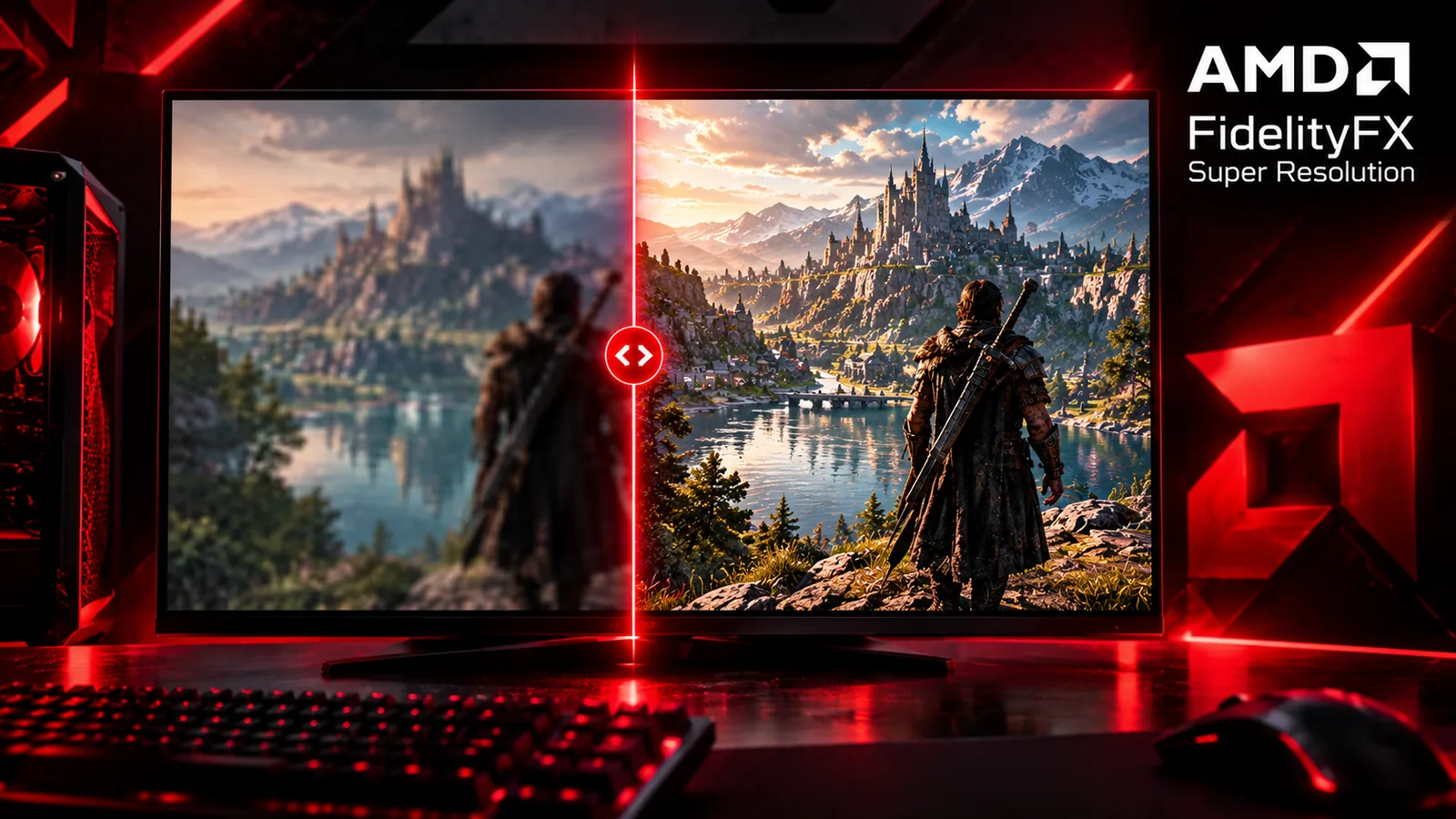
Upscaling renders the game at a lower resolution and rebuilds a sharp image, often for 30 to 70% more FPS. In 2026 it is the single biggest free boost:
- NVIDIA DLSS: works on every GeForce RTX card. The NVIDIA app can upgrade supported games to the newest DLSS 4.5 model (DLSS Override > Model presets > Latest), which looks better than older versions.
- AMD FSR: FSR 4 looks much better than FSR 3. It runs on Radeon RX 9000 cards, and since June 2026 FSR 4.1 also works on RX 7000. RX 6000 support is planned for 2027. Older FSR versions work on almost any card, including NVIDIA and Intel.
- Intel XeSS: best on Intel Arc, also works on other cards.
Use the Quality mode at 1440p and 4K, and Quality or Balanced at 1080p (upscaling from very low resolutions gets blurry). If a game supports several, DLSS on GeForce and FSR 4 on recent Radeon cards usually look best.
3. Use frame generation (carefully)
Frame generation (DLSS Frame Generation, AMD FSR Frame Generation) creates extra frames between real ones and can double your displayed FPS. NVIDIA's Multi Frame Generation on RTX 50 cards goes further.
The catch: the game still responds at your real frame rate, and there is a little extra input lag. It works well when your base FPS is already 50 to 60 or more and you want to fill a 144 Hz screen. It does not rescue a game running at 25 FPS, and it is a bad idea in competitive shooters. Turn on NVIDIA Reflex or AMD Anti-Lag with it to cut the lag.
4. Update your graphics driver
New drivers often add 10% or more in recent games, and fix crashes and stutter.
- NVIDIA: the NVIDIA app > Drivers. Choose the Game Ready driver.
- AMD: AMD Software: Adrenalin Edition > Check for updates.
- Intel Arc: Intel Graphics Software.
If a game started stuttering after an update, a clean install (an option in the NVIDIA and AMD installers) fixes most driver problems.
5. Make sure the game uses your graphics card
On most laptops and on desktops whose processor has built-in graphics, a game can end up on the weak integrated chip. It is the most common cause of "my FPS is way too low".
- Open Settings > System > Display > Graphics.
- Find the game in the list, or click Add desktop app and pick its .exe file.
- Set GPU preference to High performance.
On a desktop, also check that the monitor cable goes into the graphics card, not into the motherboard ports. On the motherboard ports, you are using the integrated graphics.
6. Turn on XMP or EXPO for your RAM
Most RAM runs much slower than it should until you enable its profile in the BIOS. DDR4 sold as 3200 or 3600 often runs at 2133 or 2400 by default, and that costs FPS, especially on AMD processors and with integrated graphics.
- Check your RAM speed in Task Manager > Performance > Memory (see How to Check Your PC Specs).
- If it is lower than your kit's speed, restart and enter the BIOS (usually Del or F2 at startup).
- Turn on XMP (Intel boards), EXPO or DOCP (AMD boards), save and restart.
While you are in the BIOS, turn on Resizable BAR (called Smart Access Memory on AMD) if it is off: it adds a few percent in many recent games.
Also check that you use two sticks of RAM. A single stick runs in single channel and can cost a lot of FPS.
7. Set up Windows 11 for gaming
These take two minutes and help on most PCs:
- Game Mode: Settings > Gaming > Game Mode > On. It gives the game priority over background tasks.
- Power mode: Settings > System > Power & battery > Power mode > Best performance. On a laptop, also plug in the charger: on battery, most gaming laptops cut their graphics card's power a lot.
- Graphics settings: in Settings > System > Display > Graphics, turn on Optimizations for windowed games and, in the advanced/default graphics settings, Hardware-accelerated GPU scheduling (needed for DLSS Frame Generation).
- Refresh rate: in Settings > System > Display > Advanced display, check that your 144 Hz or 165 Hz monitor is not stuck at 60 Hz.
8. Close what runs in the background
Browsers with video, downloads (Steam, Epic, Windows Update), RGB and "monitoring" apps all take CPU time, RAM and sometimes GPU. Before you play:
- Close the browser, or at least tabs with video.
- Pause downloads and cloud syncing.
- Keep one overlay. Running Discord, Steam, NVIDIA or AMD and the Game Bar overlays together can cost FPS and cause stutter.
- Check Task Manager > Startup apps and turn off what you don't need at startup.
9. Check your temperatures
A hot PC slows itself down ("thermal throttling"), which often shows up as FPS that starts fine and drops after 10 to 20 minutes.
- Show GPU and CPU temperature in your overlay (NVIDIA app, AMD Software or Steam).
- Graphics cards are fine up to around 80 to 85 °C; processors depend on the model, but sustained 95 °C or more usually means throttling.
- Clean the dust from fans and filters, make sure case fans push air through, and on a laptop use a hard, flat surface (not a bed) or a cooling stand.
10. Use NVIDIA Reflex or AMD Anti-Lag
These don't raise FPS, but they make the game feel faster by cutting input lag. Turn them on in any game that offers them, especially shooters, and always with frame generation.
11. Cap your frame rate
It sounds backwards, but a frame cap a little under your monitor's refresh rate (for example 141 FPS on a 144 Hz screen) with G-Sync or FreeSync gives smoother, more even frame times than letting FPS jump around. It also lowers heat and noise.
12. Install games on an SSD
An SSD won't raise your average FPS much, but on a hard drive, many recent games stutter when they load new areas, and some won't run well at all. If you have both, move your games to the SSD (Steam: Properties > Installed files > Move install folder).
13. Advanced: Memory Integrity (with care)
Windows 11's Memory Integrity (Windows Security > Device security > Core isolation) can cost a few percent in some games, and Microsoft itself has listed turning it off as an option for gamers. It is also a real security feature that protects against some malware. Only consider it if you have done everything above, and if you turn it off, keep Windows and your antivirus up to date. On most PCs we recommend leaving it on.
What doesn't work (skip these)
- "FPS booster" and "game optimizer" apps that promise big gains: at best they do what this guide does, at worst they install junk.
- RAM cleaners: Windows already manages memory better than they do.
- Random registry and services tweaks from videos: tiny or no gains, and they can break updates or features.
- Turning off Windows Defender: a big security risk for almost no FPS.
- Overclocking without knowing the risks: it can add a few percent, but it can also cause crashes and data loss. Learn it properly first.
Still too slow? When to upgrade
If you have done all of the above and your FPS is still too low, the part that limits you is simply too slow for the game.
- GPU usage near 100%: upgrade the graphics card. Our RTX 50 vs RX 9000 guide covers every current card.
- GPU usage low, CPU busy: upgrade the processor. See Best Gaming CPUs in 2026.
- Under 16 GB of RAM: add RAM first. It is often the cheapest fix of all.
Put your current part and the one you want side by side in Compare Hardware, and check the Can I Run It result for the games you want to play.
FAQ
What is the fastest way to get more FPS?
Turn on upscaling (DLSS, FSR or XeSS) in Quality mode and lower shadows, volumetric effects and ray tracing. Together they often add 50% or more in recent games.
Why is my FPS low with a good graphics card?
The most common causes: the game runs on the integrated graphics, the monitor cable is in the motherboard, the RAM runs without XMP/EXPO, the laptop is on battery, or the processor is the bottleneck. Check GPU usage while you play: if it is low, the graphics card is not the problem.
Does Game Mode help?
A little, mostly when other apps run in the background. It is on by default in Windows 11 and there is no reason to turn it off.
Does frame generation really increase FPS?
It increases the frames you see, not how fast the game reacts. It is great for smoothness when you already have 50 to 60 FPS, and not a fix for a game that runs badly.
Will more RAM increase FPS?
Going from 8 GB to 16 GB often helps a lot in recent games, mostly with stutter and 1% lows. Going from 16 GB to 32 GB helps in a few heavy games and if you keep many apps open while playing.
Steps checked on Windows 11 in October 2026. DLSS and FSR support from NVIDIA and Lowyat.NET. Menu names can change with Windows and driver updates.

Gaming writer at FpsGen. Guides and reviews are built on official sources, patch notes and real player data.


Comments
No comments yet. Start the conversation.