

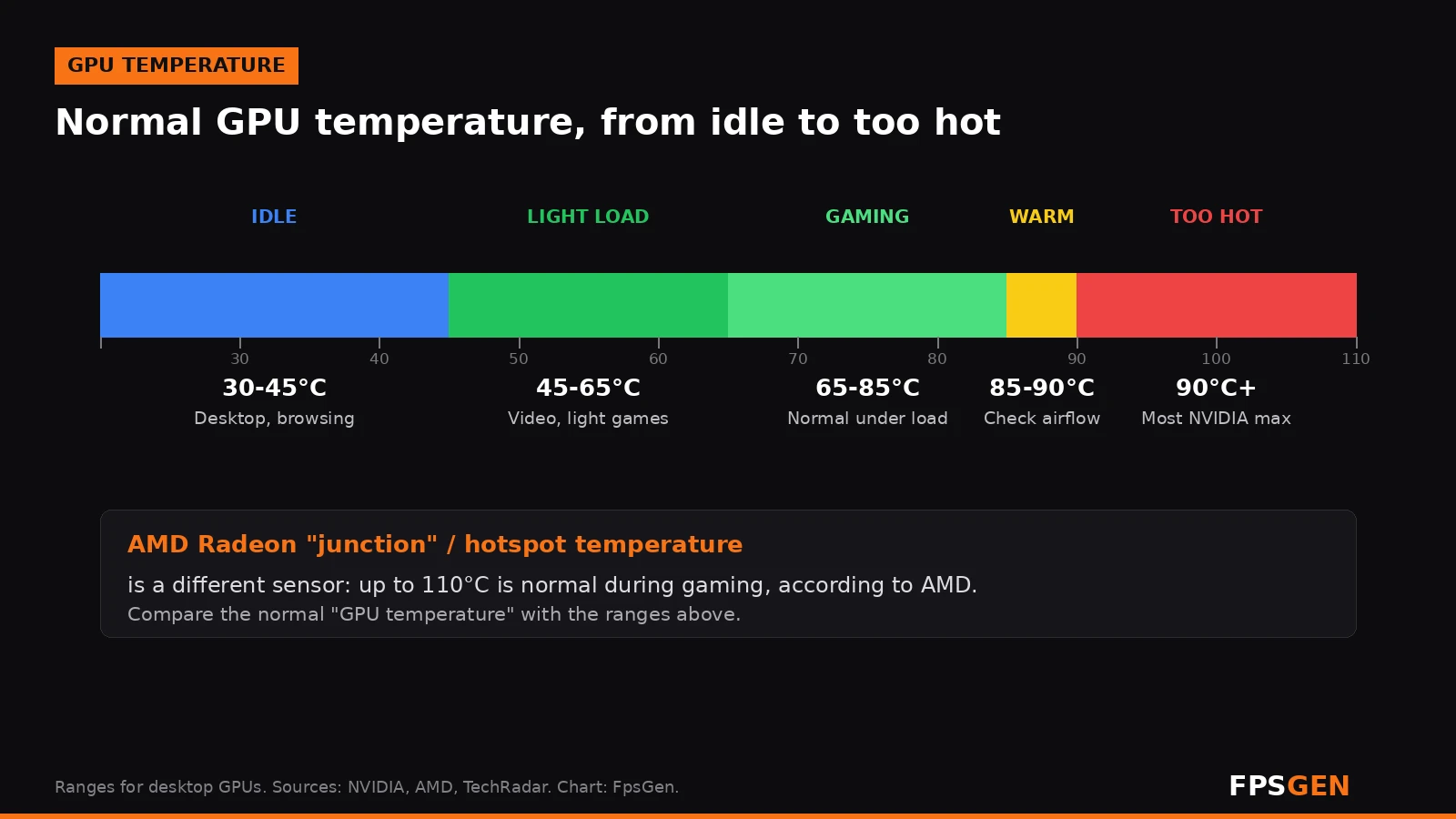
Short answer: a normal GPU temperature is about 30-45°C at idle and 65-85°C while gaming for most desktop graphics cards. 85-90°C is warm but usually still safe; check your airflow. Above 90°C is too hot for most NVIDIA cards: they slow down to protect themselves. On AMD Radeon cards, the separate junction (hotspot) temperature can reach 110°C during gaming, and AMD says that is normal.
Normal GPU temperatures at a glance
| What you are doing | Normal GPU temperature |
|---|---|
| Idle (desktop, browsing) | 30-45°C |
| Light load (video, older games) | 45-65°C |
| Gaming (demanding games) | 65-85°C |
| Warm | 85-90°C: still within spec on many cards, but check cooling |
| Too hot | Above 90°C: most cards start to slow down |
Your exact numbers depend on the card's cooler, your case airflow and the room temperature. A small two-fan card in a closed case will run hotter than a big three-fan card in an open, well-ventilated case, and both are fine as long as they stay below their limit.
Idle temperatures of 50°C or more can also be normal: many modern cards stop their fans at idle (zero-RPM mode) and let the temperature rise a little before they spin up.
How hot is too hot for a GPU?
Every graphics card has a maximum temperature. Near that limit, it lowers its clock speed (thermal throttling) to cool down, and you lose FPS. If it still gets too hot, the PC can shut down to protect the hardware.
NVIDIA lists an official maximum GPU temperature for each RTX 50 card:
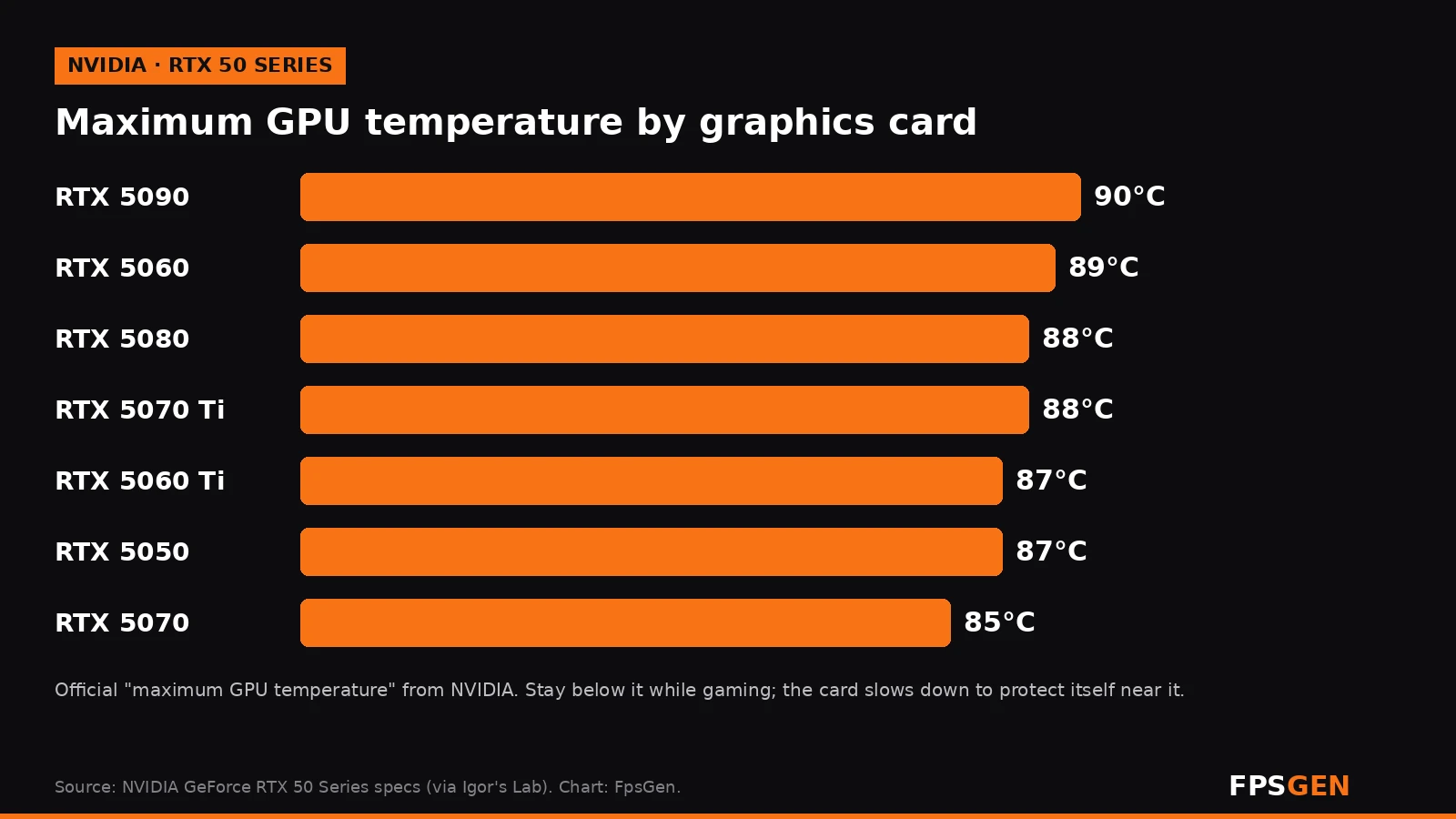
| Graphics card | Maximum GPU temperature |
|---|---|
| RTX 5090 | 90°C |
| RTX 5080 | 88°C |
| RTX 5070 Ti | 88°C |
| RTX 5070 | 85°C |
| RTX 5060 Ti | 87°C |
| RTX 5060 | 89°C |
| RTX 5050 | 87°C |
Rule of thumb: keep your card at least 5-10°C below its maximum while gaming. Short spikes are not a problem; hours at the limit are what wear a card out faster.
AMD GPU temperature: why 110°C can be normal
AMD Radeon cards show two temperatures:
- GPU temperature (edge): the "normal" reading. Use the same ranges as above: 65-85°C while gaming is fine.
- Junction temperature (hotspot): the hottest point on the chip, measured by many sensors. It is always higher, often 15-25°C above the GPU temperature.
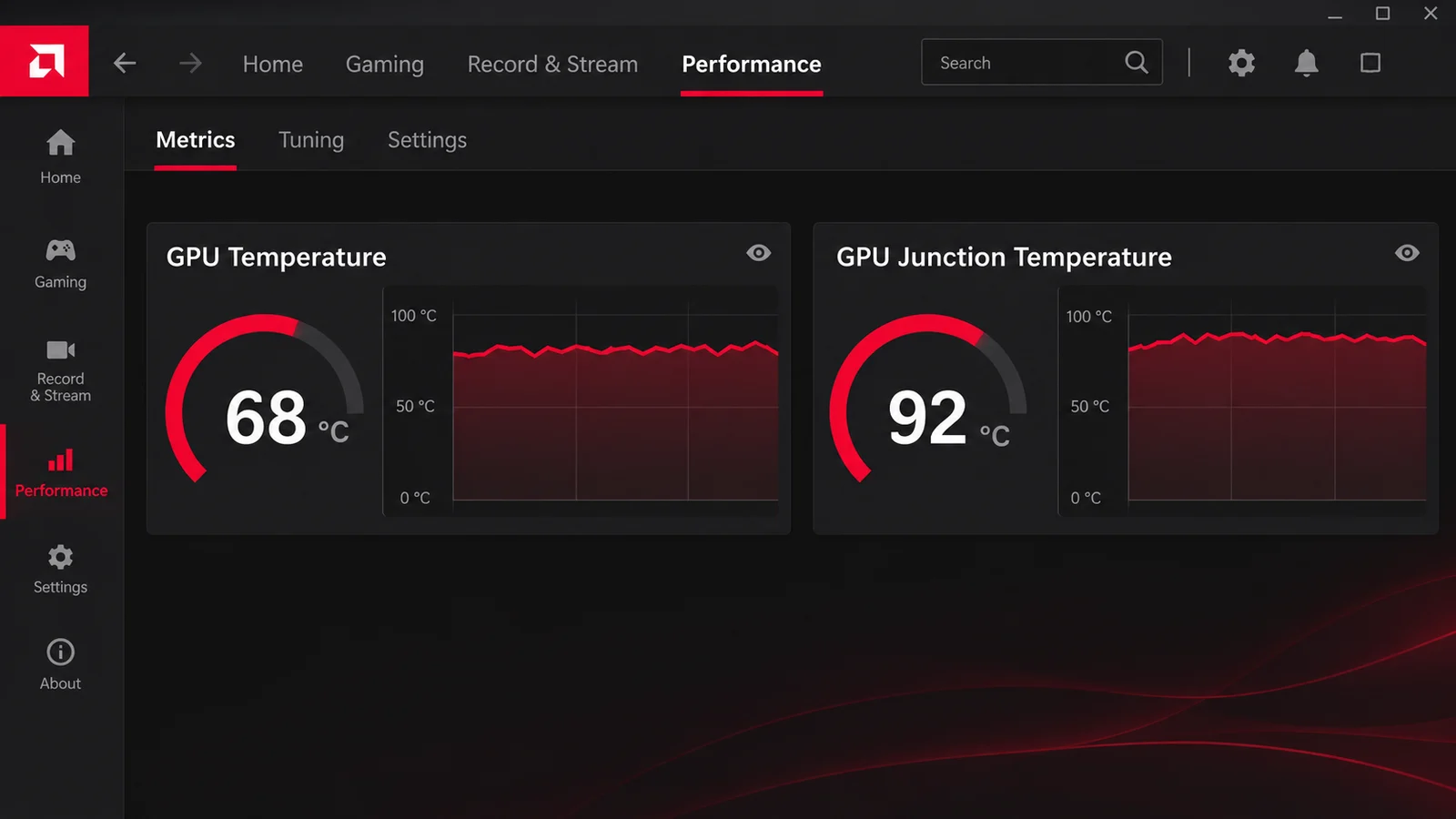
AMD has said that up to 110°C junction temperature during gaming is "expected and within spec". So a hotspot of 95-105°C on an RX 6000, 7000 or 9000 card is not a reason to panic. If the junction temperature stays at 110°C and your FPS drops, the card is throttling: improve your airflow.
A very large gap (more than about 30°C) between GPU temperature and junction temperature can mean poor contact between the cooler and the chip (thermal paste or mounting pressure). In that case, contact the manufacturer if the card is under warranty.
Normal laptop GPU temperature
Gaming laptops run hotter than desktops, because the cooling is small and shared with the CPU. 75-87°C while gaming is common and normal on many gaming laptops. To keep a laptop cooler:
- Play on a hard, flat surface, not on a bed or your lap.
- Use the laptop's performance or cooling mode in its control app.
- A laptop cooling pad can lower temperatures a few degrees.
- Clean the vents every few months.
How to check your GPU temperature
- Windows Task Manager: press Ctrl + Shift + Esc, open Performance, and click your GPU. The temperature is shown at the bottom (dedicated graphics cards only).
- NVIDIA App: turn on the performance overlay (Alt + R) to see GPU temperature in game.
- AMD Software: open Performance, then Metrics, or turn on the metrics overlay (Ctrl + Shift + O). It shows both GPU and junction temperature.
- Free tools: HWiNFO, GPU-Z or MSI Afterburner show every sensor, including the hotspot and memory temperature on supported cards.
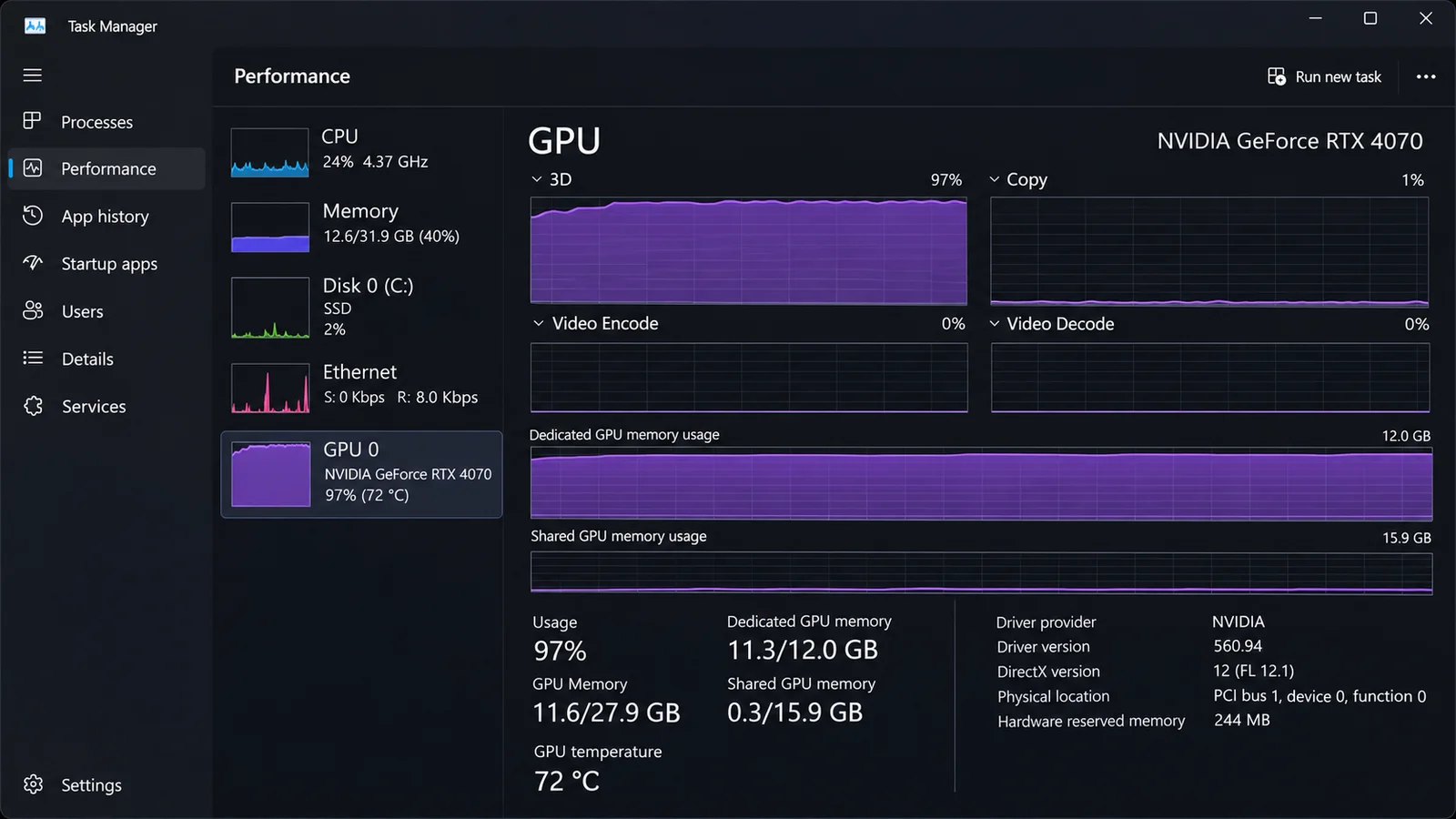
Check the temperature after 15-20 minutes of gaming, not in the first minute. Our guide also shows how to add an FPS counter: How to Show FPS in Games.
How to lower your GPU temperature
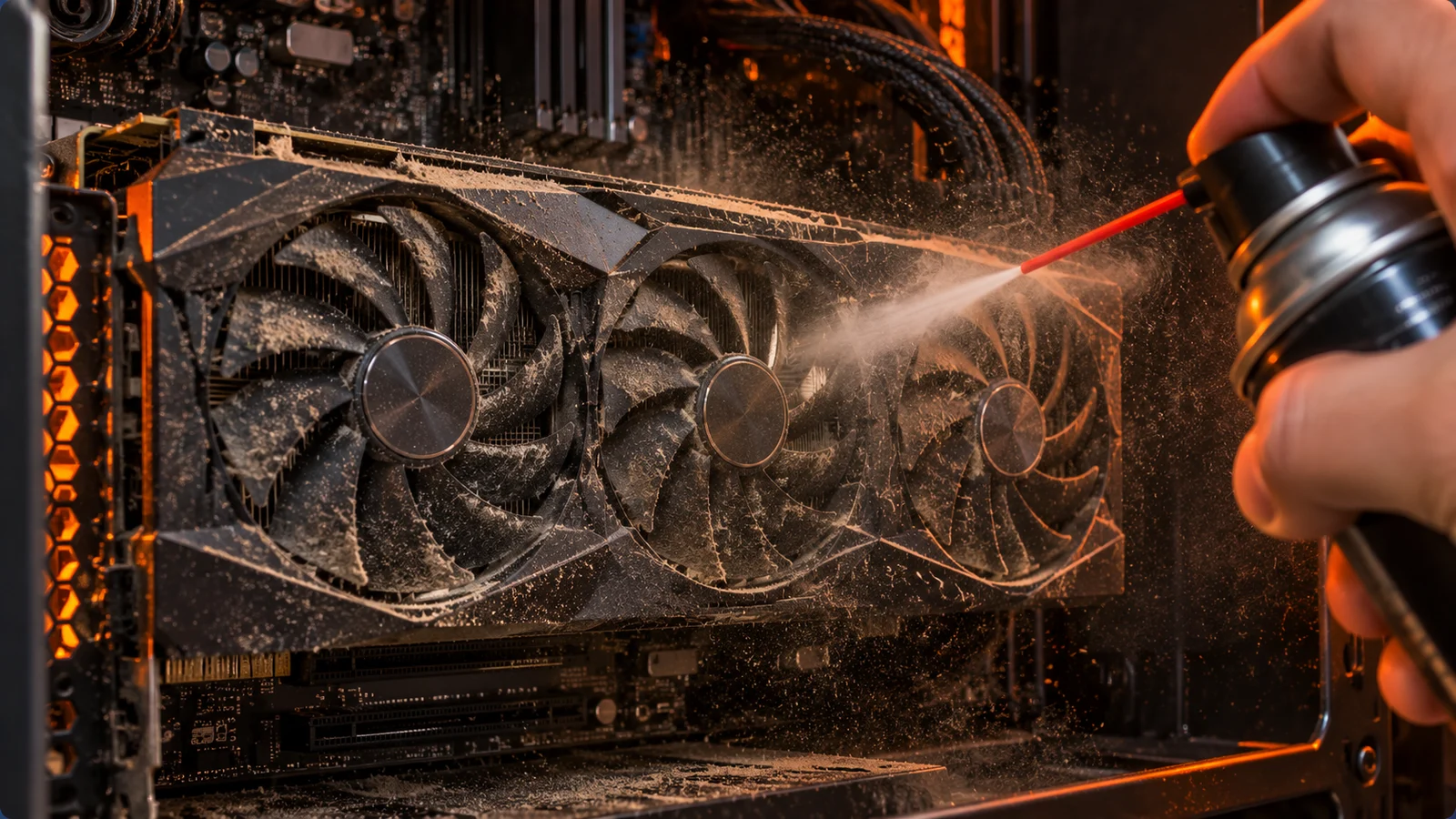
- Improve case airflow. You need at least one intake fan in front and one exhaust fan at the back or top. Keep cables away from the fans.
- Clean out the dust. Blow out the GPU fans, the heatsink and the case filters with compressed air, holding the fans still while you clean.
- Cap your FPS. If your card renders 300 FPS on a 144 Hz screen, it heats up for nothing. A cap 3 below your refresh rate keeps it cooler: use our FPS Cap Calculator.
- Turn on V-Sync in older or simple games for the same reason: V-Sync On or Off?
- Set a stronger fan curve in MSI Afterburner or AMD Software. Louder, but cooler.
- Undervolt the card. Lower voltage means less heat, often with the same performance. AMD Software has a built-in undervolt option; on NVIDIA, use MSI Afterburner.
- Give the PC room to breathe: a few centimeters from the wall, not inside a closed cabinet, and away from the sun or a heater.
- Replace the thermal paste and pads on an older card (3+ years). Only if you are comfortable opening it, and not while it is under warranty.
- Update your driver: some updates improve fan control and power use. See How to Update GPU Drivers.
Does a hot GPU lower FPS?
Only when it reaches its limit. Below that, 80°C performs the same as 60°C. Once the card throttles, its clock speed drops, and so does your FPS. If your FPS starts high and then drops after a few minutes of gaming while the temperature sits at the maximum, heat is the cause. More fixes: How to Increase FPS on PC.
Related guides
- Normal CPU Temp While Gaming
- FPS Cap Calculator
- How to Show FPS in Games
- How to Update GPU Drivers
- How to Increase FPS on PC
Check your temperature
Not sure about your number? Pick your processor or graphics card in our free CPU & GPU Temp Checker, type the temperature you see, and it tells you if it is normal, warm or too hot for that exact chip.
FAQ
What is a normal GPU temperature while gaming?
65-85°C for most desktop graphics cards. Gaming laptops often run at 75-87°C.
What is a normal GPU temperature at idle?
30-45°C. Up to about 50°C is also normal on cards that stop their fans at idle.
Is 80°C hot for a GPU?
No. 80°C while gaming is normal for most graphics cards.
Is 90°C too hot for a GPU?
For most NVIDIA cards, 90°C is at or above the maximum, so the card will slow down. Improve airflow, clean the dust or cap your FPS. For an AMD junction (hotspot) temperature, 90°C is normal.
Is 100°C hotspot normal on AMD?
Yes. AMD says junction temperatures up to 110°C during gaming are within spec. Check the regular GPU temperature too: it should be well below that.
How do I check my GPU temperature in Windows?
Open Task Manager (Ctrl + Shift + Esc), go to Performance and select your GPU. You can also use the NVIDIA App overlay, AMD Software metrics, HWiNFO or GPU-Z.
Sources: NVIDIA GeForce RTX 50 Series maximum GPU temperatures, as listed by Igor's Lab; AMD on 110°C junction temperature, reported by PC Gamer; idle and gaming ranges from TechRadar. Last checked November 16, 2026.

Gaming writer at FpsGen. Guides and reviews are built on official sources, patch notes and real player data.



Comments
No comments yet. Start the conversation.