

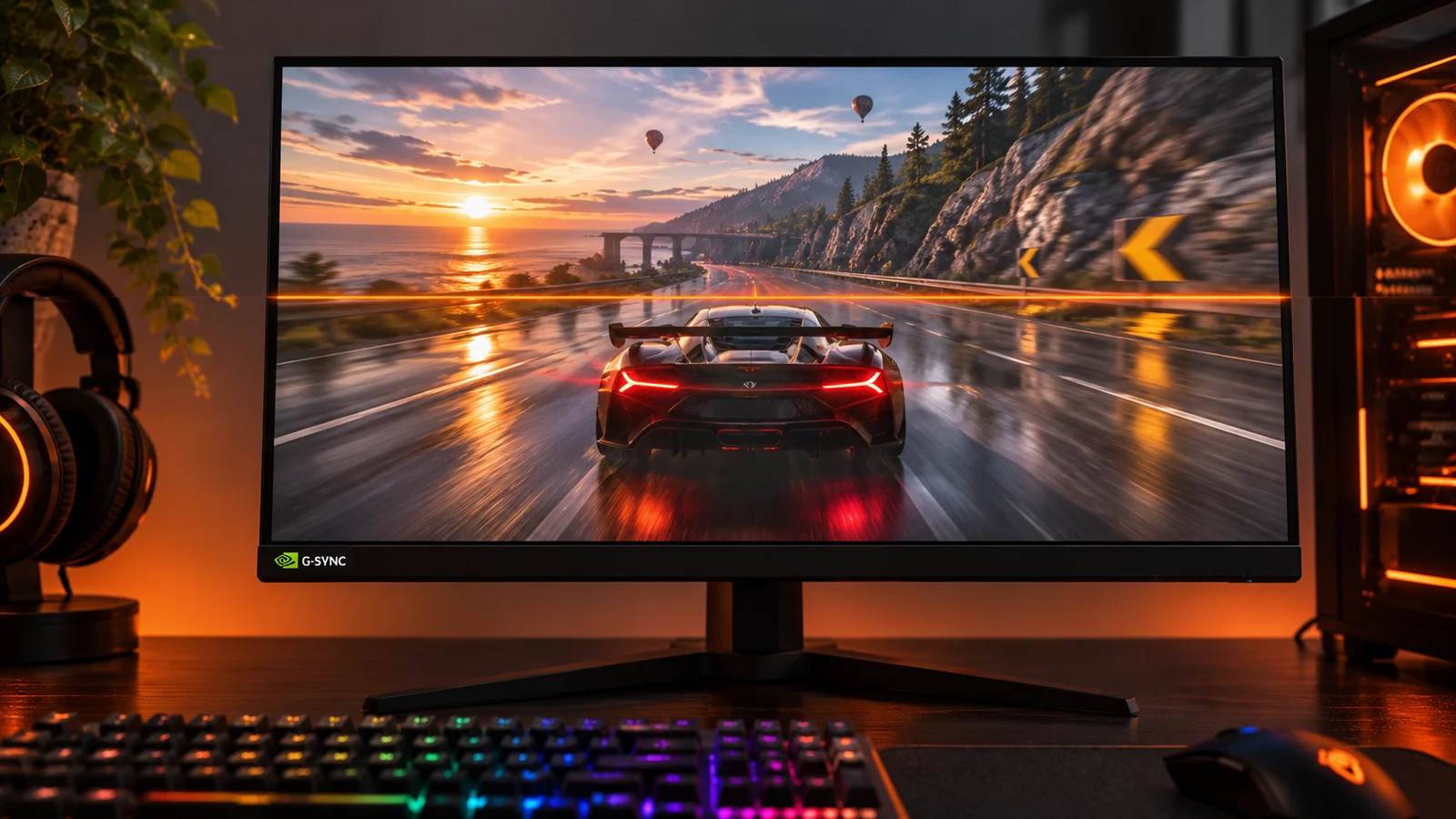
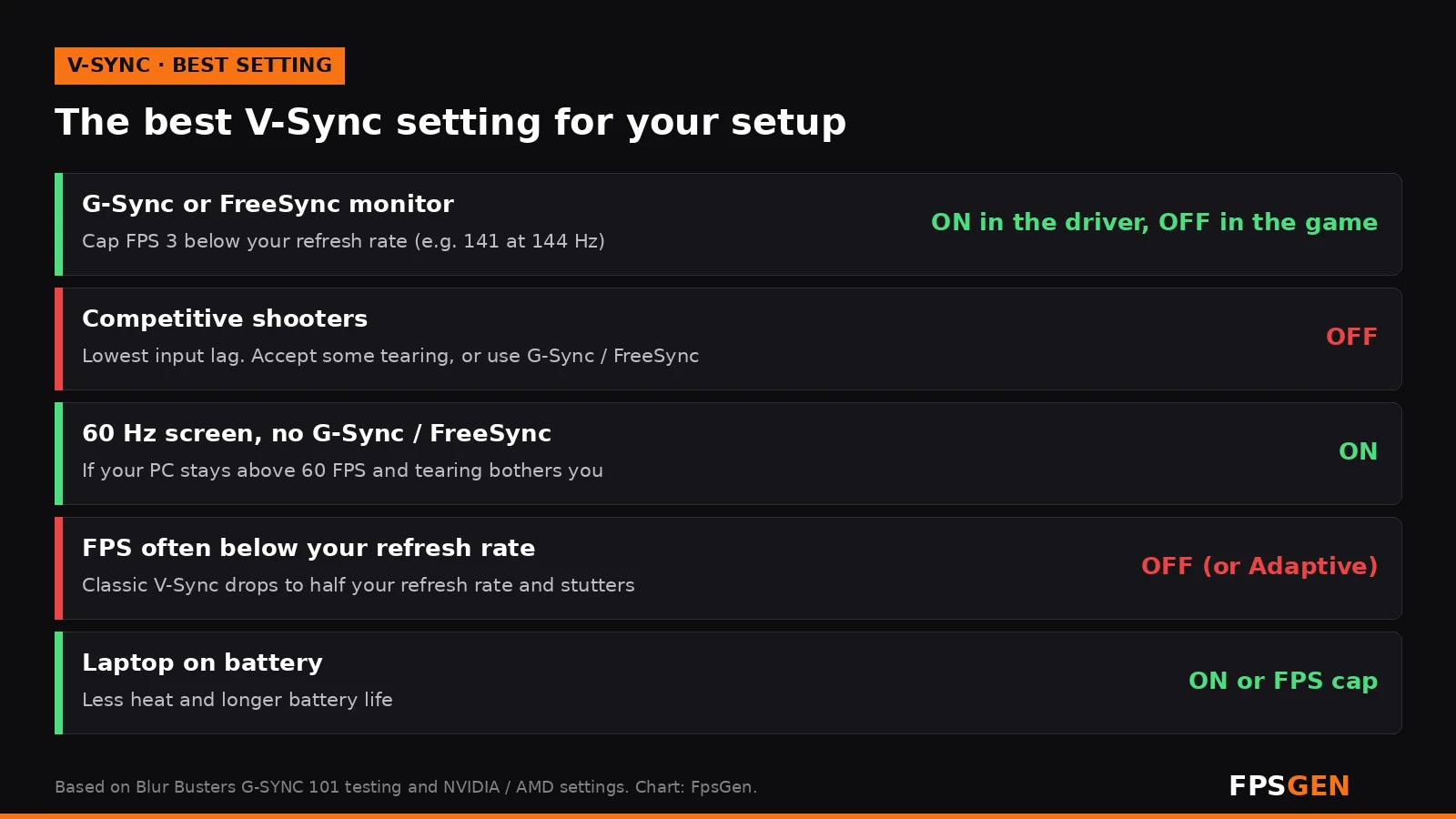
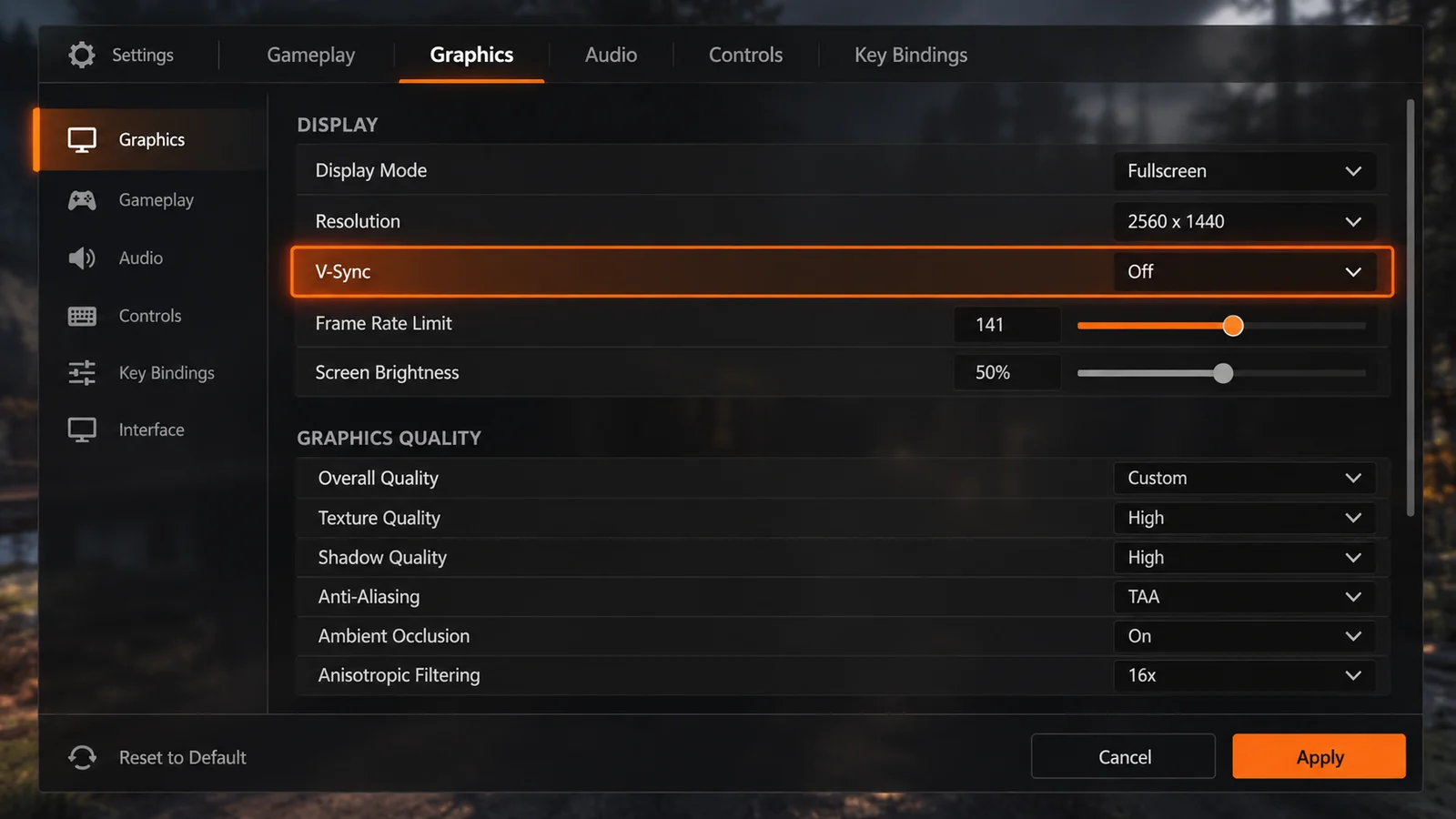
Short answer: it depends on your monitor. With a G-Sync or FreeSync monitor, the best setup is V-Sync ON in the NVIDIA App or AMD Software, OFF in the game, plus an FPS cap 3 below your refresh rate (for example 141 FPS on a 144 Hz screen). Without G-Sync or FreeSync, turn V-Sync OFF in competitive shooters for the lowest input lag, and ON in single-player games if screen tearing bothers you and your PC stays above your refresh rate.
What does V-Sync do?
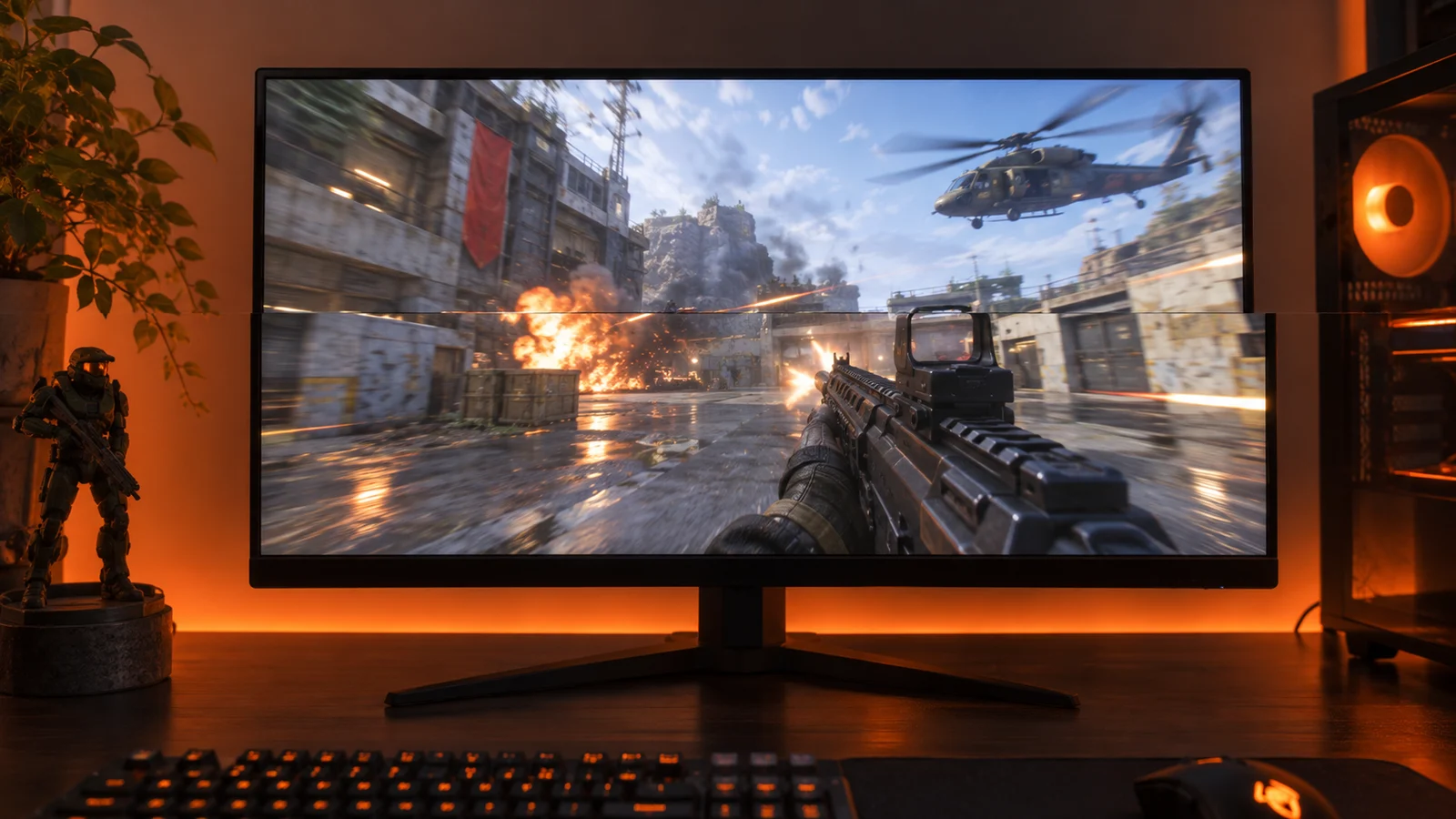
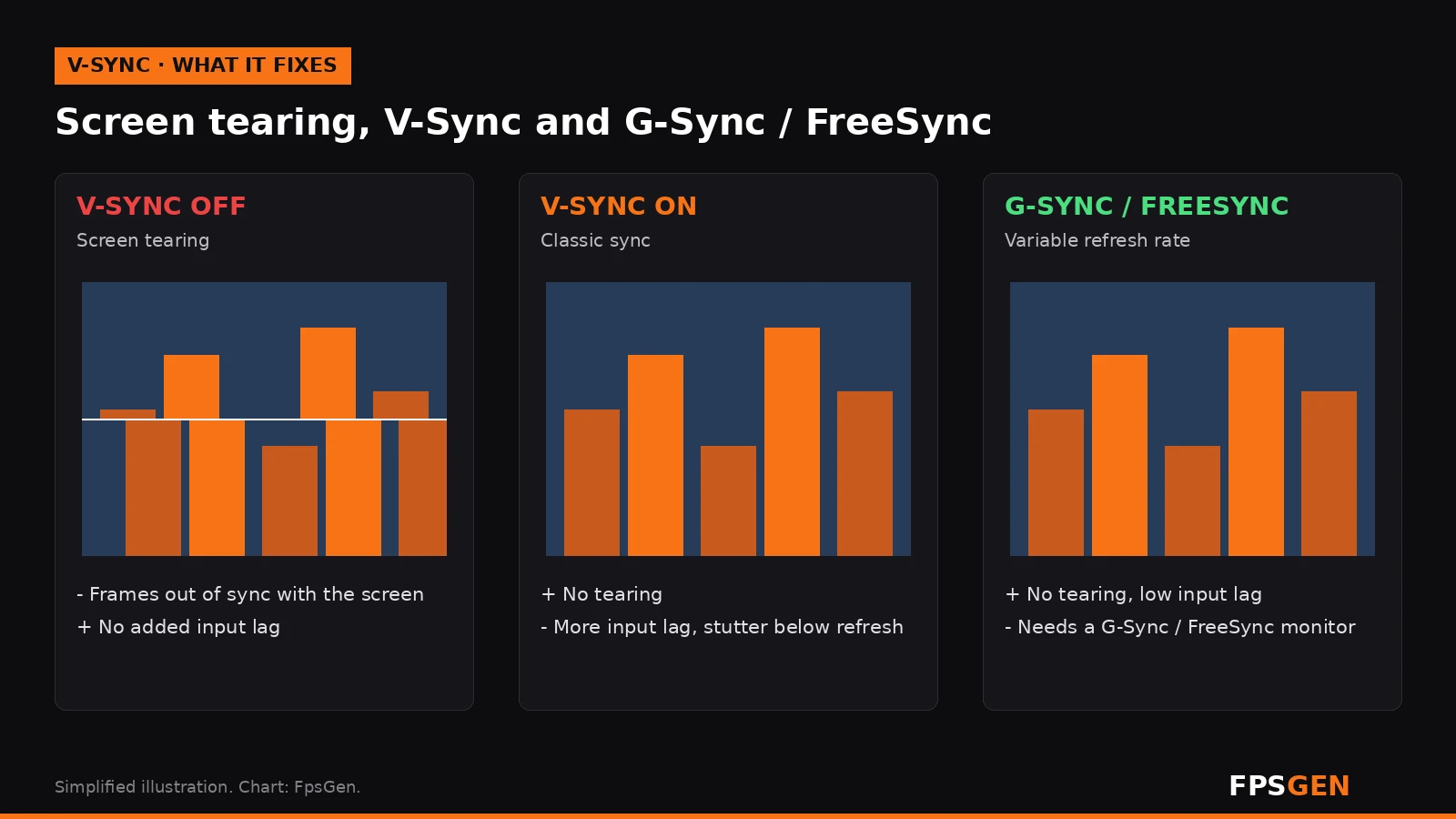
Your monitor refreshes at a fixed speed, for example 60 or 144 times per second (60 Hz, 144 Hz). Your graphics card sends frames at its own speed, which changes all the time. When the two are out of step, the screen shows the top of one frame and the bottom of the next at once: that horizontal "cut" across the image is screen tearing.
V-Sync (vertical sync) makes the GPU wait for the monitor before sending each new frame. Tearing disappears, but waiting has a cost:
- More input lag: your mouse and keyboard feel a little slower, because frames wait in line.
- Stutter when FPS drops: with classic V-Sync on a 60 Hz screen, if your PC cannot hold 60 FPS, the frame rate can fall to 30 and the game stutters.
- FPS is capped at your refresh rate.
V-Sync on vs off
| V-Sync ON | V-Sync OFF | |
|---|---|---|
| Screen tearing | None | Yes, especially when you turn fast |
| Input lag | Higher | Lowest |
| Max FPS | Capped at your refresh rate | Unlimited |
| When FPS drops below refresh | Can stutter | Smooth, but tears |
| Best for | Single-player, 60 Hz screens, laptops | Competitive shooters |
When to turn V-Sync on
- You play single-player games and tearing bothers you.
- You have a 60 Hz screen without G-Sync or FreeSync, and your PC holds more than 60 FPS steadily.
- You play on a laptop: limiting FPS to the refresh rate means less heat, less fan noise and longer battery life.
- Old or simple games run at hundreds of FPS and make your GPU work, and whine, for nothing.
When to turn V-Sync off
- You play competitive shooters (Valorant, CS2, Call of Duty, Fortnite): input lag matters more than tearing. Pros keep it off.
- Your FPS often falls below your refresh rate and you have no G-Sync or FreeSync: classic V-Sync makes those drops worse.
- You use G-Sync or FreeSync: turn it off in the game, and follow the setup below instead.
The best setup with G-Sync or FreeSync
G-Sync (NVIDIA) and FreeSync (AMD) make the monitor adapt its refresh rate to your FPS. You get no tearing and low input lag, as long as your FPS stays inside the monitor's range. Blur Busters' long-running tests found the best setup is:
- Turn on G-Sync or FreeSync in the NVIDIA App or AMD Software, and in your monitor's menu if it has a switch.
- V-Sync ON in the driver (NVIDIA App or AMD Software). With G-Sync on, this does not act like classic V-Sync: it only catches the small frame-time spikes that would still cause tearing, and adds almost no lag.
- V-Sync OFF in the game.
- Cap your FPS 3 below your refresh rate: 141 FPS at 144 Hz, 162 at 165 Hz, 237 at 240 Hz. Use the game's own limiter if it has one, or Max Frame Rate in the NVIDIA App or AMD Software. Without a cap, your FPS hits the ceiling, G-Sync stops working and you get classic V-Sync lag back.
In games with NVIDIA Reflex, turning Reflex on also helps keep latency low with this setup.
How to turn V-Sync on or off
In the game: open the Graphics or Display settings and look for V-Sync or Vertical sync. This is the easiest way, and the only one you need without G-Sync or FreeSync.
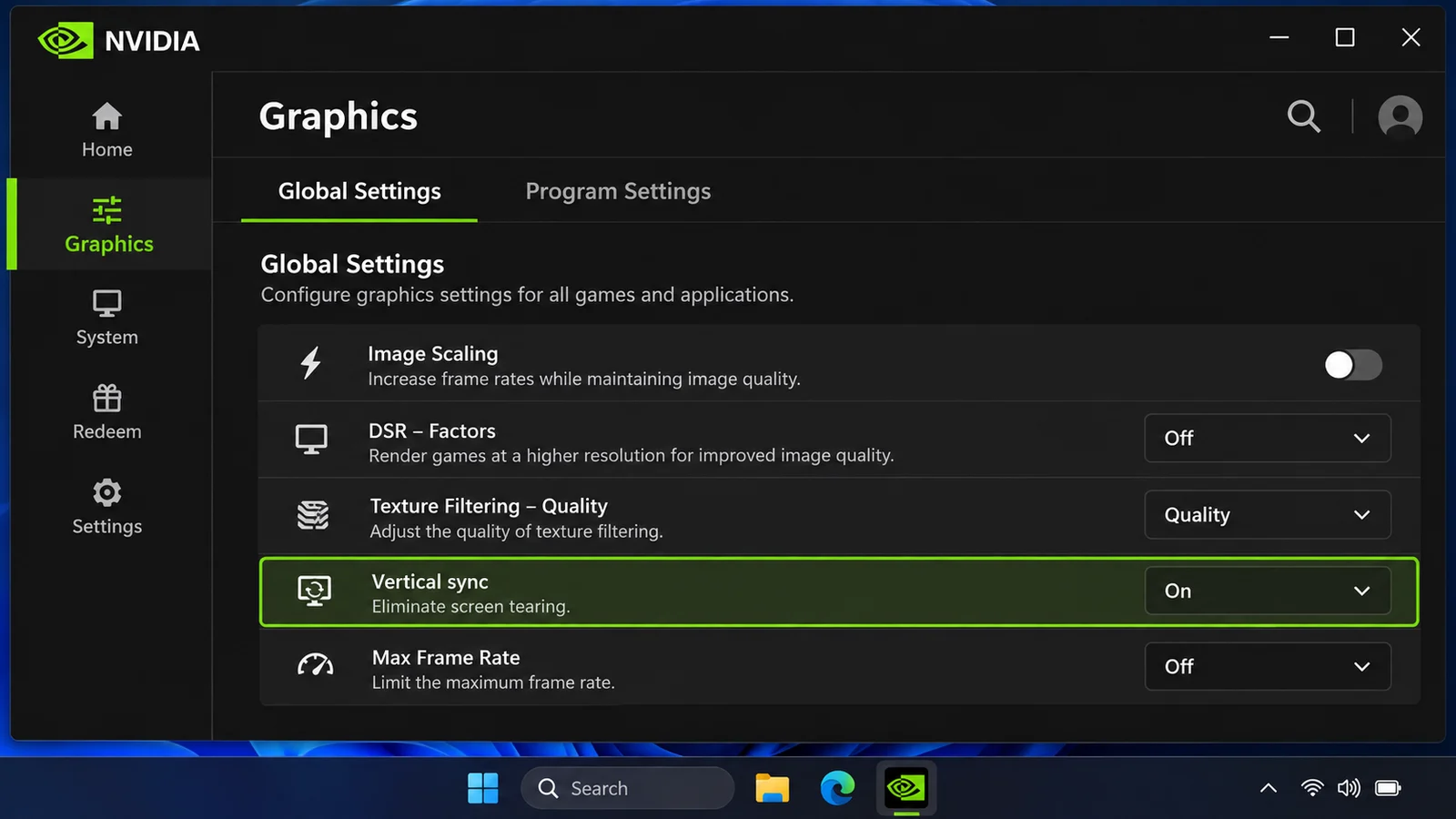
NVIDIA (NVIDIA App):
- Open the NVIDIA App and go to Graphics.
- Choose Global Settings (all games) or Program Settings (one game).
- Set Vertical sync to On or Off, and set Max Frame Rate if you need a cap.
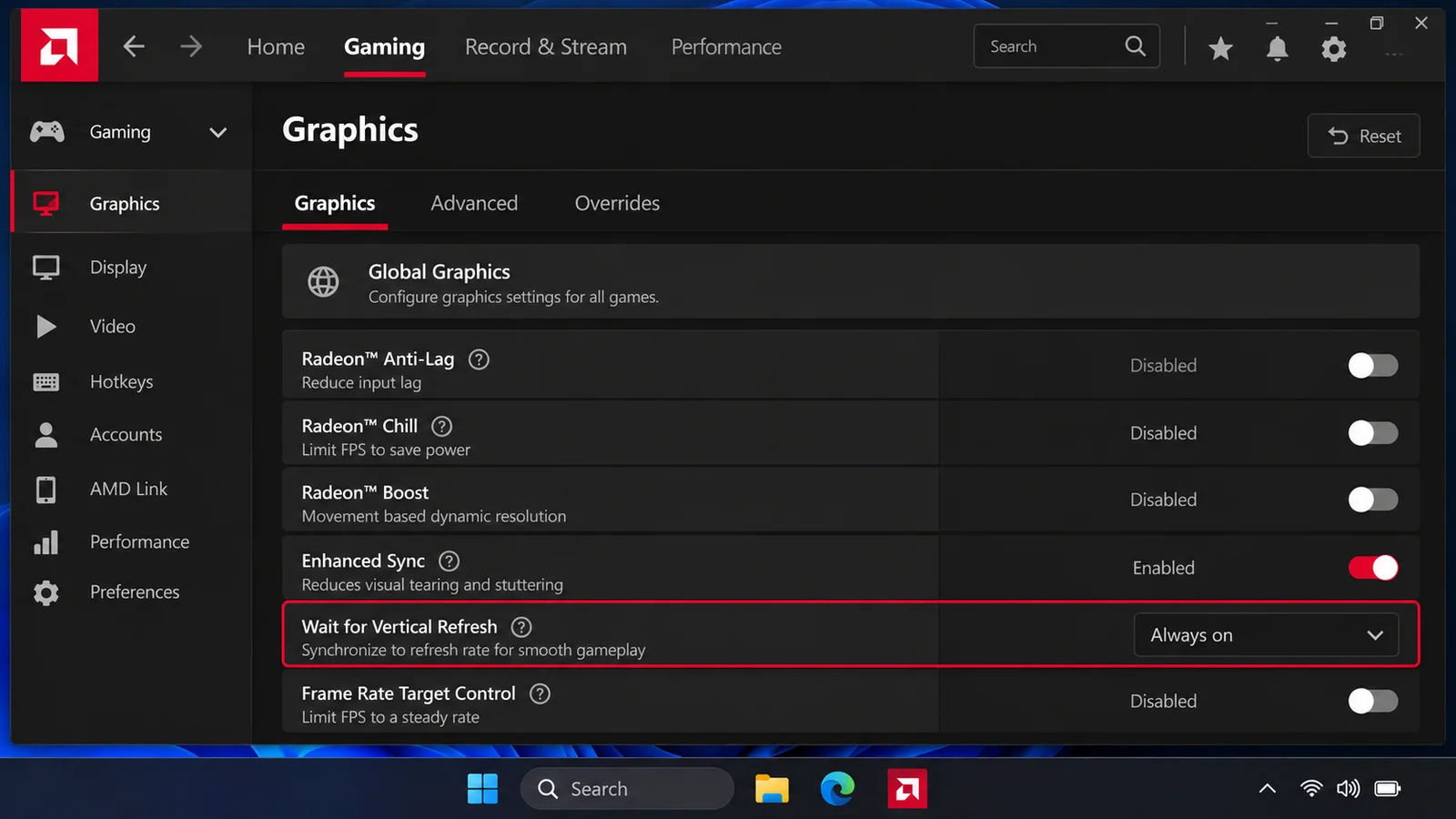
AMD (AMD Software: Adrenalin):
- Open AMD Software and go to Gaming, then Graphics (or search for Wait for Vertical Refresh).
- Set Wait for Vertical Refresh to Always on or Always off, or leave it on Off, unless application specifies to use the game's setting.
- Turn on AMD FreeSync under Display if your monitor supports it.
Fast Sync, Enhanced Sync and Adaptive V-Sync
- NVIDIA Fast Sync: no tearing and less lag than V-Sync, but only works well when your FPS is far above your refresh rate (for example 300 FPS on a 144 Hz screen). Below that, it can stutter.
- AMD Enhanced Sync: AMD's version of the same idea: it reduces tearing without capping FPS. Same rule: best when FPS is well above refresh.
- Adaptive V-Sync (NVIDIA): turns V-Sync on when you are above the refresh rate and off when you drop below it, so you avoid the big stutter. A good option for 60 Hz screens without G-Sync.
What about Valorant, CS2 and other shooters?
Keep V-Sync off in the game. With a G-Sync or FreeSync monitor, use the setup above (V-Sync on in the driver plus an FPS cap) for tear-free play with very low lag. Without one, accept a little tearing in exchange for the fastest response.
Related guides
- What Is a Good FPS for Gaming?
- How to Show FPS in Games
- Hardware-Accelerated GPU Scheduling: On or Off?
- How to Update GPU Drivers
FAQ
Should V-Sync be on or off?
Off for competitive games. On for single-player games if tearing bothers you and your PC stays above your refresh rate. With G-Sync or FreeSync: on in the driver, off in the game, with an FPS cap 3 below your refresh rate.
Does V-Sync cause input lag?
Yes. Classic V-Sync makes frames wait for the monitor, which adds input lag. With G-Sync or FreeSync and an FPS cap, the extra lag is very small.
Should I use V-Sync with G-Sync?
Yes, but in the NVIDIA App, not in the game, and together with an FPS cap 3 below your refresh rate. This stops the small tearing that G-Sync alone can still show.
Should I use V-Sync with FreeSync?
The same idea works: FreeSync on, V-Sync off in the game, and an FPS cap a few frames below your refresh rate. Turning V-Sync on in AMD Software is optional; use it if you still see tearing.
Does V-Sync lower FPS?
It caps FPS at your refresh rate, and on screens without G-Sync or FreeSync it can drop FPS further (for example from 59 to 30 on a 60 Hz screen) when your PC cannot keep up.
Is V-Sync good for laptops?
Often yes: capping FPS at the refresh rate lowers heat, fan noise and battery use.
Sources: Blur Busters G-SYNC 101 (optimal G-SYNC settings and input lag tests); AMD: Radeon display settings (Enhanced Sync and Wait for Vertical Refresh); NVIDIA App settings as described by Tier1Settings. Last checked November 15, 2026.

Gaming writer at FpsGen. Guides and reviews are built on official sources, patch notes and real player data.
Comments
No comments yet. Start the conversation.