

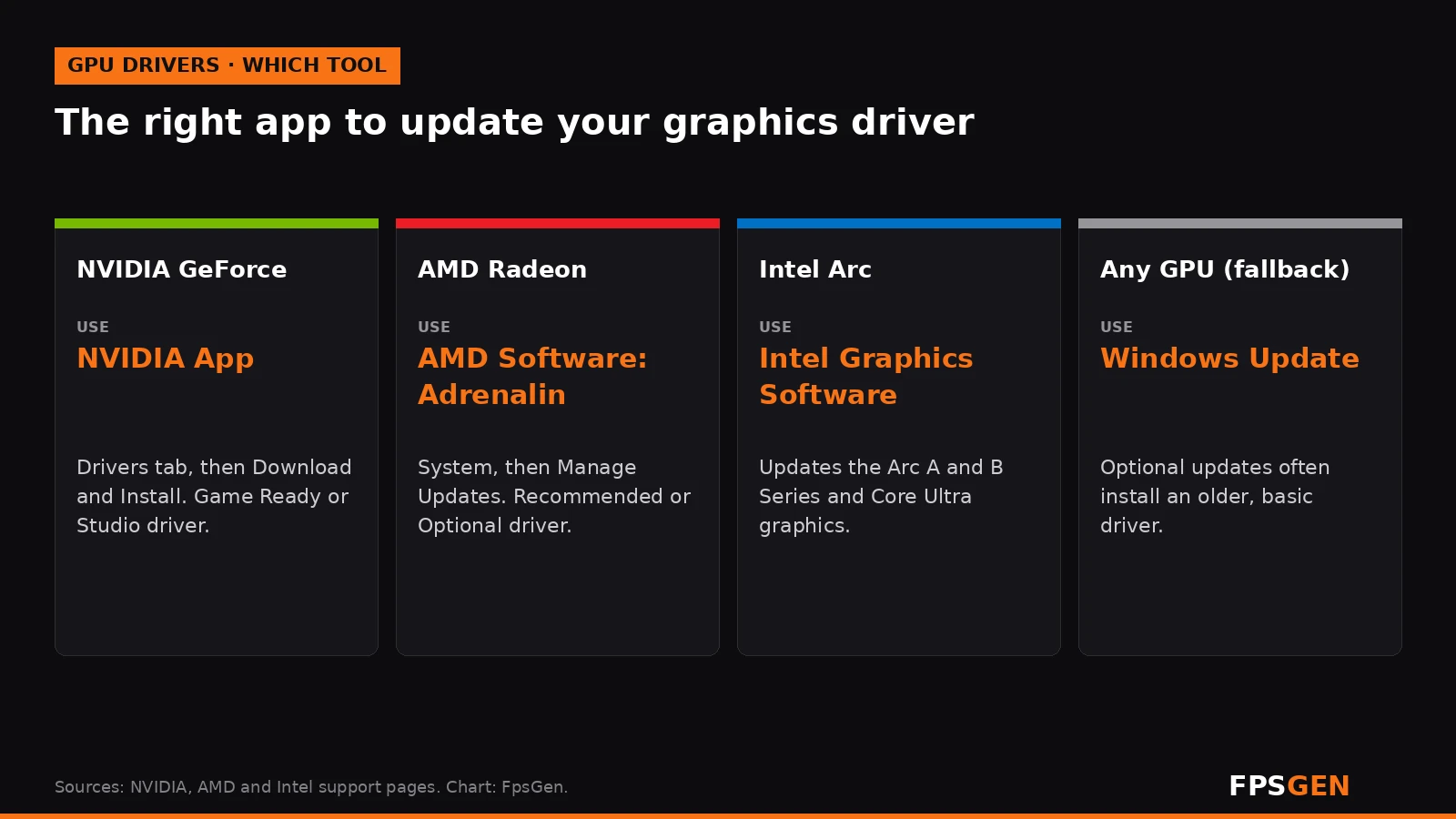
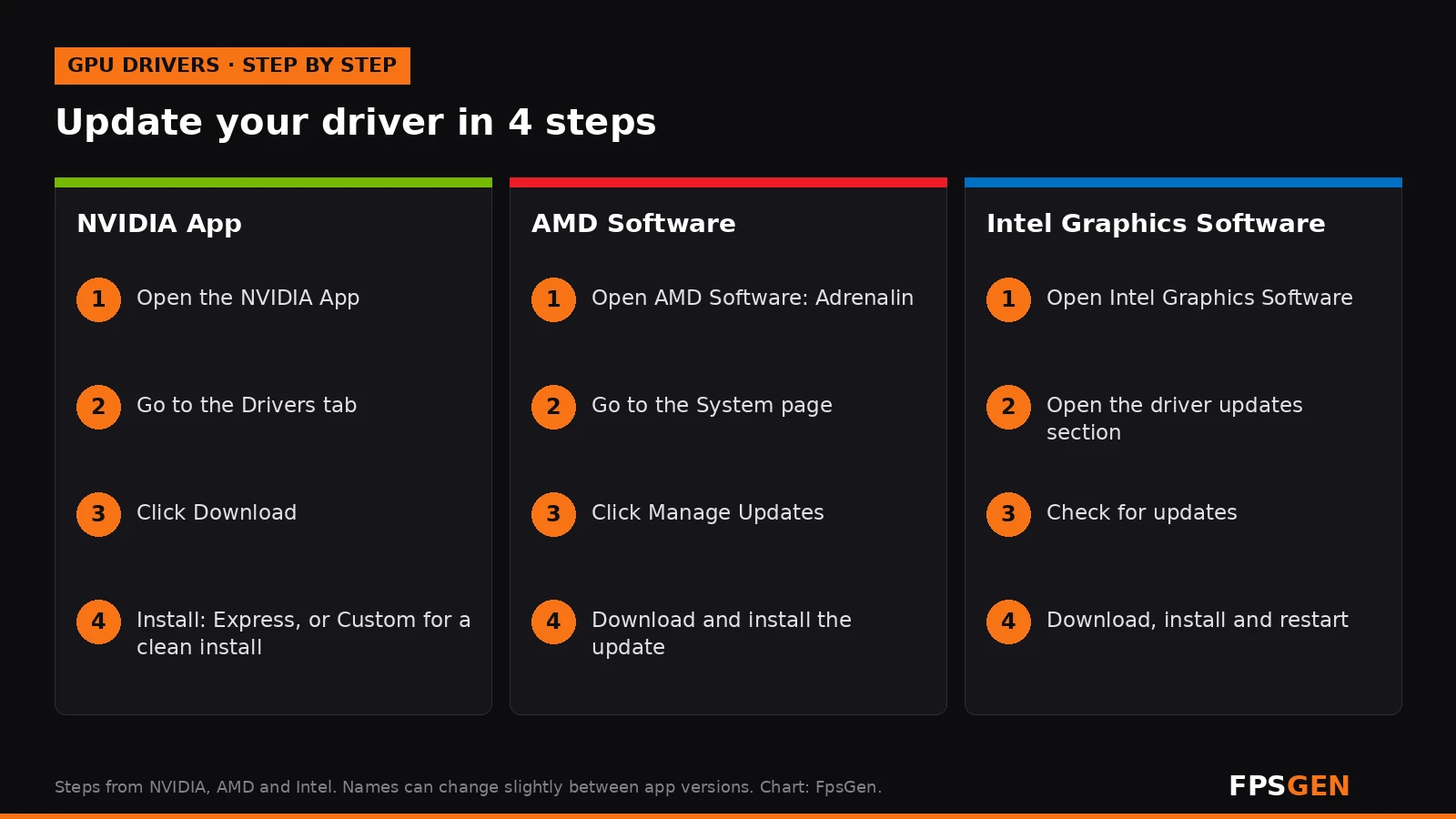
Short answer: update your graphics driver with your GPU maker's own app. On NVIDIA, open the NVIDIA App, go to Drivers and click Download. On AMD, open AMD Software: Adrenalin, go to System and click Manage Updates. On Intel Arc, use Intel Graphics Software. Windows Update also installs drivers, but often an older, basic version, so use it only as a fallback.
Why update your graphics driver?
- Better performance in new games. NVIDIA, AMD and Intel release drivers tuned for big launches, often on day one.
- Fixes for crashes and bugs. Many "game keeps crashing" problems are fixed in a later driver.
- New features. Upscaling and frame generation updates, like FSR 4 for Radeon RX 6000 cards, arrive through driver updates.
- Some games ask for a minimum driver and show a warning, or refuse to start, with an old one.
Step 1: Find out which graphics card you have
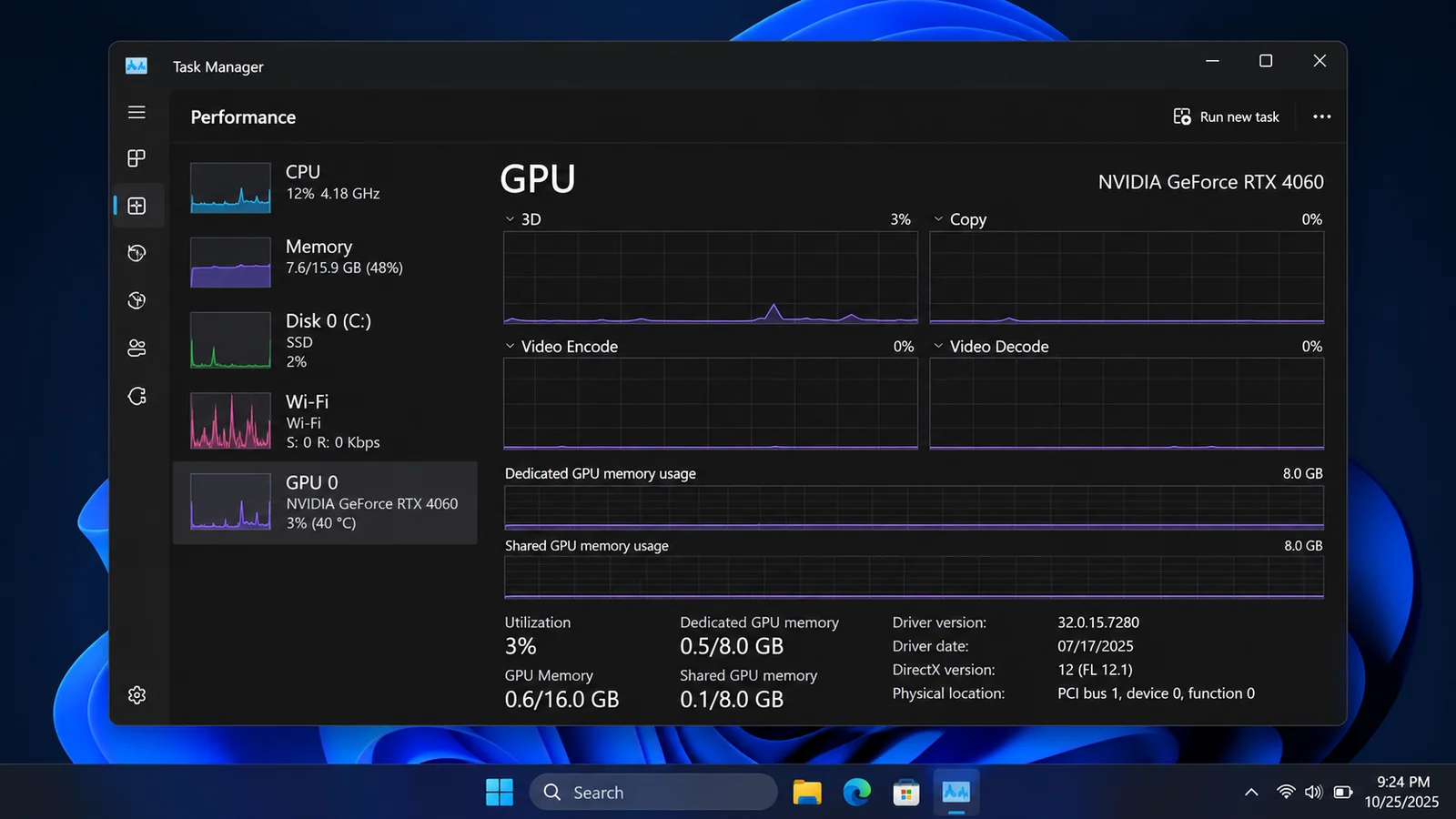
- Press Ctrl + Shift + Esc to open Task Manager.
- Click Performance, then GPU 0 (and GPU 1 if you have two).
- The name of your card is in the top-right corner, for example "NVIDIA GeForce RTX 4060" or "AMD Radeon RX 7600".
Laptops often show two GPUs: a built-in one (Intel or AMD) and a gaming one (NVIDIA or AMD). The gaming one is the one that matters for games. More ways to check: How to Check Your PC Specs.
How to update NVIDIA drivers
The NVIDIA App has replaced GeForce Experience, and since May 2026 new GeForce drivers no longer bundle the old NVIDIA Control Panel, so the NVIDIA App is now the main way to update.
- Download and install the NVIDIA App from NVIDIA's website (signing in is optional).
- Open it and click Drivers in the left menu.
- If a new driver is available, click Download.
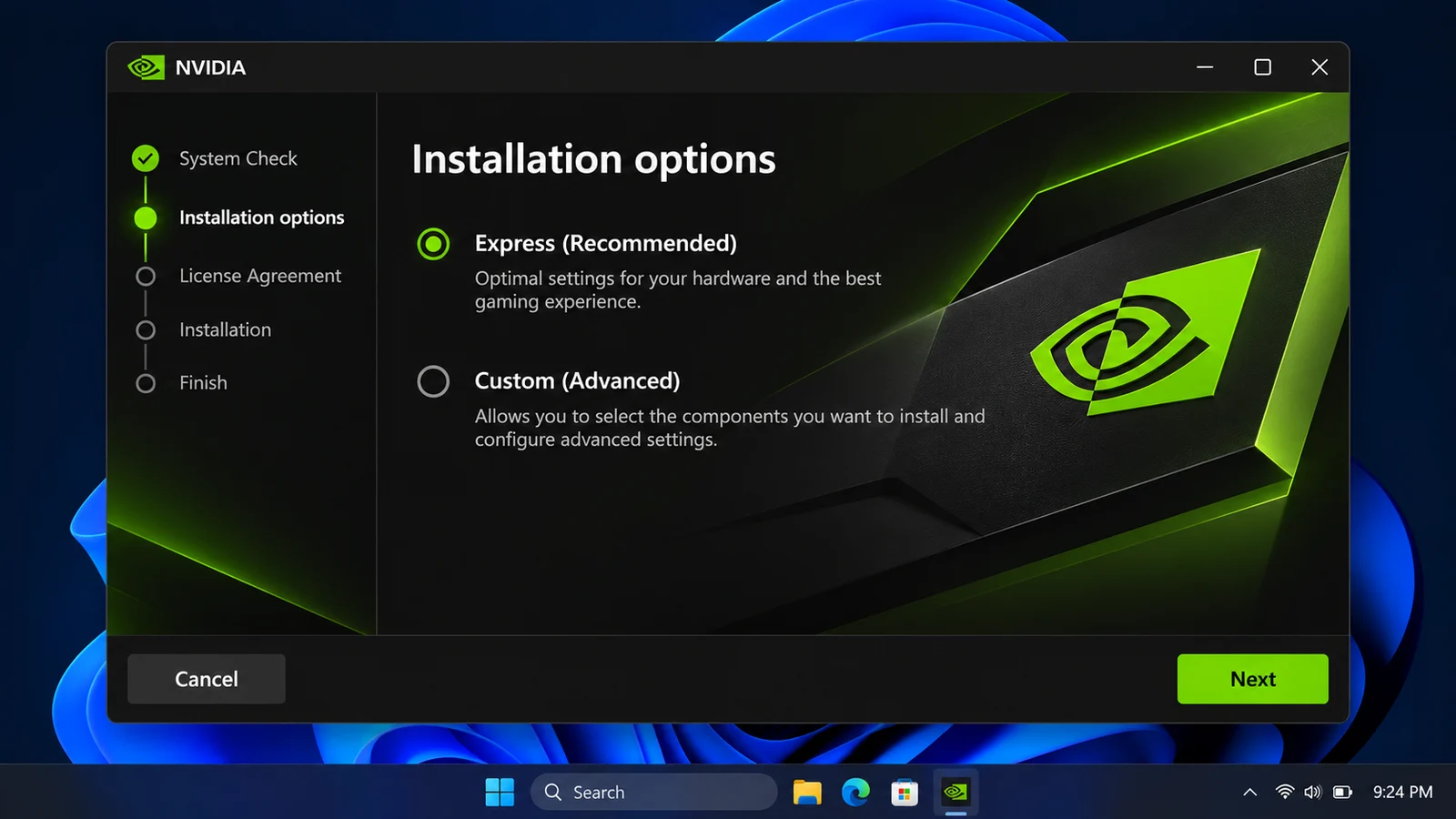
- Close your games, then click Install and choose:
- Express installation: the normal choice, keeps your settings.
- Custom installation: lets you tick Perform a clean install, which resets the driver settings. Use it when you have problems.
- Your screen may flicker or go black for a few seconds during the install: this is normal. Restart your PC when asked.
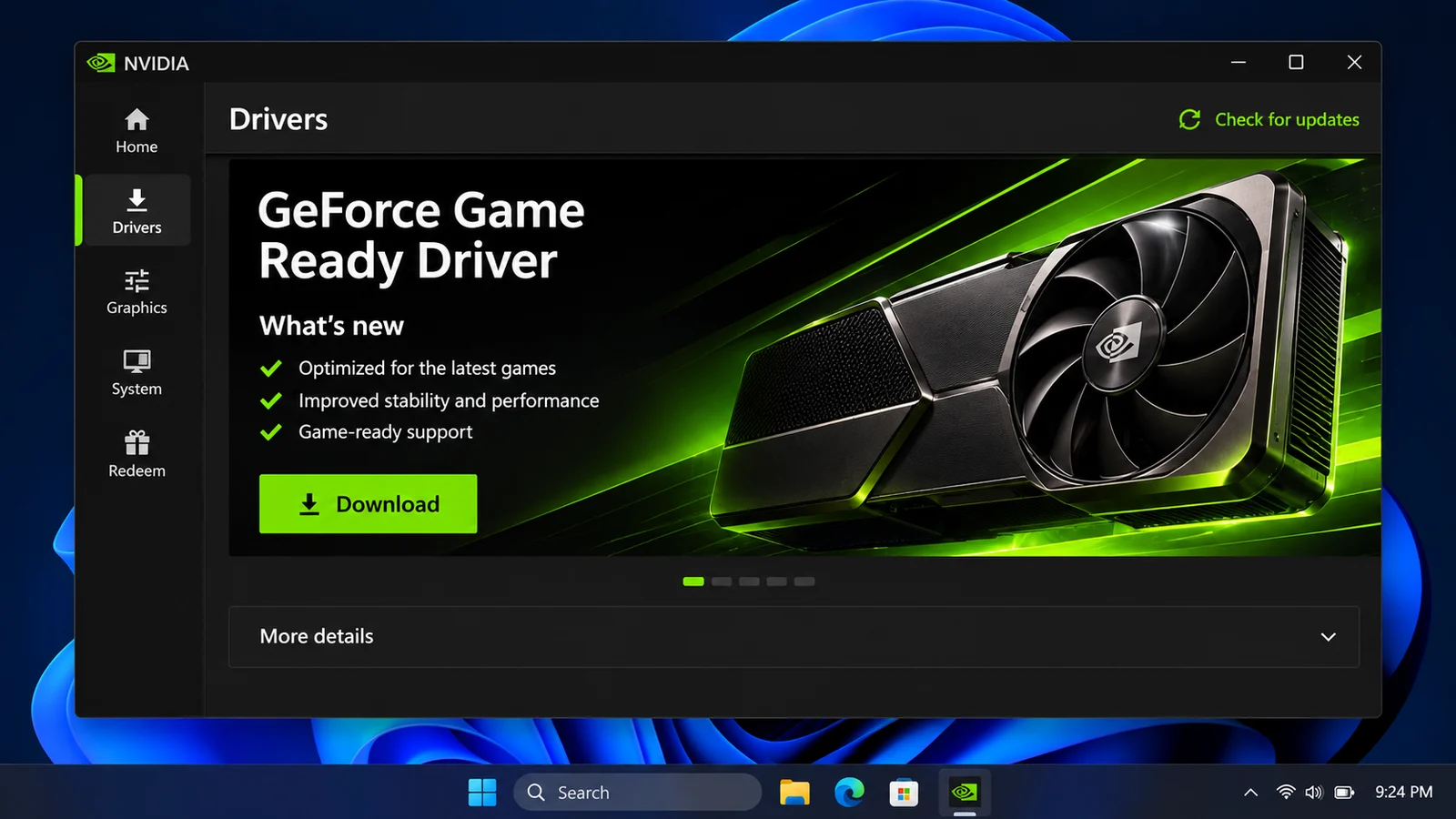
Game Ready or Studio driver? Game Ready drivers come first for new games. Studio drivers are tested longer for creative apps like Premiere Pro or Blender. Gamers should pick Game Ready; you can switch between them in the Drivers tab.
Without the app: go to nvidia.com, open the driver download page, pick your card's series (for example GeForce RTX 40 Series), your exact model and Windows version, then download and run the file.
How to update AMD drivers
AMD drivers come with AMD Software: Adrenalin Edition.
- Right-click the desktop and open AMD Software: Adrenalin Edition (or search for it in the Start menu).
- Go to the System page.
- Click Manage Updates. This opens AMD Install Manager, which shows the installed version and any update.
- Click download / install next to the new driver, then restart when asked.
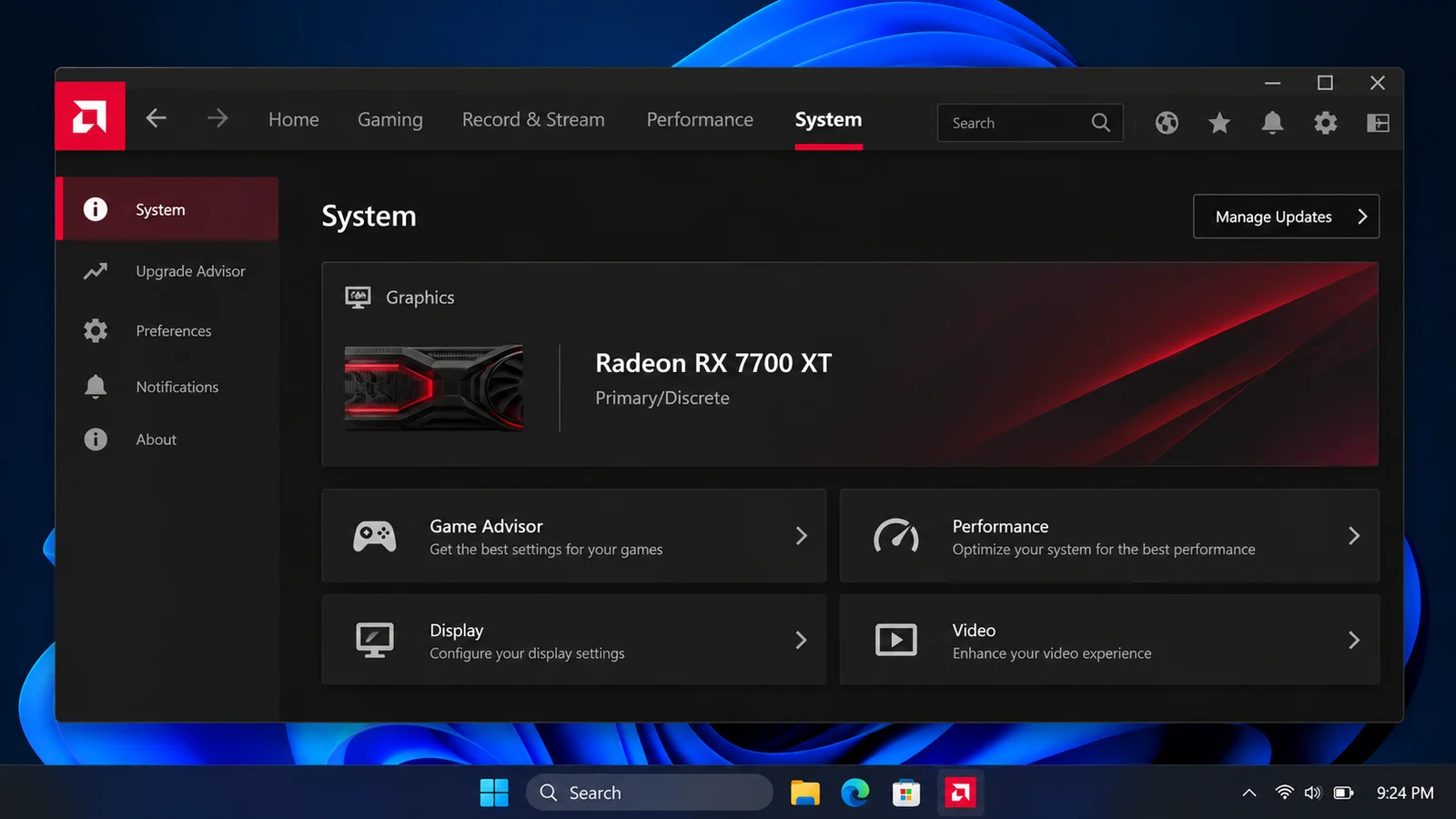
Recommended or Optional? Recommended drivers are the most tested and the safest choice. Optional drivers come out more often, with fixes and support for the newest games. To get both, open the More options menu (three dots) in AMD Install Manager, go to Preferences and pick Recommended + Optional.
Which Radeon cards are covered? The latest Adrenalin drivers (26.10.x) support the Radeon RX 5000, 6000, 7000 and 9000 Series and Ryzen processors with Radeon graphics on Windows 10 and 11. Older Radeon cards (Vega, Polaris such as the RX 580) are no longer in the current driver releases.
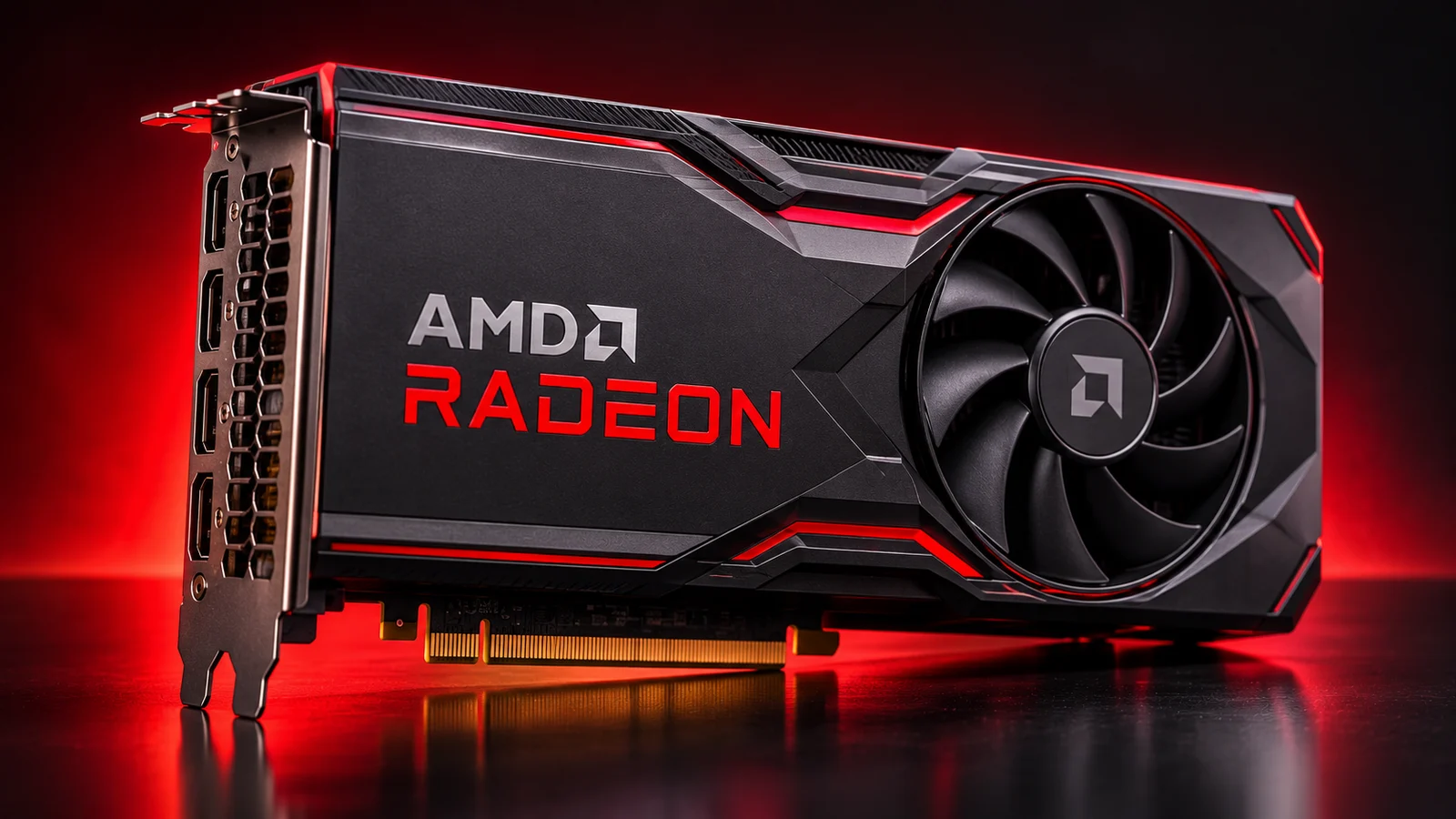
Without the app: go to amd.com/support, search for your card, then download and run the installer.
How to update Intel Arc drivers
- Open Intel Graphics Software (it replaced the old Arc Control app).
- Open the driver updates section and check for updates.
- Download and install the new driver, then restart.
The current Intel driver supports Arc A-Series and B-Series cards and Core Ultra processors with Arc graphics. You can also download it from intel.com (search for "Intel Arc Graphics Windows driver").
How to update graphics drivers on Windows 11 and Windows 10
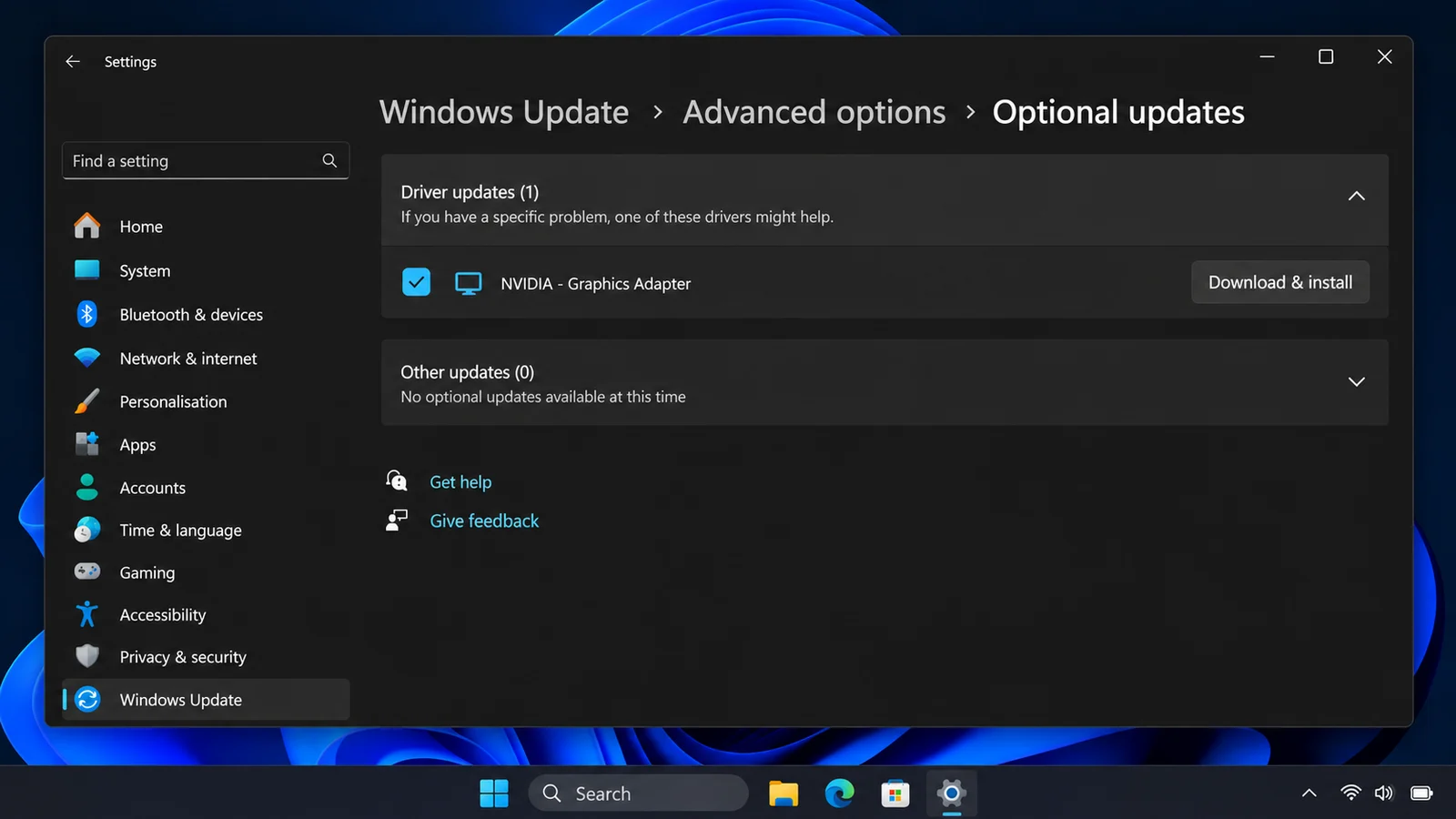
Windows can install drivers by itself, but it is a fallback, not the best method:
Windows Update:
- Windows 11: Settings, Windows Update, Advanced options, Optional updates, then Driver updates.
- Windows 10: Settings, Update & Security, Windows Update, View optional updates, then Driver updates.
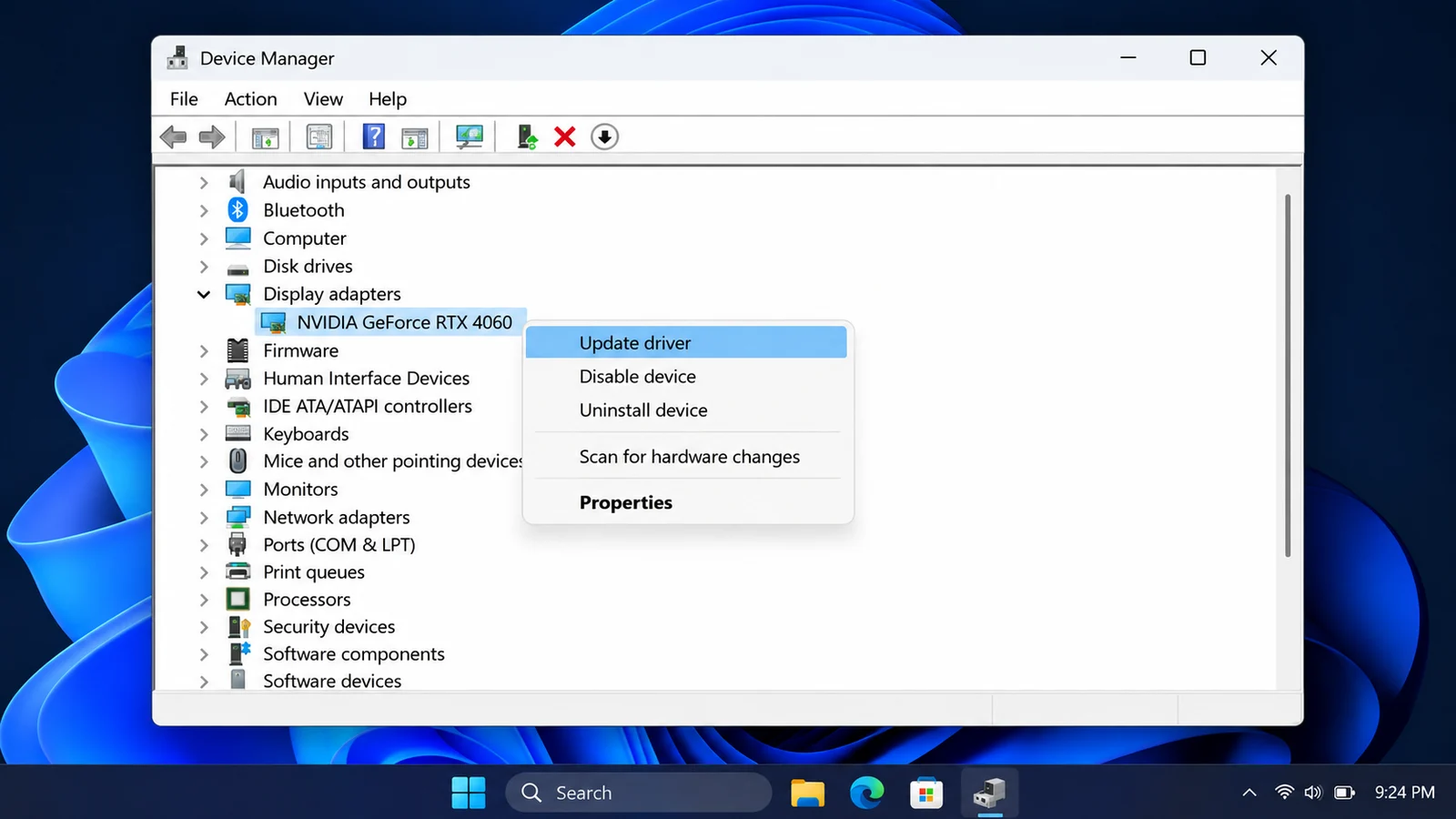
Device Manager: right-click the Start button, open Device Manager, expand Display adapters, right-click your GPU, then Update driver and Search automatically for drivers.
Why not use only Windows? Windows often has an older driver than NVIDIA, AMD or Intel, and it installs the driver without the control app (NVIDIA App, AMD Software). Use the maker's app for gaming.
Updating drivers on a gaming laptop
- Most gaming laptops can use the normal drivers from NVIDIA or AMD, and the NVIDIA App or AMD Software works the same way.
- AMD says its drivers for laptop Radeon chips are reference drivers with limited support for features added by the laptop maker. If something stops working (brightness, switching between GPUs), use the driver from your laptop maker's support page.
- Update while plugged in, never on low battery.
Clean install with DDU (when an update goes wrong)
If you get crashes, black screens, missing settings or a failed install, a clean reinstall with DDU (Display Driver Uninstaller) removes every trace of the old driver.
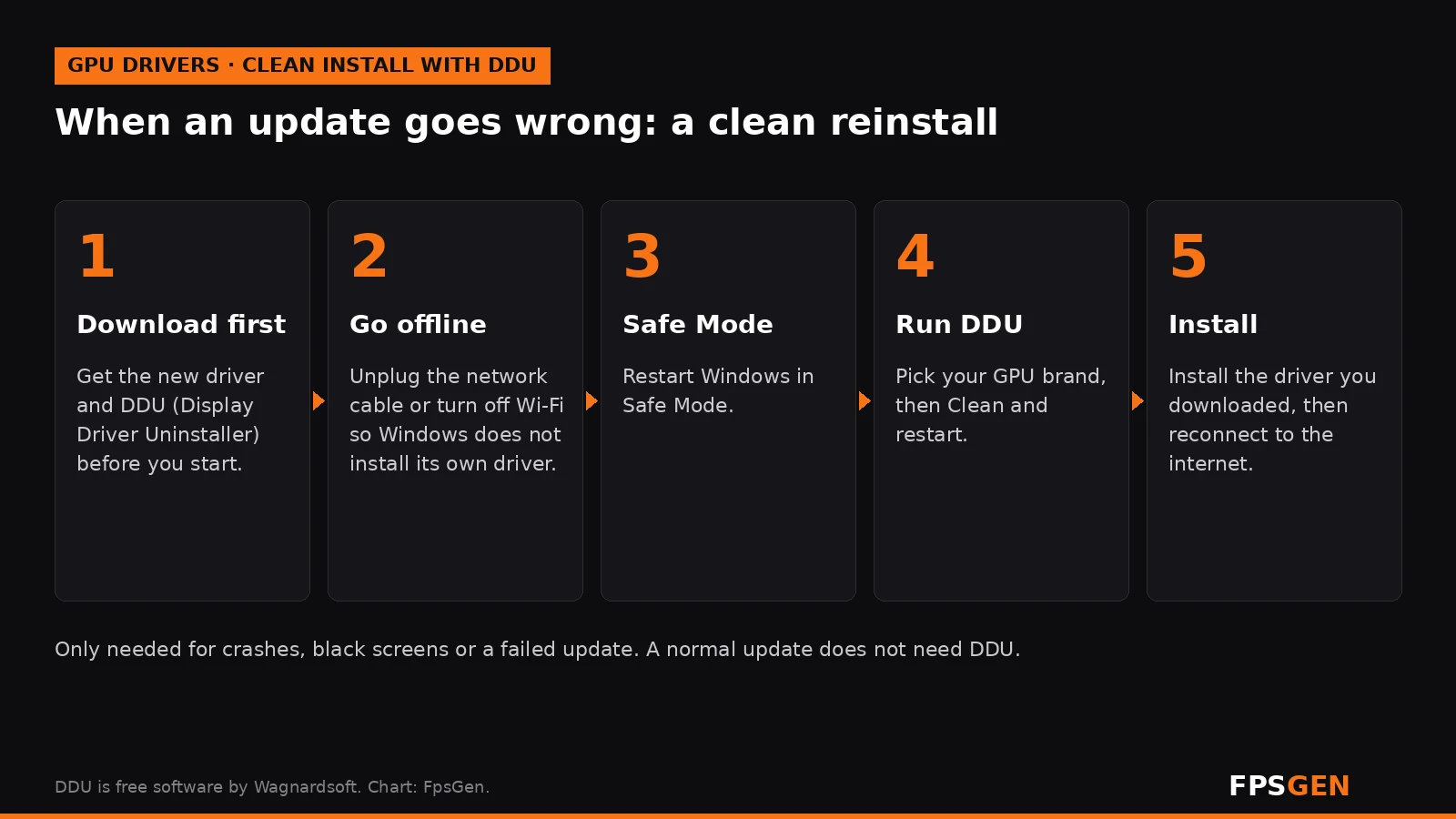
- Download first: the new driver from NVIDIA, AMD or Intel, and DDU from its official site (Wagnardsoft).
- Go offline: unplug the network cable or turn off Wi-Fi, so Windows does not install its own driver halfway.
- Restart in Safe Mode: Settings, System, Recovery, Advanced startup, Restart now, then Troubleshoot, Advanced options, Startup Settings, Restart, and press 4.
- Run DDU: choose your GPU brand, then Clean and restart.
- Install the driver you downloaded, then reconnect to the internet.
You do not need DDU for a normal update. Keep it for when something is broken.
How to roll back a driver
A new driver made a game worse? Go back to the previous one:
- NVIDIA App: in Drivers, scroll down, pick an older driver and click Reinstall.
- Any GPU: Device Manager, Display adapters, right-click your GPU, Properties, Driver tab, Roll Back Driver. The button is greyed out if Windows has no older driver saved.
- Or download an older version from NVIDIA, AMD or Intel and install it with a clean install.
How often should you update?
- Before a big new game you plan to play on day one.
- When a game crashes or the patch notes of a driver mention your game.
- Every 1 to 3 months otherwise. You do not need every single release.
- If everything runs well and you play older games, it is fine to wait.
Common problems and fixes
| Problem | Fix |
|---|---|
| Screen goes black during the install | Normal for a few seconds. Wait, do not turn off the PC. |
| "Installer failed" or "No compatible hardware" | Check your exact GPU model, download the right driver, or do a clean install with DDU. |
| Games crash after the update | Roll back to the previous driver, or do a clean install. |
| Windows keeps replacing your driver | Install your maker's driver again after Windows updates, or do a clean install. |
| The NVIDIA App or AMD Software is missing after an update | Reinstall the app from NVIDIA's or AMD's website. |
| Lower FPS after the update | Restart once (shaders rebuild on first launch), then check in-game settings. Still slower: roll back. |
More ways to raise your frame rate: How to Increase FPS on PC.
Related guides
- How to Check Your PC Specs
- How to Increase FPS on PC
- AMD FSR Explained: On or Off
- How to Enable FSR 4 on AMD GPUs
FAQ
How do I update my graphics driver?
Use your GPU maker's app: the NVIDIA App (Drivers tab), AMD Software: Adrenalin (System, Manage Updates) or Intel Graphics Software. Windows Update works too, but often installs an older driver.
How do I know which graphics card I have?
Open Task Manager (Ctrl + Shift + Esc), click Performance, then GPU. The card name is shown in the top-right corner.
Is it safe to update GPU drivers?
Yes, when you download them from NVIDIA, AMD, Intel or through their apps. Avoid "driver updater" programs from other companies.
Do I need to uninstall the old driver first?
No. The installer replaces it. Only do a clean install (NVIDIA Custom install, or DDU) if you have problems.
Should I use Game Ready or Studio drivers?
Game Ready for gaming. Studio drivers are tested longer for creative apps and come out less often.
Does updating the driver increase FPS?
Sometimes, mostly in new games that the driver was tuned for. In older games the difference is usually small, but a new driver can fix crashes and stutter.
Sources: NVIDIA: upgrade to the NVIDIA App; NVIDIA Control Panel retirement as reported by Tom's Hardware (May 2026); AMD: updating AMD Software and Adrenalin 26.10.2 release notes; Intel Arc Graphics driver; NVIDIA App steps as described by Tom's Guide. Last checked November 15, 2026.

Gaming writer at FpsGen. Guides and reviews are built on official sources, patch notes and real player data.
Comments
No comments yet. Start the conversation.