

Short answer: leave hardware-accelerated GPU scheduling (HAGS) on. On Windows 11 it is on by default on supported PCs, and NVIDIA's DLSS Frame Generation on RTX 40 and 50 Series cards does not work without it. The FPS difference is usually small either way, so turn it off only to test if you get new stutter, crashes or recording problems, and keep it off only if that fixes them.
What is hardware-accelerated GPU scheduling?
Your graphics card works on many jobs at once: the game, your browser, Discord, video playback. Something has to decide which job runs when. Without HAGS, the CPU does most of that scheduling. With HAGS, a small dedicated processor on the GPU takes over most of it, while Windows still decides which apps get priority.
Microsoft introduced it in the Windows 10 May 2020 update. According to Microsoft, it lowers scheduling overhead and the delay before work reaches the GPU, but most users should not notice a big change in everyday use. That matches what testers see: in most games, the average FPS difference between on and off is within a few percent.
So why does it matter? Because some newer features are built on top of it, starting with frame generation.
HAGS and DLSS Frame Generation
DLSS Frame Generation needs HAGS to be on. If the Frame Generation option is greyed out in a game on your RTX 40 or 50 Series card, HAGS being off is one of the first things to check. Game studios say the same in their support pages: CD Projekt Red, for example, lists HAGS as a requirement for DLSS Frame Generation in Cyberpunk 2077.
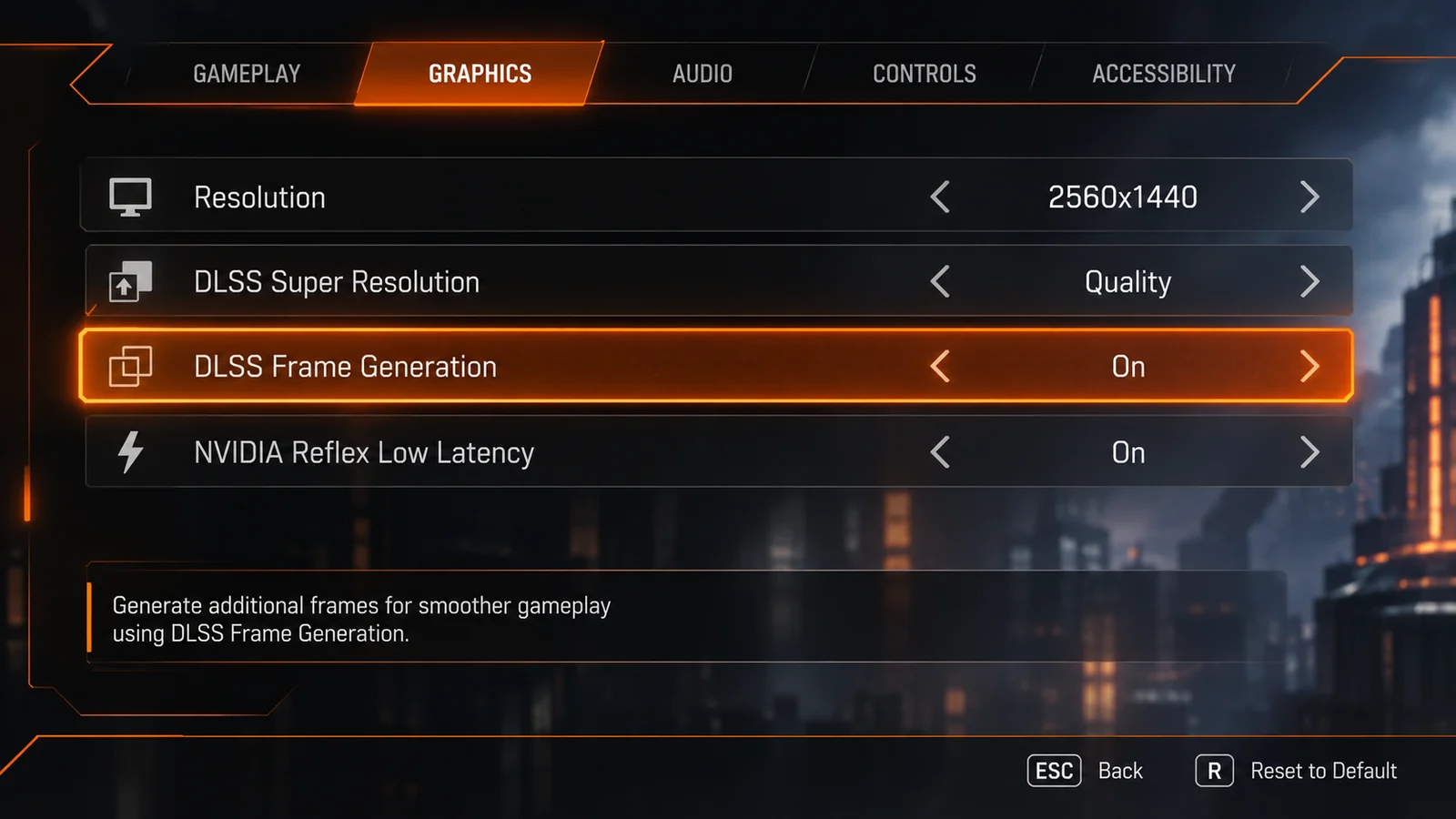
If you use frame generation, the answer is simple: keep HAGS on.
How to turn hardware-accelerated GPU scheduling on or off
Windows 11
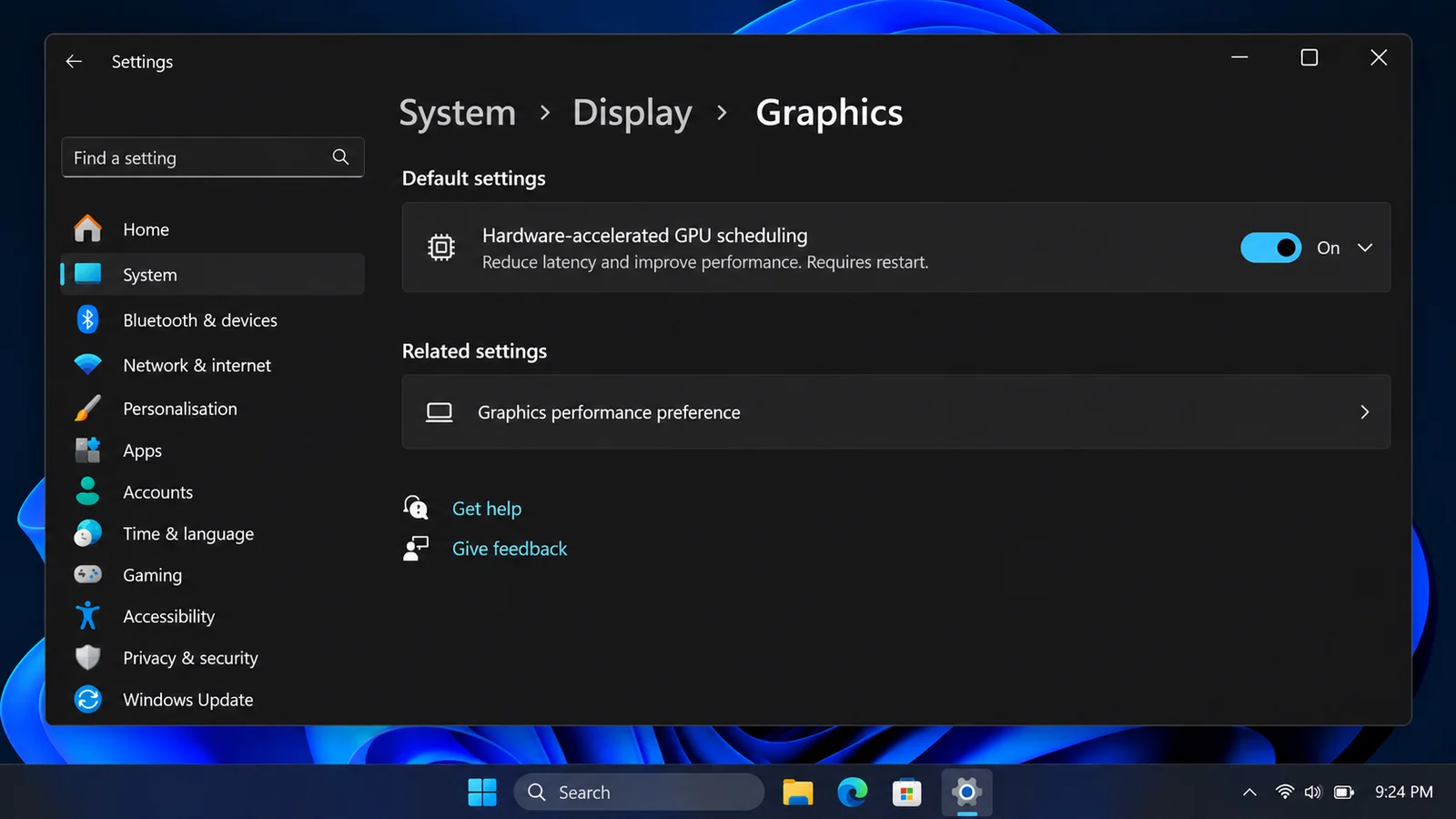
- Press the Windows key, type graphics, and open Graphics settings. (Or go to Settings, System, Display, Graphics.)
- Open the default / advanced graphics settings section.
- Switch Hardware-accelerated GPU scheduling on or off.
- Restart your PC. The change only works after a restart.
Windows 10
- Open Settings, System, Display, then click Graphics settings at the bottom.
- Switch Hardware-accelerated GPU scheduling on or off.
- Restart your PC.
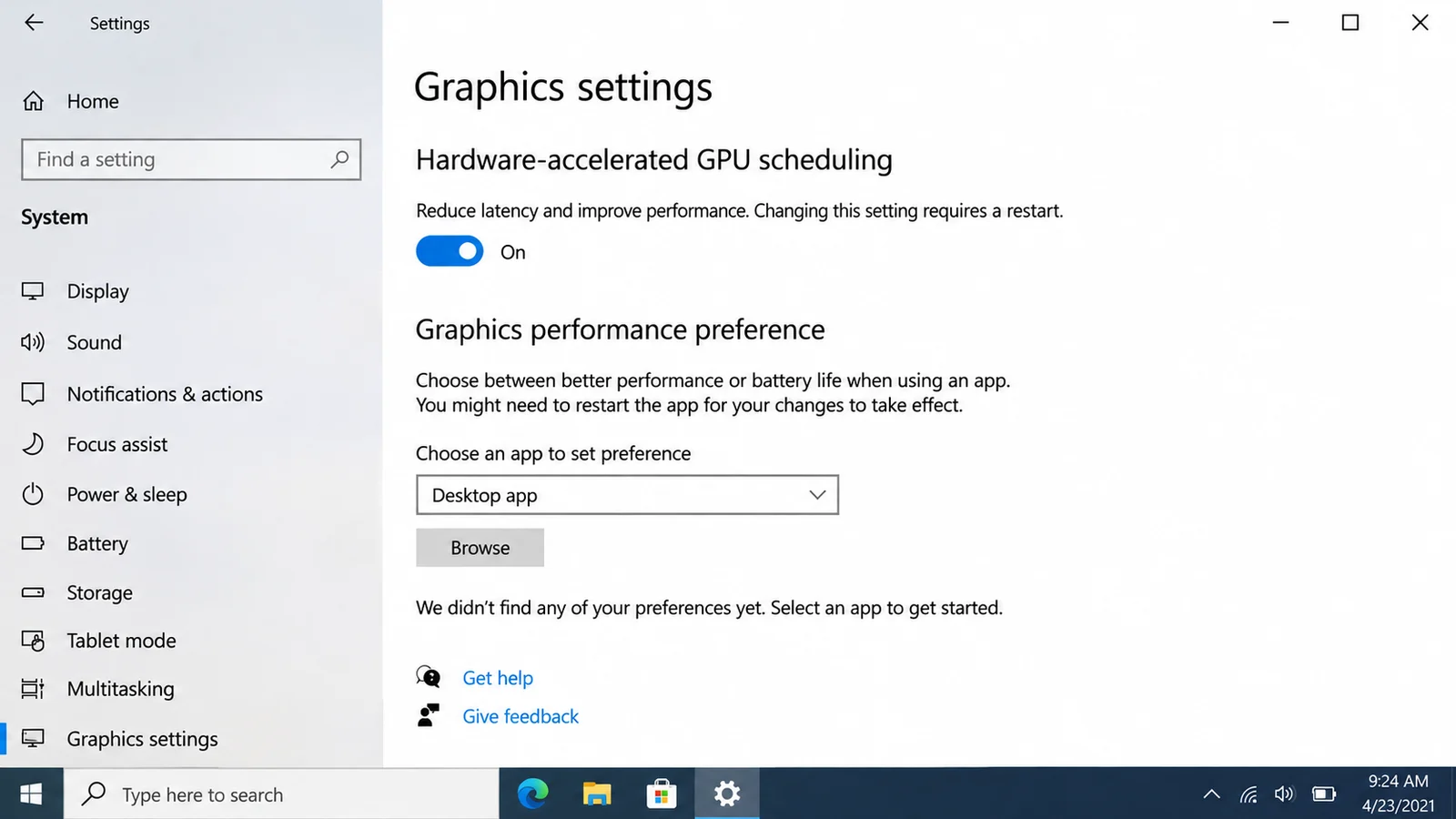
Don't see the switch? Windows only shows it when your graphics card and its driver support HAGS. Update your driver first: How to Update GPU Drivers. If it is still missing after the update, your GPU does not support it.
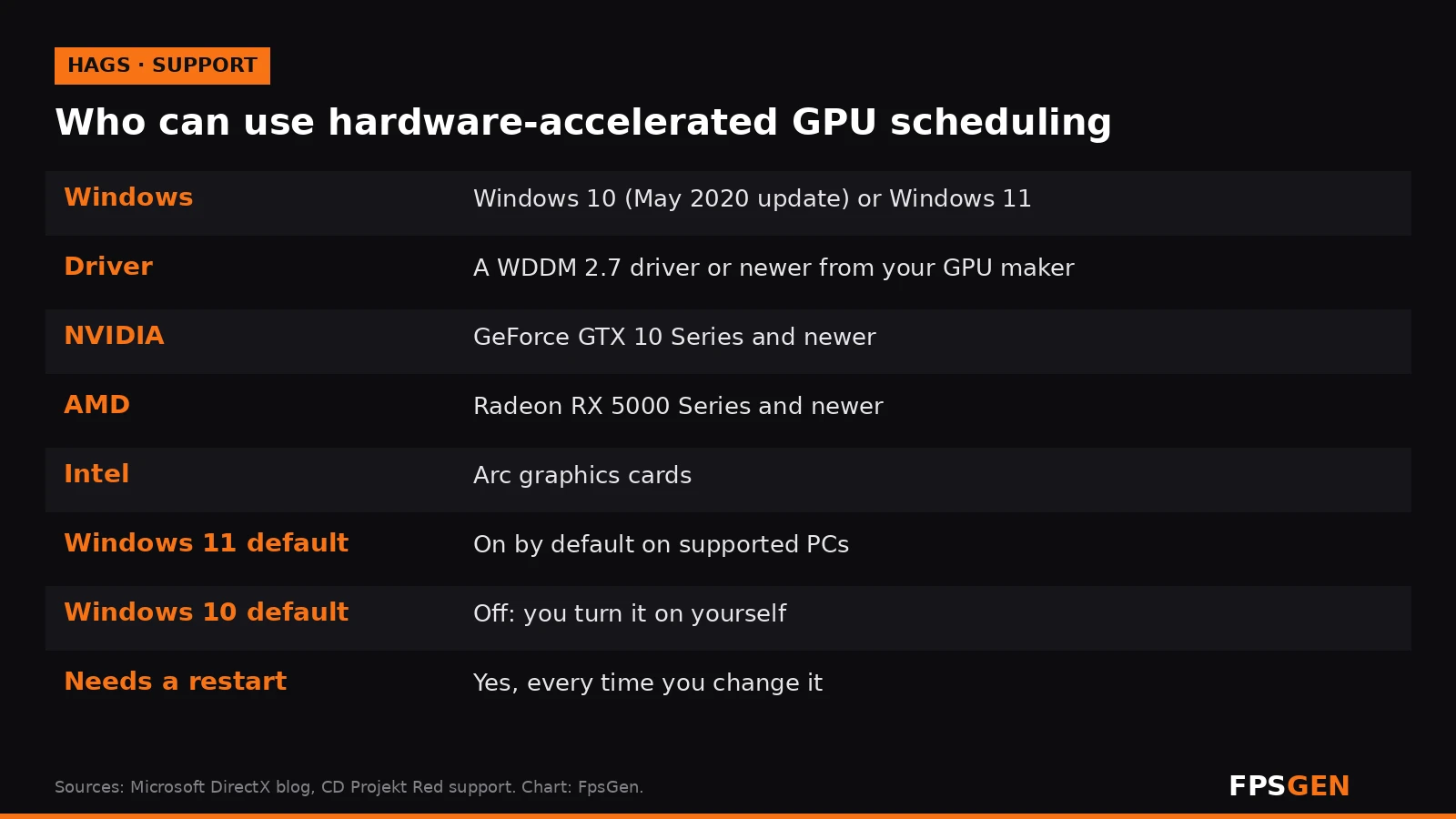
Which GPUs support HAGS?
| Support | |
|---|---|
| NVIDIA | GeForce GTX 10 Series and newer, including every RTX card |
| AMD | Radeon RX 5000 Series and newer |
| Intel | Arc graphics cards |
| Windows | Windows 10 (May 2020 update or later) and Windows 11 |
| Driver | A recent driver from NVIDIA, AMD or Intel (WDDM 2.7 or newer) |
Should HAGS be on or off for gaming?
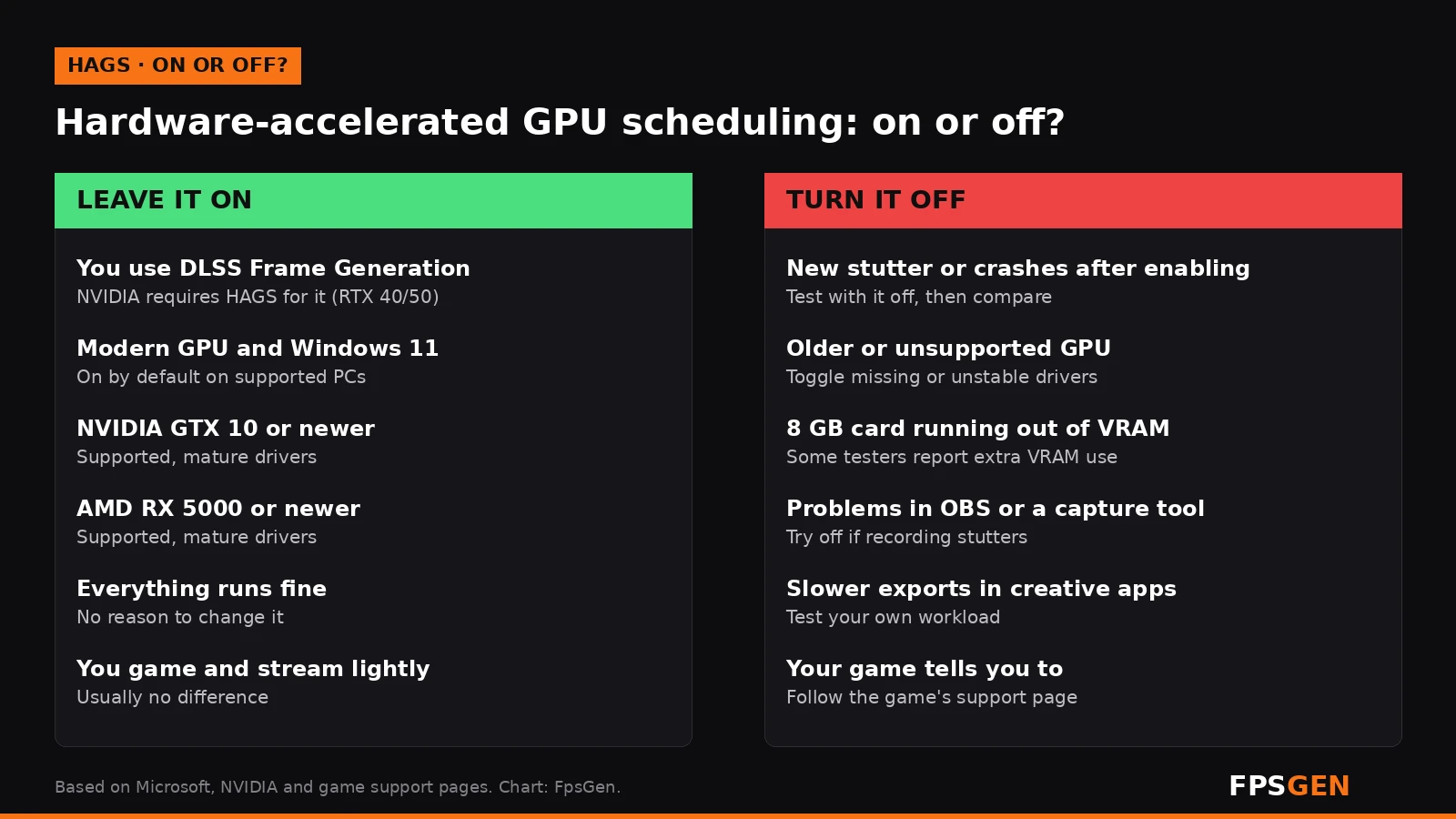
Leave it on if:
- You use DLSS Frame Generation (RTX 40 or 50 Series). It is required.
- You have a modern GPU (GTX 10 / RX 5000 or newer) and a recent driver.
- Your games run fine. There is nothing to gain by changing it.
Try turning it off if:
- You get new stutter, crashes or black screens that started around the time HAGS was turned on.
- You use an older card where the switch appears but drivers are less mature.
- You have an 8 GB card that is already at its VRAM limit: some testers report that HAGS uses a little more video memory, which can cause stutter when the card is full.
- Recording or streaming (OBS and other capture tools) stutters with it on.
- Video exports in creative apps feel slower. Test your own project with it on and off.
How to test properly: play the same game, in the same place, for a few minutes with HAGS on, then restart with it off and repeat. Watch both the average FPS and the stutter (1% lows). Keep the setting that feels better. Our guide shows how to see your FPS: How to Show FPS in Games.
Does HAGS increase FPS?
Usually not by much. In most games the average FPS changes by only a few percent, sometimes up, sometimes down. HAGS is more about smoother scheduling and unlocking features like DLSS Frame Generation than raw FPS. If you want a real FPS boost, upscaling helps far more: see AMD FSR Explained: On or Off and How to Increase FPS on PC.
HAGS turned itself back on (or off)?
Big Windows updates and driver reinstalls can reset the setting. If you turned it off on purpose, check the switch again after a major update or after a clean driver install.
Related guides
- How to Update GPU Drivers
- AMD FSR Explained: On or Off
- How to Increase FPS on PC
- How Much VRAM Do You Need for Gaming?
FAQ
Should hardware-accelerated GPU scheduling be on or off?
On, in most cases. It is on by default in Windows 11, and DLSS Frame Generation needs it. Turn it off only to test if you get stutter, crashes or recording problems.
Is HAGS required for DLSS 3 or DLSS 4 Frame Generation?
Yes. DLSS Frame Generation on GeForce RTX 40 and 50 Series cards needs hardware-accelerated GPU scheduling turned on.
Why can't I find hardware-accelerated GPU scheduling in Windows?
The switch only appears when your GPU and its driver support it. Update your graphics driver; if it is still missing, your GPU does not support HAGS.
Do I need to restart after changing HAGS?
Yes. The change only takes effect after you restart your PC.
Does HAGS increase FPS?
Not much. Most games change by a few percent at most. Its main benefits are smoother scheduling and enabling features like frame generation.
Should I turn off HAGS for OBS?
Only if your recording or stream stutters. Many streamers keep it on without problems; test both and keep what works.
Sources: Microsoft DirectX Developer Blog: Hardware-Accelerated GPU Scheduling (June 2020); CD Projekt Red support: DLSS Frame Generation and HAGS; GPU support and test results as summarised by Digitnaut. Last checked November 15, 2026.

Gaming writer at FpsGen. Guides and reviews are built on official sources, patch notes and real player data.

Comments
No comments yet. Start the conversation.