
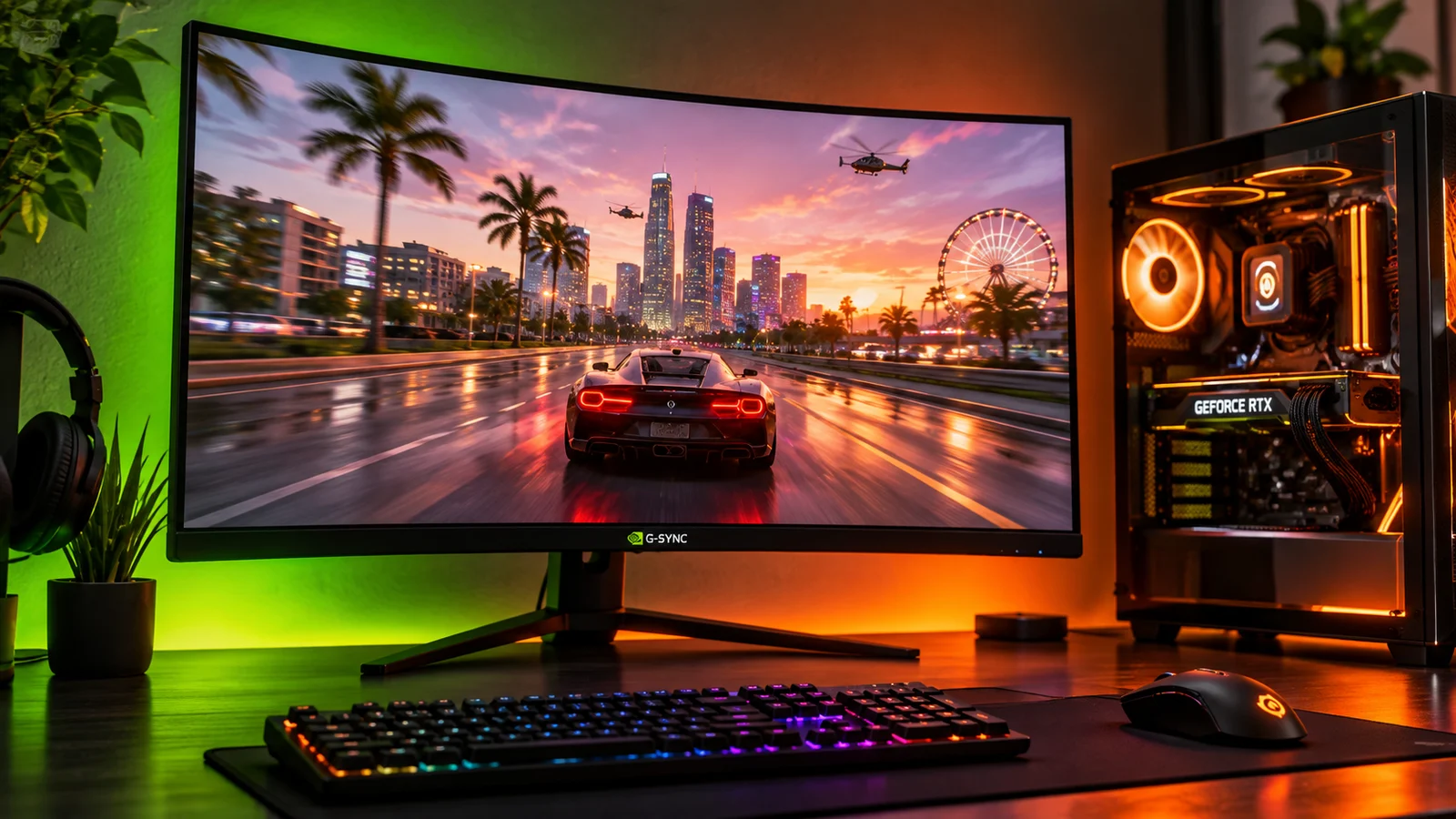
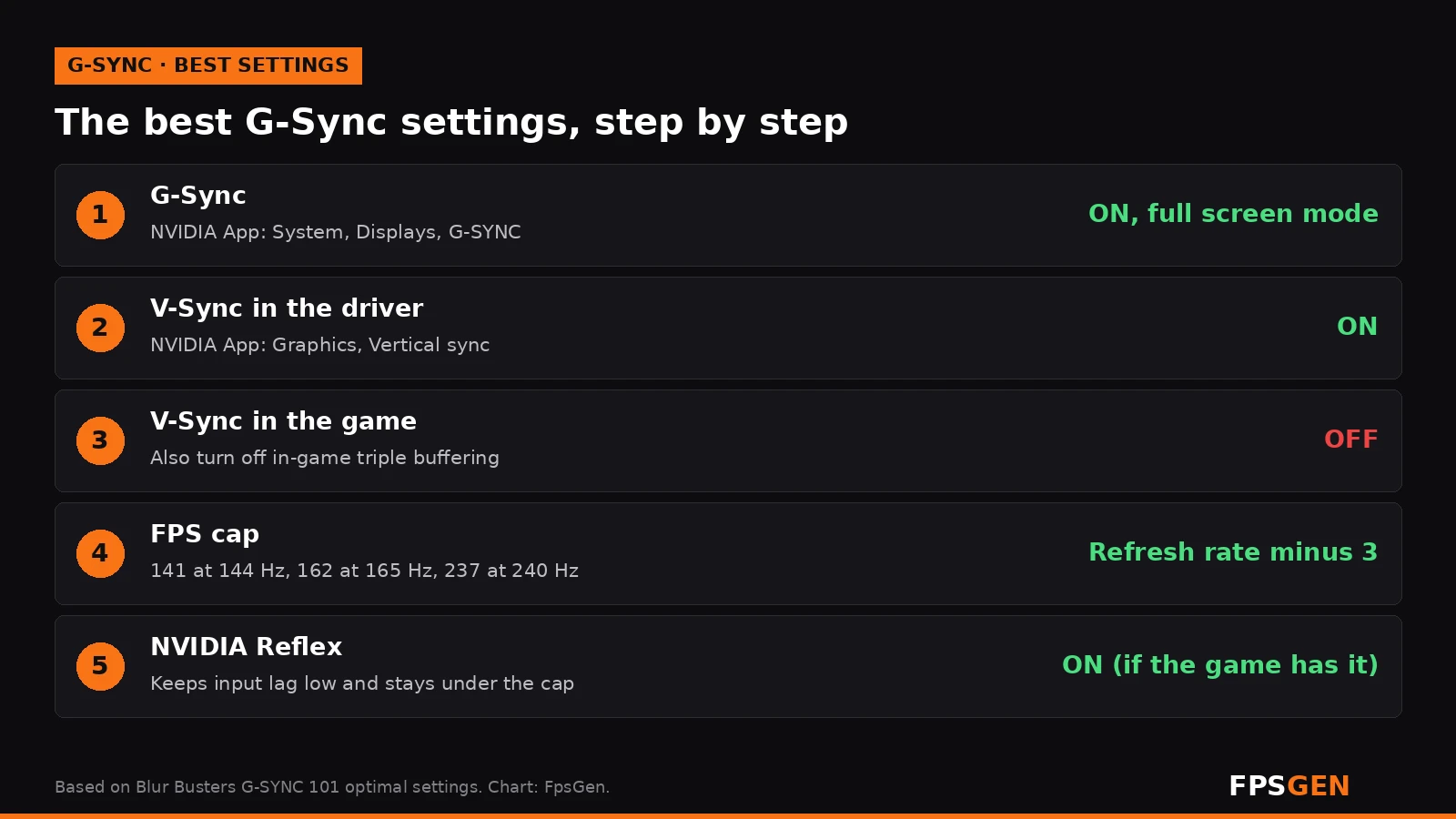
Short answer: turn G-Sync on. It removes screen tearing without the input lag of classic V-Sync, and there is almost no downside. For the best result, use this setup: G-Sync ON (full screen mode), V-Sync ON in the NVIDIA App, V-Sync OFF in the game, and an FPS cap 3 below your refresh rate (141 FPS on a 144 Hz monitor). It also works on most FreeSync monitors as "G-Sync Compatible".
What does G-Sync do?
A normal monitor refreshes at a fixed speed, for example 144 times per second. Your graphics card never delivers frames at exactly that speed, so you get screen tearing (V-Sync off) or input lag and stutter (V-Sync on). More on that in V-Sync On or Off?.
G-Sync is NVIDIA's variable refresh rate (VRR): the monitor waits for each frame from your GeForce card and refreshes the moment it arrives. If the game runs at 97 FPS, the screen refreshes 97 times per second. The result:
- No tearing, even when your FPS goes up and down.
- Smooth motion when FPS drops, without the hard stutter of classic V-Sync.
- Low input lag, much lower than classic V-Sync.
G-Sync only works inside the monitor's VRR range (for example 48 to 144 Hz). That is why the FPS cap below matters.
Should G-Sync be on or off?
On. For gaming there is no real reason to turn it off:
- Single-player games: on. Smooth picture, no tearing.
- Competitive shooters: on, with an FPS cap and Reflex. Blur Busters' tests show G-Sync with a cap adds almost no input lag compared to V-Sync off, and you keep a clean picture.
- Low FPS (40 to 60): on. This is where G-Sync helps the most, because classic V-Sync would stutter.
When turning it off can make sense:
- You see flicker in dark loading screens or menus. Some monitors, especially OLEDs and some VA panels, flicker when FPS jumps around at low frame rates. Try a lower cap or turn G-Sync off for that game.
- A game or app behaves strangely in windowed mode. Use the full screen G-Sync mode instead of "full screen and windowed".
- Very high FPS in esports titles where you play far above your refresh rate (for example 400 FPS on a 144 Hz screen). G-Sync does nothing above the refresh rate; some pros prefer the lowest possible lag and accept tearing.
How to turn on G-Sync
1. Check your monitor and cable
- Use a DisplayPort cable from your graphics card (not the motherboard). On a TV, use HDMI 2.1.
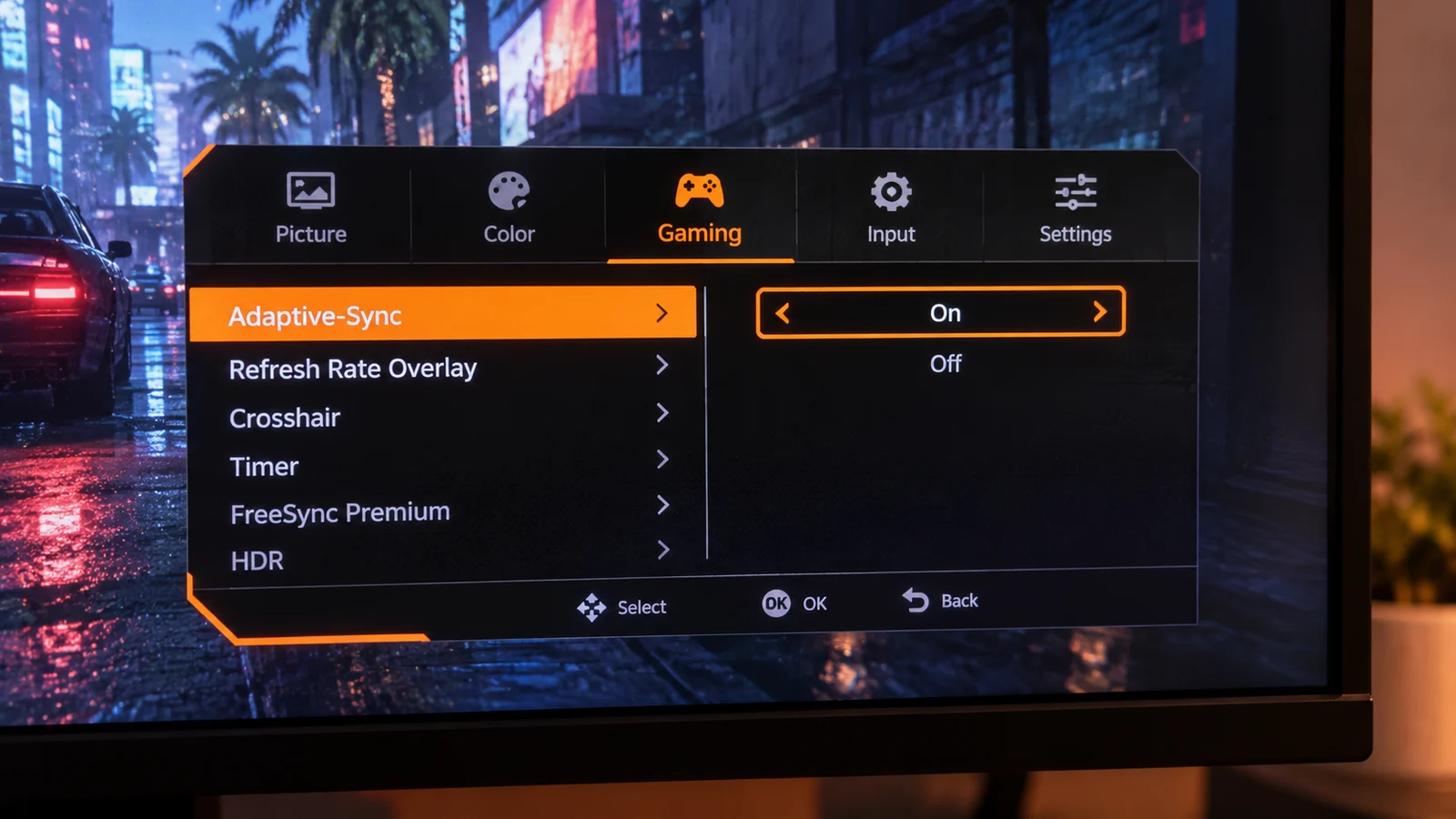
- Open your monitor's on-screen menu and turn on Adaptive-Sync, FreeSync or VRR if it has that option. Many monitors ship with it off.
- Set the monitor to its highest refresh rate in Windows: Settings, System, Display, Advanced display, Choose a refresh rate.
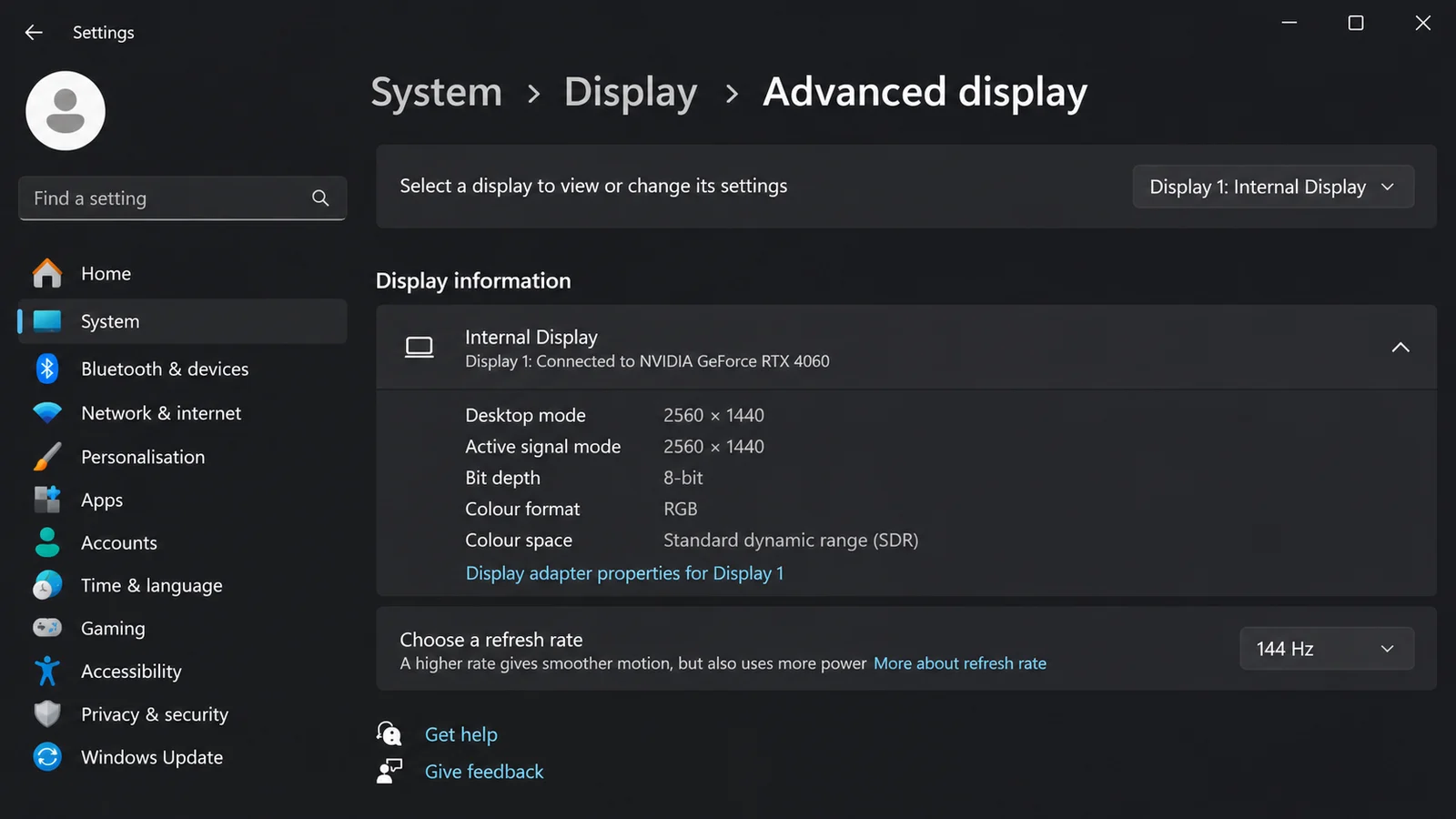
2. Turn on G-Sync in the NVIDIA App
- Open the NVIDIA App and go to System, then Displays.
- Under G-SYNC, switch G-Sync on.
- Choose full screen mode. ("Full screen and windowed" also works, but full screen mode causes fewer problems.)
- On a FreeSync / G-Sync Compatible monitor, also turn on the option to allow G-Sync settings for the selected variable refresh rate display.
- If you have more than one monitor, select the G-Sync monitor first.
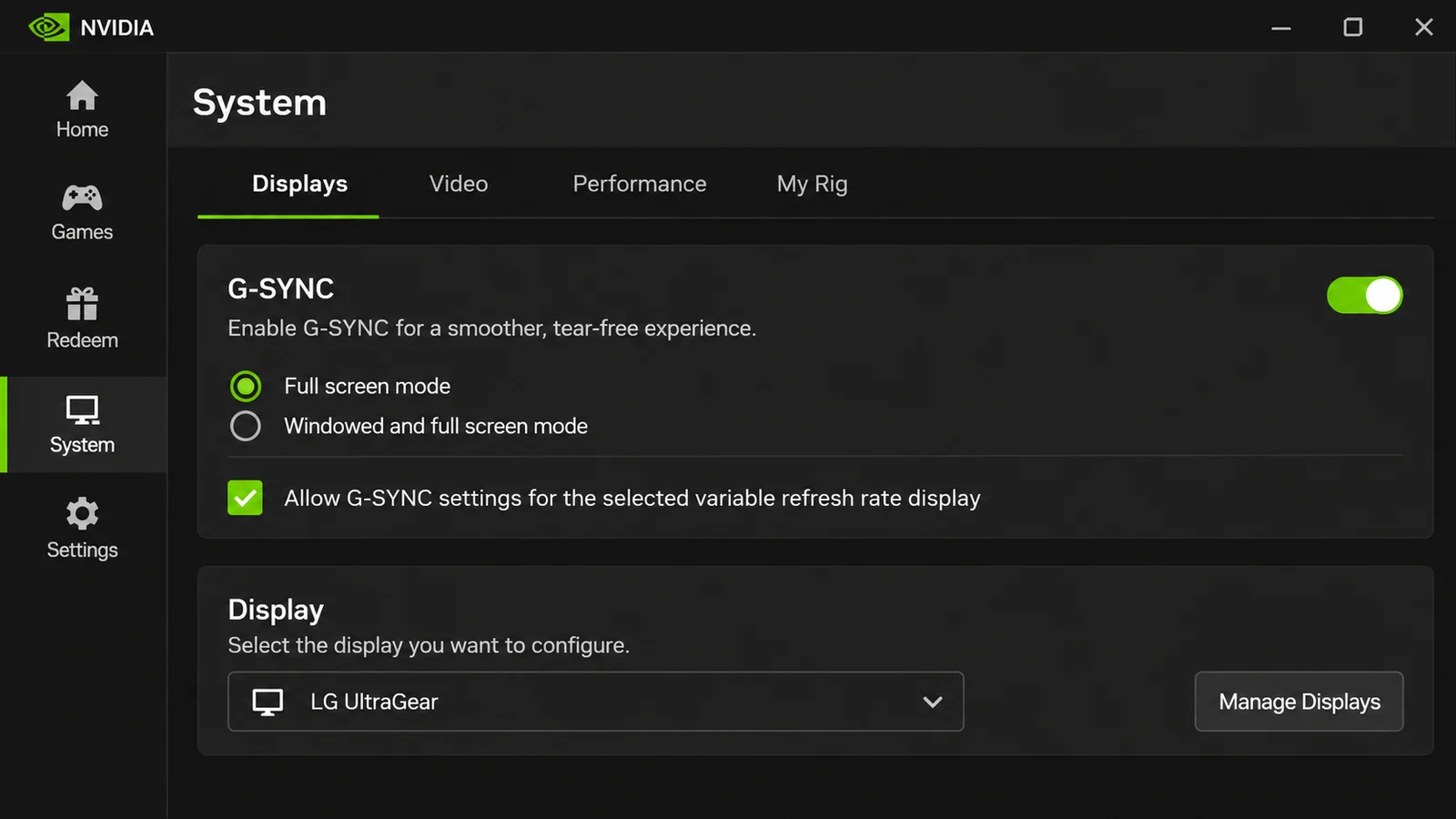
The old NVIDIA Control Panel had these options under Display, Set up G-SYNC. Current GeForce drivers use the NVIDIA App instead.
3. Set V-Sync and the FPS cap
- In the NVIDIA App, go to Graphics, Global Settings.
- Set Vertical sync to On.
- Set Max Frame Rate to your refresh rate minus 3 (see the table below), or use the game's own FPS limiter, which is usually better.
- In each game, turn V-Sync off and turn NVIDIA Reflex on if it is available.
| Your monitor | FPS cap |
|---|---|
| 60 Hz | 57 FPS |
| 75 Hz | 72 FPS |
| 120 Hz | 117 FPS |
| 144 Hz | 141 FPS |
| 165 Hz | 162 FPS |
| 240 Hz | 237 FPS |
| 360 Hz | 357 FPS |
Other refresh rate, or not sure which settings fit your card? Our FPS Cap Calculator gives you the cap and every setting in one click.
Why V-Sync on? With G-Sync active, driver V-Sync does not work like classic V-Sync. It only catches small frame-time spikes that would still cause tearing at the top or bottom of the screen. Why the cap? If your FPS reaches the refresh rate, G-Sync stops working and V-Sync takes over, with its extra input lag. A cap a few frames below keeps you inside the G-Sync range.
Does my GPU and monitor support G-Sync?
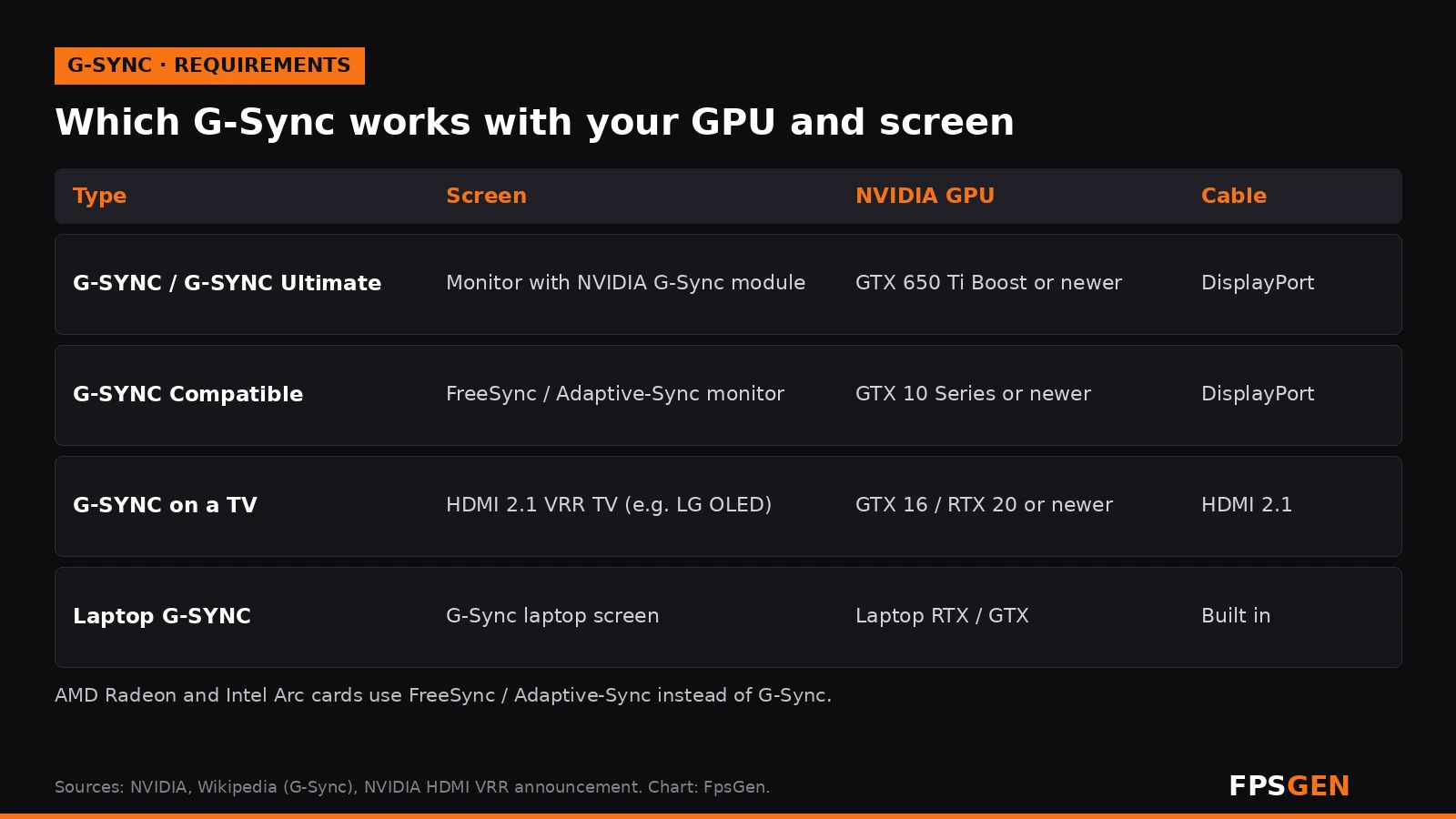
| Type | What it is | You need |
|---|---|---|
| G-SYNC / G-SYNC Ultimate | Monitor with NVIDIA's G-Sync hardware | GTX 650 Ti Boost or newer, DisplayPort |
| G-SYNC Compatible | FreeSync / Adaptive-Sync monitor | GTX 10 Series or newer, DisplayPort |
| TV with HDMI VRR | HDMI 2.1 TVs such as LG OLEDs | GTX 16 / RTX 20 Series or newer, HDMI 2.1 |
| Laptop G-SYNC | Built into the laptop screen | A G-Sync laptop (check the specs) |
AMD Radeon and Intel Arc cards cannot use G-Sync; they use FreeSync / Adaptive-Sync, which works on the same monitors.
Can you use G-Sync on a FreeSync monitor?
Yes. NVIDIA calls it G-SYNC Compatible. You need a GeForce GTX 10 Series card or newer and a DisplayPort cable (or an HDMI 2.1 TV with an RTX 20 / GTX 16 card or newer). Turn on FreeSync / Adaptive-Sync in the monitor menu, then enable G-Sync in the NVIDIA App as shown above.
Monitors NVIDIA has tested turn it on automatically. Untested ones work too in most cases, but some can flicker or blank out at low FPS. If that happens, try a higher FPS cap, a lower refresh rate, or turn it off.
G-Sync not working? Quick fixes
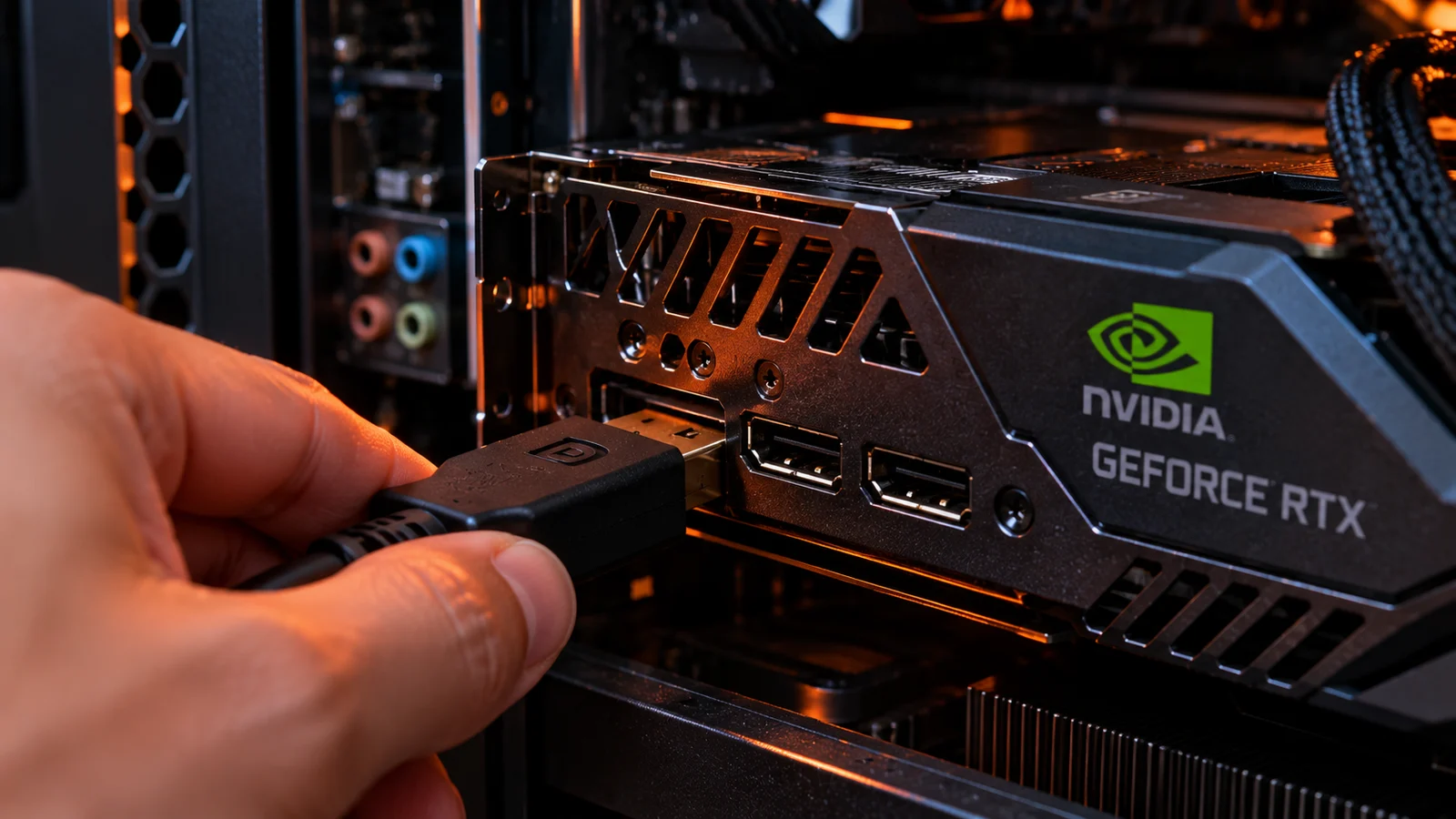
- No G-Sync option in the NVIDIA App: you are probably on HDMI with a monitor that only supports VRR over DisplayPort. Switch to DisplayPort. Also update your GPU driver.
- Plugged into the motherboard: the cable must go into the graphics card.
- FreeSync off in the monitor menu: turn on Adaptive-Sync / FreeSync / VRR in the monitor's settings.
- Wrong refresh rate: set the highest refresh rate in Windows display settings.
- Game in borderless window: pick full screen and windowed mode, or play in exclusive full screen.
- Still tearing: check that V-Sync is on in the NVIDIA App and that you have an FPS cap below your refresh rate.
- How to check it works: many monitors show the current refresh rate in their menu or as an overlay. If it moves with your FPS, G-Sync is working.
G-Sync vs FreeSync
Both do the same job. G-Sync is NVIDIA's, FreeSync is AMD's, and most new monitors support both through the open Adaptive-Sync standard. Monitors with a real G-Sync module used to have a wider VRR range and better overdrive tuning, but cost more. For most players, a good FreeSync monitor that is G-Sync Compatible is the best value.
Related guides
Frame generation: on or off?
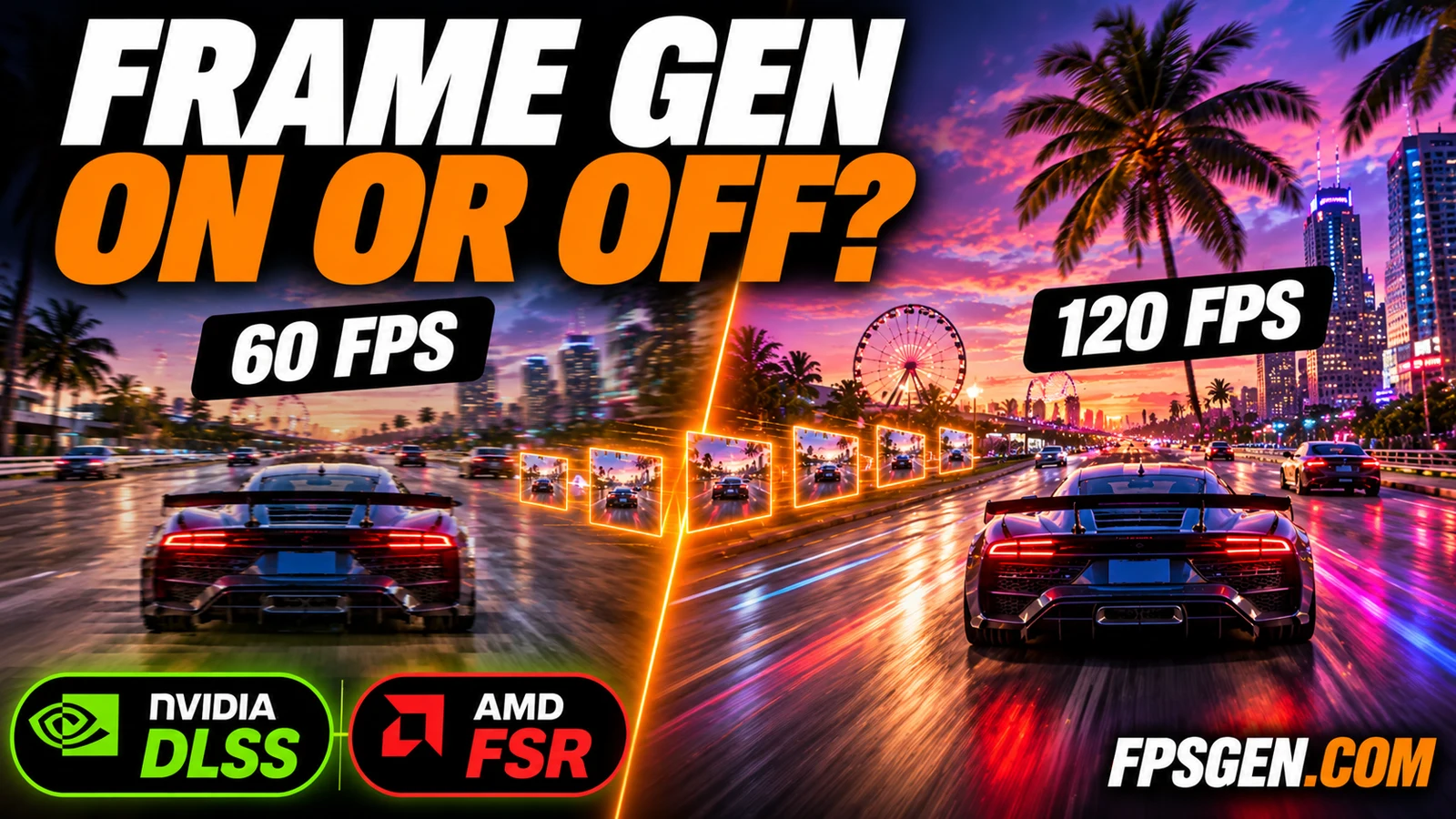
When frame generation helps, when to leave it off and the best settings for DLSS, FSR and AFMF: Frame Generation On or Off?.
FAQ
Should G-Sync be on or off?
On. It removes tearing with very little input lag. Use it with V-Sync on in the NVIDIA App, V-Sync off in the game, and an FPS cap 3 below your refresh rate.
Should I turn on V-Sync with G-Sync?
Yes, in the NVIDIA App, not in the game. Together with an FPS cap, it stops the small tearing that G-Sync alone can still show, and adds almost no lag.
Does G-Sync add input lag?
Very little. With an FPS cap below your refresh rate, G-Sync is close to V-Sync off in input lag, and much faster than classic V-Sync.
Is G-Sync good for competitive games?
Yes, with an FPS cap and NVIDIA Reflex. If you play far above your refresh rate, G-Sync is not active anyway, so the choice matters less.
Why can't I turn on G-Sync?
The most common reasons: an HDMI cable instead of DisplayPort, the cable plugged into the motherboard, FreeSync turned off in the monitor menu, an old driver, or a GPU older than the GTX 10 Series on a FreeSync monitor.
Can I use G-Sync with an AMD graphics card?
No. AMD cards use FreeSync, which works on FreeSync and most G-Sync Compatible monitors.
Sources: Blur Busters G-SYNC 101: optimal settings; NVIDIA: To set up G-SYNC; NVIDIA App G-SYNC controls; TechSpot NVIDIA App guide; GPU requirements from Wikipedia: Nvidia G-Sync; HDMI VRR on RTX 20 / GTX 16 from AnandTech. Last checked November 15, 2026.
Gaming writer at FpsGen. Guides and reviews are built on official sources, patch notes and real player data.
Comments
No comments yet. Start the conversation.