

War Thunder runs on almost any PC, but the default settings rarely give you the best mix of FPS and visibility. A few options decide most of your frame rate, and a few others decide how easily you spot a tank in a bush or a plane against the clouds. Here are the best settings for three kinds of PC, what to change first, and the fixes for stutter and crashes after the latest updates.
Quick answer: keep your graphics driver up to date, start from the Medium preset, set Shadows, Grass and Water to Low, turn motion blur off, leave ray tracing off in competitive play, and turn on DLSS (GeForce RTX), FSR or XeSS in Quality mode if your graphics card is struggling. On a GTX 1060 or RX 580-class PC, that keeps War Thunder smooth at 1080p, even in big ground battles.
Pick your hardware and we compare it with the official War Thunder requirements.
Official War Thunder PC requirements
| Minimum | Recommended | |
|---|---|---|
| OS | Windows 10 (64-bit) | Windows 10/11 (64-bit) |
| CPU | Dual-Core 2.2 GHz | Intel Core i5 or Ryzen 5 3600 and better |
| RAM | 4 GB | 16 GB and more |
| GPU | DirectX 11 card: AMD Radeon 77XX / NVIDIA GeForce GTX 660 | NVIDIA GeForce GTX 1060 / Radeon RX 570 and higher |
| Storage | 23.1 GB (minimal client) | 75.9 GB (full client) |
Source: official War Thunder website. Results are estimates based on relative hardware performance.
Not sure your PC is ready? Our guide War Thunder System Requirements covers the official specs for Windows, Mac and Linux, and Can I Run War Thunder? shows what to expect from your exact graphics card.
Before you change any setting
Three things matter more than any slider:
- Update your graphics driver from the NVIDIA app, AMD Software or Intel Arc Control. New War Thunder updates often come with driver fixes.
- Check the graphics API in the launcher. Since the May 2026 update, many players are on DirectX 12 by default. It works well on recent cards, but if you get crashes or black screens, switch back to DirectX 11 in the launcher settings (more on that below).
- Pick the right client. The full client has the high-quality textures. The minimal client is a much smaller download for weak PCs and small drives. You can switch in the launcher.
The best War Thunder settings
War Thunder's menu names can change a little between updates, but these are the options that matter. Start from the preset in the first row, then change the rest by hand.
| Setting | Competitive (max FPS) | Balanced (GTX 1060 – RTX 3060) | Low-end PC / laptop |
|---|---|---|---|
| Graphics preset | Medium, then custom | High, then custom | Ultra Low or Low |
| Resolution | Native | Native | Native, with upscaling |
| Upscaling | DLSS / FSR / XeSS Quality if needed | DLSS / FSR / XeSS Quality | FSR or XeSS Performance |
| Anti-aliasing | TAA or DLAA | TAA | FXAA or off |
| Texture quality | High (Medium with 4 GB VRAM) | High | Low |
| Shadow quality | Low | Medium | Ultra Low / Low |
| Grass quality | Low | Medium | Low / off |
| Landscape / terrain detail | Medium | High | Low |
| Water quality | Low | Medium | Low |
| Cloud quality | Low | Medium | Low |
| Draw distance / rendering distance | High | High | Medium |
| Effects / physics quality | Low | Medium | Low |
| SSAO / ambient occlusion | Off | On | Off |
| Motion blur | Off | Off | Off |
| Ray tracing | Off | Off (or Medium on RTX 4070+) | Off |
| V-Sync | Off | Off (use G-Sync / FreeSync) | Off |
Why these values?
- Shadows, grass and water cost the most performance for the least gameplay value. They hit hardest in ground and naval battles.
- Draw distance stays high in competitive play: you want to see vehicles and planes far away.
- Textures mostly use video memory, not raw GPU power. If your card has 6 GB or more, keep them on High. With 4 GB or less, use Medium to avoid stutter.
- Motion blur only makes moving targets harder to read.
Upscaling: DLSS, FSR, XeSS or TSR?
War Thunder supports all the big upscalers: NVIDIA DLSS, AMD FSR, Intel XeSS and Gaijin's own TSR. They render the game at a lower resolution and rebuild a sharp image, so you get more FPS without dropping your screen resolution.
- GeForce RTX: use DLSS Quality. It gives the cleanest image.
- Radeon and GTX cards: use FSR Quality.
- Intel Arc: use XeSS Quality.
- Very old card: try Balanced or Performance mode before you lower everything else to Ultra Low.
Gaijin also announced on November 3, 2026 that NVIDIA DLSS 5 is in development for War Thunder, for GeForce RTX 50-series cards, with the upcoming major update.
Ray tracing: worth it?
War Thunder has had ray tracing since the Firebirds update: ray-traced shadows, ray-traced ambient occlusion and ray-traced reflections, each with its own quality setting. It looks great in screenshots and replays, but:
- it costs a lot of GPU power, and it also uses many CPU threads to build the scene, which hurts in big ground battles;
- it does not help you spot enemies.
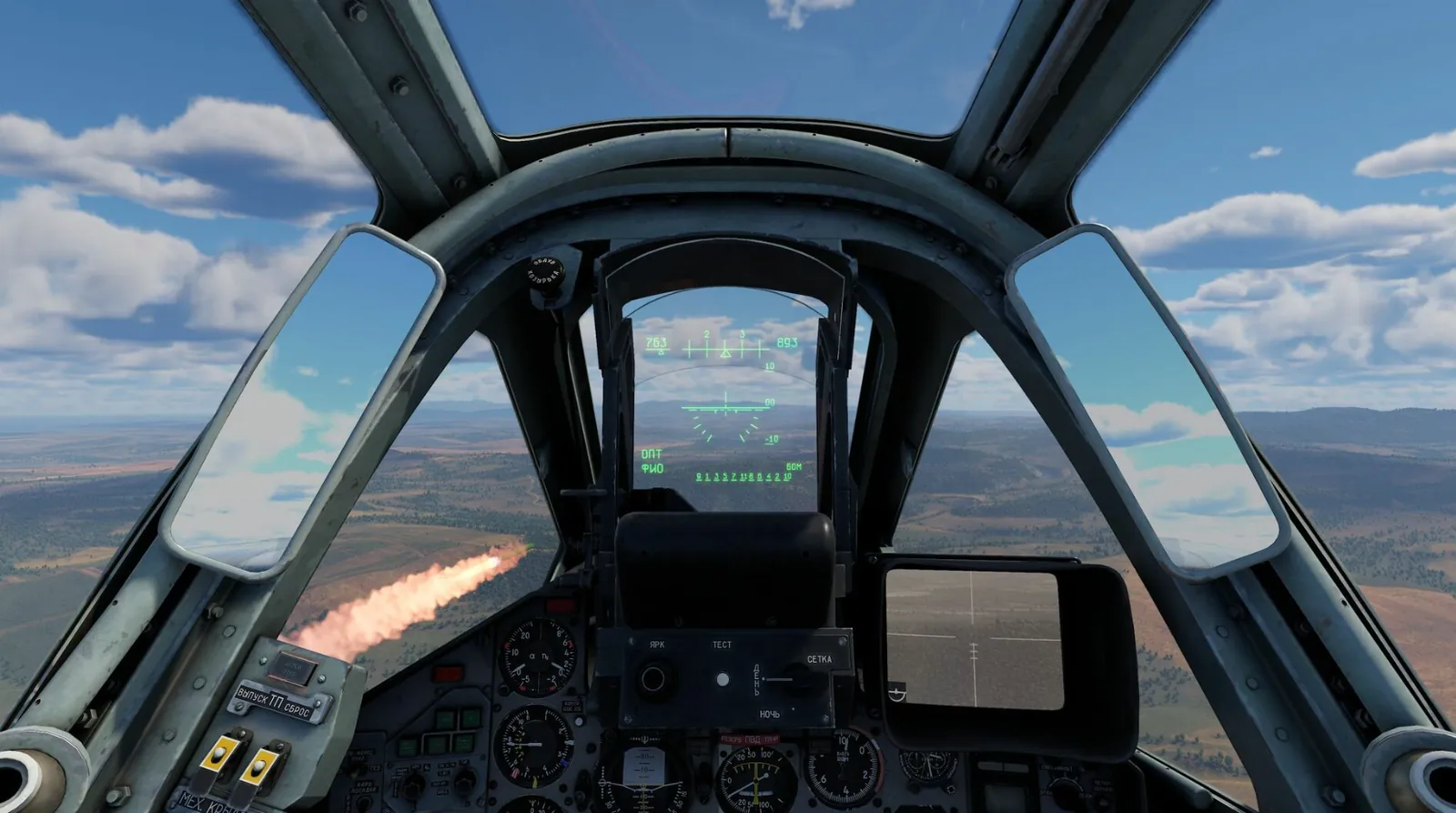
Our advice: off for ranked battles. If you have an RTX 4070 or better and want the nicest picture, Gaijin recommends the Medium ray tracing preset with an upscaler on Balanced. You can also turn on only the effect you like most, for example reflections.
Best settings by game mode
- Ground battles are the heaviest, and they are often limited by your processor, not your graphics card. If your FPS drops in big fights while your GPU is not at 100%, lower effects / physics, shadows and grass, and close background apps. Our guide CPU Bottleneck Explained shows how to check.
- Air battles are the lightest. Keep cloud quality at Medium or higher only if your PC has headroom: low clouds make it easier to see planes, but they also look worse.
- Naval battles are heavy on water, smoke and explosions. Water on Low gives the biggest jump.
Settings for a low-end PC or laptop
If your PC is near the minimum requirements (GTX 660, 4 GB of RAM):
- Use the minimal client and the Ultra Low preset.
- Turn on FSR or XeSS in Performance mode if your screen is 1080p.
- Keep textures on Low and draw distance on Medium.
- On a laptop, plug it in and choose the Best performance power mode in Windows, or the CPU and GPU will slow down.
- Close your browser and launchers: with 8 GB of RAM or less, every open app takes memory from the game.
The full guide for weak PCs, laptops and integrated graphics is War Thunder on a Low-End PC or Laptop. More fixes that work in every game are in How to Increase FPS on PC.
Stutter, crashes and DirectX 12 problems
Stutter in the first battles after an update is usually the game building its shaders. It goes away after a few matches. If it stays:
- install War Thunder on an SSD;
- lower textures one step if your graphics card has 4 GB of video memory or less;
- turn off overlays (Discord, Steam, recording software) to test.
Crashes or black screens on DirectX 12: open the launcher, click the settings (gear) icon, and choose DirectX 11. Since the May 2026 update, some players report that the launcher switches back to DirectX 12 by itself. In that case, close the game, open the config.blk file in the War Thunder folder and change the line driver:t="dx12" to driver:t="dx11", then save it. Make a copy of the file first.
More War Thunder on FpsGen
- War Thunder System Requirements: official specs for Windows, Mac and Linux
- Can I Run War Thunder?: results for popular graphics cards
- War Thunder on a Low-End PC or Laptop: settings for weak PCs and integrated graphics
- War Thunder Crashing on PC? 8 Fixes: startup crashes, DirectX 12 and error 81110007
- War Thunder FPS Estimator: FPS for your exact parts
- War Thunder game page
FAQ
What is the best graphics preset for War Thunder?
Start from Medium on most PCs and High on a GTX 1060-class card or better, then lower shadows, grass and water by hand. Ultra Low and Low are for PCs near the minimum requirements.
Should I use DirectX 11 or DirectX 12 in War Thunder?
Use DirectX 12 if it runs without problems: it is the default for many players since the May 2026 update. If you get crashes, black screens or worse FPS, switch to DirectX 11 in the launcher.
Does DLSS work in War Thunder?
Yes. War Thunder supports NVIDIA DLSS on GeForce RTX cards, plus AMD FSR, Intel XeSS and TSR on other graphics cards. DLSS 5 is in development for RTX 50-series cards.
Should I turn on ray tracing in War Thunder?
Not for competitive play. It costs a lot of FPS and does not help you spot enemies. On a strong RTX card, the Medium ray tracing preset with an upscaler is a good choice for screenshots and replays.
Why is my FPS low in ground battles?
Big ground battles use your processor heavily. Lower effects, shadows and grass, close background apps, and check whether your CPU is the bottleneck.
How do I get more FPS in War Thunder on a laptop?
Plug it in, use the Best performance power mode, choose the Low or Ultra Low preset, and turn on FSR or XeSS. Use the minimal client if you are short on space.
Upscaling and ray tracing details from Gaijin's devblogs: Ray tracing in War Thunder (Firebirds update) and NVIDIA DLSS 5 in development (November 3, 2026). DirectX 12 reports from the official War Thunder forum. Recommended values are FpsGen's starting points; results vary by PC, map and game mode. Last checked November 6, 2026.

Gaming writer at FpsGen. Guides and reviews are built on official sources, patch notes and real player data.
FpsGen may earn a commission when you start playing a game through links on this page.
Comments
No comments yet. Start the conversation.