

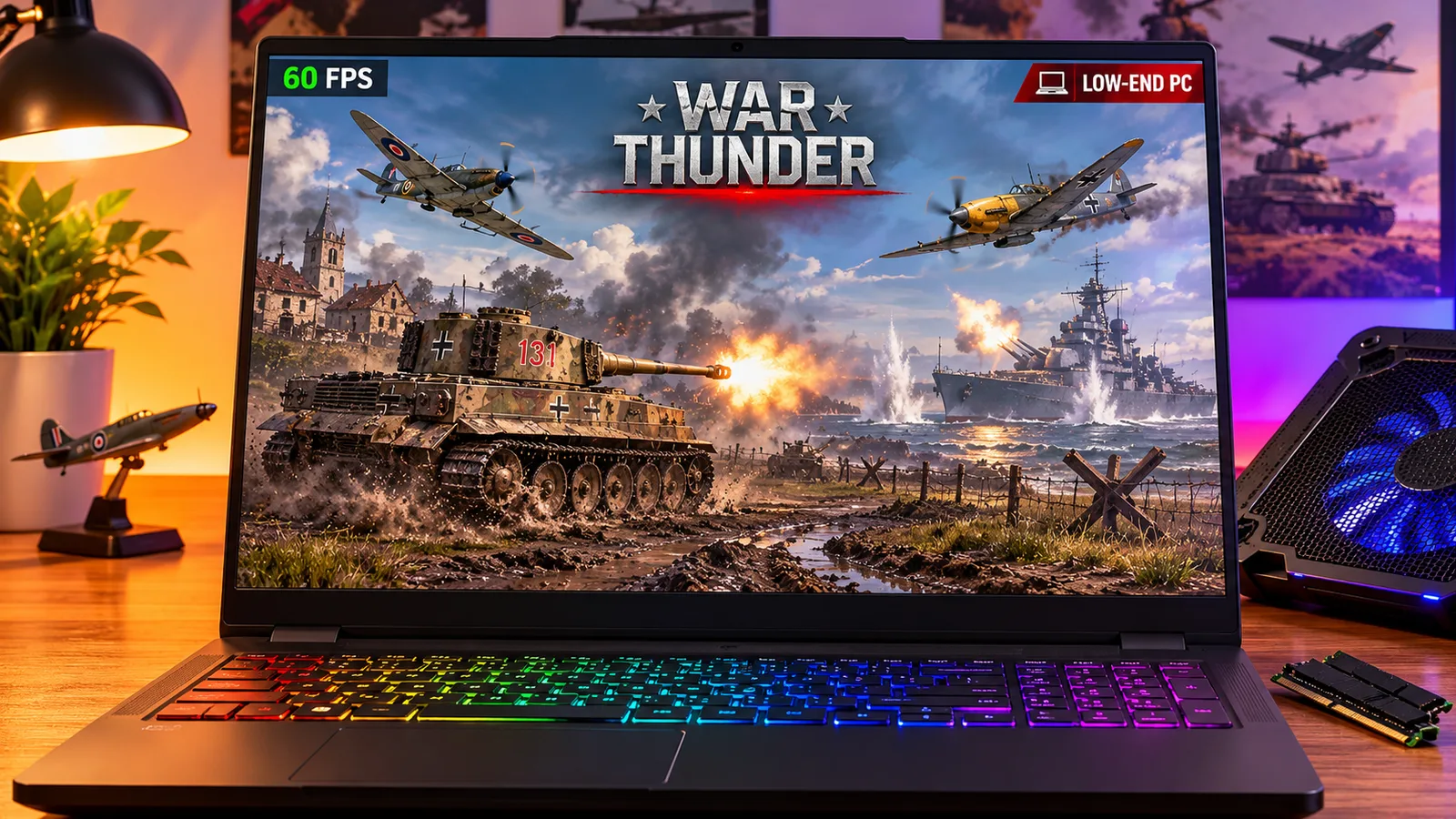
War Thunder is one of the few big online games that still runs on old PCs and cheap laptops. But on weak hardware, the default settings are too heavy: you get slideshows in ground battles, long loading screens and stutter every time something explodes. This guide shows how to make War Thunder playable on a low-end PC or a laptop, including laptops with only integrated graphics.
Quick answer: use the minimal client, choose the Ultra Low preset, turn on FSR or XeSS in Performance mode, and play air battles first: they are the lightest mode. On a laptop, plug it in, use the Best performance power mode, and make sure War Thunder runs on the dedicated graphics card, not the integrated one. If your laptop only has integrated graphics, two RAM sticks (dual channel) make a bigger difference than any setting.
Pick your hardware and we compare it with the official War Thunder requirements.
Official War Thunder PC requirements
| Minimum | Recommended | |
|---|---|---|
| OS | Windows 10 (64-bit) | Windows 10/11 (64-bit) |
| CPU | Dual-Core 2.2 GHz | Intel Core i5 or Ryzen 5 3600 and better |
| RAM | 4 GB | 16 GB and more |
| GPU | DirectX 11 card: AMD Radeon 77XX / NVIDIA GeForce GTX 660 | NVIDIA GeForce GTX 1060 / Radeon RX 570 and higher |
| Storage | 23.1 GB (minimal client) | 75.9 GB (full client) |
Source: official War Thunder website. Results are estimates based on relative hardware performance.
What counts as a "low-end PC" for War Thunder?
The official minimum is a dual-core 2.2 GHz processor, 4 GB of RAM and a DirectX 11 graphics card like a GeForce GTX 660 or Radeon 77XX, on Windows 10 (64-bit). Here is where common budget hardware sits:
| Your hardware | What to expect |
|---|---|
| Old Intel HD / UHD graphics (most laptops before 2020) | Below the minimum. The game may start, but it is hard to play. |
| Intel Iris Xe, AMD Radeon Vega 8 / Vega 11 | Playable on Ultra Low at 720p–1080p with upscaling. Air battles work best. |
| AMD Radeon 680M / 780M (Ryzen 6000–8000 laptops) | Low settings at 1080p, the best integrated option. |
| GTX 660 / GTX 750 Ti / GTX 950 / RX 460 | The official minimum level: Ultra Low to Low. |
| GTX 1050 Ti / GTX 1650 / RX 560 | Low to Medium at 1080p: comfortable. |
Not sure what is inside your PC? Press Win + R, type dxdiag, and look at the System and Display tabs. The full official specs are in War Thunder System Requirements.
Step 1: Install the minimal client
War Thunder has two clients:
- the full client, with high-quality textures (around 76 GB on Windows);
- the minimal client, much smaller (around 23 GB), with lighter textures.
On a low-end PC, the minimal client is the right choice: it uses less video memory, loads faster and needs less disk space. You can choose it in the launcher settings.
Step 2: Use the Ultra Low preset
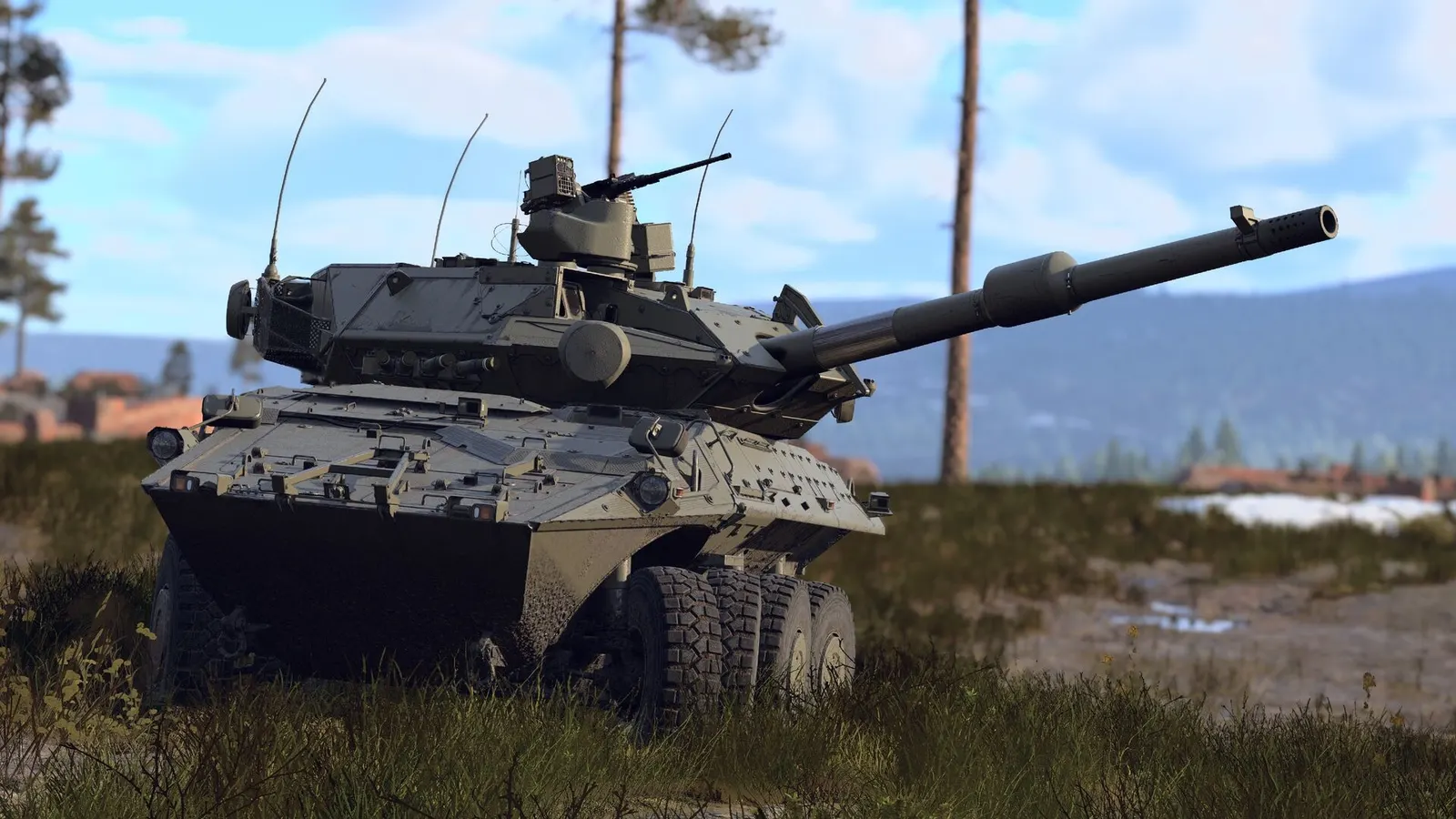
In the graphics settings, choose the Ultra Low preset (ULQ). It switches the game to a much lighter render mode: simple ground, almost no grass and far fewer effects. It does not look good, but it is the setting that makes the biggest difference on weak graphics cards and integrated graphics.
If your PC can handle a bit more, start from Low instead and change these settings by hand:
| Setting | Low-end value |
|---|---|
| Texture quality | Low |
| Shadows | Ultra Low / Low |
| Grass | Off / Low |
| Water | Low |
| Clouds | Low |
| Draw distance | Medium |
| Effects / physics | Low |
| Anti-aliasing | Off or FXAA |
| SSAO, motion blur, ray tracing | Off |
For every option explained in detail, including the settings for stronger PCs, read War Thunder Best PC Settings.
Step 3: Turn on upscaling
War Thunder supports AMD FSR and Intel XeSS, which also work on integrated graphics and older cards. They render the game at a lower resolution and rebuild a sharper image.
- On integrated graphics, use FSR or XeSS in Performance mode.
- On a GTX 1050 Ti / GTX 1650, try Quality or Balanced first.
- This looks much better than lowering the screen resolution to 720p by hand.
Step 4: Try DirectX 12 and DirectX 11
Many players are on DirectX 12 by default since the May 2026 update. On older processors, DirectX 12 can give better FPS than DirectX 11, because it puts less work on the CPU. But on some old graphics cards and drivers, DirectX 11 is more stable.
Test both: play two or three battles on each (launcher > settings > graphics API) and keep the one that is smoother. If the game crashes on DirectX 12, switch back to DirectX 11.
Step 5: RAM: the hidden fix for integrated graphics
Integrated graphics have no video memory of their own: they use your PC's RAM. That changes two things:
- Two RAM sticks (dual channel) instead of one can make integrated graphics much faster, because the memory bandwidth doubles. If your laptop has one 8 GB stick and a free slot, adding a second matching stick is the cheapest upgrade you can make.
- 8 GB is the real minimum. With 4 GB, part of it is taken by the graphics, and Windows runs out of memory. With 8 GB, close your browser before you play. 16 GB removes most of the stutter. See Is 16 GB of RAM Enough for Gaming?
Step 6: Laptop settings that matter
- Plug it in. On battery, the processor and graphics card slow down to save power.
- Choose the Best performance power mode in Windows (Settings > System > Power & battery), and the performance mode in your laptop maker's app (Armoury Crate, Lenovo Vantage, MSI Center, Omen Gaming Hub...).
- Use the dedicated graphics card. On laptops with an NVIDIA or AMD card, Windows sometimes runs games on the weaker integrated graphics. Go to Settings > System > Display > Graphics, add War Thunder (aces.exe in the game folder, or the launcher), and set it to High performance.
- Keep it cool. Put the laptop on a hard, flat surface or a laptop stand. A hot laptop slows itself down after a few minutes, which is why FPS is good at the start of a battle and bad at the end.
Step 7: Free up your PC
- Close the browser, Discord and other launchers while you play.
- Turn off overlays and recording apps (Xbox Game Bar, Steam overlay, GeForce / AMD recording).
- Install War Thunder on an SSD if you have one: loading and texture streaming are much faster.
- Keep your graphics driver up to date. On older integrated graphics, use the newest driver from Intel or AMD, not only the one from Windows Update.
More fixes that work in every game are in How to Increase FPS on PC.
Which game mode runs best on a weak PC?
- Air battles: the lightest mode, with fewer objects on the ground. The best place to start on integrated graphics.
- Ground battles: heavier, especially for the processor: many vehicles, destruction and effects at close range. If your FPS drops only in ground battles, the CPU is the limit. Our guide CPU Bottleneck Explained shows how to check.
- Naval battles: the heaviest, because of water, smoke and big explosions. Keep water on Low.
When is it time to upgrade?
If your PC is below the minimum, one cheap part often fixes it:
- RAM: a second stick for dual channel, or 16 GB in total.
- Graphics card (desktop PCs): even a used GTX 1650 or RX 6400 is a huge jump from integrated graphics.
- SSD: fixes long loading screens and freezes.
For a full upgrade, see our PC setup page and the Best Gaming PC Build Under $1000.
More War Thunder on FpsGen
- War Thunder Best PC Settings: the best settings for every PC
- War Thunder Crashing on PC? 8 Fixes: startup crashes, DirectX 12 and error 81110007
- War Thunder System Requirements: official specs for Windows, Mac and Linux
- Can I Run War Thunder?: results for popular graphics cards
- War Thunder FPS Estimator: FPS for your exact parts
FAQ
Can War Thunder run on integrated graphics?
Yes, on modern integrated graphics such as Intel Iris Xe or the AMD Radeon 680M / 780M, with the minimal client, the Ultra Low or Low preset and upscaling. Older Intel HD / UHD graphics are below the minimum.
Can War Thunder run on 4 GB of RAM?
4 GB is the official minimum, but the game will stutter, especially on integrated graphics. 8 GB is the real minimum for smooth play, and 16 GB is recommended.
What is the minimal client in War Thunder?
A smaller version of the game, around 23 GB instead of around 76 GB, with lighter textures. It runs better on low-end PCs and laptops. You can choose it in the launcher.
Is War Thunder good on a laptop?
Yes. A laptop with a GTX 1650, an RTX 3050 or better runs it well. On laptops with only integrated graphics, it is playable on low settings if you plug the laptop in and use the tips above.
Why is my FPS good at the start of a battle and bad later?
On a laptop, this is usually heat: the laptop slows down to cool itself. Use a stand, clean the vents and choose the performance mode. On a desktop, it is often the CPU in big ground battles.
Requirements and client sizes from the official War Thunder website. DirectX 12 and CPU-overhead reports from the official War Thunder forum. Hardware tiers are FpsGen estimates based on how hardware of similar power performs, not guarantees. Last checked November 6, 2026.

Gaming writer at FpsGen. Guides and reviews are built on official sources, patch notes and real player data.
FpsGen may earn a commission when you start playing a game through links on this page.
Comments
No comments yet. Start the conversation.