

The Nintendo Switch Pro Controller is one of the most comfortable gamepads you can use on PC, with great battery life and a built-in gyro. But Windows does not treat it like an Xbox controller, so it needs a little setup, and the newer Switch 2 Pro Controller has its own limits. Here is how to connect both by USB or Bluetooth, make them work in Steam and in other games, and fix the common problems.
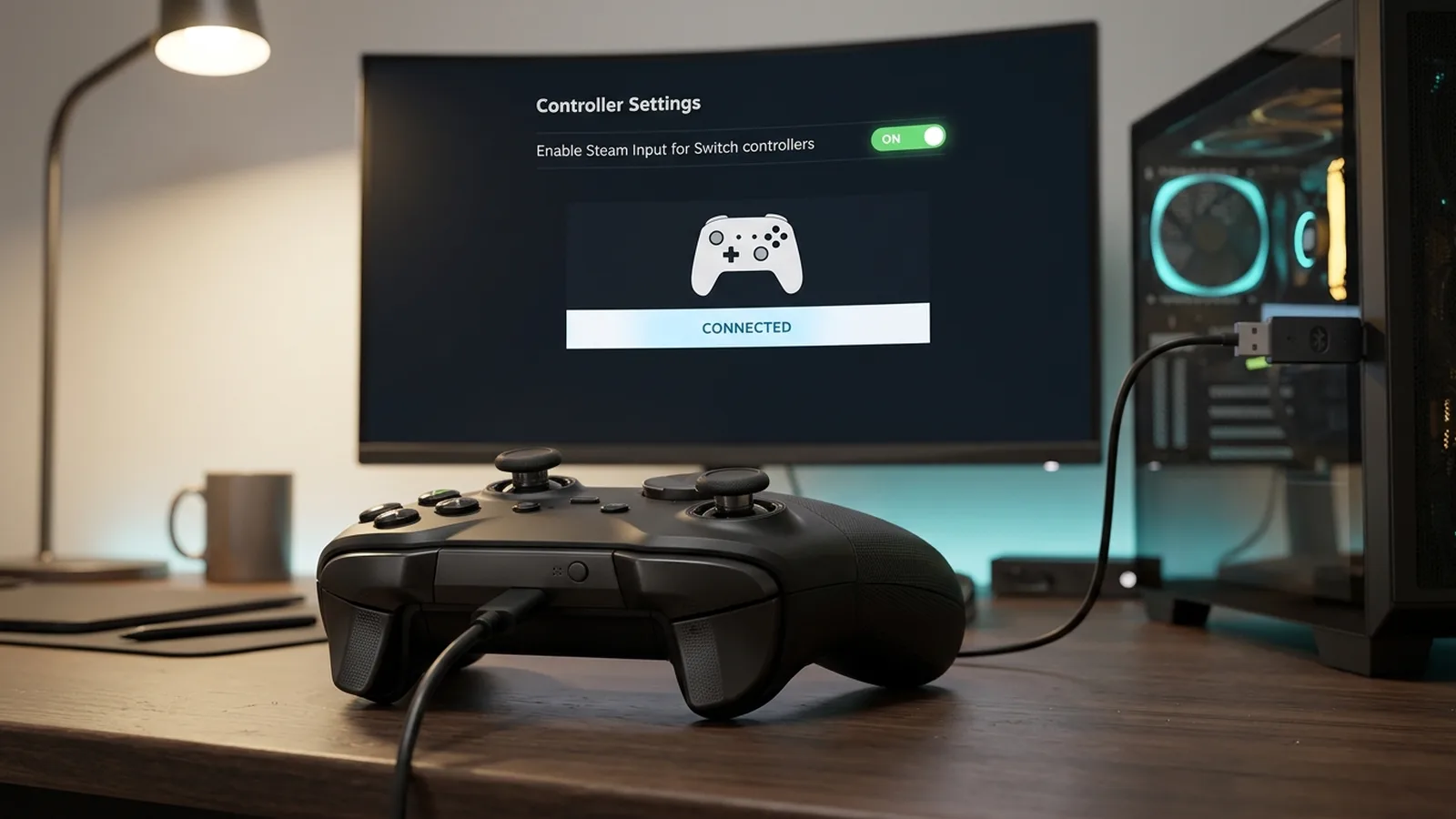
Quick answer: plug the controller into your PC with a USB-C data cable, open Steam > Settings > Controller, and turn on Steam Input for Switch Pro controllers. Turn on Use Nintendo Button Layout if you want A/B and X/Y in their Nintendo places. The original Switch Pro Controller also works over Bluetooth (hold the small sync button on top). The Switch 2 Pro Controller works over USB only on PC for now. For games outside Steam, add them to Steam as a non-Steam game.
Which controller do you have?
| Switch Pro Controller (Switch 1) | Switch 2 Pro Controller | |
|---|---|---|
| USB on PC | Yes | Yes (Steam, November 2025 or newer) |
| Bluetooth on PC | Yes | No, not supported for now |
| Steam support | Full (buttons, gyro, rumble) | Yes over USB, including the GL, GR and C buttons and gyro |
| Outside Steam | Needs Steam or a tool like BetterJoy | Add the game to Steam |
| Charges while playing | Over USB only | Over USB |
Both controllers show up in Windows as a DirectInput device, not as an Xbox (XInput) controller. That is why many games don't see them without Steam.
Connect it by USB (both controllers)
- Use a USB-C cable that carries data. A charge-only cable lights up the controller, but Steam won't see any button presses.
- Plug the controller into a USB port on the back of the PC if a front port doesn't work.
- Open Steam > Settings > Controller and check that the controller appears.
- Turn on Steam Input for Switch Pro controllers ("Enable Steam Input for Switch controllers").
- On a Switch 2 Pro Controller, update Steam first: support arrived in November 2025. If it isn't detected, check Steam > Settings > Interface for a pending update, or try the Steam beta.
Connect it by Bluetooth (Switch 1 Pro Controller only)
- If your Switch is nearby, turn it off, or the controller may reconnect to it.
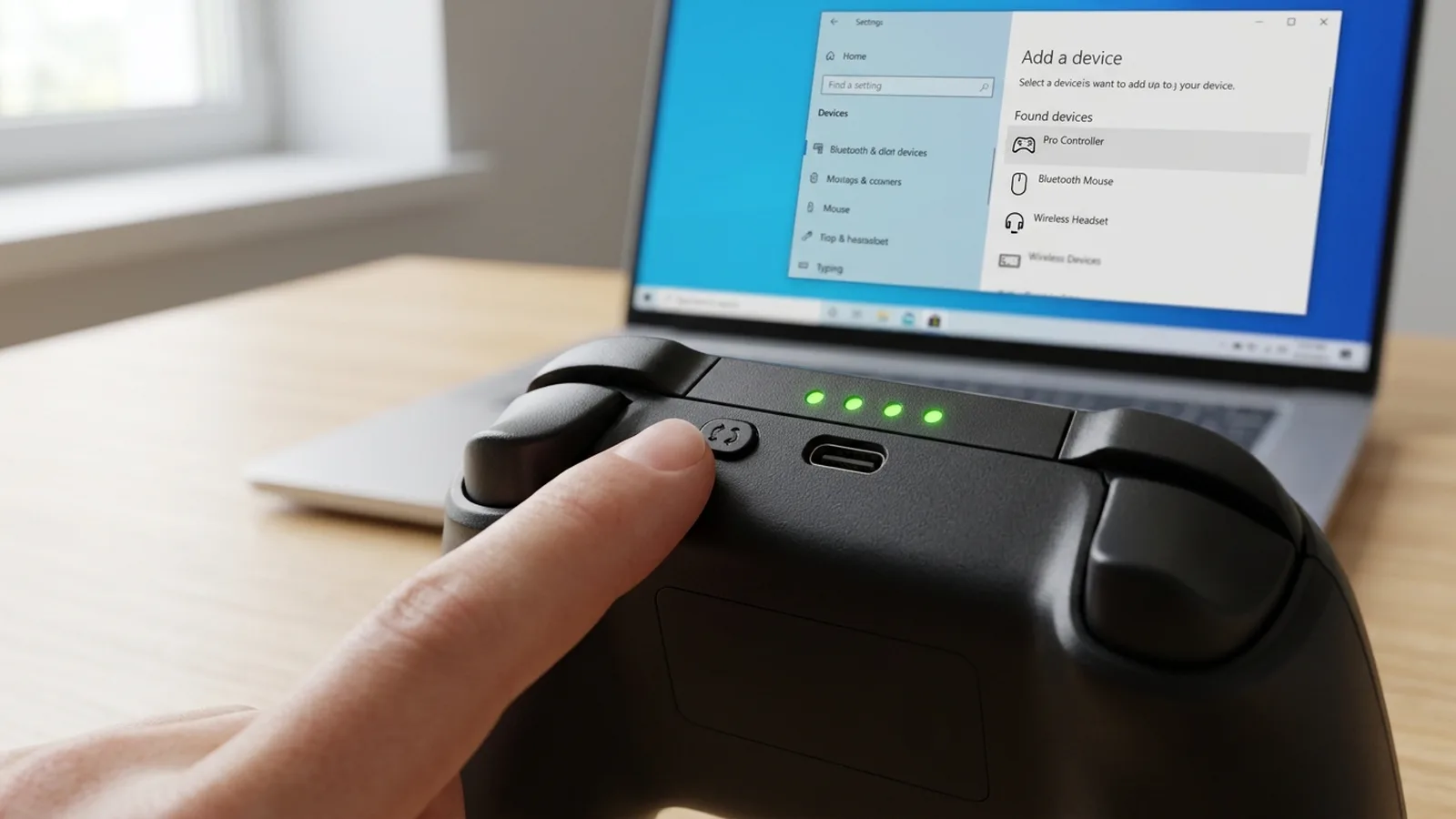
- On the PC, open Settings > Bluetooth & devices > Add device > Bluetooth.
- On the controller, hold the small round sync button on the top edge, next to the USB-C port, until the lights start moving.
- Choose Pro Controller in the list. Pairing takes up to a minute.
- Turn on Steam Input as above.
Good to know: over Bluetooth the controller doesn't charge, so charge it before you play. The Switch 2 Pro Controller doesn't work over Bluetooth on PC for now, even with adapters that work with the first model.
Set it up in Steam
In Steam > Settings > Controller:
- Use Nintendo Button Layout: on, the A/B and X/Y buttons work like on a Switch. Off, they work like an Xbox controller (the bottom button is "A"). Many PC games expect the Xbox layout, so try both.
- Calibration & Advanced Settings: calibrate the sticks and the gyro, and change the brightness of the lights.
- Per game: right-click a game in your library > Manage > Controller layout to remap buttons, set up gyro aiming, or use the GL, GR and C buttons on the Switch 2 controller.
- Steam Input per game: if a game ignores the controller, open the game's Properties > Controller and set it to Enable Steam Input. Steam Input often has to be on both globally and for the game.
Games outside Steam (Epic, Xbox app, emulators)
Because the controller isn't an Xbox controller, many non-Steam games won't see it. You have three options:
- Add the game to Steam (easiest): in Steam, click Games > Add a Non-Steam Game to My Library, pick the game's .exe and launch it from Steam. Steam Input then works with the Steam overlay. This works for most launchers and emulators.
- BetterJoy (Switch 1 controller): a free tool that turns the controller into an Xbox controller for Windows. Install its drivers, reboot, then run it. Use it instead of Steam Input, not with it.
- A Bluetooth adapter like the 8BitDo USB adapter (Switch 1 controller): Windows sees the controller as an Xbox gamepad with no extra software, but without rumble.
None of these is reliable with the Switch 2 Pro Controller yet: use the "add to Steam" method.
Test your controller
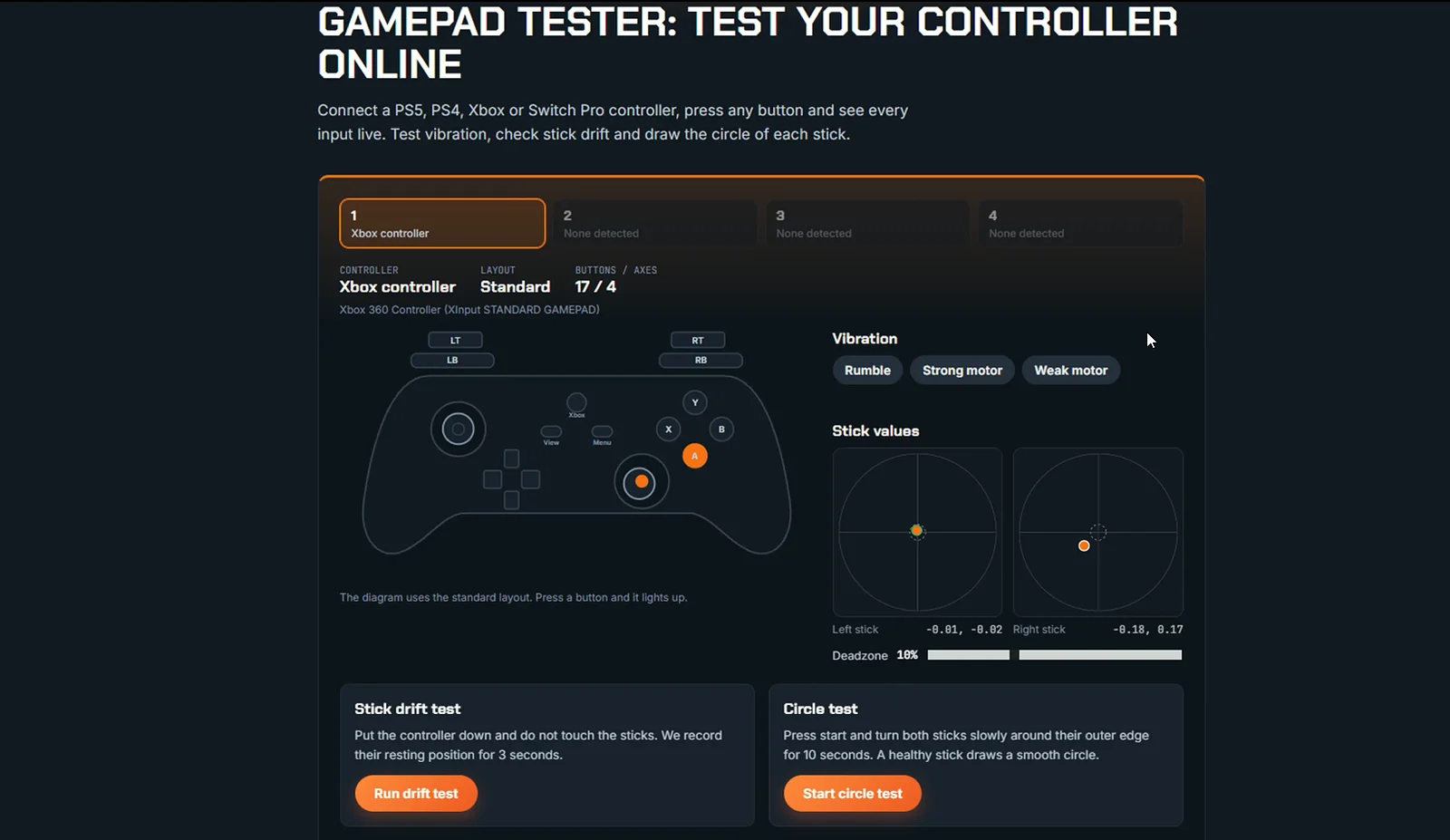
Before you blame a game, check that every button, stick and trigger works in our Gamepad Tester. It shows each input live in your browser, with no download, and helps you spot stick drift or a dead button in seconds.
Fixes when it doesn't work
| Problem | Fix |
|---|---|
| Not detected over USB | Use a data USB-C cable, try a back USB port, restart Steam |
| Switch 2 controller not detected | Update Steam (November 2025 or newer), use USB, not Bluetooth |
| Detected in Windows, but not in the game | Turn on Steam Input globally and in the game's Properties > Controller |
| A/B and X/Y are swapped | Toggle Use Nintendo Button Layout in Steam |
| Two controllers in the game, double inputs | Close BetterJoy, DS4Windows or other mapping tools while Steam Input is on |
| Bluetooth keeps disconnecting | Turn off the Switch, move closer to the PC, remove the controller from Bluetooth devices and pair it again |
| Stick moves on its own | That is stick drift: test it in the Gamepad Tester and read How to Fix Stick Drift |
| Game shows Xbox buttons | Normal: most PC games only have Xbox and PlayStation button icons |
Switch Pro Controller vs PS5 and Xbox controllers on PC
- Xbox controller: the most plug-and-play on Windows. Every PC game supports it, inside or outside Steam. See Xbox Controller Not Working on PC? if yours has problems.
- PS5 DualSense: great in Steam, with gyro and, in some games, haptics and adaptive triggers. See How to Use a PS5 Controller on PC.
- Switch Pro Controller: excellent comfort, battery life and gyro, but it needs Steam (or a tool) for most games, and the Switch 2 model is USB-only for now.
If you mostly play through Steam, the Switch Pro Controller is a great choice. If you play a lot of Game Pass or Epic games, an Xbox controller saves you the setup.
FAQ
Does the Switch Pro Controller work on PC?
Yes. It works over USB or Bluetooth, and best through Steam with Steam Input turned on. Outside Steam, add the game to Steam or use a tool like BetterJoy.
Does the Switch 2 Pro Controller work on PC?
Yes, over USB through Steam, since a Steam update in November 2025. Bluetooth is not supported on PC for now.
How do I pair a Switch Pro Controller with Bluetooth on PC?
Turn off your Switch, open Windows Bluetooth settings and add a device, then hold the small sync button on top of the controller until the lights move. Select Pro Controller in the list.
Why are my A and B buttons swapped on PC?
Steam can use either the Nintendo or the Xbox layout. Turn Use Nintendo Button Layout on or off in Steam > Settings > Controller.
Can I use the Switch Pro Controller gyro on PC?
Yes, in Steam. Open a game's controller layout and set the gyro as a mouse or joystick, for example for aiming in shooters.
Why doesn't my Switch Pro Controller work in Epic or Xbox app games?
Those games expect an Xbox controller. Add the game to Steam as a non-Steam game and launch it from Steam, or use BetterJoy with the Switch 1 controller.
More controller guides and tools on FpsGen
- Gamepad Tester for every controller
- How to Use a PS5 Controller on PC
- Xbox Controller Not Working on PC?
- How to Fix Stick Drift
- All free PC gaming tools
Sources: PC Gamer: How to use Nintendo Switch and Switch 2 Pro controllers on PC (updated January 14, 2026), TechRadar on Steam's Switch 2 Pro Controller support (November 2025), and FixoryHQ on Switch 2 Pro setup and troubleshooting. Last checked November 8, 2026.

Gaming writer at FpsGen. Guides and reviews are built on official sources, patch notes and real player data.
Comments
No comments yet. Start the conversation.