

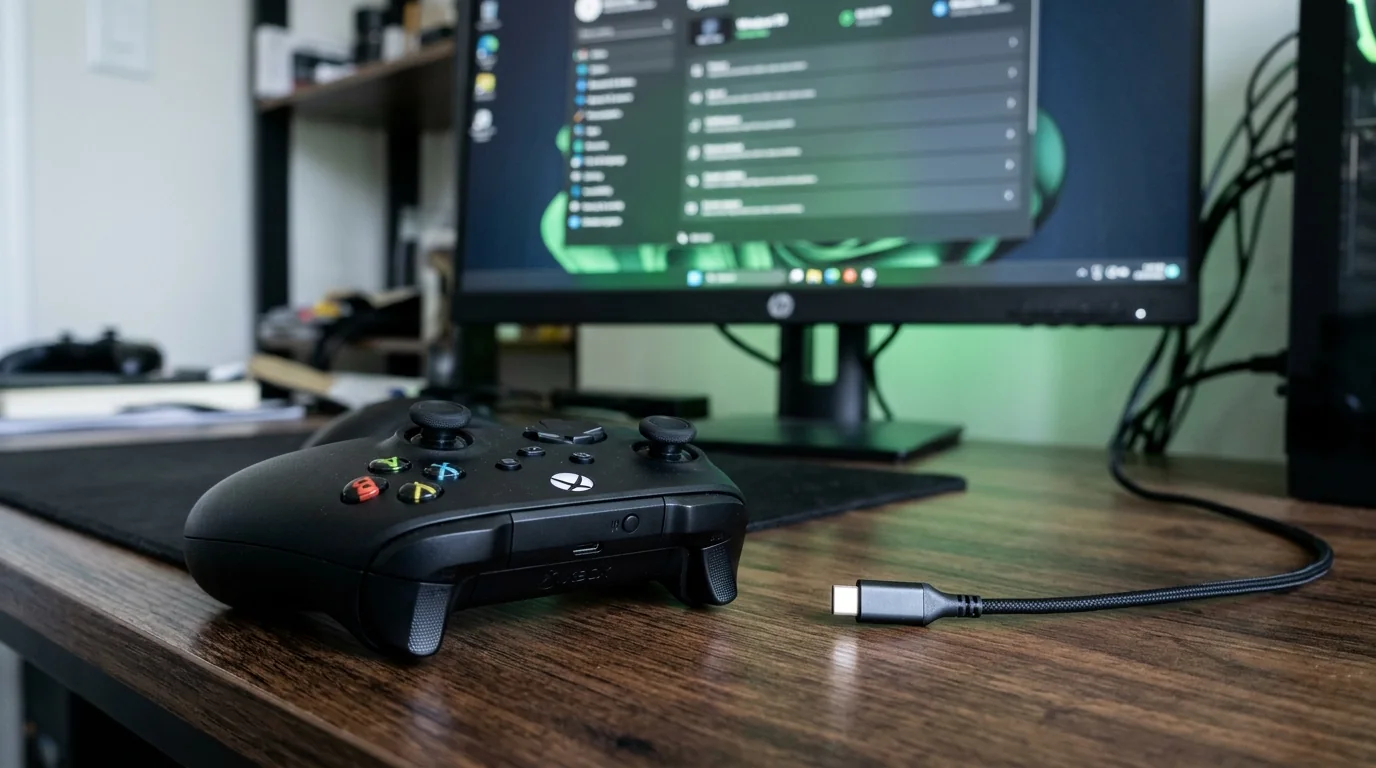
Xbox controllers are supposed to be plug-and-play on Windows. When yours is not detected, keeps disconnecting, or works in Windows but not in a game, the fix is usually simple: a cable, a setting, a driver or an app fighting for the controller.
Start with the quick test, then go through the fixes in order. Most people are done by fix 4.
First: test your controller in 10 seconds
Open our free Xbox controller tester in Chrome or Edge and press any button.
- The controller shows up and every input lights up: the controller and Windows are fine. The problem is the game or an app (go to fixes 7 to 9).
- Nothing shows up: Windows does not see the controller. Start with fix 1.
- Some buttons or a stick do not react, or the stick moves on its own: the controller itself is worn. See how to fix stick drift.
Fix 1: Use a data cable and another USB port
Many USB cables only charge and carry no data, so the controller lights up but Windows never sees it.
- Try another cable, ideally the one that came with the controller or a known data cable (USB-C for Xbox Series controllers, micro-USB for older Xbox One controllers).
- Plug it directly into the PC, not into a hub or the front panel. Try a USB port on the back of the motherboard.
Fix 2: Pair Bluetooth the right way
- Turn the controller on with the Xbox button.
- Hold the small pair button on top of the controller (next to the USB port) until the Xbox logo flashes quickly.
- On Windows, open Settings > Bluetooth & devices > Add device > Bluetooth and pick Xbox Wireless Controller.
If it was paired before and stopped working, remove it from Bluetooth devices first, then pair it again.
Not every Xbox controller has Bluetooth. The very first Xbox One controllers (2013 to 2016) need a cable or the Xbox Wireless Adapter. Bluetooth models have the plastic around the Xbox button in the same piece as the front of the controller.
Fix 3: Check the batteries
Low batteries cause random disconnects and a controller that will not pair. Put in new AA batteries or charge your battery pack, then try again. The Xbox button flashing slowly usually means it is looking for a connection, or the batteries are low.
Fix 4: Update the controller firmware
Old firmware can stop Bluetooth or some games from working.
- Install the free Xbox Accessories app from the Microsoft Store.
- Connect the controller by USB.
- Open the app, select the controller and choose Update if it offers one.
Firmware updates fix a lot of Bluetooth disconnection and input lag problems.
Fix 5: Reinstall the controller driver
- Right-click the Start button and open Device Manager.
- Look under Xbox Peripherals (or Human Interface Devices) for your controller.
- Right-click it, choose Uninstall device, then unplug the controller.
- Restart the PC and plug the controller back in. Windows reinstalls the driver.
If you see a device with a yellow warning sign, right-click it and choose Update driver > Search automatically.
Fix 6: Install Windows updates
Xbox controller drivers come through Windows Update. Open Settings > Windows Update, install everything, including optional updates, then restart.
Fix 7: Check Steam Input settings
Steam can take over the controller, which sometimes causes double inputs or no input at all.
- In Steam > Settings > Controller, check Xbox Controller Support (Steam Input for Xbox controllers).
- If a game works badly through Steam, open the game's Properties > Controller and try Disable Steam Input. Many games with native Xbox support work better this way.
- In Big Picture, make sure the controller shows up in the controller settings.
Fix 8: Close other controller apps
DS4Windows, reWASD, x360ce, DSX and similar apps can grab the controller or create a second virtual one. Close them (also from the system tray) and test again. If the game then works, set the app to ignore your Xbox controller, or uninstall it.
Fix 9: Check the game itself
- Some games only use the controller in full screen, or need Controller selected in their input settings.
- A few older or strategy games simply do not support controllers.
- If you use more than one controller, unplug the others: some games only listen to the first one.
Fix 10: Stop Windows from turning off USB ports
Windows can cut power to USB ports to save energy, which makes wired controllers disconnect.
- Open Device Manager > Universal Serial Bus controllers.
- For each USB Root Hub, open Properties > Power Management.
- Untick Allow the computer to turn off this device to save power.
On laptops, also set the Power mode to Best performance while you play.
Still not working?
Test the controller on another PC, an Xbox console or a phone. If it fails everywhere, it is a hardware fault: check the warranty on Xbox Support before you open it. If it works everywhere else, the problem is your PC's USB ports or Bluetooth adapter: a cheap USB Bluetooth adapter or the Xbox Wireless Adapter often fixes it.
FAQ
Why is my Xbox controller connected but not working in games?
Windows sees it, but the game or Steam does not use it. Check Steam Input for that game (fix 7) and close other controller apps (fix 8).
Why does my Xbox controller keep disconnecting on PC?
Usually low batteries, old firmware, Bluetooth interference or USB power saving. Try fixes 3, 4 and 10.
Do I need a driver for an Xbox controller on Windows 11?
No. Windows 10 and 11 include the driver. If it is broken, reinstall it from Device Manager (fix 5).
Why does my Xbox controller show as "Xbox 360 Controller"?
That is normal. Windows and browsers read every Xbox controller through the same XInput driver, which reports that name. All the buttons still work.
Can I use an Xbox controller and a PS5 controller on the same PC?
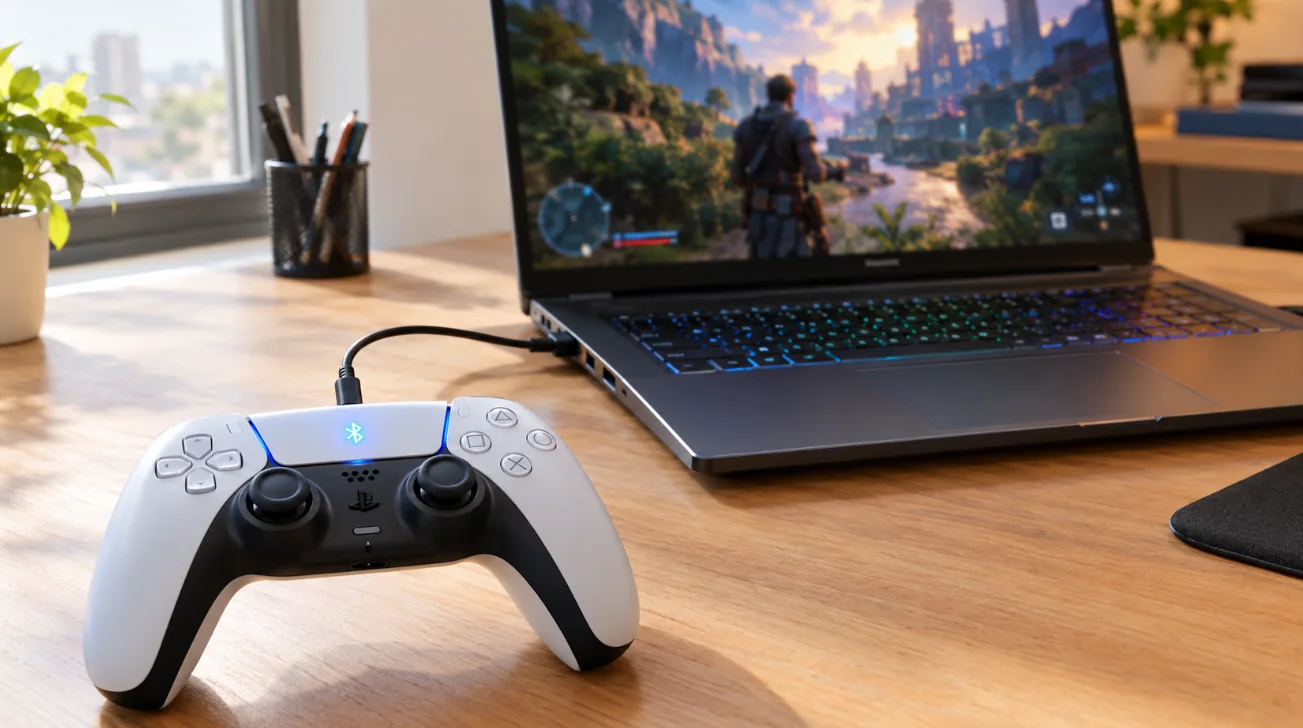
Yes. Just avoid running Steam Input and DS4Windows on the same controller at the same time. See our guide to using a PS5 controller on PC.
More controller guides and tools on FpsGen
- Xbox controller tester
- Gamepad Tester for every controller
- How to fix stick drift
- How to use a PS5 controller on PC
Sources: Xbox Support for pairing, firmware and the Xbox Accessories app, Microsoft Support for Windows Bluetooth, Device Manager and Windows Update, Steam Support for Steam Input. Last checked October 29, 2026.

Gaming writer at FpsGen. Guides and reviews are built on official sources, patch notes and real player data.
Comments
No comments yet. Start the conversation.