

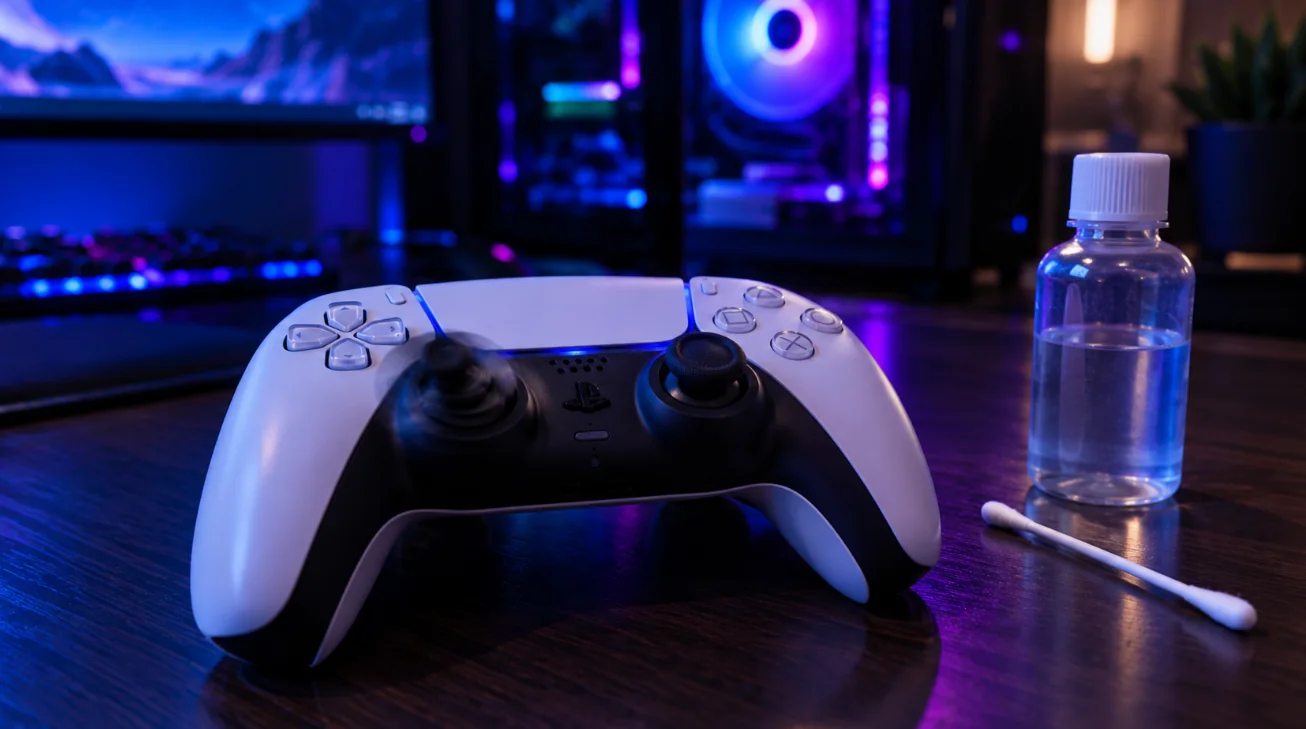
Stick drift is when an analog stick sends movement while you are not touching it: your character walks on its own, or the camera keeps turning. It is one of the most common controller problems, on the PS5 DualSense, the PS4 DualShock 4, Xbox controllers and Nintendo Joy-Cons.
The good news: you can often fix it, or at least hide it, without buying a new controller. Here is how to check how bad it is, then the fixes from easiest to most serious.
Step 1: Test your controller for drift
Before you fix anything, measure the drift. It tells you if the problem is the stick, a game setting, or nothing at all.
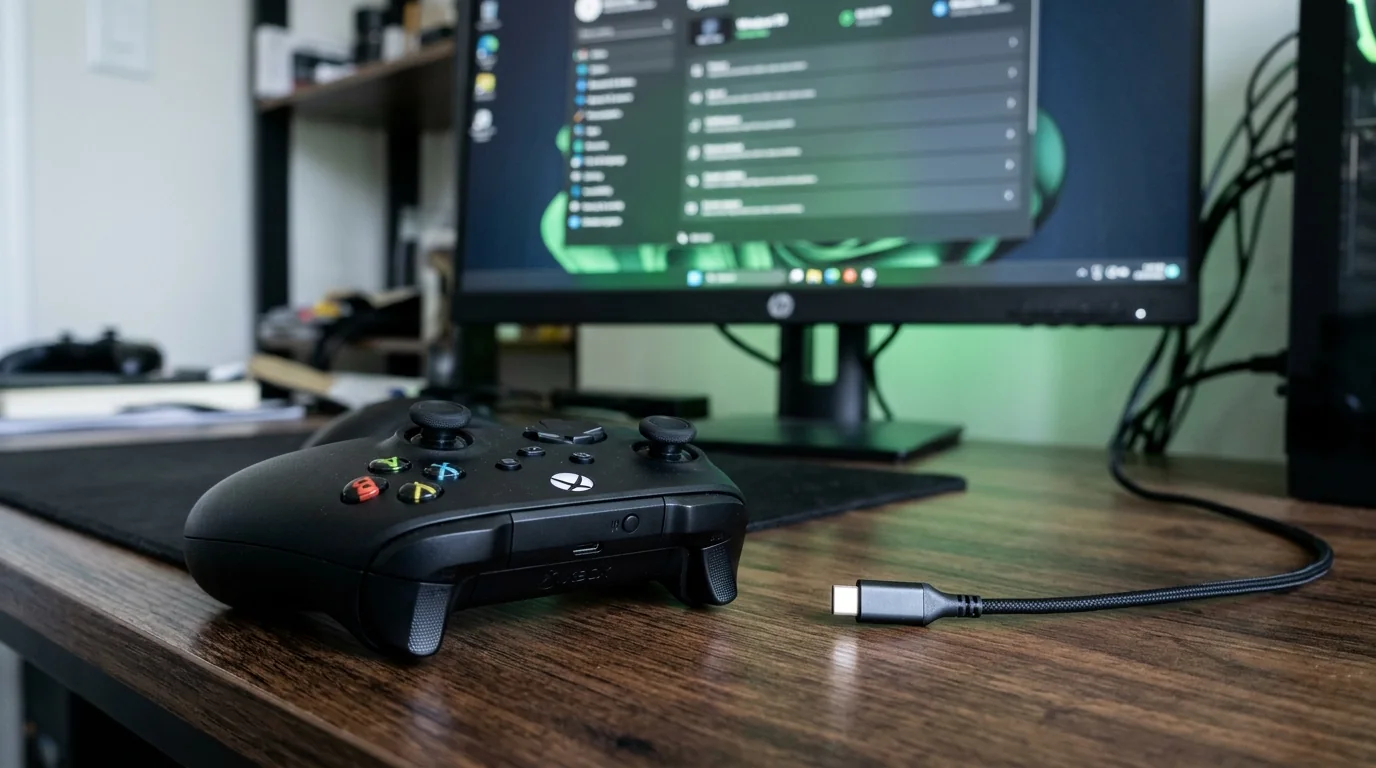
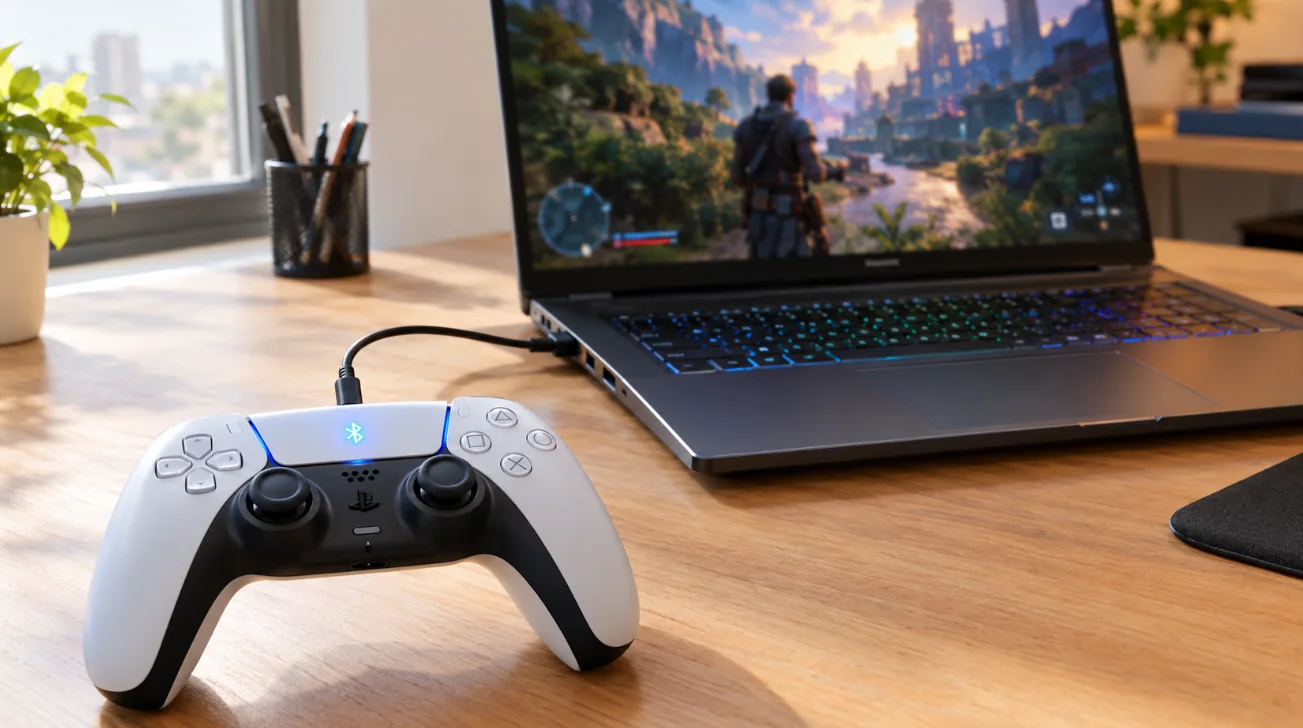
- Plug your controller into your PC (USB or Bluetooth) and open our free Gamepad Tester.
- Press any button so the page detects the controller.
- Put the controller on a table and press Run drift test. Do not touch it for 3 seconds.
You get a result for each stick:
| Drift | What it means | What to do |
|---|---|---|
| Under 5% | Normal. Every stick rests a little off-centre | Nothing. Games ignore it |
| 5% to 10% | Minor drift | Clean the stick, raise the in-game deadzone |
| Over 10% | Real drift | Clean it, then repair or replace the stick |
Also run the circle test: turn each stick slowly around its edge. A healthy stick draws a smooth, even circle. A flat side or a dent means wear.
There are dedicated pages for the PS5 controller tester, the Xbox controller tester and the stick drift test.
Why stick drift happens
Most controllers use potentiometer sticks: a small sensor with a contact that rubs on a resistive track every time you move the stick. Over time:
- The track wears down, so the sensor reads the wrong position at rest.
- Dust, skin and crumbs get inside the stick and disturb the reading.
- The centering spring gets weaker, so the stick does not come back exactly to the middle.
That is why drift usually gets worse with time, and why heavy use (competitive shooters, sports games) makes it appear faster.
Fix 1: Clean the stick
This fixes a surprising number of drifting controllers, especially when the drift comes and goes.
- Turn the controller off and unplug it.
- Blow compressed air around the base of the stick, while you move the stick in every direction.
- Put a drop or two of isopropyl alcohol (90% or more) on a cotton swab and wipe around the base of the stick, under the rubber cap edge.
- Rotate the stick fully for 30 to 60 seconds so the alcohol reaches the sensor.
- Let it dry for at least 10 minutes, then test again in the Gamepad Tester.
Never pour liquid directly into the controller, and do not use water.
Fix 2: Update the controller firmware
A firmware update can improve how the controller reads the sticks.
- PS5 DualSense: on PS5, updates come automatically when the controller is plugged in. On PC, use Sony's official Firmware updater for DualSense wireless controller app for Windows.
- Xbox controllers: use the free Xbox Accessories app on Windows or on your Xbox console.
- Switch: the controller updates with the console, in System Settings > Controllers and Sensors > Update Controllers.
Fix 3: Calibrate the stick
- Nintendo Switch: go to System Settings > Controllers and Sensors > Calibrate Control Sticks and follow the steps. This helps with mild Joy-Con drift.
- PC with Steam: in Steam > Settings > Controller, open your controller's settings to calibrate it and set a deadzone for each stick. It works for Steam games and for many non-Steam games added to Steam.
- PS5 and Xbox consoles: there is no stick calibration in the system settings. Use the in-game deadzone instead (next fix).
Fix 4: Raise the deadzone in your games
A deadzone is a small zone around the centre of the stick where movement is ignored. It does not fix the stick, but it hides the drift.
- Run the drift test and note the drift value of the stick.
- In your game's controller settings, set the deadzone a few percent above that value. For example, 7% drift: set the deadzone to about 10%.
- Test in game. If the camera still moves on its own, raise it a little more.
A large deadzone makes small aim adjustments harder, so keep it as low as possible. Most shooters (Call of Duty, Fortnite, Apex Legends) and many sports games have deadzone settings per stick.
Fix 5: Use the warranty
Drift is a hardware fault, so it is usually covered while the controller is under warranty. Do not open the controller first: it can void the warranty.
- PlayStation: contact PlayStation support. The DualSense warranty depends on your country (usually one year).
- Xbox: use the Xbox support site. Microsoft extended the Xbox Elite Series 2 warranty to one year after many drift complaints.
- Nintendo: Nintendo repairs drifting Joy-Cons, and has offered free Joy-Con drift repairs in many regions, including for Switch 2 Joy-Con 2 through its online service request.
- In the EU and UK, consumer law also gives you rights for faulty products, often for longer than the maker's warranty. Ask the shop where you bought it.
Fix 6: Replace the stick
If cleaning and deadzones are not enough and the warranty is over:
- DualSense Edge: its sticks are swappable modules. An official replacement module costs about $20, and you change it in a minute without tools.
- Standard DualSense, DualShock 4 and Xbox controllers: the sticks are soldered to the board. Replacing one needs soldering skills, or a repair shop. The repair often costs less than a new controller.
- Joy-Cons: replacement sticks and repair kits exist, but the free Nintendo repair is usually the better option.
Fix 7: Switch to a Hall effect or TMR controller
Hall effect and TMR sticks measure the stick's position with magnets instead of a rubbing contact. With no part that wears down, they are far less prone to drift.
- Many third-party controllers for PC, Switch and Xbox now use Hall effect or TMR sticks, often for less than an official controller.
- Third-party TMR modules also exist for the DualSense Edge.
- Nintendo has said the Switch 2 Joy-Con 2 do not use Hall effect sticks.
If you keep getting drift every year, this is the long-term fix.
FAQ
Can stick drift fix itself?
Sometimes, when it is caused by dirt that moves away. Drift caused by wear usually gets worse over time.
Does compressed air fix stick drift?
It can, when the drift comes from dust. It works best together with a little isopropyl alcohol.
What deadzone should I use for stick drift?
A few percent above the drift you measure. Run the drift test in our Gamepad Tester to get the exact value.
Is stick drift covered by warranty?
Usually yes, because it is a hardware fault. Contact the maker before you open the controller.
Which controllers do not get stick drift?
Controllers with Hall effect or TMR sticks are much less prone to it, because nothing rubs inside the stick.
Can I test stick drift without a console?
Yes. Plug the controller into a PC and use our free Gamepad Tester. It works in Chrome or Edge with PS5, PS4, Xbox and Switch Pro controllers.
More controller and PC tools on FpsGen
- Gamepad Tester: test every button, stick and trigger
- Stick drift test
- Mouse Sensitivity Converter, if you play on mouse too
- All free PC gaming tools
Sources: PlayStation Support and Xbox Support for firmware and warranty, Nintendo Support for Joy-Con repairs, Windows Central on the Xbox Elite Series 2 warranty, and GamesRadar+ on Joy-Con 2 repairs. Last checked October 29, 2026.

Gaming writer at FpsGen. Guides and reviews are built on official sources, patch notes and real player data.
Comments
No comments yet. Start the conversation.