

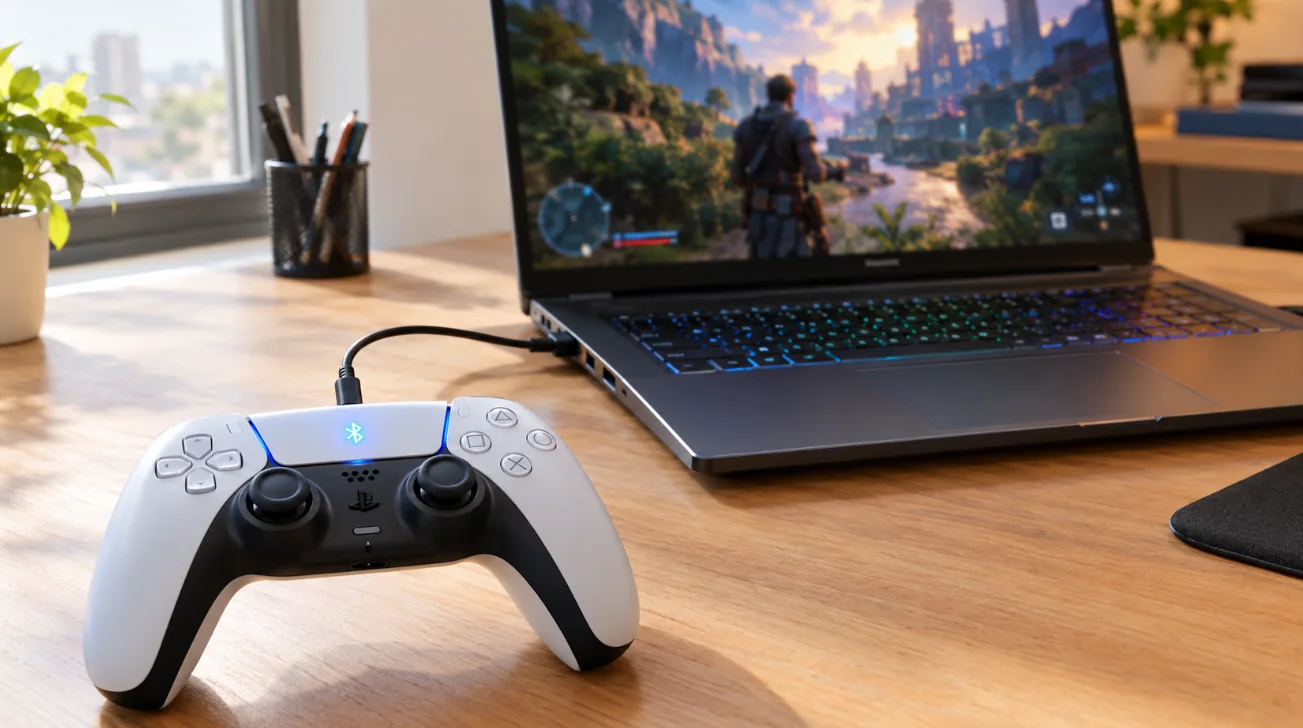
The PS5 DualSense controller works great on PC, but it is not as plug-and-play as an Xbox controller. Windows sees it, Steam supports it fully, and some games even use its haptics and adaptive triggers. Other games, especially outside Steam, need one extra step.
Here is how to connect it, make it work in every game, and fix the usual problems.
What you need
- A PS5 DualSense or DualSense Edge controller.
- A USB-C cable that carries data (some cheap cables only charge), or Bluetooth on your PC. Most laptops have Bluetooth; many desktops need a small USB Bluetooth adapter.
- Windows 10 or 11.
Option 1: Connect with a USB cable (easiest)
- Plug the USB-C cable into the controller and into your PC.
- Windows installs it automatically in a few seconds. It shows up as Wireless Controller.
- Open our PS5 controller tester and press any button: if every button and stick lights up, the connection works.
A cable is also the best choice for haptics and adaptive triggers: most PC games only support them over USB.
Option 2: Connect with Bluetooth (wireless)
- On the controller, hold the PS button and the Create button (the small button left of the touchpad) together until the light around the touchpad flashes quickly.
- On your PC, open Settings > Bluetooth & devices > Add device > Bluetooth.
- Choose Wireless Controller in the list.
- The light turns solid when it is connected.
To reconnect later, just press the PS button. If you also use the controller on a PS5, you will need to pair it again with the PS5 by cable when you go back.
Make it work in Steam games
Steam has supported the DualSense since 2020, and it is the easiest way to use it on PC.
- Connect the controller and open Steam > Settings > Controller.
- Make sure PlayStation Controller Support (Steam Input for PlayStation controllers) is enabled.
- Launch your game. Steam translates the DualSense into an Xbox-style controller, so it works even in games that only support Xbox controllers.
Steam Input also lets you remap buttons, use the gyro for aiming and change the light bar color, per game.
If a game has native DualSense support (PlayStation buttons on screen, haptics, adaptive triggers), Steam Input can get in the way. Open the game's Properties > Controller in Steam and set it to Disable Steam Input to get all the DualSense features.
Use it in Epic, Game Pass and other games
Games outside Steam often only understand Xbox controllers. You have two options:
- Add the game to Steam: in Steam, click Add a Game > Add a Non-Steam Game, pick the game's .exe file, and launch it from Steam. Steam Input then works like in any Steam game. This works for many Epic and standalone games, but not always for Xbox app / Game Pass games.
- Use DS4Windows: a free, open-source app that makes Windows see your DualSense as an Xbox controller in every game. It needs the ViGEmBus driver, which is no longer developed but still works on most PCs. Download it only from its official GitHub page.
Paid tools like reWASD and DSX (on Steam) do the same with more options, and DSX can add adaptive trigger effects to some games that do not support them.
Do not run Steam Input and DS4Windows at the same time for the same game: you get double inputs (one press counted twice).
Haptics and adaptive triggers on PC
The DualSense's best features, haptic feedback and adaptive triggers, only work in games that support them on PC, mostly PlayStation ports and some big releases. To get them:
- Use a USB cable: most games only send haptics and trigger effects over USB.
- In Steam, disable Steam Input for that game.
- Turn the features on in the game's controller settings.
In other games, you still get normal rumble.
Update the DualSense firmware on PC
Sony has an official Firmware updater for DualSense wireless controller app for Windows. Plug the controller in by USB, run the app and follow the steps. Update it if buttons or sticks act strangely, or if a game does not detect it properly. You can get it from the PlayStation website.
PS5 controller not working on PC? Quick fixes
- Press a button. Some apps and browsers only see the controller after an input.
- Try another cable or port. A charge-only cable is the most common cause of "nothing happens" over USB.
- Close other controller apps. Steam, DS4Windows and reWASD can fight for the controller. Keep only one.
- Re-pair Bluetooth. Remove Wireless Controller in Windows Bluetooth settings, then pair again.
- Check Steam Input for that game: enabled for games with Xbox-only support, disabled for games with native DualSense support.
- Update the firmware with Sony's updater.
- Test the controller in our Gamepad Tester. If a button or stick does not respond there, the problem is the controller, not the game.
If the camera moves on its own, it is probably stick drift: see how to fix stick drift.
FAQ
Can I use a PS5 controller on PC without Steam?
Yes. Windows detects it, and games with native DualSense support work directly. For games that only support Xbox controllers, use DS4Windows or a paid tool like reWASD.
Does the PS5 controller work with Bluetooth on PC?
Yes. Hold PS + Create until the light flashes, then add it in Windows Bluetooth settings. Use a cable if you want haptics and adaptive triggers.
Why is my PS5 controller connected but not working in a game?
The game probably only supports Xbox controllers. Launch it through Steam with Steam Input enabled, or use DS4Windows.
Does the DualSense Edge work on PC?
Yes, the same way. Its back buttons send the button you assigned to them, so they work in any game.
Is a PS5 controller good for PC gaming?
Yes, especially in Steam, where everything works and you can use the gyro. An Xbox controller is simpler in Game Pass games.
More controller guides and tools on FpsGen
- PS5 controller tester
- Gamepad Tester for every controller
- How to fix stick drift
- All free PC gaming tools
Sources: PlayStation: accessories for PC and PlayStation Support for the controller and firmware updater, Steam Support for Steam Input, PC Gamer on Steam and native support. Last checked October 29, 2026.

Gaming writer at FpsGen. Guides and reviews are built on official sources, patch notes and real player data.
Comments
No comments yet. Start the conversation.