

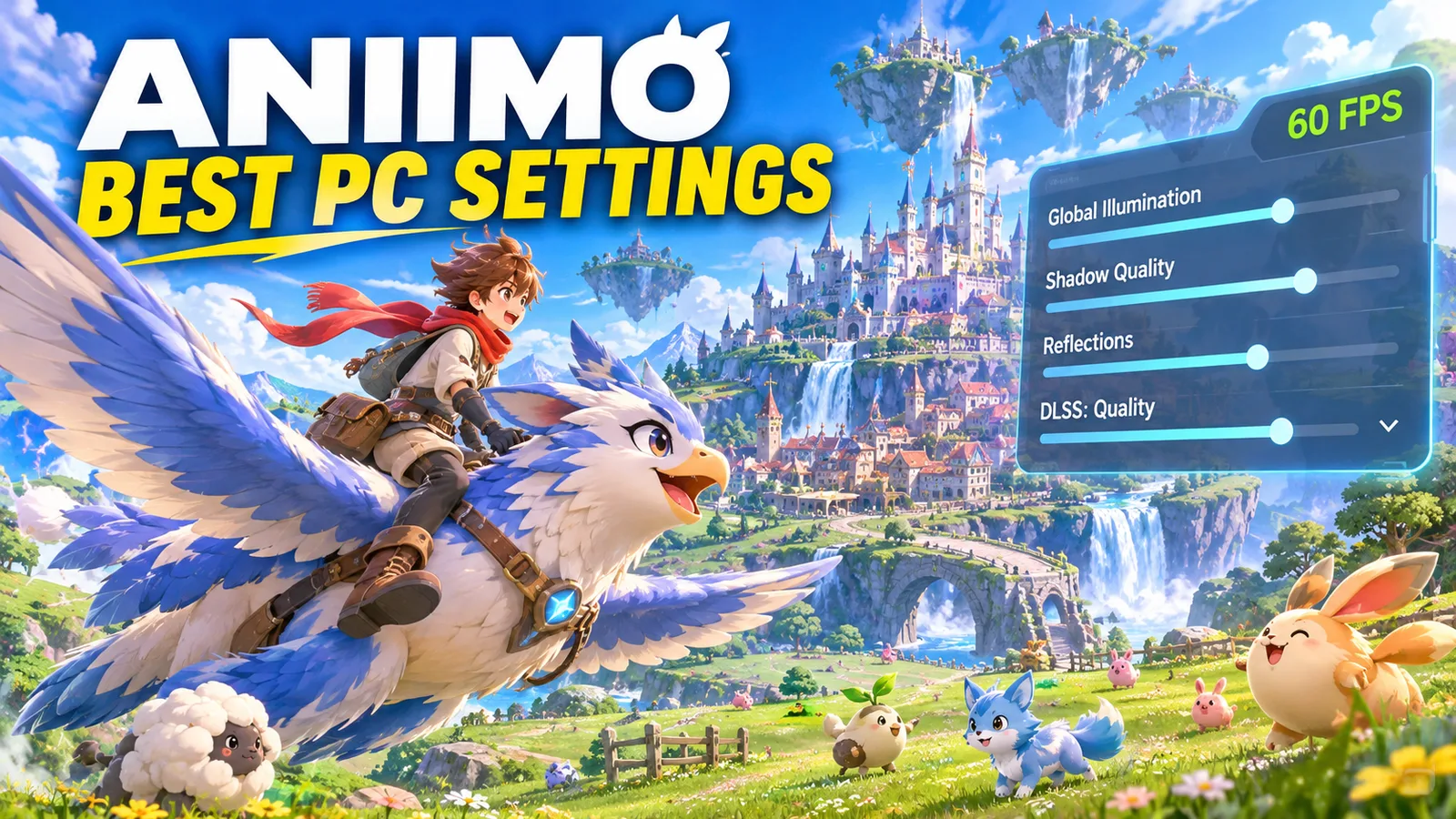
Aniimo looks great, but its big open world, lighting and creatures in every field make it heavier than most monster-catching games. On a mid-range PC, the default preset can drop below 60 FPS in busy areas, and the first hours after an update can stutter. A few settings decide most of your frame rate. Here are the best Aniimo settings for three kinds of PC, what to lower first, and how to use DLSS and Frame Generation.
Quick answer: start from the Medium preset (or High on an RTX 3060 / RX 6700-class card), set Global Illumination, Ambient Occlusion and Reflection Quality to Low, Shadow Quality to Performance, cap the game at 60 FPS, and turn V-Sync off. On a GeForce RTX card, turn on DLSS Quality. Use Frame Generation only if you already get around 60 FPS without it.
Not sure your PC is ready? Our guide Aniimo PC System Requirements lists the official specs and what to expect from your graphics card, and Can I Run Aniimo? checks your exact parts.
Before you change any setting
- Update your graphics driver from the NVIDIA app or AMD Software. The developers list it as the first fix for black screens.
- Install the game on an SSD. The open world loads new areas as you travel: on a hard drive you get pop-in and freezes.
- Give it a few minutes. After the first launch or an update, the game prepares its shaders and the first areas can stutter. Judge your FPS after that.
The best Aniimo settings
Aniimo's menu names can change a little between updates, but these are the options that matter. Pick the preset in the first row, then change the rest by hand.
| Setting | Max FPS (competitive) | Balanced (RTX 3060 / RX 6700) | Low-end PC / laptop |
|---|---|---|---|
| Graphics (preset) | Medium, then custom | High, then custom | Low |
| Display Mode | Fullscreen | Fullscreen | Fullscreen |
| Resolution | Native | Native | Native, with DLSS / lower render scale |
| Max Frame Rate | Monitor refresh rate | 60 | 60 (30 on very weak PCs) |
| V-Sync | Off | Off (use G-Sync / FreeSync) | Off |
| Anti-Aliasing | Low | Medium / High | Off or Low |
| Global Illumination | Low | Medium | Low |
| Ambient Occlusion | Low | Medium | Off / Low |
| Reflection Quality | Low / Performance | Medium | Low |
| Shadow Quality | Performance | Medium | Performance / Low |
| Texture Quality | High (Medium with 4–6 GB VRAM) | High | Low / Medium |
| View Distance | High | High | Medium |
| Effects | Low | Medium | Low |
| Frame Generation | Off | Off, or On above ~60 FPS | Off |
Why these values?
- Global Illumination, Ambient Occlusion and Reflections are the lighting settings that make Aniimo look so bright and soft. They also cost the most performance. On Low, the game still looks good, and you get the biggest FPS jump.
- Shadows come next: the Performance or Low setting is the easiest win in forests and towns.
- Textures mostly use video memory, not GPU power. With 8 GB or more, keep them on High. With 4–6 GB, use Medium, or the game stutters when you move fast through the open world.
- View Distance stays high if your PC allows it, so you spot rare Aniimo and items from far away. Lower it on weak PCs or if your processor is the limit.
- Anti-aliasing costs little: lower it last.
Cap your frame rate at 60
Aniimo is not a competitive shooter, so a steady 60 FPS feels better than a counter that jumps between 50 and 100. Set Max Frame Rate to 60, or to your monitor's refresh rate if your PC stays above it in towns and big fights.
A cap also helps stability: players report that uncapped menus and screens can push the GPU to 100% and crash some PCs. If you use G-Sync / FreeSync, cap the frame rate a few FPS below your refresh rate (for example 141 on a 144 Hz monitor).
DLSS and Frame Generation
- DLSS (GeForce RTX): the biggest single gain on RTX cards. Choose Quality first, then Balanced if you need more FPS. It looks much better than lowering the resolution.
- Frame Generation: added at launch on September 16, 2026. It raises the frame rate you see, but adds a little input delay and does not fix stutter. Turn it on only if you already get around 60 FPS without it.
- Radeon and Intel Arc cards: check the upscaling option in your menu. If an FSR or XeSS option is there, use Quality mode. Otherwise, lower the resolution / render scale a little before you lower everything else.
If you get a black screen or visual glitches, turn DLSS and Frame Generation off on the login screen: this is one of the developers' own fixes.
DirectX 11 or DirectX 12?
Aniimo can run on DirectX 11 and DirectX 12. Use DirectX 12 if it works smoothly on your PC. If you get crashes, a black screen or worse stutter, switch to DirectX 11 and test again. On Steam Deck and Linux, players fix crashes by switching to Proton 10 and not forcing DirectX 12.
Low FPS in towns and big fights?
If your FPS drops in towns, events and Egg Heist matches while your graphics card is not at 100%, the limit is your processor, not your settings:
- lower View Distance and Effects one step;
- close your browser, Discord and other launchers;
- with 8 GB of RAM, close everything else: 16 GB is the recommended amount. See Is 16 GB of RAM Enough for Gaming?
Our guide CPU Bottleneck Explained shows how to check in two minutes.
Settings for a low-end PC or laptop
If your PC is near the minimum (GTX 970 / GTX 1060, 8 GB of RAM):
- Choose the Low preset, then Texture Quality on Low or Medium.
- Set Global Illumination, Ambient Occlusion, Reflections and Shadows to the lowest values.
- Cap the game at 60 FPS, or 30 if it keeps dropping.
- On a laptop, plug it in, choose the Best performance power mode, and make sure Aniimo runs on the dedicated graphics card (Settings > System > Display > Graphics > High performance).
- Install the game on an SSD and close every app you don't need.
More fixes that work in every game are in How to Increase FPS on PC.
More Aniimo on FpsGen
- Aniimo PC System Requirements: official specs and what to expect from your graphics card
- Can I Run Aniimo?: check your PC against the requirements
- Aniimo Crashing on PC?: black screen, startup crashes and reconnect loops
- Aniimo FPS Estimator: FPS for your exact parts
- Aniimo game page
FAQ
What are the best settings for Aniimo on PC?
Start from the Medium preset (High on an RTX 3060-class card), set Global Illumination, Ambient Occlusion and Reflections to Low, Shadows to Performance, cap the frame rate at 60 and turn V-Sync off. On RTX cards, turn on DLSS Quality.
Does Aniimo have DLSS and Frame Generation?
Yes. Aniimo supports NVIDIA DLSS and Frame Generation. Use Frame Generation only if you already get around 60 FPS without it.
Why is Aniimo stuttering on my PC?
The usual causes are shader preparation after an update, the game installed on a hard drive, too little video memory for your texture setting, or too little RAM. Install it on an SSD, lower textures one step, and close background apps.
Should I use DirectX 11 or DirectX 12 in Aniimo?
Use DirectX 12 if it runs smoothly. If you get crashes, a black screen or more stutter, switch to DirectX 11.
What FPS should I cap Aniimo at?
60 FPS is the sweet spot for most PCs. On a high-refresh monitor with a strong PC, cap it at your refresh rate, or a few FPS below it with G-Sync or FreeSync.
Setting names and starting values from Destructoid (tested on a Radeon RX 9060 XT and Ryzen 7 5700X). DLSS, Frame Generation, DirectX and black-screen fixes from GamerFuzion and 2UpSkill. Steam Deck and Proton notes from GamingOnLinux. Recommended values are FpsGen's starting points; results vary by PC, area and server load. Last checked November 7, 2026.

Gaming writer at FpsGen. Guides and reviews are built on official sources, patch notes and real player data.
Comments
No comments yet. Start the conversation.