

Aniimo had a busy launch on September 16, 2026, and many PC players hit black screens, crashes at startup, reconnect loops and freezes in the open world. Some of these problems were server-side and fixed in the first patches, but others come from your PC: the graphics driver, DirectX 12, DLSS and Frame Generation, or an unstable Intel processor. Find your problem below, then follow the fixes in order.
Quick answer: for a black screen, update your graphics driver, switch between DirectX 11 and DirectX 12, and turn DLSS and Frame Generation off on the login screen: these are the developers' own steps. If you have an Intel Core i5/i7/i9 of the 13th or 14th generation and the game crashes or shows shader errors, update your motherboard BIOS. For "Auto Re-connecting" loops, the cause is the servers, not your PC: close the game fully and launch it again.
Find your problem first
| What happens | Most likely cause | Go to |
|---|---|---|
| Black screen when the game starts | Driver, DirectX 12, DLSS / Frame Generation | Fix 1 |
| Crashes, freezes, blue screens or shader errors on an Intel 13th / 14th gen PC | Known Intel processor instability | Fix 2 |
| Game closes at startup or after an update | Broken files, overlays | Fix 3 |
| "Auto Re-connecting 3/3", stuck after character creation | Server load | Fix 4 |
| Crash on the server select screen | Skipped account (email) link | Fix 5 |
| Crash or freeze after some time in the world | Settings, RAM, overclock | Fix 6 |
| Red screen, red eyes, strange visual effects | Fixed graphics bugs | Fix 7 |
| Controller not working | Steam Input | Fix 8 |
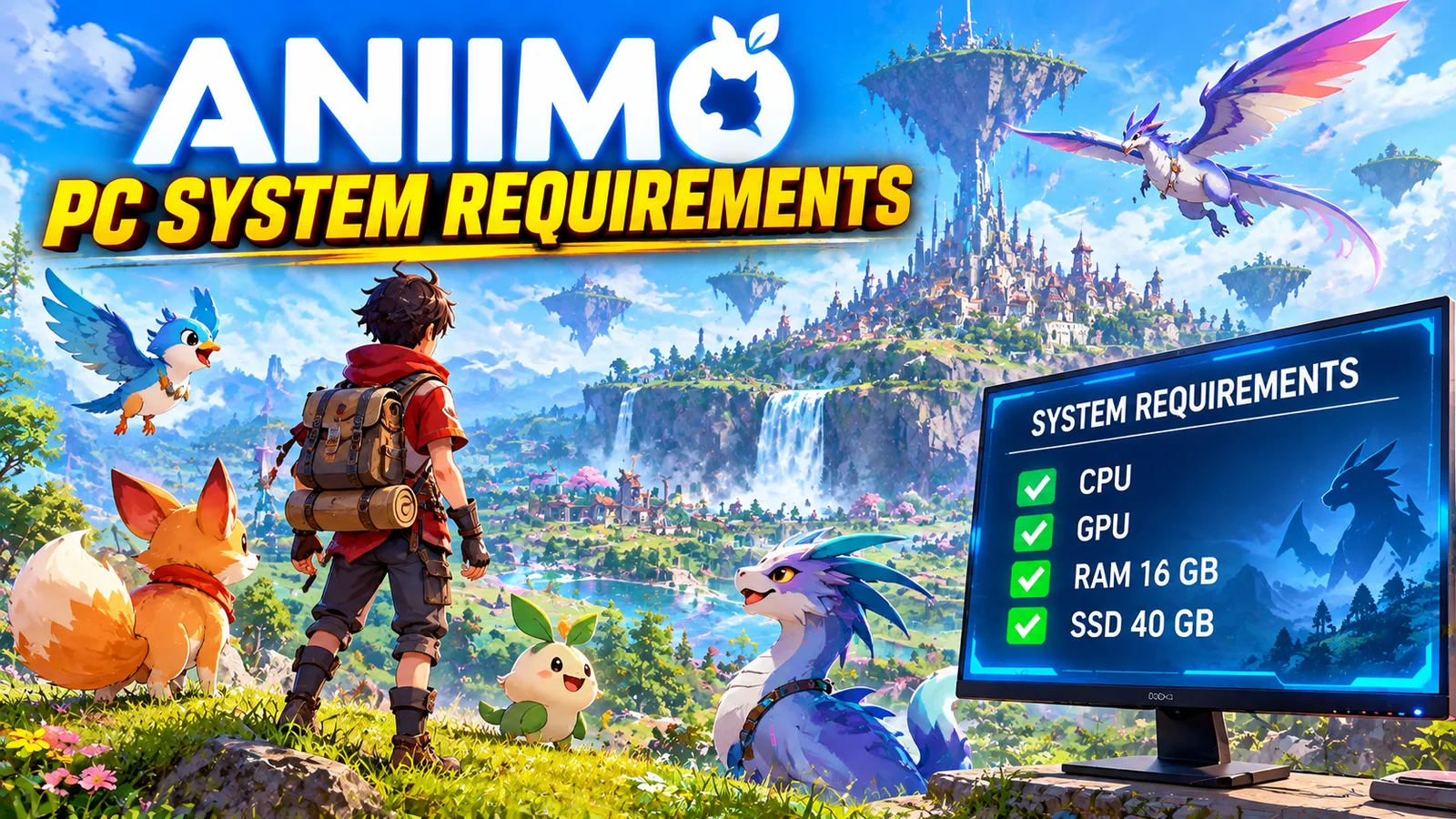
Before anything else, check that your PC meets the Aniimo PC system requirements: a GTX 970 / RX 5600 with 4 GB of video memory, 8 GB of RAM and 40 GB of free space at minimum. Below that, crashes are expected.
Fix 1: Black screen on startup (official steps)
The developers posted these steps on launch day. Do them in this order:
- Update your graphics driver from the NVIDIA app, AMD Software or Intel's driver page. If the problem started right after a driver update, do a clean install or go back one version.
- Switch between DirectX 11 and DirectX 12 in the game's settings, then restart the game. Keep the one that works.
- Turn off DLSS and Frame Generation on the login screen, then restart.
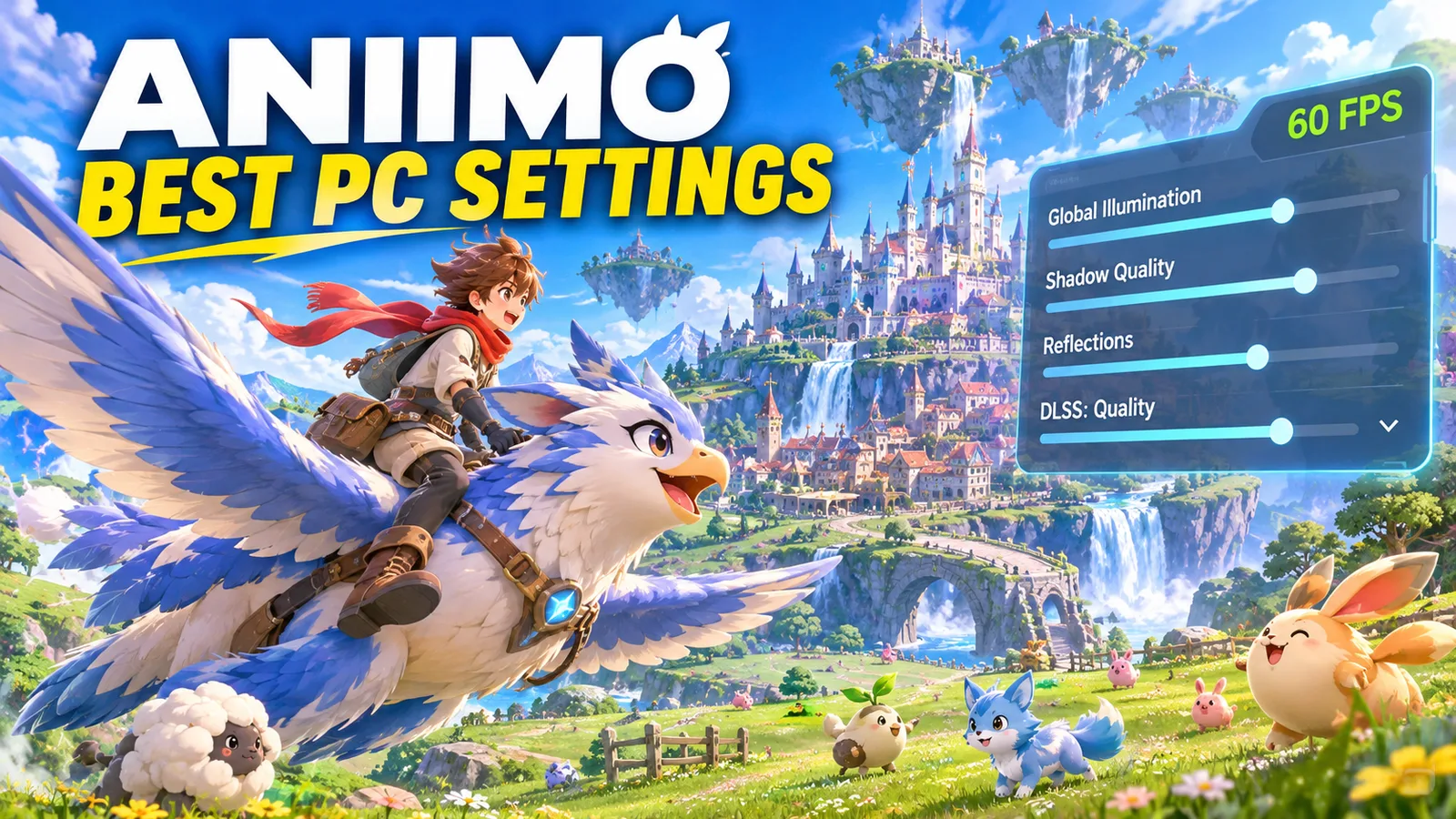
If the black screen comes back after you turn these on again, keep them off and use the settings in our Aniimo Best PC Settings guide to get your FPS back.
Fix 2: Intel 13th and 14th gen processors
On launch, Aniimo shows a warning on PCs with an affected Intel desktop processor, including the Core i5-13600K, i7-13700, i9-13900, i5-14600K, i7-14700 and i9-14900 series. These chips have a known instability that causes crashes, freezes, blue screens, graphical glitches, shader errors and even out-of-video-memory errors, in Aniimo and in other games.
- Update your motherboard BIOS to a version with Intel microcode 0x12B or later. Download it from your motherboard maker's website (ASUS, MSI, Gigabyte, ASRock...). This is the real fix, and it also protects the processor.
- If you cannot update the BIOS right now: in Intel Extreme Tuning Utility (XTU), lower the P-core ratio by two or three steps (for example from 55x to 53x).
Fix 3: Check the files and turn off overlays
A failed update or download leaves broken files, and the game closes with no clear error.
- Steam: right-click Aniimo > Properties > Installed Files > Verify integrity of game files.
- Epic Games Store: click the three dots next to Aniimo > Manage > Verify.
- Standalone Windows client: use the launcher's repair or verify option, or reinstall the game.
Then turn off overlays and recording apps (Discord, Steam, NVIDIA / AMD overlays, MSI Afterburner / RivaTuner) and test again. Add the Aniimo folder to your antivirus exclusions if the game is blocked at startup.
Fix 4: "Auto Re-connecting" loops and long queues
The "Auto Re-connecting 3/3" loop, long login queues and getting stuck after character creation came from server load at launch. The day-one patch (version 1.0.3535596.0) fixed the disconnections that happened when the game stuttered.
- Close the game completely and launch it again. At busy hours, it can take a few tries.
- Make sure your connection is stable: use a cable instead of Wi-Fi if you can, and pause big downloads.
- Verifying files, reinstalling or changing graphics settings does not help with this one.
Fix 5: Crash on the server select screen
Players report that the game can crash on the server select screen if you skip the Aniimo Pass email link on your first launch. When the prompt appears, link an email. If you already skipped it, you can link it later from the Email Link page in the game. This is a player fix: the studio has not confirmed it.
Fix 6: Crashes or freezes in the world
If the game runs but crashes after some time:
- Cap your frame rate at 60 FPS. Players report that uncapped menus and screens push the graphics card to 100% and crash some PCs.
- Lower the heaviest settings: Global Illumination, Reflections, Shadows, and Texture Quality one step if your card has 4–6 GB of video memory.
- Remove overclocks: reset any GPU or CPU overclock, and turn off XMP / EXPO for one test if you get random crashes in every game.
- RAM: with 8 GB, close your browser and other apps, and make sure virtual memory is on (search Windows for "Adjust the appearance and performance of Windows" > Advanced > Virtual memory > tick Automatically manage paging file size). 16 GB is the recommended amount.
- SSD: install Aniimo on an SSD. On a hard drive, the game freezes when it loads new areas.
Fix 7: Red screen and other visual bugs
Several graphics bugs from launch are already fixed. Update the game to the latest version:
- the full red screen on some graphics cards and red character eyes were fixed in patch 1.0.3544783.0 (September 18), and the remaining red tint on some devices in version 1.1 (September 23);
- the black screen when returning from the Shop was fixed in the first patch.
Some visual effects can still look wrong the first time you enter Astra. It is a known issue, not a problem with your PC.
Fix 8: Controller not working on Steam
The developers' workaround: in Steam, open Aniimo's Properties > Controller, choose Disable Steam Input, then restart the game. If your controller still isn't detected, try the opposite setting: some players fix it by turning Steam Input on and remapping from there.
Steam Deck and Linux
Aniimo is rated Playable on Steam Deck, but recent Proton versions can crash it at login. Players fix it by forcing Proton 10 in the game's Compatibility settings and using the default launch option instead of DirectX 12.
Still crashing?
Contact support from the game: Menu > Support, or press F10. Include your PC specs (processor, graphics card, RAM, Windows version) and the time of the crash. The studio says it will never ask you for verification codes or payment.
More Aniimo on FpsGen
- Aniimo Best PC Settings: the best settings for every PC
- Aniimo PC System Requirements: official specs and what to expect from your graphics card
- Can I Run Aniimo?: check your PC against the requirements
- CPU Bottleneck Explained
FAQ
Why does Aniimo show a black screen on startup?
Usually because of the graphics driver, DirectX 12, or DLSS and Frame Generation. Update the driver, switch between DirectX 11 and 12, and turn DLSS and Frame Generation off on the login screen.
Why does Aniimo keep crashing on my Intel PC?
Intel Core 13th and 14th gen desktop processors have a known instability. Update your motherboard BIOS to a version with microcode 0x12B or later.
How do I fix "Auto Re-connecting" in Aniimo?
It comes from server load, not your PC. Close the game completely and launch it again, and use a wired connection if you can.
Why does Aniimo crash on the server select screen?
Players report it happens when you skip the email link on the first launch. Link an email when the prompt appears, or later from the Email Link page.
How do I contact Aniimo support?
In the game, open Menu > Support or press F10, and include your PC specs and the time of the crash.
Black screen steps, Intel 13th/14th gen notice, patch fixes and controller workaround from the official notices collected on The Games Wiki and GamerFuzion. Patch 1.0.3544783.0 from Notebookcheck. Steam Deck and Proton notes from GamingOnLinux. Fixes marked as player reports are not official. Last checked November 7, 2026.

Gaming writer at FpsGen. Guides and reviews are built on official sources, patch notes and real player data.
Comments
No comments yet. Start the conversation.