

Your screen goes black in the middle of a round, the fans spin down, and a few seconds later the PC boots back up to the Windows login screen. No error, no crash window, just a restart. If this is happening to you in Rainbow Six Siege X, this guide explains what actually causes it and how to find the fix for your PC, step by step.
Quick answer: when the whole PC turns off and restarts, the cause is almost never the game itself. A game crash closes the game; a full restart comes from Windows stopping on a driver error, a power supply that cannot keep up, overheating, or unstable overclock or memory settings. Start with the Event Viewer check below: in two minutes it tells you which of these you are dealing with.
Crash to desktop or full restart? They are not the same problem
Before you change anything, be sure which problem you have, because the fixes are different.
| What you see | What it usually means | Where to look |
|---|---|---|
| Siege closes and you are back on the desktop | The game crashed | Game files, Windows updates, GPU driver |
| Siege will not start, or closes at launch | Launch crash | Recent Windows preview updates (see below) |
| Blue screen, then restart | Windows stopped on an error, often a driver | GPU driver, overclock, RAM settings |
| Black screen, PC turns off and restarts with no blue screen | Power was cut or the PC protected itself | Power supply, temperatures |
This guide focuses on the last two rows: the PC itself restarting.
Step 1: Read what Windows recorded (Event Viewer)
Windows logs every restart that was not a clean shutdown. This is the fastest way to stop guessing.
- Press Win + X and open Event Viewer.
- Go to Windows Logs > System.
- On the right, click Filter Current Log and type 41 in the event ID box.
- Open the most recent Kernel-Power, Event ID 41 entry that matches the time of your restart.
- Click the Details tab and look at BugcheckCode.
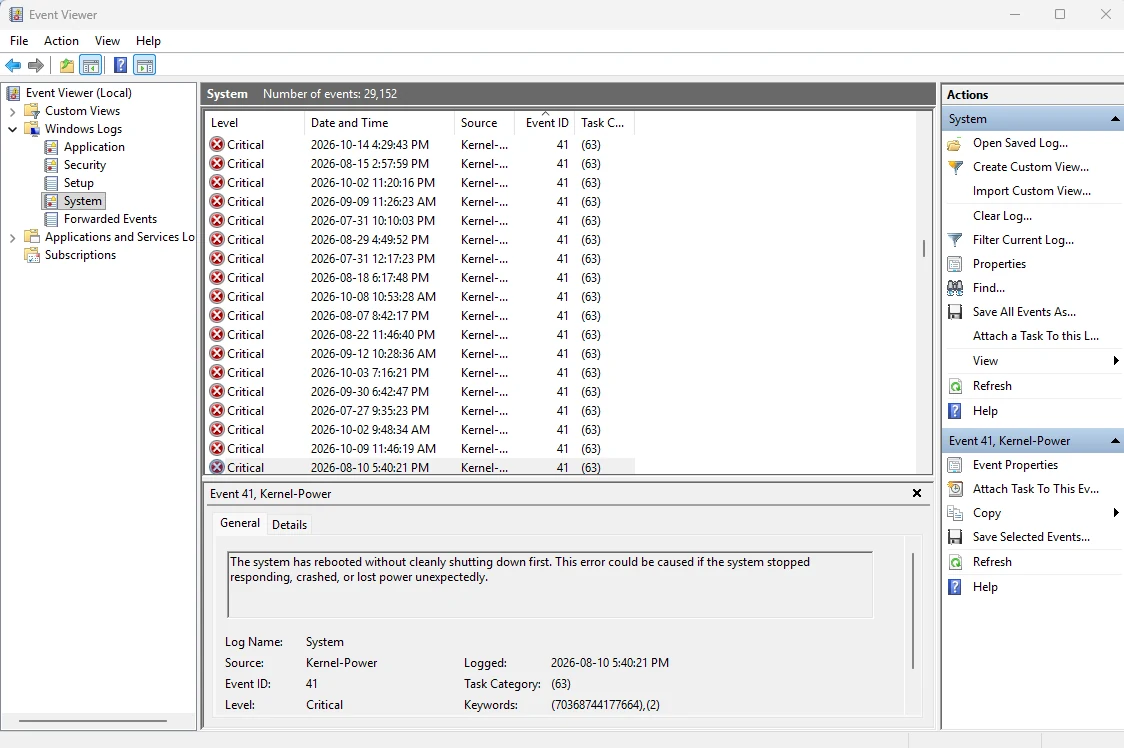
Look at the dates too. On the PC in the screenshot above, the Kernel-Power 41 restarts go back to July 2026, months before the October Windows updates. That alone tells you a recent update is not the root cause, even if the restarts got worse after it.
How to read it:
- BugcheckCode is 0: Windows had no time to record an error. The power was cut or the hardware shut itself down. Go straight to Step 4 (power supply) and Step 5 (temperatures).
- BugcheckCode is any other number: Windows hit a blue screen and restarted. Start with Step 2 (GPU driver) and Step 6 (overclock and RAM).
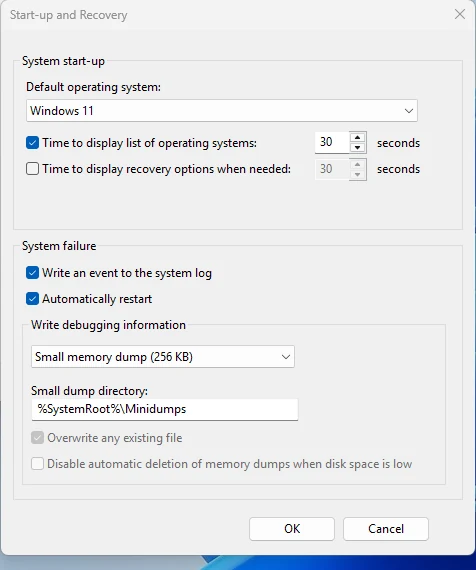
Tip: by default Windows restarts so fast that you never see the blue screen. To see it next time, press Win + R, type sysdm.cpl, open the Advanced tab, click Settings under Startup and Recovery, and untick Automatically restart. Write down the stop code it shows (for example VIDEO_TDR_FAILURE): it names the part that failed.
Step 2: Clean up your graphics driver
A broken or half-updated GPU driver is the most common software cause of a blue screen in games.
- Get the latest driver for your card from the official NVIDIA or AMD website.
- Use the free tool DDU in Safe Mode to remove every trace of the old driver.
- Set up the new driver, then restart.
If the restarts started right after a new driver, go back one driver version instead. Your GPU maker's site keeps the older versions.
Step 3: Check the Windows updates on your PC
Recent Windows updates have caused real problems with games, so it is worth checking which ones you have. Press Win + R, type winver, and note your build number. Then open Settings > Windows Update > Update history.
Faster way: open PowerShell as administrator and run:
Get-HotFix | Sort-Object -Property InstalledOn -Descending | Format-Table -AutoSize
It lists every update with the date it arrived on your PC, newest first.

Here is what is documented as of October 14, 2026 (full timeline in our news: Windows 11 October 2026 Update: What It Fixes for Games):
- KB5124010 (optional preview update, September 22, 2026) and KB5121794 (the Windows 11 26H2 enablement package): Ubisoft said Siege crashes at launch were "related to the latest Windows Preview updates" and suggested removing them as a temporary workaround. Removing KB5121794 may take a PC on 26H2 back to its previous Windows version.
- KB5127648 (October 13, 2026 security update): Microsoft says it fixes a crash in some apps and games that use AC-3 audio, which came with KB5124010, and a mouse stutter problem in some games.
These issues are launch crashes, stutter and apps closing. None of them is a documented cause of the whole PC restarting. If your PC turns off by itself, do not expect an update change alone to fix it, and keep going with the hardware steps below.
If you decide to remove a preview update: in Update history, scroll to the bottom and open the option to remove updates, pick the update, and restart. Then pause updates for a week and check Ubisoft's official channels before letting it come back.
Step 4: Make sure your power supply can keep up
If BugcheckCode was 0, the power supply (PSU) is the first suspect. Modern graphics cards draw short spikes of power far above their rated wattage. A weak or aging PSU sees the spike, triggers its over-current protection, and cuts power. That is exactly a black screen and a restart.
Signs it is your PSU:
- The restart happens in heavy moments: explosions, breaching, smoke, many operators on screen.
- Other demanding games do the same thing.
- The PSU is cheap, unbranded, or more than 5 to 7 years old.
What to do:
- Check that the PSU wattage meets your graphics card maker's recommendation, with some margin.
- Use a separate PCIe cable for each power connector on the GPU, not one cable split in two.
- Cap your frame rate (Step 7). Lower load means smaller power spikes, and it is a quick test: if the restarts stop with an FPS cap, the PSU is very likely the cause.
Not sure what is inside your PC? Our Check My PC tool shows your graphics card and processor in a few seconds.
Step 5: Check temperatures
A CPU or GPU that gets too hot will slow itself down, and if that is not enough, the system can shut off to protect itself.
- Open a monitoring tool such as HWMonitor or HWiNFO.
- Play Siege for 15 to 20 minutes.
- Look at the maximum temperatures recorded.
No extra tool? Task Manager (Ctrl + Shift + Esc) > Performance > GPU shows the current GPU temperature. It does not keep the maximum, so it is only good for a quick look.
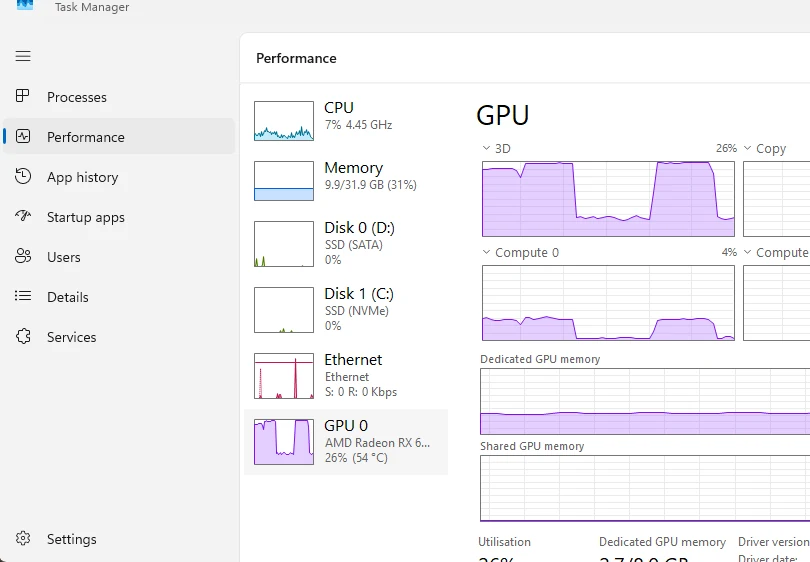
As a rough guide, most CPUs and GPUs are made to slow down around 90 to 100 °C. If you see numbers close to that, clean the dust out of the case and the GPU cooler, check that all fans spin, and give the case some airflow. On a PC that is several years old, new thermal paste on the CPU often helps.
Step 6: Remove overclocks and check your RAM settings
Settings that seem stable in everyday use can fail under a game that pushes CPU and GPU together, like Siege.
- GPU overclock or undervolt: reset it to default in MSI Afterburner or AMD Adrenalin.
- CPU overclock: return it to default in the BIOS.
- XMP / EXPO memory profile: turn it off in the BIOS for a test. If the restarts stop, your RAM is not stable at its rated speed. Try a slightly lower speed, or update the BIOS.
To test the RAM itself, run Windows Memory Diagnostic (press Win, type the name) or MemTest86.
Step 7: Lower the load while you test
These changes will not fix a faulty part, but they reduce the load on your PC and help you find the cause:
- Cap your FPS a little below your monitor's refresh rate, with the in-game limit or the NVIDIA Control Panel (Max Frame Rate) or AMD Software.
- Lower the graphics preset one step, especially shadows and reflections.
- Turn off frame generation and any overlays you do not need (recording, FPS counters from several apps at once).
Want to know what FPS your hardware should get before and after? Try our FPS Estimator.
Step 8: Verify the game files
Damaged game files usually cause a crash to the desktop, not a PC restart, but it takes two minutes to rule them out:
- Ubisoft Connect: Games > Rainbow Six Siege X > Properties > Verify files.
- Steam: right-click the game > Properties > Verify integrity of game files.
FAQ
Can Rainbow Six Siege itself restart my PC?
Not on its own. A game runs like any other program: when it fails, it closes. A full restart means Windows or the hardware stopped. Siege can be the trigger, because it puts heavy load on the CPU and GPU, but the cause is a driver, the power supply, heat or unstable settings.
Is the October 13, 2026 Windows update making PCs restart in games?
As of October 14, 2026, there is no confirmed report from Microsoft or Ubisoft that KB5127648 makes PCs restart during games. The documented game issues of the last weeks are launch crashes, apps closing, and mouse stutter. We will update this guide if that changes.
Why does it only happen in Siege and not in other games?
Siege pushes high frame rates, which loads the CPU and GPU at the same time. Lighter or frame-capped games may never reach the power or heat level where the problem shows. Try another demanding game without an FPS cap: if it also restarts, the problem is your PC, not Siege.
Event Viewer shows Kernel-Power 41 with BugcheckCode 0. Is my PSU broken?
Not always, but it is the most likely cause, together with overheating. Test with an FPS cap and check temperatures first. If both look fine, testing with another PSU is the surest way to know.
Windows update details are taken from Microsoft's release notes and from Ubisoft's statement as reported by Insider Gaming and BleepingComputer. Last checked October 14, 2026.

Gaming writer at FpsGen. Guides and reviews are built on official sources, patch notes and real player data.
Comments
No comments yet. Start the conversation.