

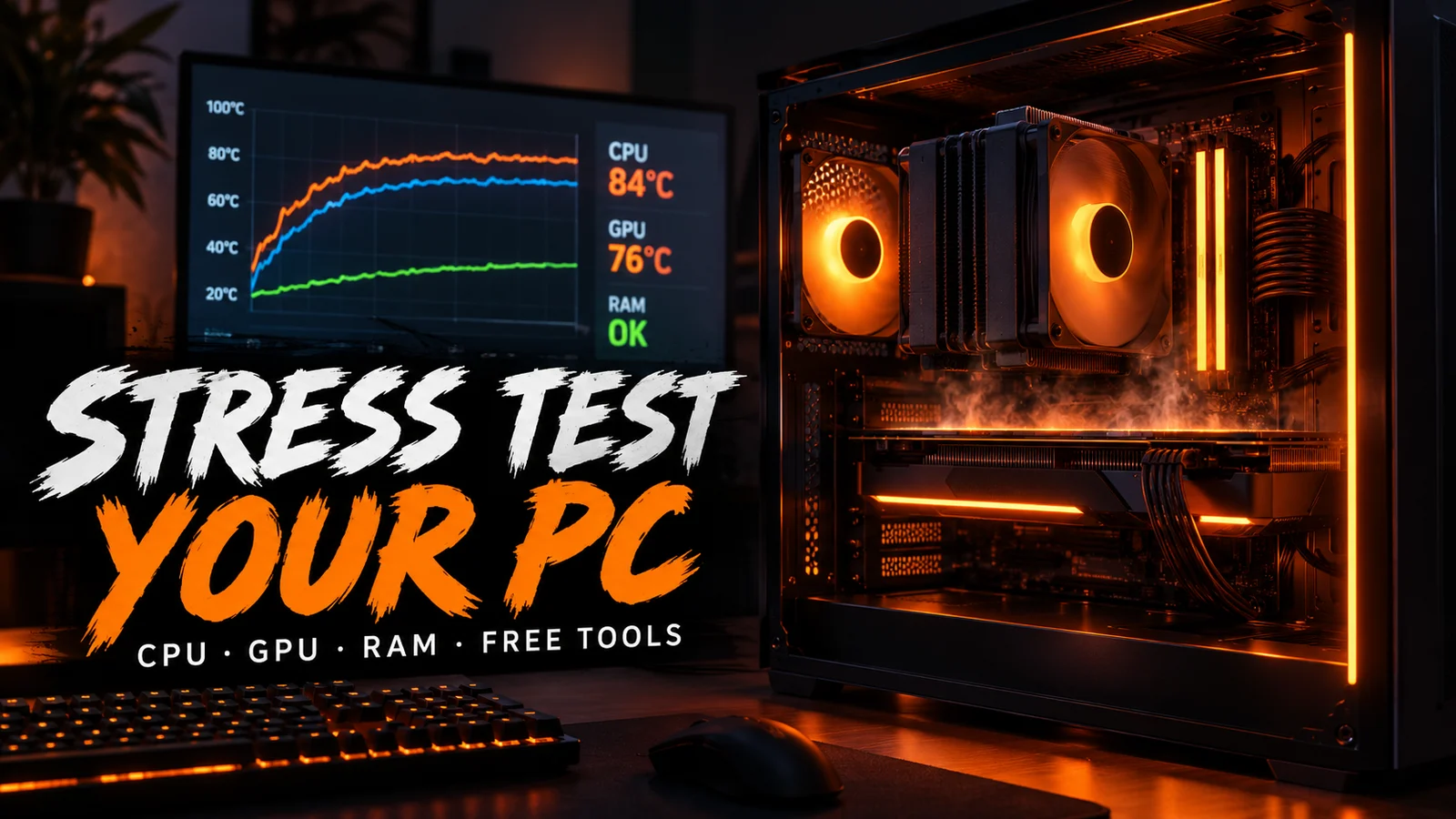
Quick answer: To stress test your PC for free, use Cinebench or Prime95 for the CPU, FurMark 2 or 3DMark for the GPU, MemTest86 or Windows Memory Diagnostic for the RAM, and OCCT to load everything at once. Keep HWiNFO open the whole time to watch temperatures. Run 10 to 30 minutes to check temperatures, and 1 hour or more to check that an overclock or XMP/EXPO profile is stable. If the PC crashes, freezes, restarts or shows errors, it fails.
Which stress test should you use?
| Part | Free tool | What it tells you | How long |
|---|---|---|---|
| CPU | Cinebench | Temperatures and clocks under a realistic all-core load | 10+ minutes |
| CPU | Prime95 (Small FFTs) | Maximum heat and stability, harder than any game | 30-60 minutes |
| GPU | FurMark 2 | Maximum GPU heat and power | 10-15 minutes |
| GPU | 3DMark (free edition) | Benchmark score to compare with other PCs | One run |
| GPU | A demanding game | Real gaming temperatures and stability | 30+ minutes |
| RAM | Windows Memory Diagnostic | Basic RAM errors, built into Windows | One run |
| RAM | MemTest86 (bootable USB) | Thorough RAM errors, outside Windows | At least 4 passes |
| Whole PC | OCCT | CPU + GPU + RAM at once, power supply load | Up to 1 hour (free limit) |
| Monitoring | HWiNFO (Sensors-only) | Temperatures, clocks, throttling | The whole time |
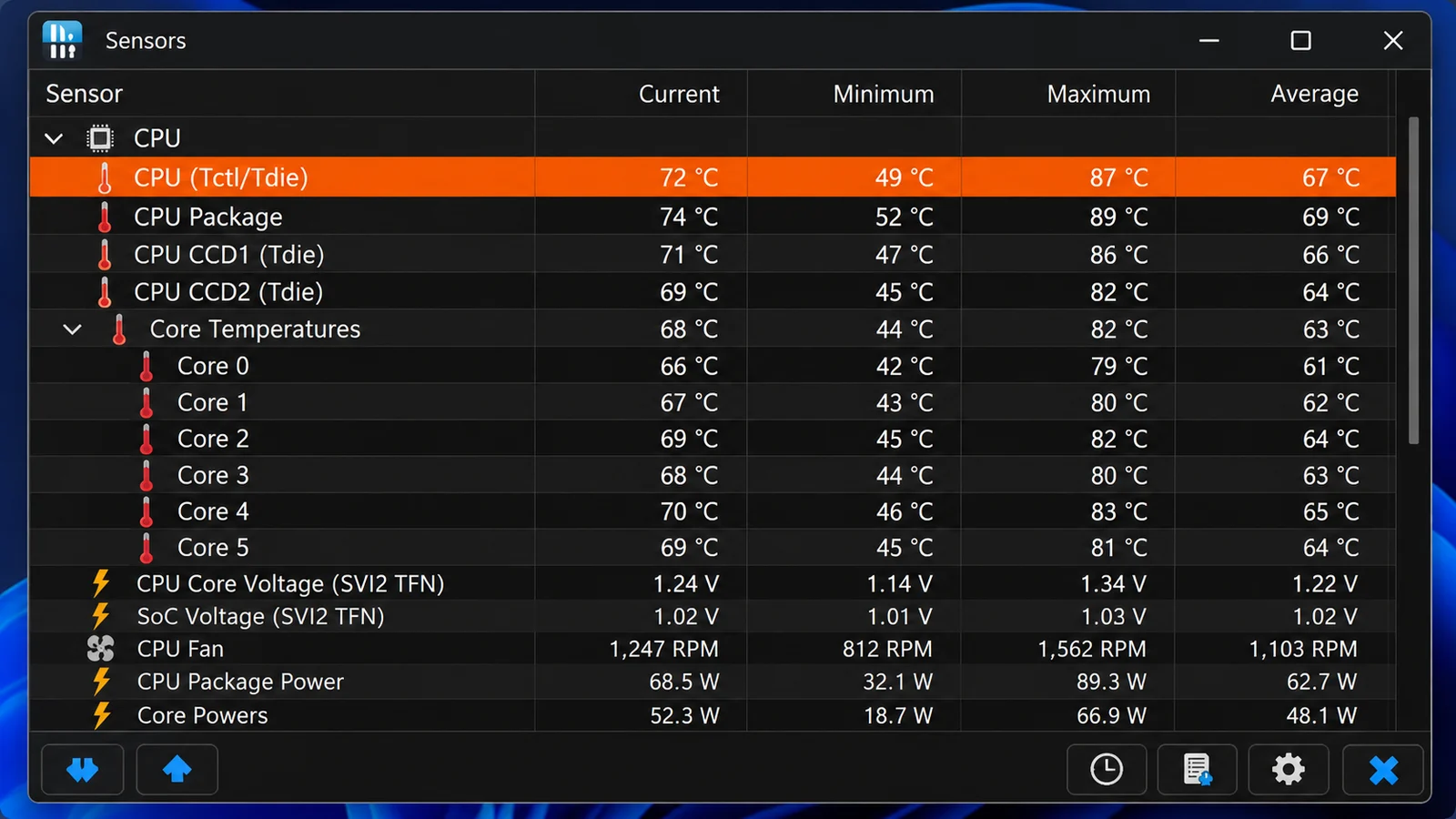
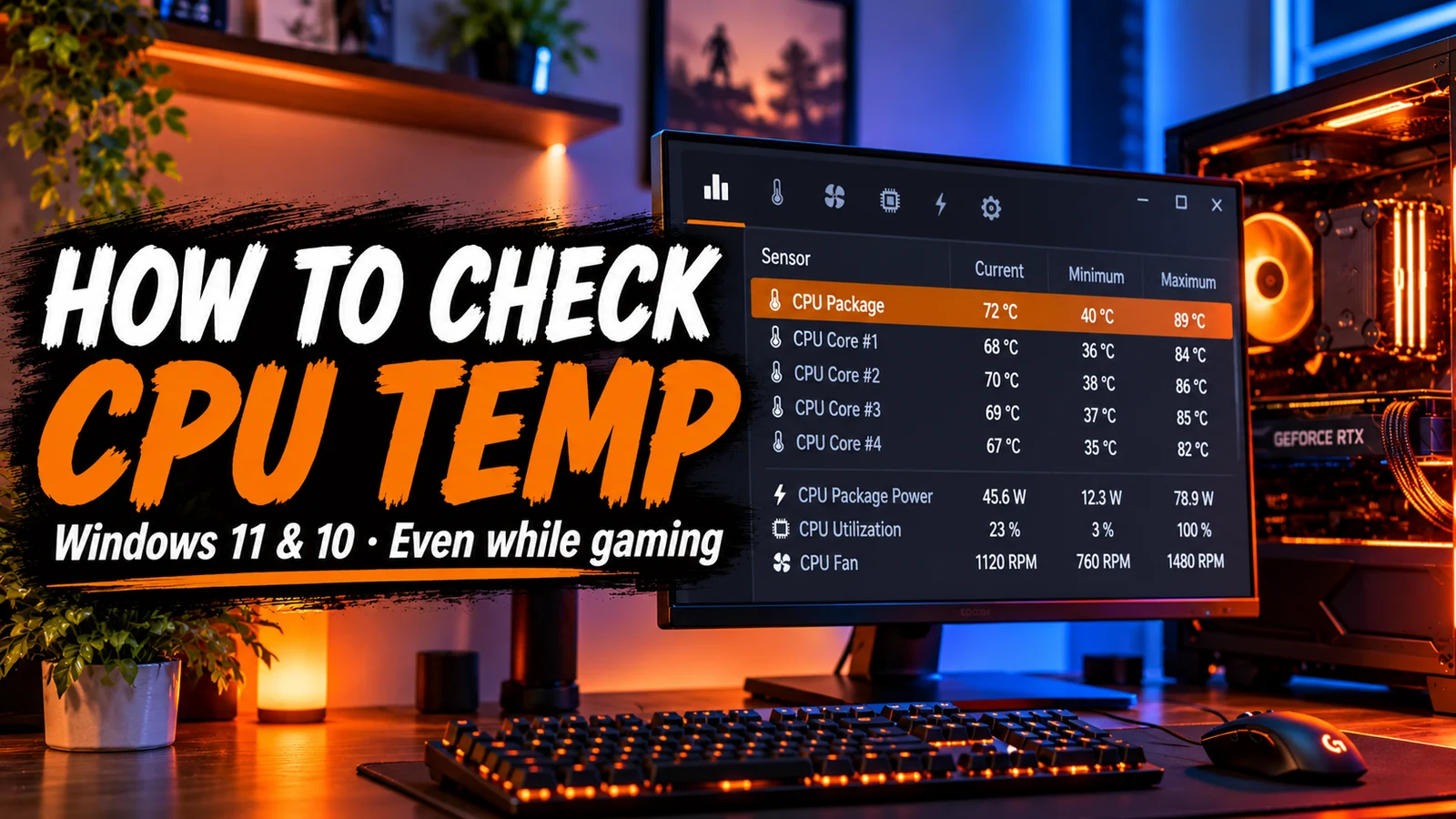
Before you start: close other apps, plug in your laptop charger, and open HWiNFO in Sensors-only mode. If you have never checked your temperatures before, read how to check your CPU temperature first.
How to stress test your CPU
Option 1: Cinebench (easiest)
- Download Cinebench for free from Maxon's website.
- Run the multi-core (CPU) test. Cinebench has a minimum run time turned on by default, and the Advanced benchmark option lets you set a longer one.
- For a real stress test, let it run 10 minutes or more and watch CPU Package (Intel) or CPU (Tctl/Tdie) (AMD) in HWiNFO.
Cinebench loads all cores like a heavy render. It is close to the worst case you will see in real use, and it gives you a score to compare with other PCs.
Option 2: Prime95 (hardest)
- Download Prime95 from mersenne.org and choose Just Stress Testing.
- Pick the test:
- Small FFTs: the hottest CPU load. Best to check your cooler.
- Large FFTs: more load on the memory controller.
- Blend: CPU and RAM together.
- Run 30 to 60 minutes. Prime95 shows an error or a stopped worker if your CPU is not stable.
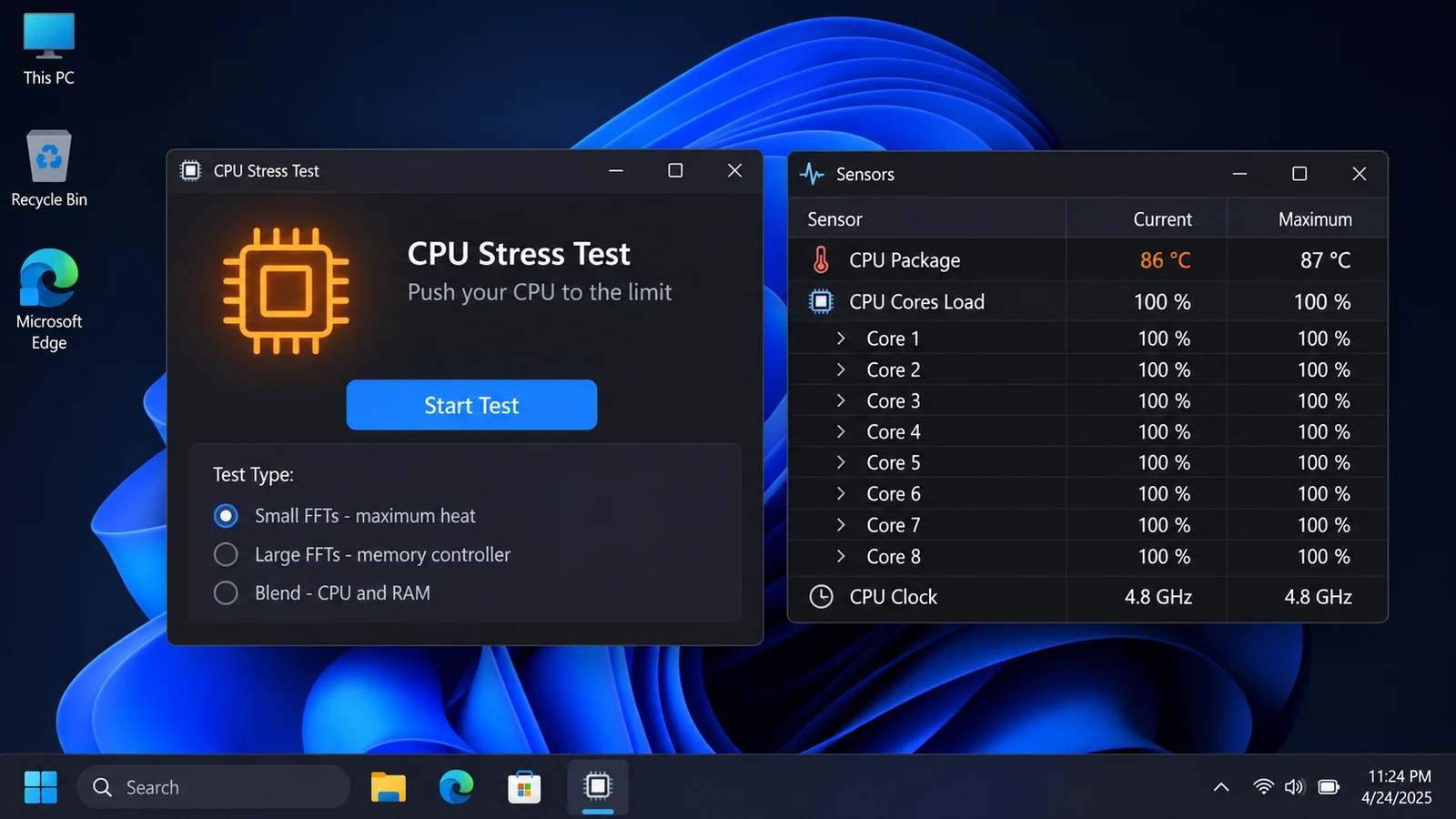
Warning: Prime95 Small FFTs makes a CPU hotter than any game. On a modern CPU it is normal to hit the temperature limit (for example 95°C on Ryzen 7000 and 9000, which is by design). If temperatures shoot up in the first seconds, stop the test and check your cooler. See normal CPU temp for every processor family.
How to stress test your GPU
Option 1: FurMark 2
- Download FurMark 2 from Geeks3D (it is free).
- Pick your screen resolution and start the stress test.
- Watch GPU Temperature and GPU Hot Spot in HWiNFO for 10 to 15 minutes.
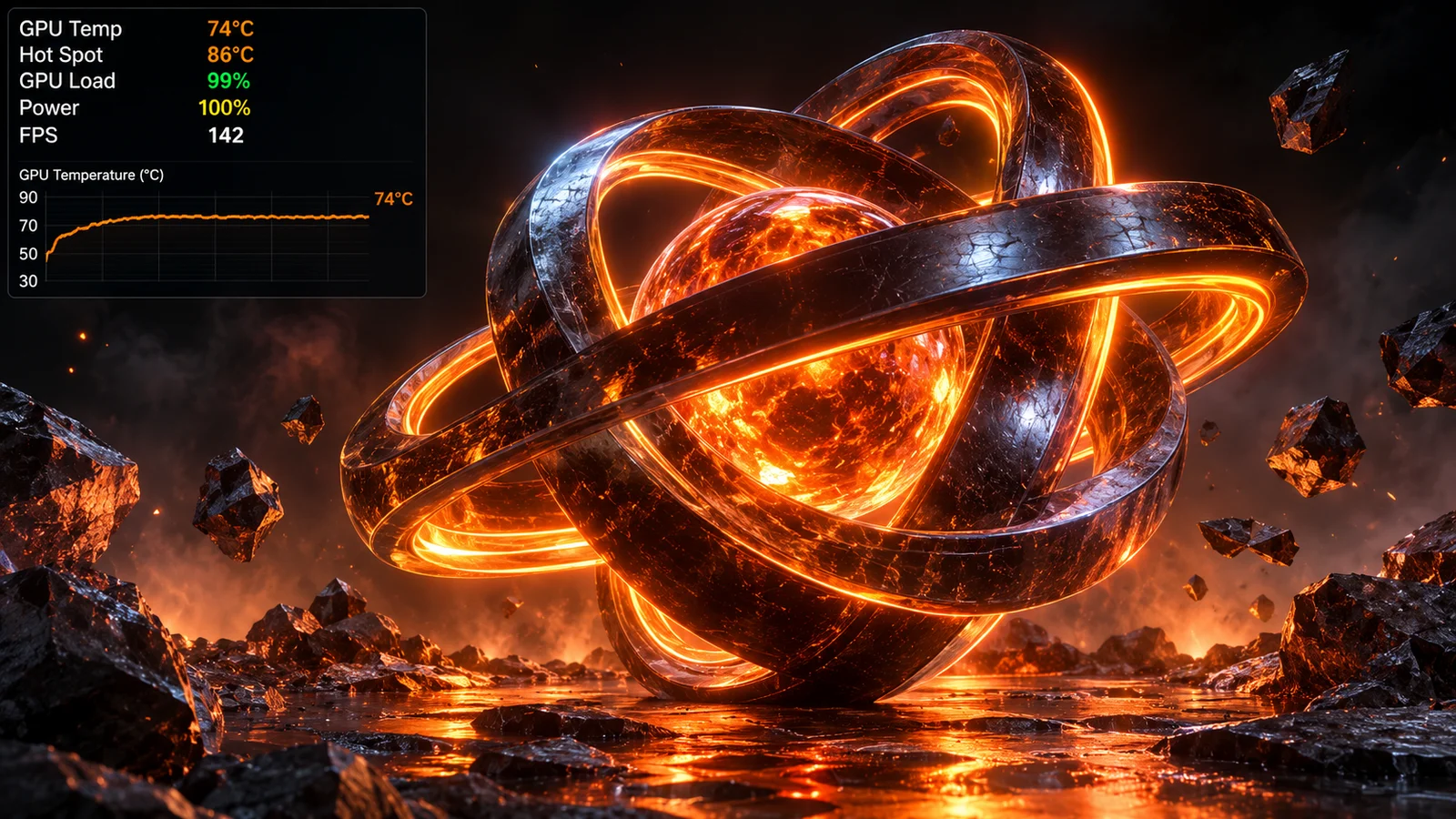
FurMark is a very heavy, unrealistic load that pushes the graphics card to its power limit. That is useful to check cooling, but you do not need to run it for hours.
Option 2: 3DMark (free edition)
The free edition of 3DMark on Steam includes benchmarks like Time Spy (DirectX 12), Fire Strike (DirectX 11), Night Raid (laptops and integrated graphics) and Speed Way (ray tracing). UL also made Steel Nomad free for all 3DMark users. These give you a score to compare with the same graphics card in other PCs. The longer stress test loops are in the paid version.
Option 3: a demanding game
The most realistic GPU test is your heaviest game at your normal settings for 30 minutes or more. If it crashes there but not in FurMark, the problem is often drivers, an unstable GPU overclock or the power supply. For normal numbers, see normal GPU temp.
How to stress test your RAM
Option 1: Windows Memory Diagnostic (built in)
- Press Windows + R, type
mdsched.exeand press Enter. - Choose Restart now and check for problems.
- The PC restarts and tests your memory. The result shows after you log back in to Windows (or in Event Viewer, under MemoryDiagnostics-Results).
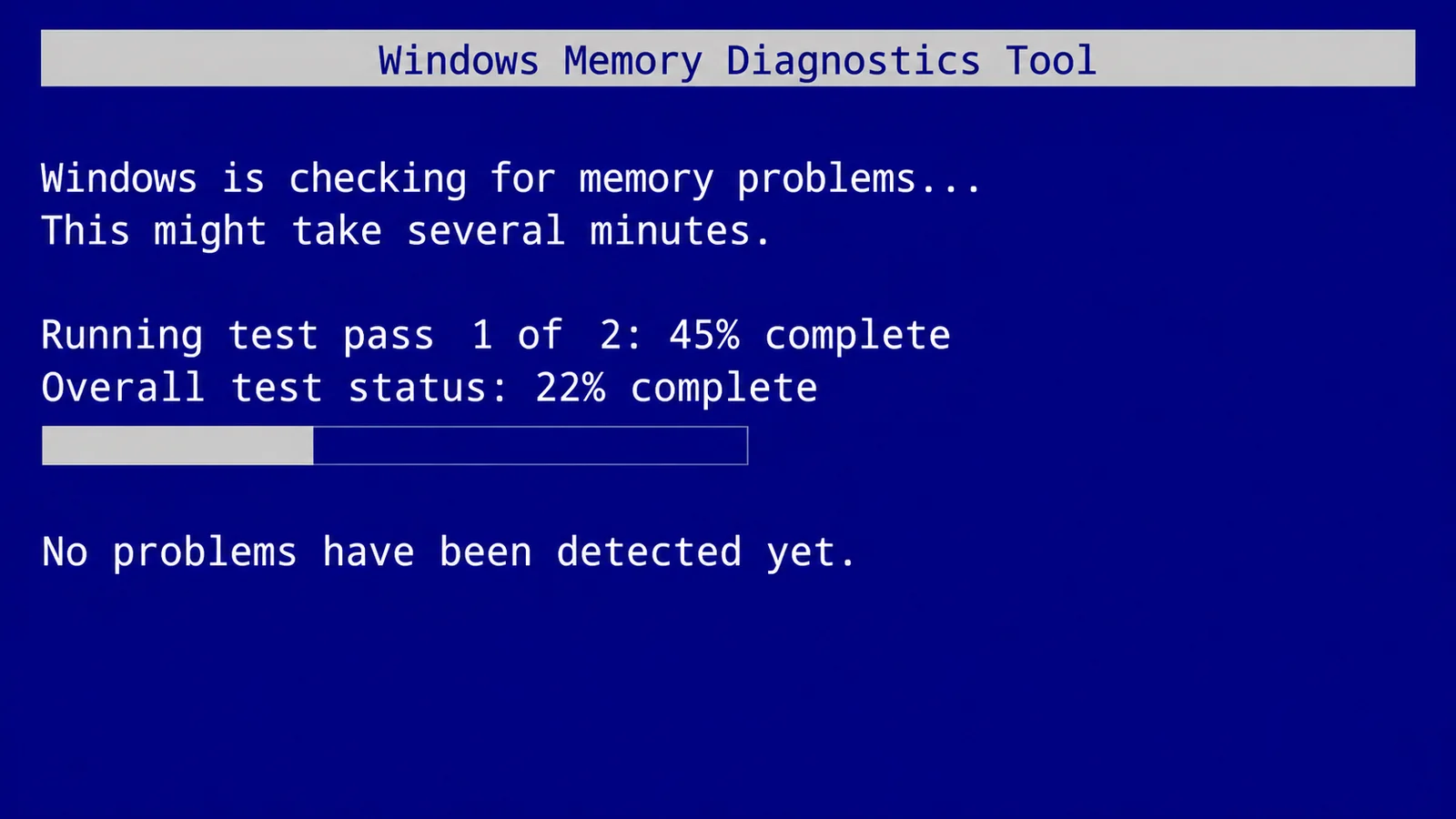
It is quick and needs nothing extra, but it is not as thorough as MemTest86.
Option 2: MemTest86 (most thorough)
- Download the free MemTest86 from memtest86.com and write it to a USB stick with the included tool.
- Boot from the USB (press your boot menu key at startup, often F8, F11 or F12).
- Let it run at least 4 passes. That can take several hours with 32 GB or more, so many people run it overnight.
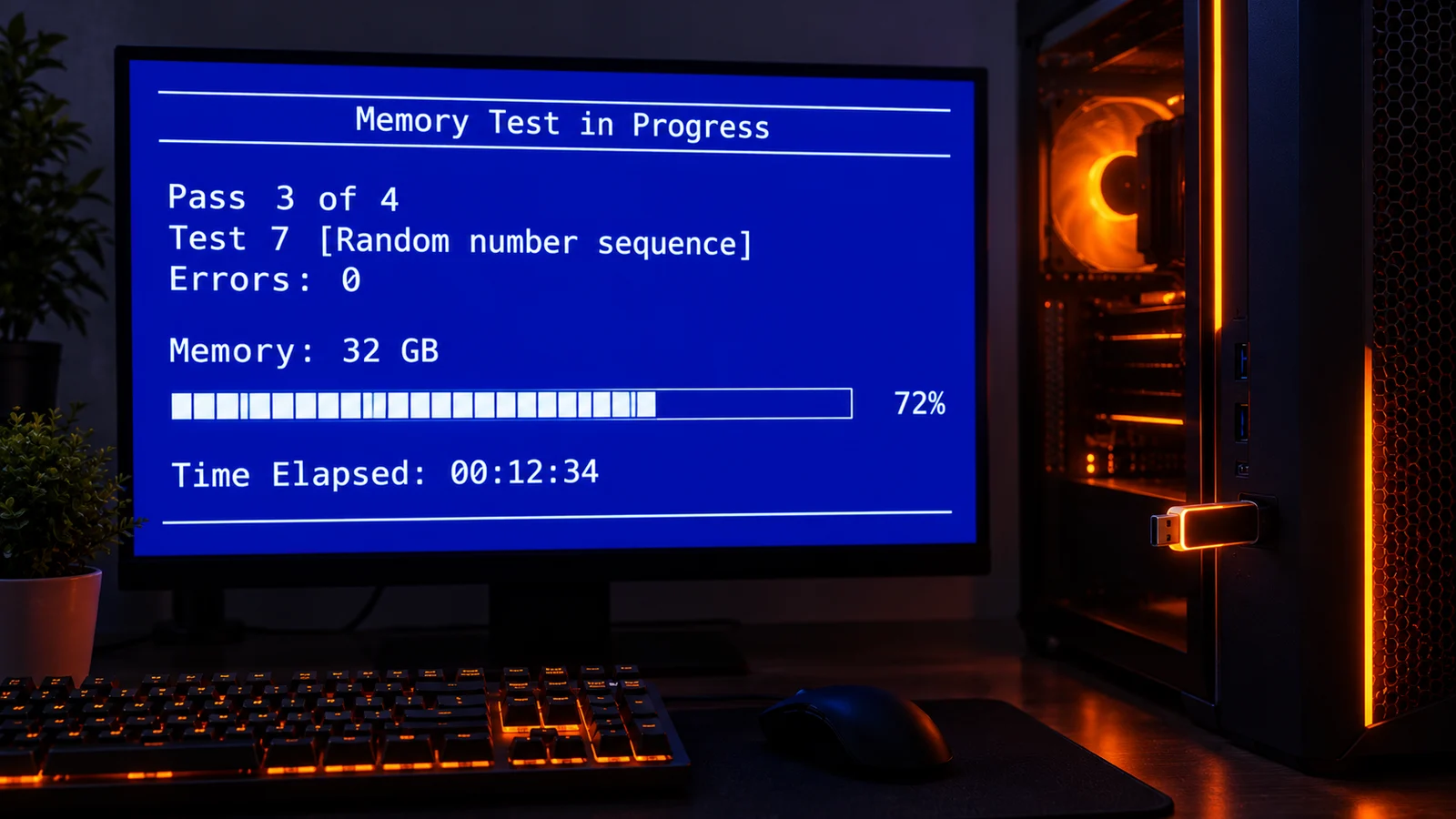
One error is a fail. Healthy RAM shows zero errors. If you get errors with XMP or EXPO on, test again with it off: the profile may be too fast for your CPU's memory controller. See XMP / EXPO: on or off?
How to stress test the whole PC (OCCT)
OCCT can load the CPU, GPU and RAM together, which also puts the power supply under the heaviest load it will see.
- Download OCCT from ocbase.com. The free edition is for personal use.
- Pick the Power test to load the CPU and GPU at the same time, or the CPU, Memory or 3D tests one by one.
- OCCT shows temperatures and stops automatically when it detects an error.
The free edition limits each test to one hour, which is enough for most checks.
If your PC shuts off instantly during the Power test (not a blue screen, just off), your power supply may not be strong enough or may be failing.
How long should you stress test?
| Goal | How long |
|---|---|
| Check that your cooler works | 10-15 minutes |
| Check temperatures after a new build or repaste | 20-30 minutes |
| Check a CPU or GPU overclock / undervolt | 1-2 hours, then a few hours of real games |
| Check a RAM overclock or XMP / EXPO | MemTest86 at least 4 passes |
| Chase random crashes | Test each part on its own, then OCCT Power |
Did your PC pass?
It passed if:
- No crash, freeze, black screen, restart or blue screen.
- No errors in Prime95, OCCT or MemTest86.
- Temperatures level off and stay below your part's limit.
- Clocks stay steady instead of dropping hard (no heavy thermal throttling).
It failed if:
- The PC crashes or restarts: usually an unstable overclock, RAM, or the power supply.
- The test shows errors: the part is not stable at those settings.
- Temperatures keep climbing to the limit and clocks drop: your cooling is not enough. Check the cooler mounting, the thermal paste and the case airflow.
- WHEA errors appear in HWiNFO or Event Viewer: a sign of instability even without a crash.
Not sure if your number is too hot? Enter it in our free temp checker.
Is stress testing safe?
Yes, for a healthy PC. CPUs and GPUs slow down or shut off on their own before they reach a dangerous temperature. Still:
- Watch the temperatures for the first minutes, and stop if they hit the limit right away.
- On laptops, keep tests shorter: laptops are built to run hot, and long FurMark or Prime95 runs only add heat.
- Do not leave a heavy test running unattended if you are not sure your cooling works.
FAQ
What is the best free PC stress test?
OCCT for the whole PC, Prime95 or Cinebench for the CPU, FurMark 2 for the GPU and MemTest86 for the RAM. Keep HWiNFO open to watch temperatures.
How long should I stress test my CPU?
10 to 30 minutes to check temperatures. 1 hour or more to check that an overclock or undervolt is stable.
How do I stress test my RAM on Windows?
Press Windows + R, type mdsched.exe and restart. For a more thorough test, boot MemTest86 from a USB stick and run at least 4 passes.
Can a stress test damage my PC?
Not a healthy one. Parts protect themselves by slowing down or shutting off. Stop the test if temperatures hit the limit right away, which points to a cooling problem.
Why does my PC crash during a stress test but not in games?
Stress tests load the parts harder than games. A crash usually means an unstable overclock or XMP/EXPO profile, a weak power supply, or cooling that is not enough.
Sources: OCCT free edition features, 3DMark Basic edition benchmarks, Maxon Cinebench technical information, MemTest86 technical information and FurMark 2 by Geeks3D. Checked November 29, 2026.

Editor at FpsGen. Covers PC releases, system requirements and beginner guides. Guides and reviews are built on official sources, patch notes and real player data. All articles →

Comments
No comments yet. Start the conversation.