

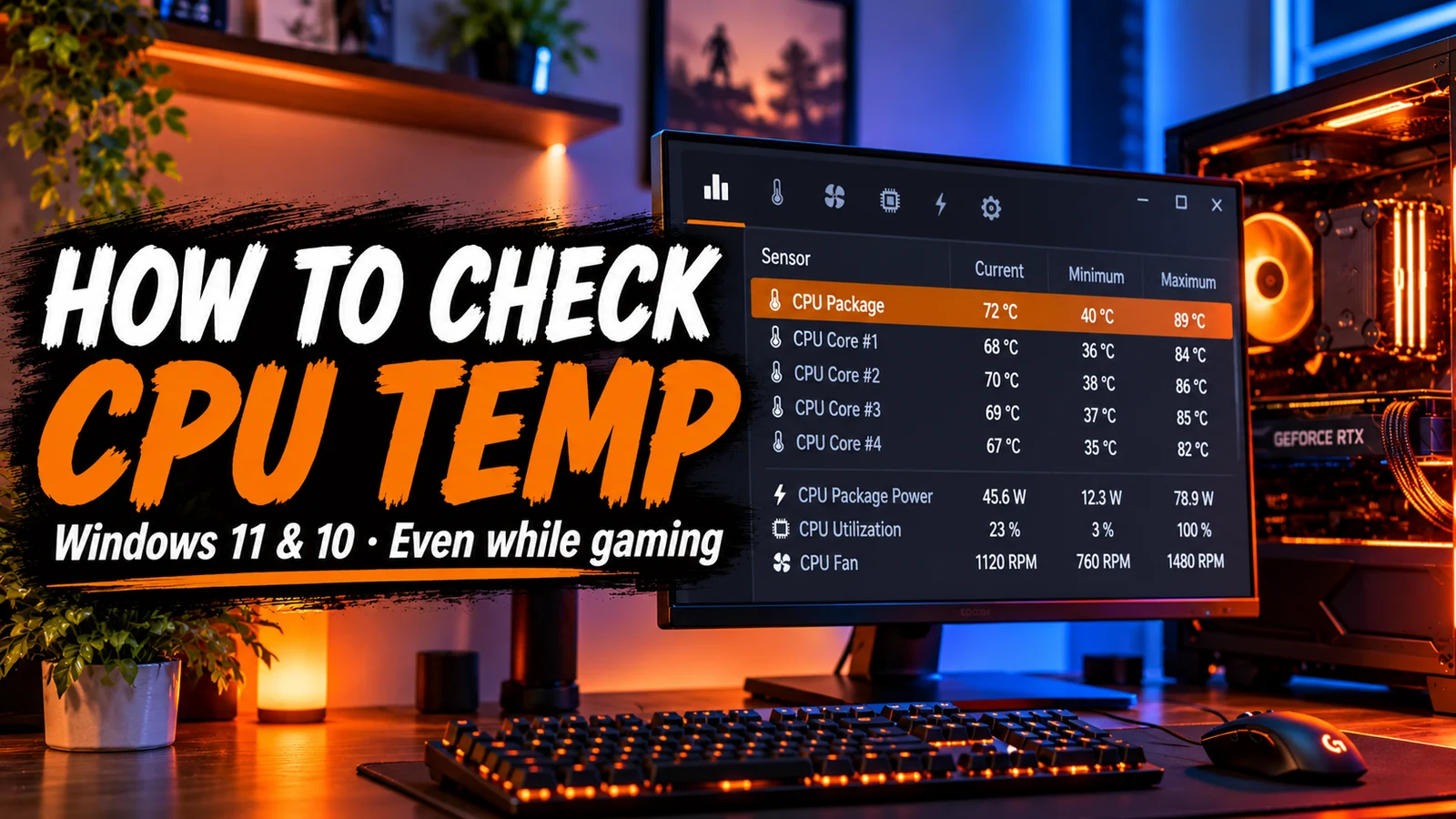
Quick answer: Windows 11 and 10 do not show your CPU temperature anywhere built in, not even in Task Manager. The easiest free way is HWiNFO in Sensors-only mode: read "CPU Package" on Intel or "CPU (Tctl/Tdie)" on AMD. Other ways: Core Temp, HWMonitor, AMD Ryzen Master, the BIOS, or MSI Afterburner to see it while gaming. A normal CPU sits at 30-50°C at idle and 55-80°C while gaming.
Every way to check your CPU temperature
| Method | Free | Shows temp while gaming | Best for |
|---|---|---|---|
| HWiNFO (Sensors-only) | Yes | Yes (Maximum column, or on-screen) | Everyone: the most accurate |
| Core Temp | Yes | In the taskbar tray | A quick look per core |
| HWMonitor | Yes | Min / Max columns | Simple and light |
| AMD Ryzen Master | Yes | Yes | Ryzen processors only |
| MSI Afterburner + RTSS | Yes | On-screen in the game | Watching temps live while playing |
| BIOS / UEFI | Built in | No, only at idle | Checking without installing anything |
| Laptop apps (Armoury Crate, OMEN Gaming Hub...) | Built in | Yes, on most | Gaming laptops |
| Task Manager | Built in | GPU only | Your GPU temperature, not the CPU |
Method 1: HWiNFO (recommended)
- Download HWiNFO from its official website (hwinfo.com). The free version is enough.
- Start it and choose Sensors-only.
- Find the CPU section and read the right line:
- Intel: CPU Package
- AMD Ryzen: CPU (Tctl/Tdie)
- Play a game for 15 to 20 minutes, then come back and look at the Maximum column: that is your gaming temperature.
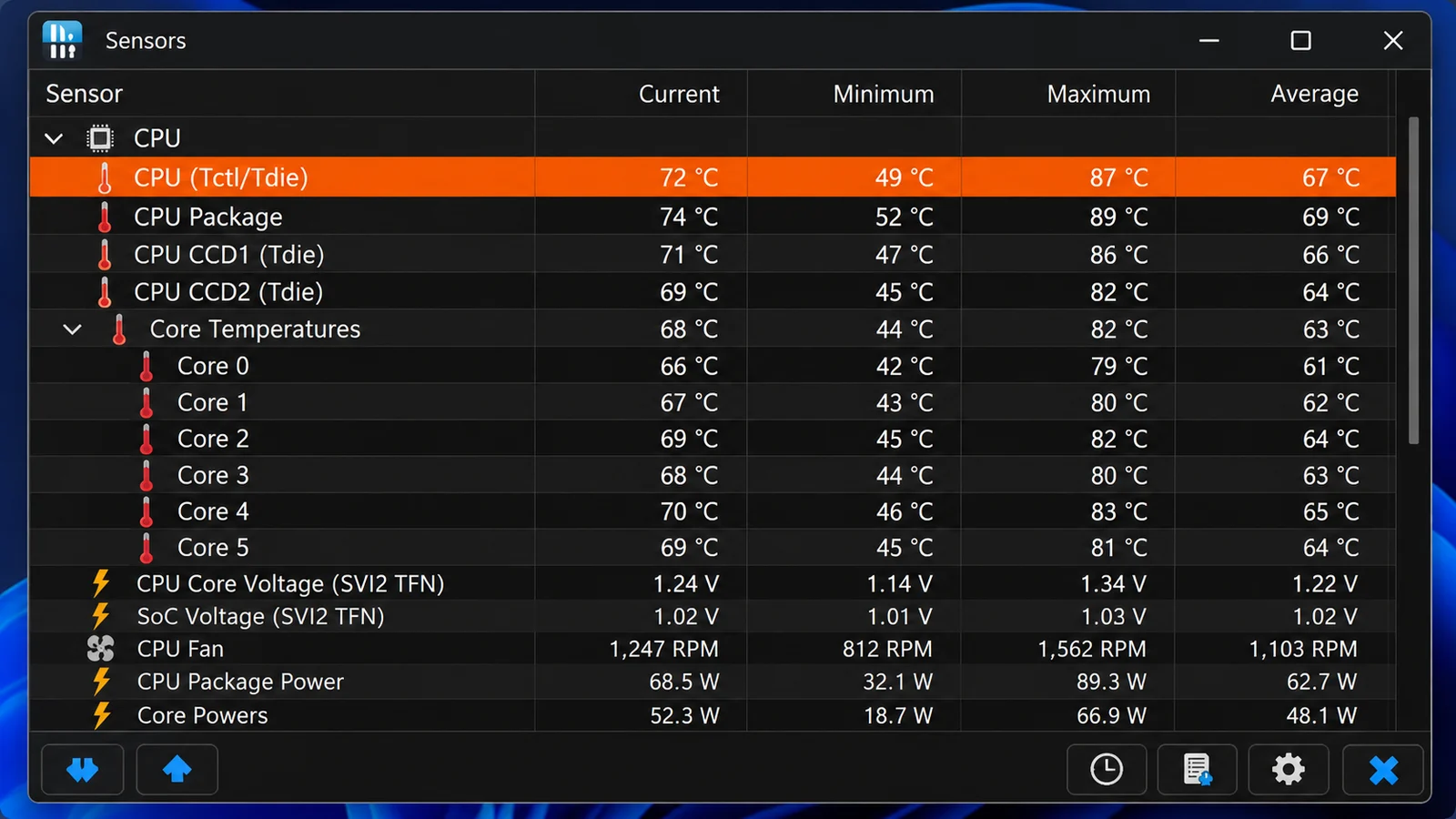
Which number matters? The package temperature (Intel) or Tctl/Tdie (AMD). Single core temperatures jump up and down every second and are normally a few degrees lower.
Method 2: Core Temp or HWMonitor
- Core Temp shows the temperature of each core and can put it in the taskbar tray, so you see it at a glance. During setup, untick any extra software offered with it.
- HWMonitor (by CPUID) lists every sensor with Min and Max columns. Leave it open while you play, then read the Max value.
Both are free and light. HWiNFO stays more complete if you also want power, clocks and fan speeds.
Method 3: AMD Ryzen Master (Ryzen only)
If you have a Ryzen processor, AMD's own Ryzen Master shows the CPU temperature on its home screen, next to the core clocks.
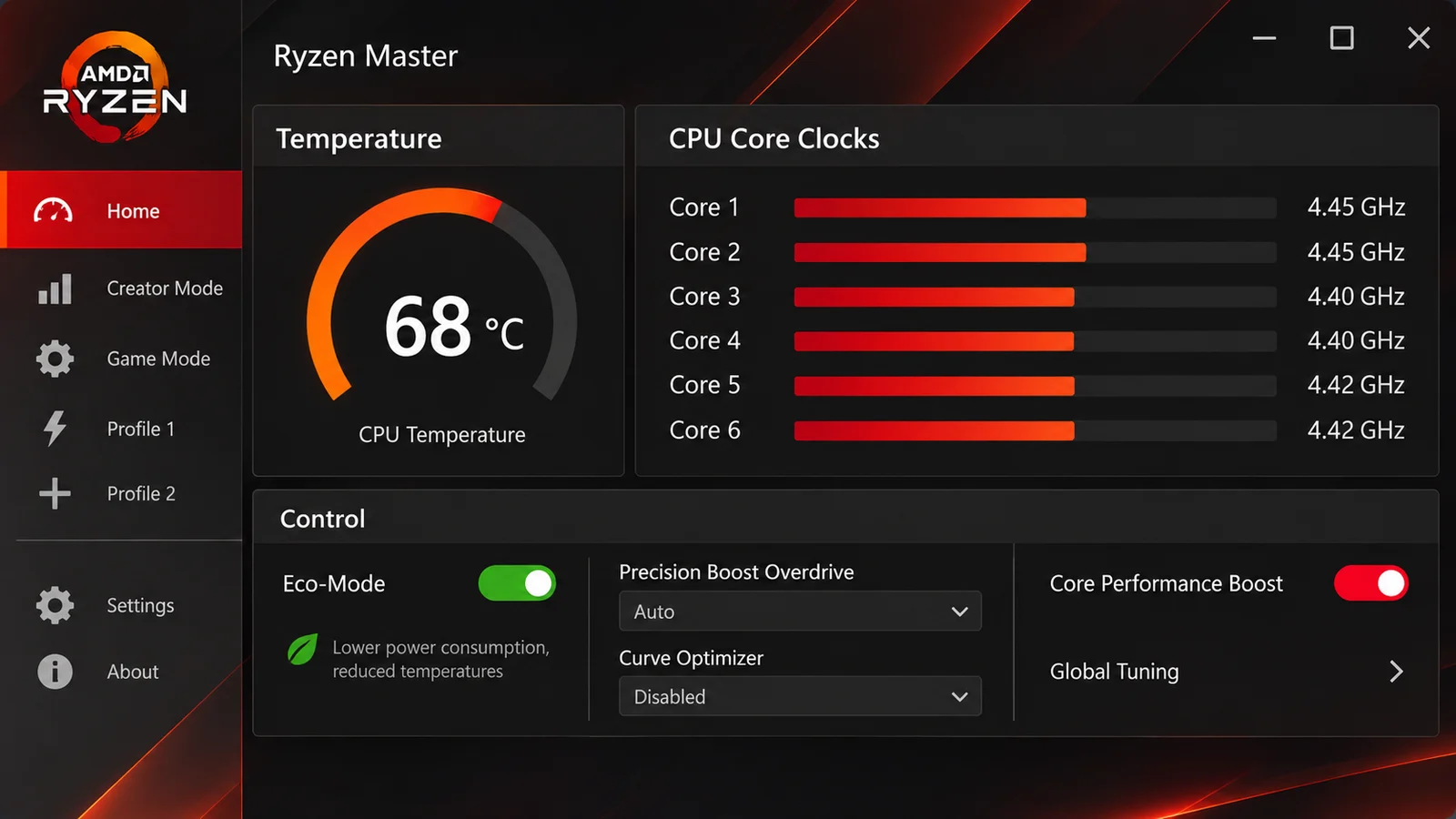
Ryzen 7000 and 9000 are designed to run up to 95°C under heavy load, so a high number there is not always a problem. See normal CPU temp for every processor family.
Method 4: see your CPU temp while gaming (on-screen)
- Install MSI Afterburner (it comes with RivaTuner Statistics Server). It works with any graphics card brand.
- Open Settings > Monitoring.
- Find CPU temperature, tick it and enable Show in On-Screen Display.
- Start a game: the temperature shows in a corner of the screen.
Method 5: the BIOS (no software)
- Restart your PC and press Del or F2 during startup (the key depends on your motherboard).
- Look for PC Health, Hardware Monitor or H/W Monitor.
The BIOS only shows your temperature at idle. You cannot see your gaming temperature there.
Can Windows show CPU temperature without an app?
Not reliably.
- Task Manager shows your GPU temperature (Performance > GPU) on dedicated graphics cards, but never the CPU.
- A PowerShell command (as administrator) reads the ACPI thermal zone:
Get-CimInstance -Namespace root/wmi -ClassName MSAcpi_ThermalZoneTemperature. The value is in tenths of Kelvin (divide by 10, then subtract 273.15). On many PCs it fails, or it returns a motherboard sensor that is not the CPU. Use HWiNFO instead.
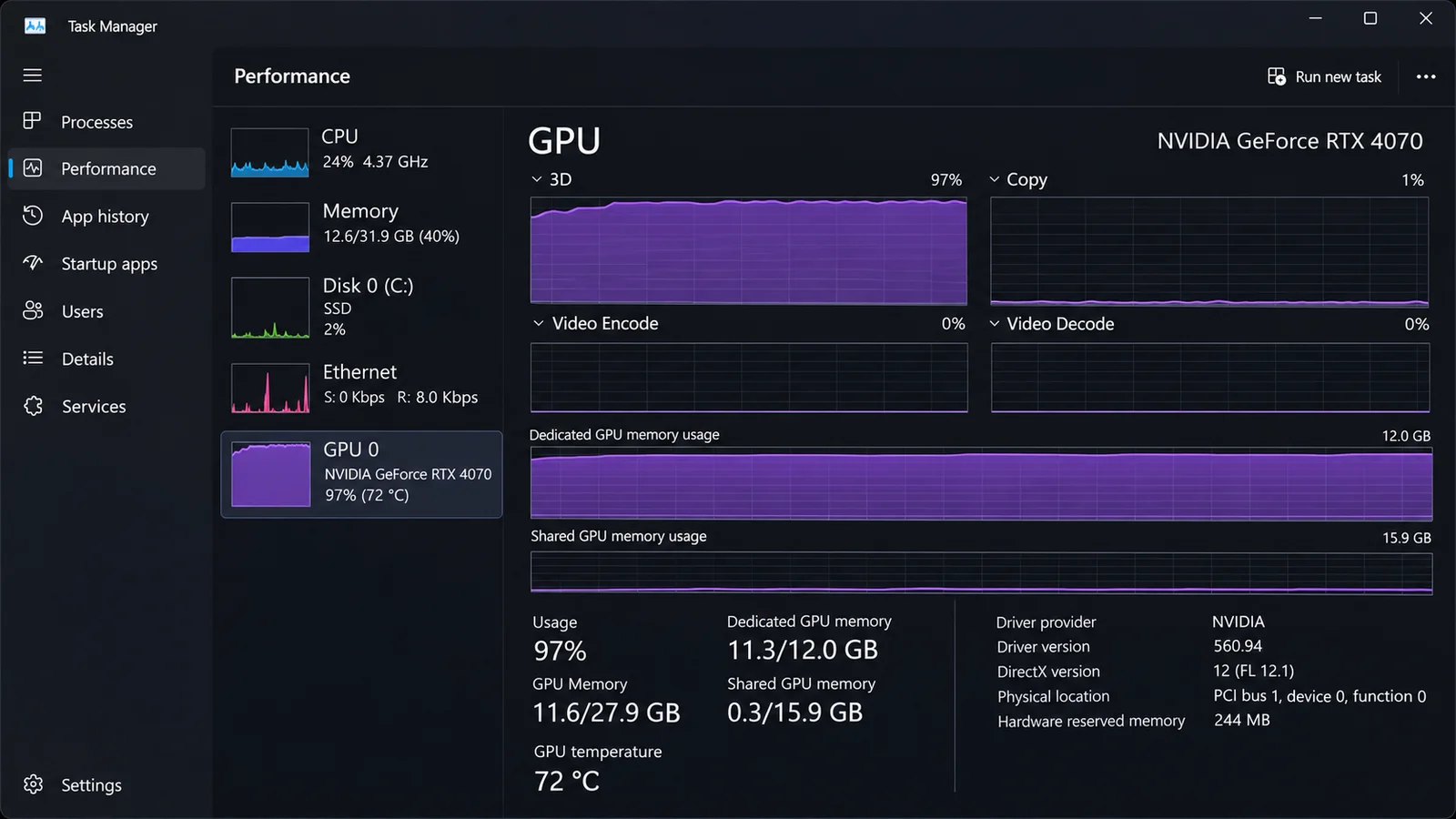
For your graphics card, see normal GPU temp.
Checking CPU temperature on a laptop
The same apps work on laptops (HWiNFO, Core Temp, HWMonitor). Gaming laptops often have their own app too, such as Armoury Crate (ASUS) or OMEN Gaming Hub (HP). Laptop CPUs run hotter than desktops: 80-90°C while gaming is common.
Is my CPU temperature normal?
| State | Normal | Check your cooling | Too hot |
|---|---|---|---|
| Idle (desktop) | 30-50°C | 50-60°C | Over 60°C |
| Gaming (desktop) | 55-80°C | 80-90°C | Over 90°C (except Ryzen 7000/9000, up to 95°C by design) |
Enter your number in our free temp checker to see if it is fine for your exact processor, or jump to a quick answer like is 80°C hot for a CPU?
FAQ
How do I check my CPU temperature on Windows 11?
Windows 11 has no built-in CPU temperature view. Install HWiNFO (free), choose Sensors-only and read "CPU Package" (Intel) or "CPU (Tctl/Tdie)" (AMD).
Can Task Manager show CPU temperature?
No. Task Manager shows the GPU temperature on dedicated graphics cards, but not the CPU temperature.
How do I check my CPU temperature while gaming?
Use MSI Afterburner with RivaTuner to show it on screen, or leave HWiNFO open and read the Maximum column after playing.
What is a good CPU temperature while gaming?
55-80°C for most desktop processors. Up to 90°C is safe but means your cooling is working hard.
How do I check CPU temperature without software?
Open the BIOS (Del or F2 at startup) and look for PC Health or Hardware Monitor. It only shows the idle temperature.
Sources: FpsGen temperature guides (normal CPU temp, normal GPU temp) and the official HWiNFO, CPUID, AMD and MSI tools. Checked November 29, 2026.

Editor at FpsGen. Covers PC releases, system requirements and beginner guides. Guides and reviews are built on official sources, patch notes and real player data. All articles →

Comments
No comments yet. Start the conversation.