

Before you spend money or hours on a new game, you want one answer: will it actually run on your PC, and how well? This guide shows you how to find out in about two minutes, for any game, even if you have no idea what is inside your computer.
Quick answer: find your graphics card, processor and RAM (Task Manager shows all three), then compare them with the game's official system requirements. The fastest way is our free Can I Run It checker: pick your parts once and it tells you, for every game, whether your PC can run it and on which settings.
Step 1: Find out what is inside your PC
Three parts decide almost everything: the graphics card (GPU), the processor (CPU) and the memory (RAM). Here are three ways to see them on Windows, from fastest to most detailed.
Task Manager (10 seconds)
- Press Ctrl + Shift + Esc.
- Open the Performance tab.
- Click CPU for your processor name, Memory for your RAM, and GPU 0 (and GPU 1 if you have one) for your graphics card.
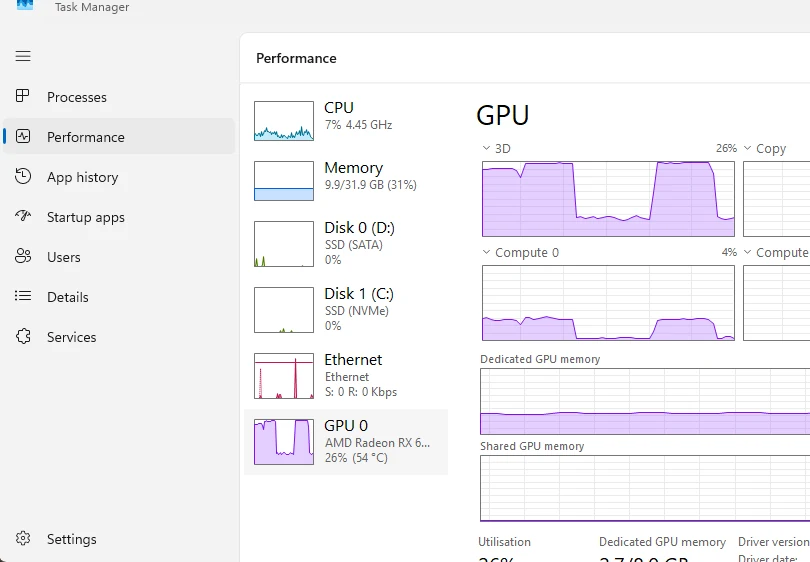
On a laptop you often see two GPUs: a weak one built into the processor (Intel UHD, Intel Iris, AMD Radeon Graphics) and a stronger one (GeForce or Radeon RX). For games, the stronger one is the one that counts.
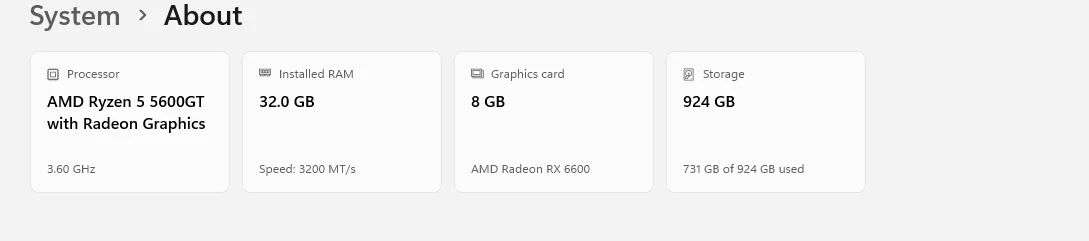
Settings (for the exact RAM and processor)
Open Settings > System > About. On recent versions of Windows 11, the top of the page shows four cards: processor, RAM, graphics card and storage. On older versions, look under Device specifications for the processor and RAM.
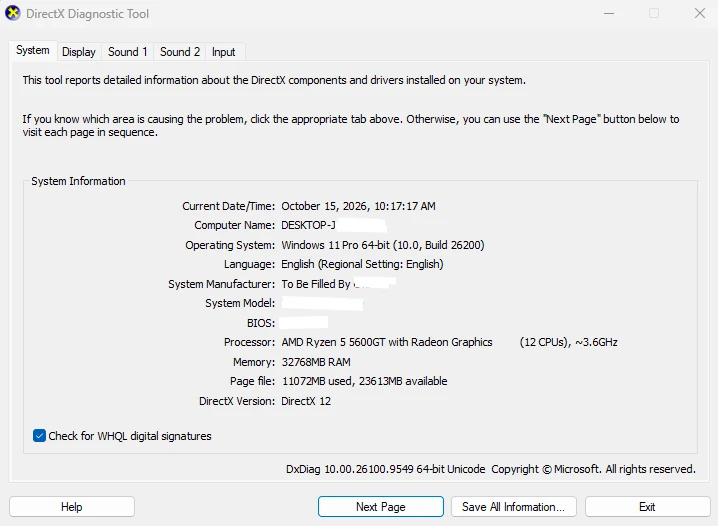
DirectX Diagnostic Tool (the most detail)
Press Win + R, type dxdiag and press Enter. The System tab shows your processor, memory, Windows version and DirectX version.
The Display tab shows your graphics card and its video memory (Display Memory (VRAM)). Ignore "Approx. Total Memory": it adds part of your system RAM and makes the card look bigger than it is.
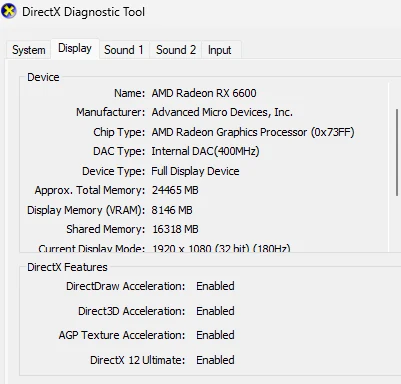
Write the three names down, or keep the window open for the next step.
Step 2: Check them against the game
You can do this by hand: open the game's store page, scroll to System Requirements, and compare each line with your parts. It works, but comparing graphics cards across brands and generations is where most people get it wrong. Is a GTX 1660 better than an RX 580? Is a Ryzen 5 3600 above an i5-9400?
That is exactly what our checker does for you:
- Open Can I Run It.
- Type your graphics card and processor, and pick your RAM. You can also press Auto-detect (see below).
- Tick Remember my PC so you never type it again on FpsGen.
- You get a result for every game on the list at once. Click a game for its full page with the official requirements.
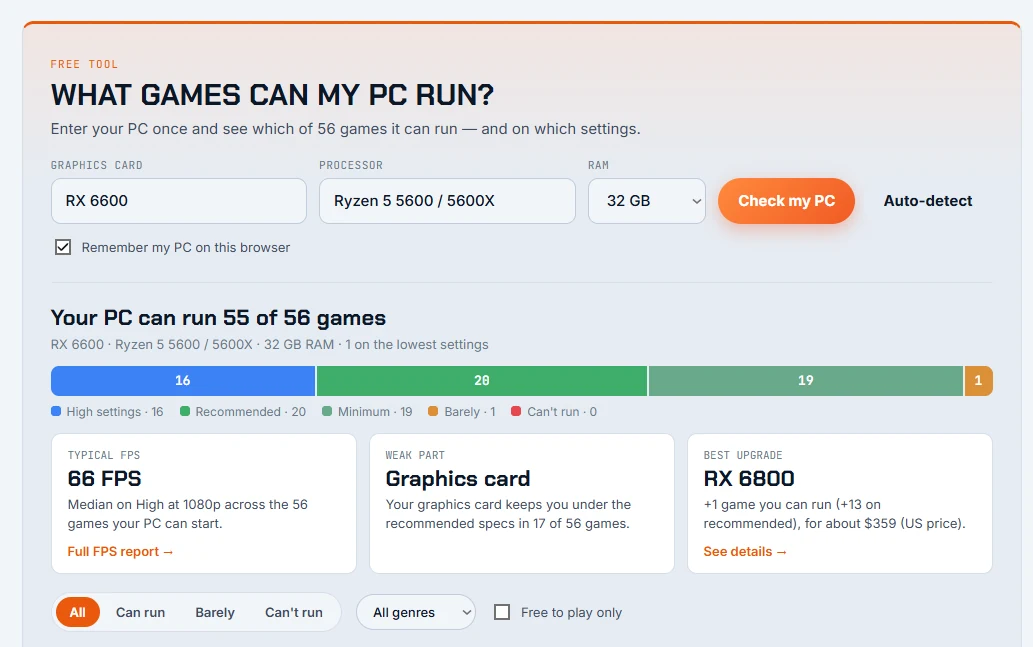
There is no Ryzen 5 5600GT in the list, so the closest processor was picked. When your exact model is missing, choose the nearest one from the same generation.
About Auto-detect: your browser can tell us your graphics card, but never the exact name of your processor, only how many threads it has. So Auto-detect fills in the GPU and suggests a typical processor for your PC, marked as an estimate. Check it against Task Manager and correct it if needed. Browsers also never report more than 8 GB of RAM, so pick the real amount yourself if you have more.
Want to try it on one game right now? Here is the checker for War Thunder:
Pick your hardware and we compare it with the official War Thunder requirements.
Official War Thunder PC requirements
| Minimum | Recommended | |
|---|---|---|
| OS | Windows 10 (64-bit) | Windows 10/11 (64-bit) |
| CPU | Dual-Core 2.2 GHz | Intel Core i5 or Ryzen 5 3600 and better |
| RAM | 4 GB | 16 GB and more |
| GPU | DirectX 11 card: AMD Radeon 77XX / NVIDIA GeForce GTX 660 | NVIDIA GeForce GTX 1060 / Radeon RX 570 and higher |
| Storage | 23.1 GB (minimal client) | 75.9 GB (full client) |
Source: official War Thunder website. Results are estimates based on relative hardware performance.
Step 3: Read the result
Each game gets one of five results. Here is what they mean in practice.
| Result | What it means | What to expect |
|---|---|---|
| Above recommended | Your PC is stronger than what the developer recommends | High to max settings |
| Meets recommended | Your PC matches the recommended specs | Medium to high settings |
| Meets minimum | Your PC matches the minimum, not the recommended | Low to medium settings |
| Below minimum | One part is under the minimum | It may start, on the lowest settings, with drops |
| Too weak | One or more parts are far below the minimum | Not playable |
The result is set by your weakest part. A strong graphics card with 8 GB of RAM in a game that asks for 16 GB will still be held back by the RAM.
Minimum vs recommended: what the requirements really mean
Minimum requirements are what the developer needs for the game to start and be playable, usually at 1080p or lower, on low settings, around 30 FPS. Recommended requirements usually mean a smooth experience at 1080p on medium to high settings, often around 60 FPS.
Developers do not all measure the same way, so treat both as a starting point:
- Graphics card: matters most for resolution and settings. If you are below the GPU requirement, lower the resolution or use upscaling (FSR, DLSS or XeSS) before giving up.
- Processor: matters most for high FPS and big multiplayer matches. A weak CPU causes stutter even when the GPU is fine.
- RAM: 16 GB is the standard for most new PC games in 2026. With 8 GB, close your browser and other apps before you play.
- Storage: many new games now list an SSD as required. On a hard drive they can load slowly or stutter while they stream new areas.
- Windows and DirectX: almost every new game needs 64-bit Windows 10 or 11. Some need DirectX 12, which older graphics cards do not fully support.
My PC can't run it. What now?
You have more options than buying a new PC:
- Lower the settings first: resolution, shadows and effects make the biggest difference.
- See your real FPS: our FPS Estimator shows what your hardware should get at each preset and resolution, and what holds it back.
- Upgrade one part: usually the graphics card. Our Compare Hardware tool puts two cards or processors side by side with their specs and prices.
- Know your budget: PC Price Estimate shows what your current PC is worth and what an upgrade costs.
FAQ
Is the Can I Run It check accurate?
It compares your parts with the official requirements published by the developer or on Steam, using a performance score for each graphics card and processor. It tells you reliably whether you are above or below each requirement. Real FPS also depend on drivers, temperatures and background apps, so see it as a strong estimate, not a promise.
Do I need to add anything to my PC?
No. The checker runs in your browser and nothing is added to your computer. Your parts are saved only in your own browser, and only if you tick Remember my PC. Like most sites, we use anonymous statistics to see which games and parts people check the most (see our Cookie Policy).
Can I check a gaming laptop?
Yes. Pick the laptop version of your graphics card if the list shows one (for example "RTX 4060 Laptop"). Laptop GPUs are usually slower than the desktop card with the same name.
Can integrated graphics run games?
Light and older games, yes, on low settings. Recent integrated graphics like AMD's Radeon 780M are good enough for many free-to-play games. Big new releases usually need a dedicated graphics card.
Is it free?
Yes, all FpsGen tools are free.
The checker uses the official requirements of each game, from the developer or its Steam page. Requirements can change with game updates.

Gaming writer at FpsGen. Guides and reviews are built on official sources, patch notes and real player data.


Comments
No comments yet. Start the conversation.